


•Filip Premuš• 26 min read
Games
Losing game progress is frustrating in a very specific way. The loss might hit instantly or only become clear when you start the game and find a blank save slot. Whether it happens after a reinstall, a crash, or an accidental deletion, the result is the same: hours of effort seem lost.
The good news is that the data is not always gone right away. In many cases, deleted files remain on your system until something replaces them, or they still exist in a backup or cloud copy. The challenge is knowing where to look and what to try first. In this guide, we’ll walk through how to recover deleted game saves on PC, what methods actually work, and what to avoid so you don’t make the situation worse.
Also Read: All Resident Evil Games in Order
Before you try to recover deleted game files on PC, you need to know where to look. Saves are not all in one place. Different games, engines, and launchers each pick their own corner of your drive. The most common locations include:
%APPDATA% and %LOCALAPPDATA%
%USERPROFILE%\Saved Games
%USERPROFILE%\Documents\My Games
%LOCALAPPDATA%\Low
Steam\userdata\[SteamID]\[AppID]
You can paste any of those paths directly into the File Explorer address bar to open them instantly. Knowing the correct folder first narrows everything down and makes every method more effective.
One note: some Unity-based games store player preferences in the Windows registry under HKCU\Software\[Company]\[Product], not in files at all. This means they won't show up in any folder, and recovery tools won't find them either. If your "save" includes key bindings or settings that aren't loading, that's likely why.
Before you try any recovery method, pause for a moment. What you do right after losing your saves has a direct impact on whether you can get them back. This matters most when you have no backup, and if you're not sure whether you do, it's better to assume you don't and act accordingly.
Your main goal now is to not overwrite the data.
Stop using the drive where the game was installed. Avoid downloading, installing, or moving files.
Do not reinstall the game yet. Reinstallation can overwrite the same folders where your saves were stored.
Avoid launching the game repeatedly. Some games create new save files or sync empty data.
Check cloud sync status before doing anything else. Launchers like Steam may overwrite local files if there’s a conflict.
Deleted data and overwritten data are two different problems. Deleted data can often be recovered. The file record is gone, but the bytes are still there. Overwritten data is harder. If your save slot was replaced by a new save with zero progress, file recovery tools won't help. Your only real options at that point are backups.
Also Read: 5 Must-Play Action Horror Games Like Resident Evil
Before using recovery tools or digging into backups, it’s worth doing a few quick checks. They can save you a lot of time eventually.
Check the Recycle Bin first. If you deleted the files manually, they may still be there. Open the Recycle Bin, search for your game name or common save file formats like .sav or .dat, then restore them. This brings everything back to the original location instantly.
Double-check the save folder. It’s easy to assume files are deleted when they were moved, renamed, or stored under a different user profile. If you recently reinstalled the game or changed settings, the save path may have changed too.
Look for .bak files and autosave slots. Many games quietly keep backup copies in the save folder under names like save1.bak, autosave.dat, or a numbered slot you haven't checked. If you find a backup file, copy it and rename it to match your main save file (e.g. save1.bak to save1.sav).
If none of that surfaces anything, move on to actual recovery methods.
When saves are not in the Recycle Bin and no backup exists, this is the only method that may work. It is also time-sensitive, which is why it comes first. When a file is deleted, Windows marks its space as available rather than removing it immediately. The more you use your system, the higher the chance that recovery becomes impossible. And as long as nothing replaces that space, the data can still be recovered.
Anyone who has looked up some best tools for data recovery on Windows has probably run into Disk Drill already, and for deleted game saves specifically, it's also a solid choice. It scans your drive for deleted save files and is straightforward enough to use even if you've never run a recovery tool before. It also includes a byte-to-byte backup option, which is useful if you want to avoid further risk while working with the disk.
Here’s how to recover saves using Diskdrill:
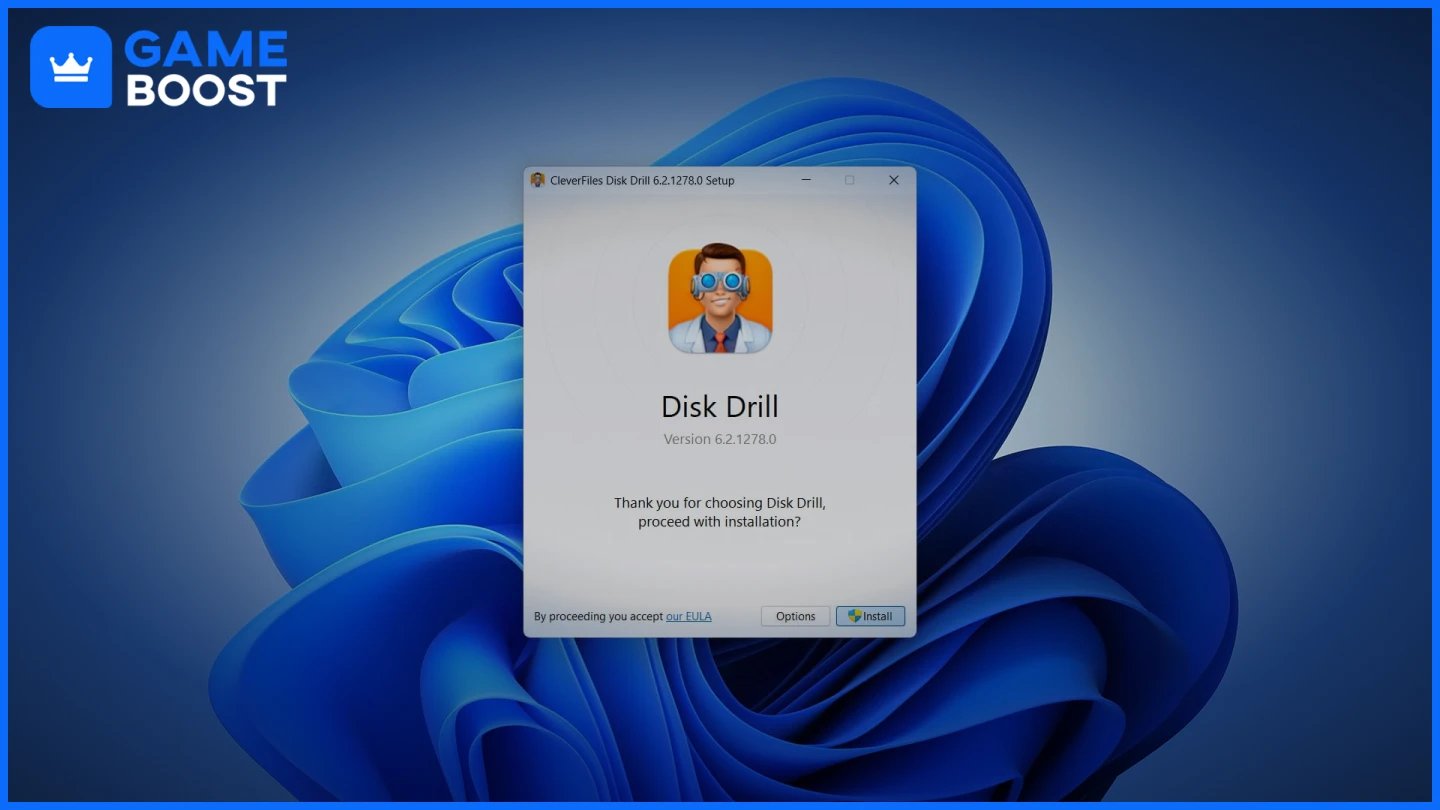
Download and install the tool on a different drive than the one you're recovering from.
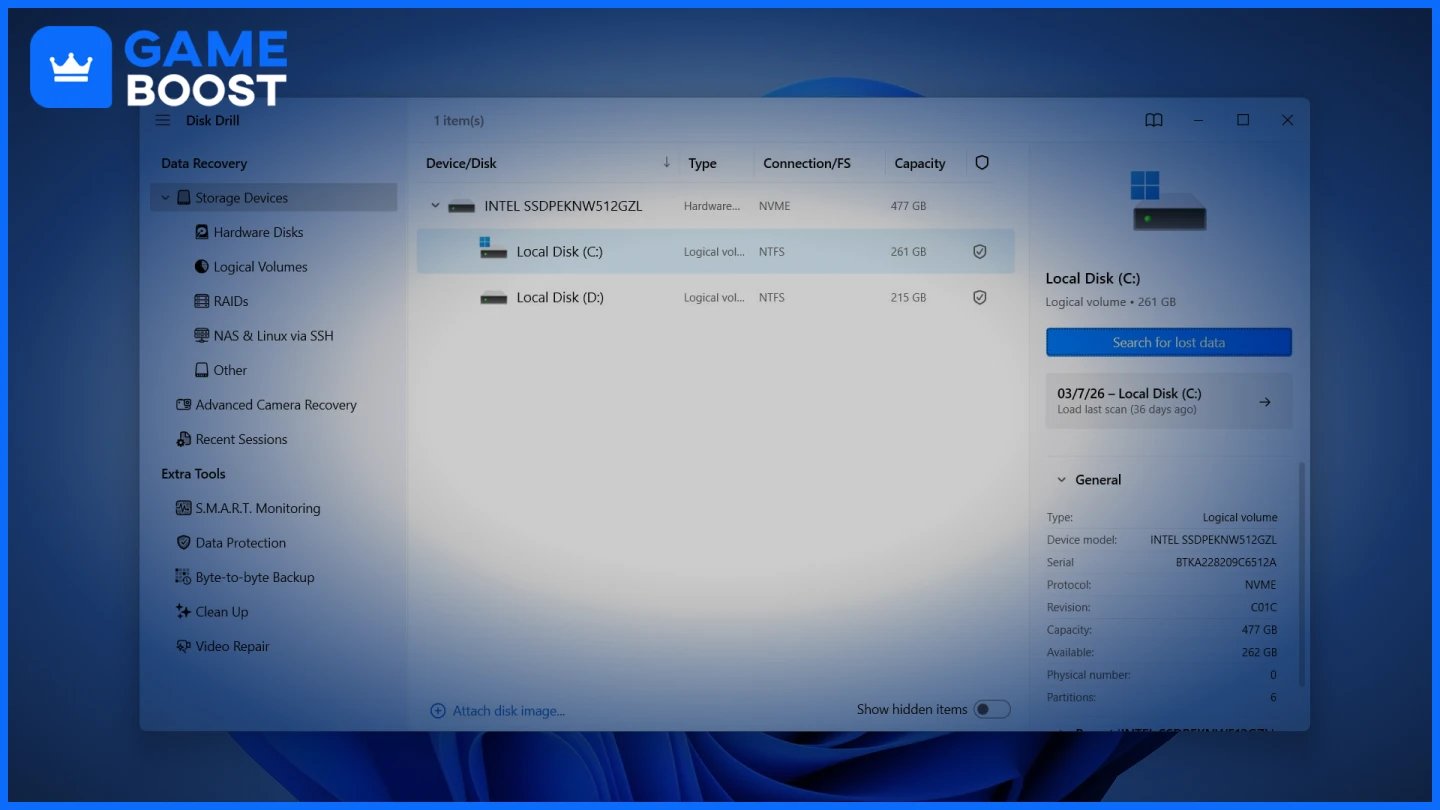
Select the disk where your saves were stored and click “Search for lost data”.
Run the scan. It might take a while, especially on larger drives.
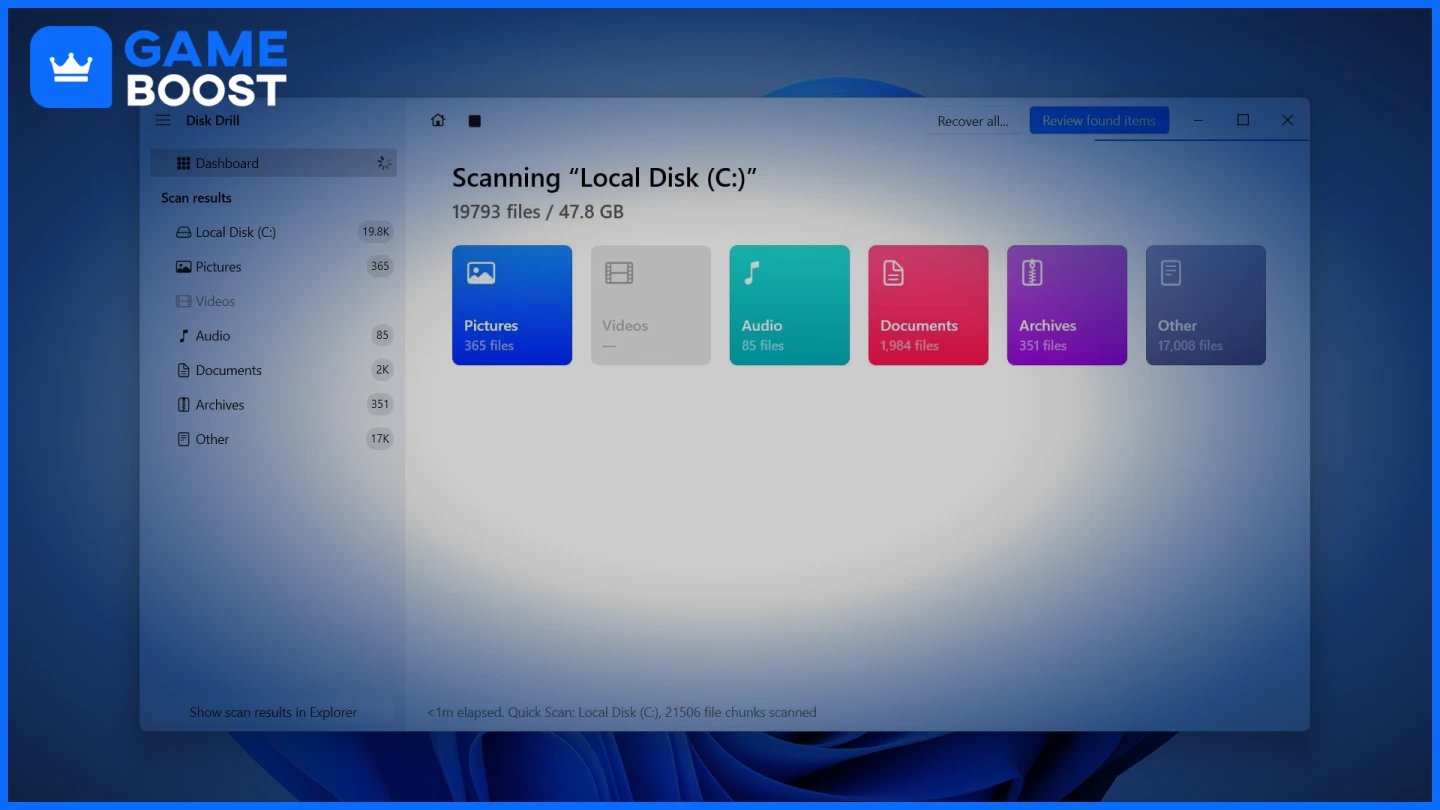
Once the scan is complete, use filters or the search bar to find your save files.
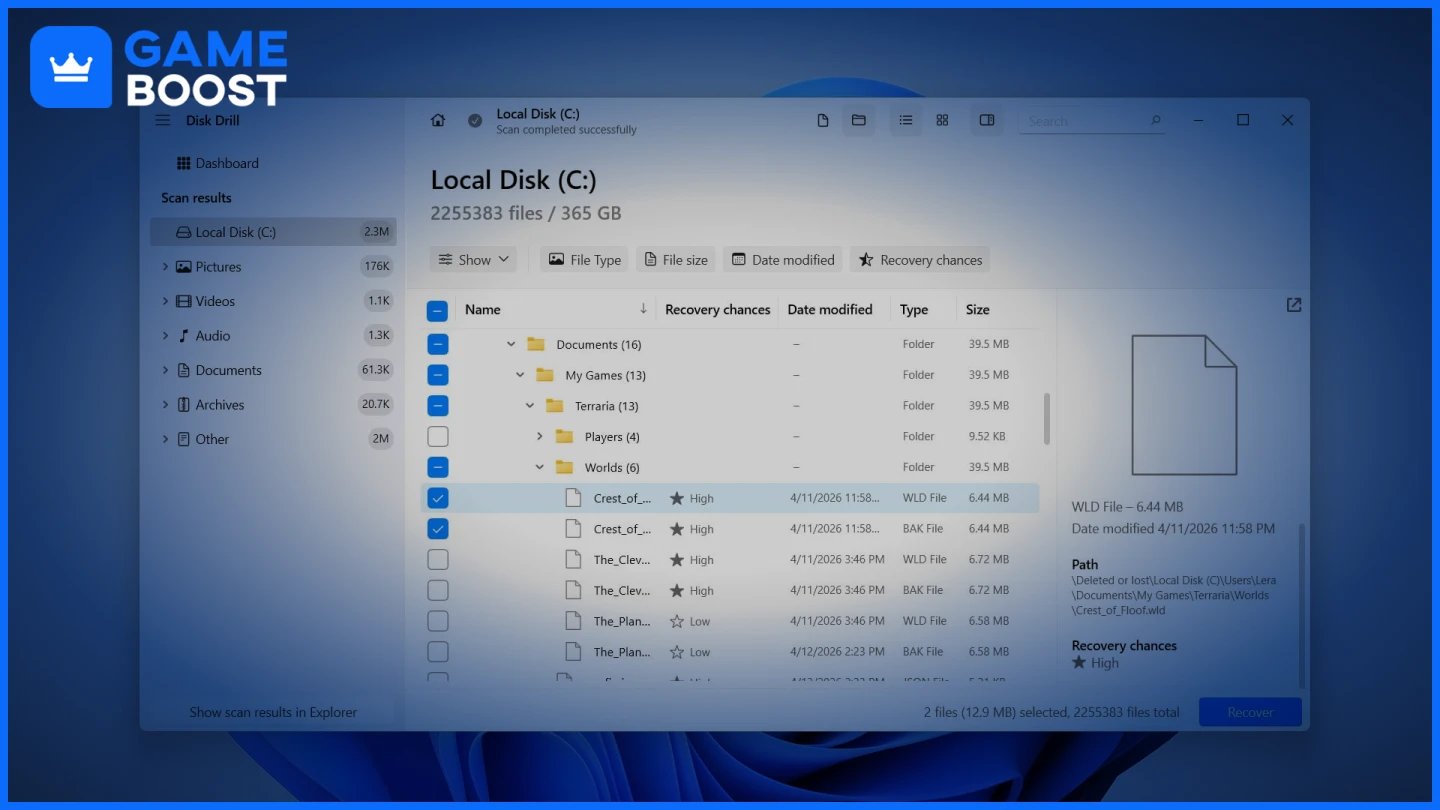
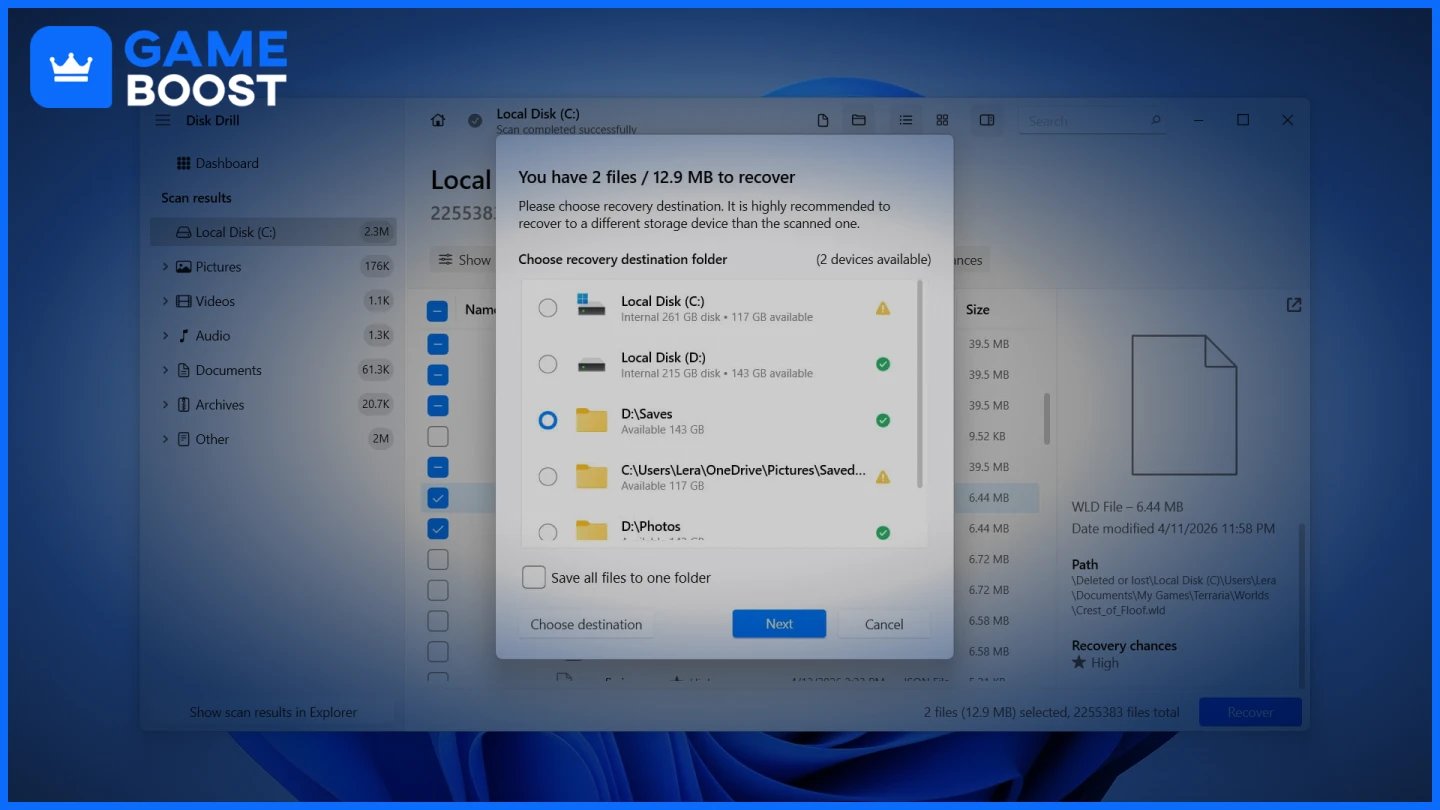
Recover to an external drive or a different internal drive.
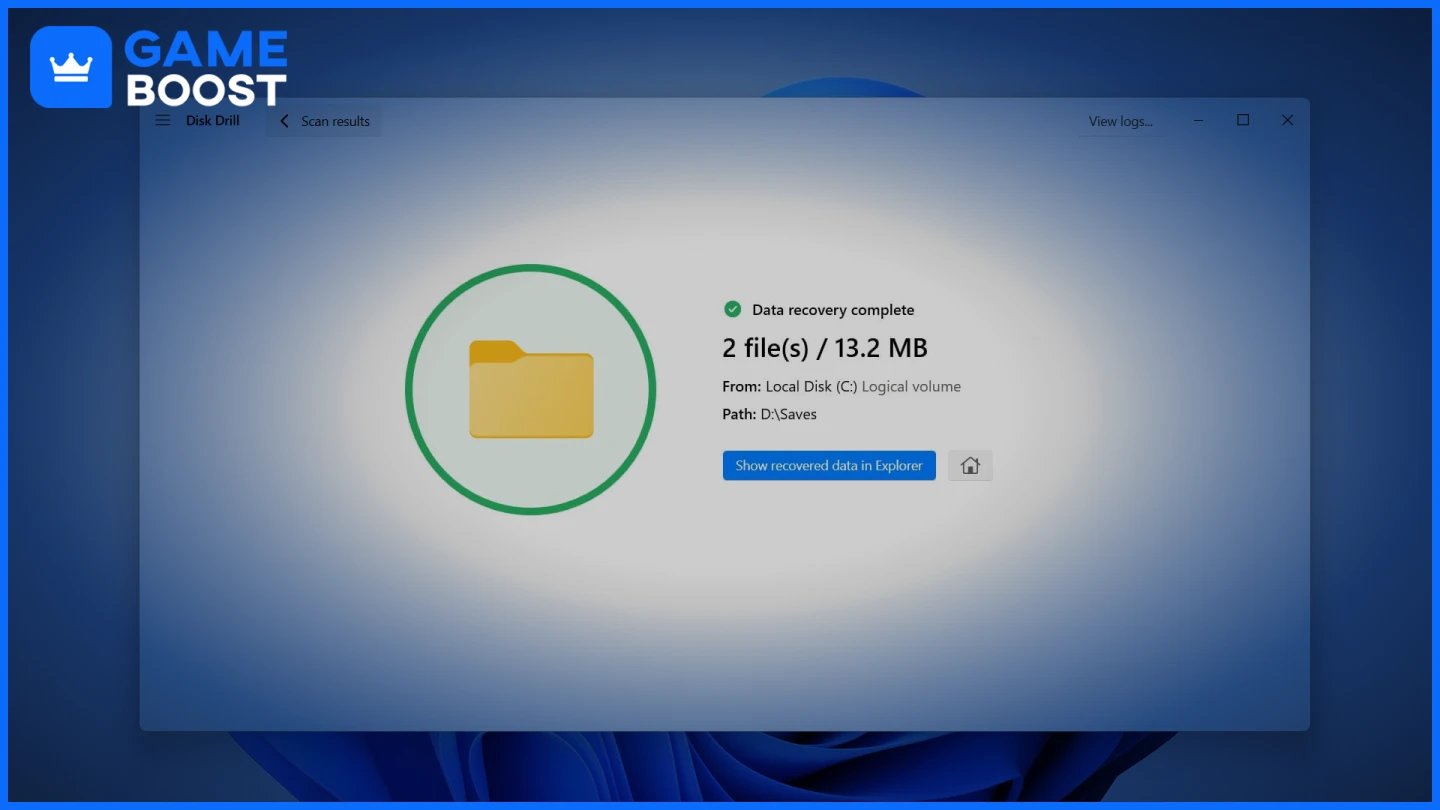
When recovery is finished, you can check the files in the location you selected earlier.
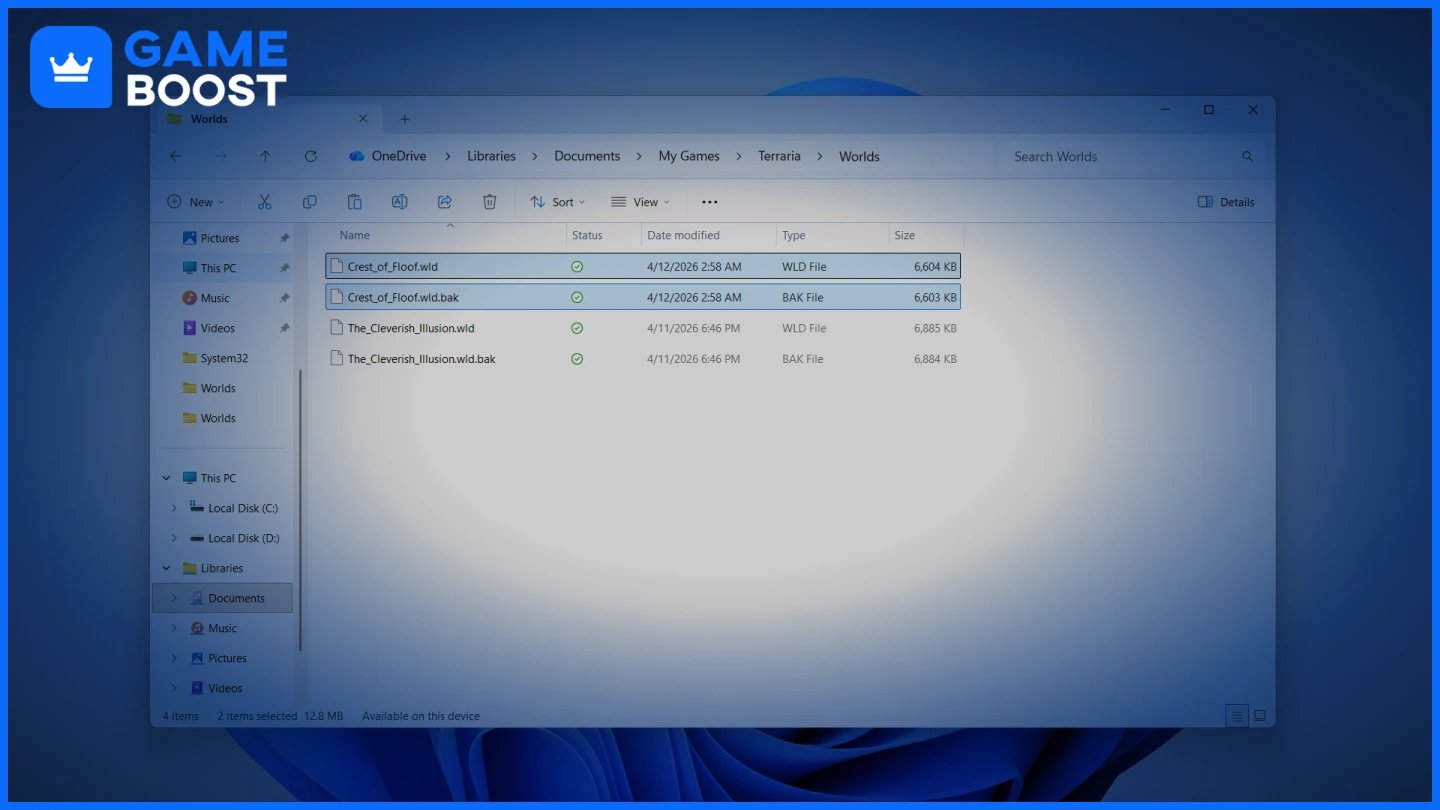
Copy the recovered files and paste them back into the original save folder so the game can detect them.
If you want alternatives, other tools like R-Studio, TestDisk (with PhotoRec), Recuva, or Microsoft’s Windows File Recovery follow a similar approach. The main difference is how easy they are to use. Some are more beginner-friendly, while others give you more control but require more setup.
Also, one note on SSDs: if your saves were on an SSD with TRIM enabled (the default on most modern Windows installs), the recovery window is shorter than on a spinning hard drive. TRIM can mark deleted blocks as erased at the hardware level. You can check your TRIM state by running fsutil behavior query DisableDeleteNotify in an elevated command prompt. If TRIM is on, don't delay.
There’s a good chance your saves still exist on Steam Cloud, if the game supports it and the sync happened before the deletion.
Timing matters here, just like with recovery software, but for a different reason. If your local files are missing or corrupted, the client may sync that state to the cloud and replace the good version. That’s why you should avoid launching the game before checking the cloud.
To recover data from Steam Cloud:
Go to Steam Cloud storage while logged into your account.
Find your game in the list and click Show files.
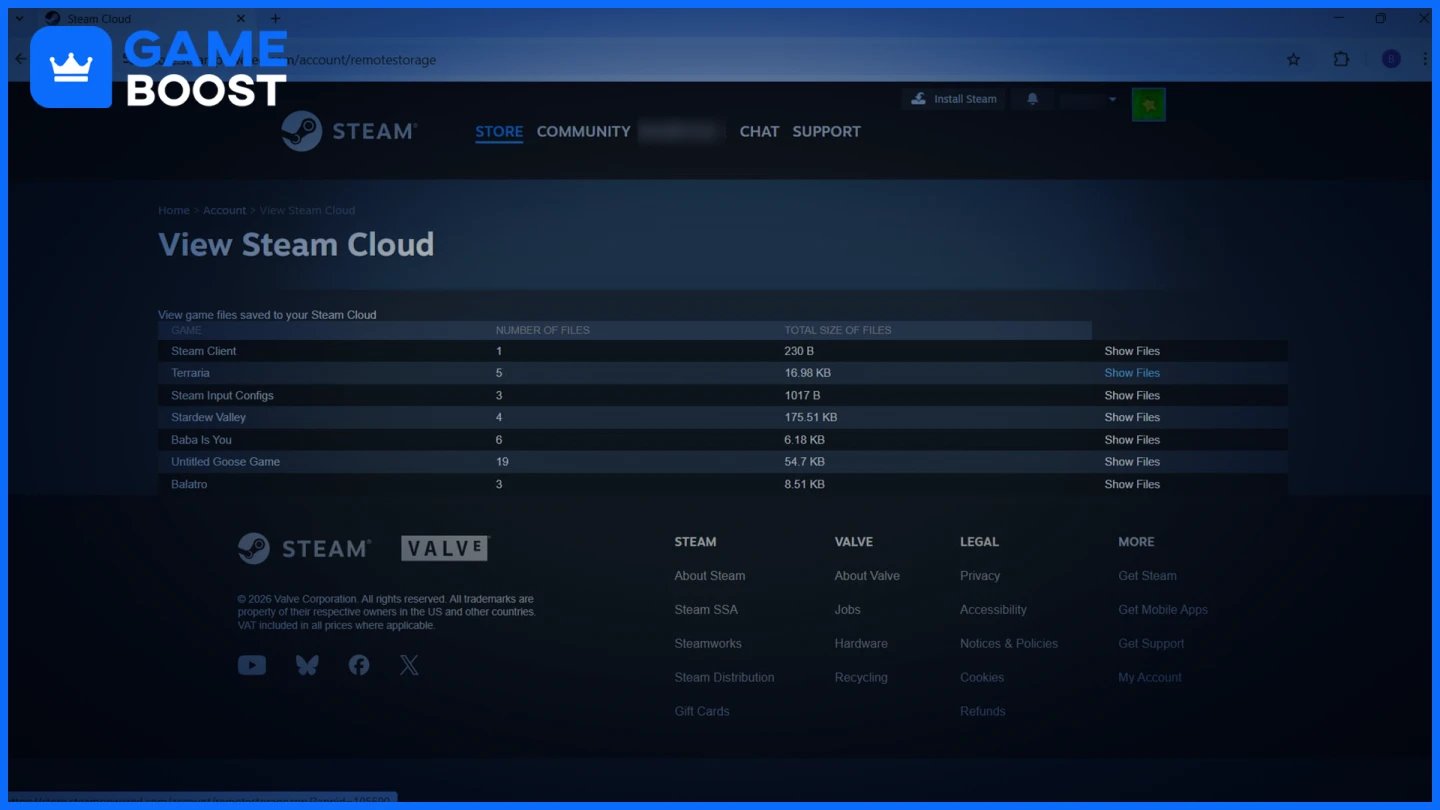
Download the save you need.
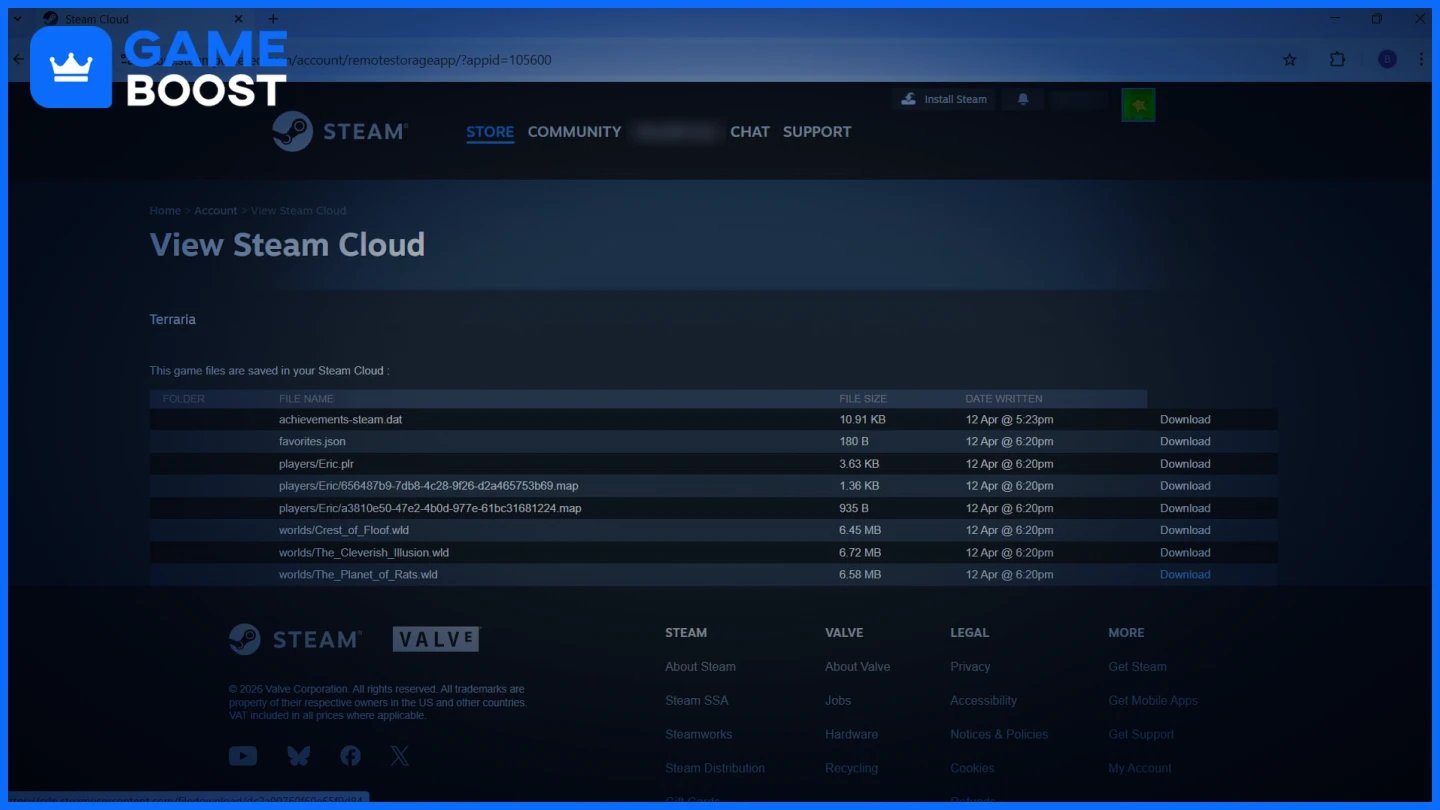
Steam's support documentation on cloud saves explains the sync behavior in detail, including how conflict prompts work. If Steam shows a conflict dialog when you open the game, pick the cloud copy if your local files are the problem, and do it before the client decides for you.
Cloud files are also cached locally under Steam\userdata\[SteamID]\[AppID]. If you haven't used the drive heavily since the deletion, that folder might still contain usable data even if the game's save folder is empty.
File History is a Windows feature that automatically keeps versioned copies of files on an external drive or network location. If it was enabled before, it works reliably for games that store saves in Documents\My Games, since that folder is typically included in File History by default. For saves stored in AppData or other locations, File History only helps if you manually added those folders to the backup scope beforehand.
The recovery steps are simple:
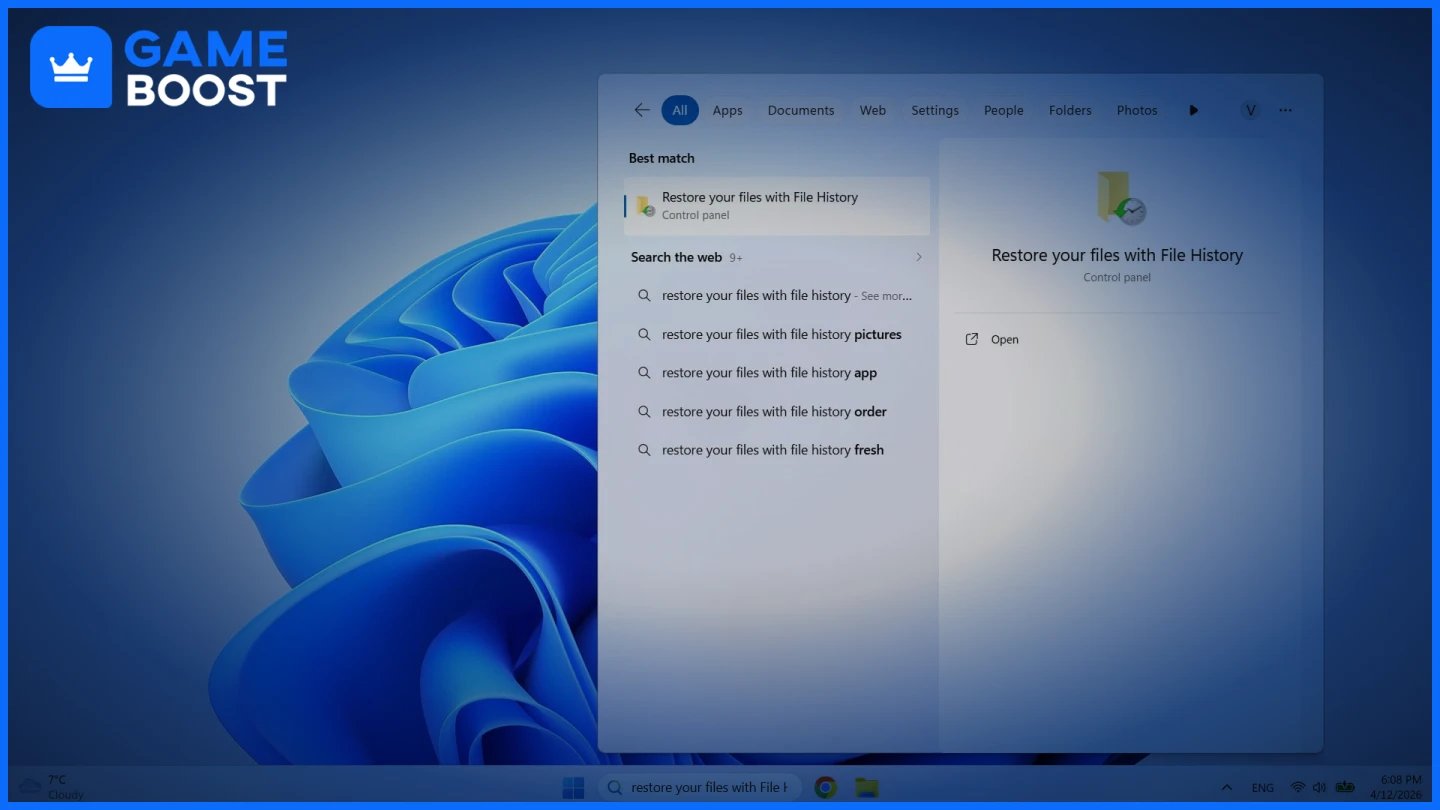
Open the Start menu and search for Restore your files with File History. Alternatively, open the Control Panel, go to File History, and click Restore personal files.
Use the arrows at the bottom to browse through previous versions.
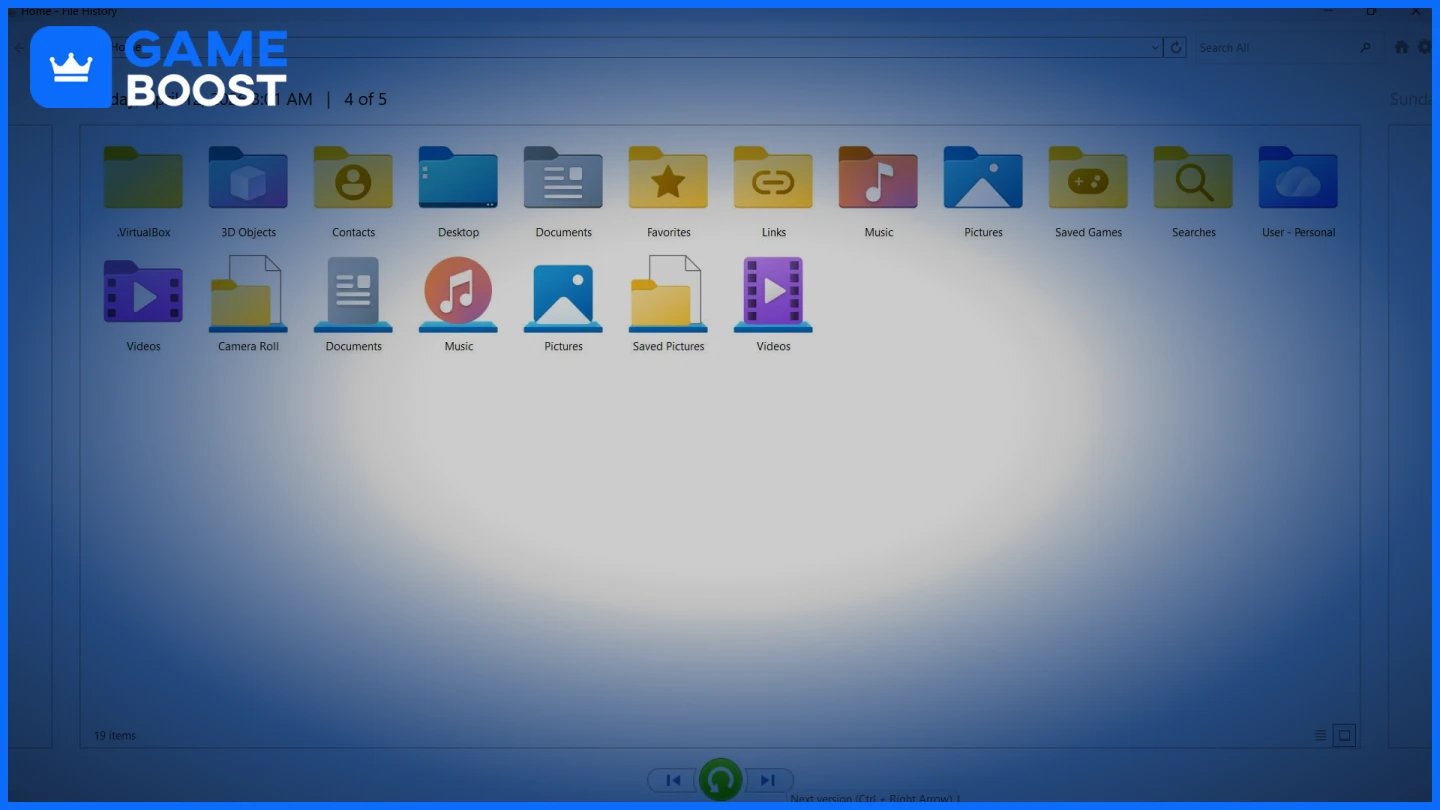
Navigate to the folder where your saves were originally stored.
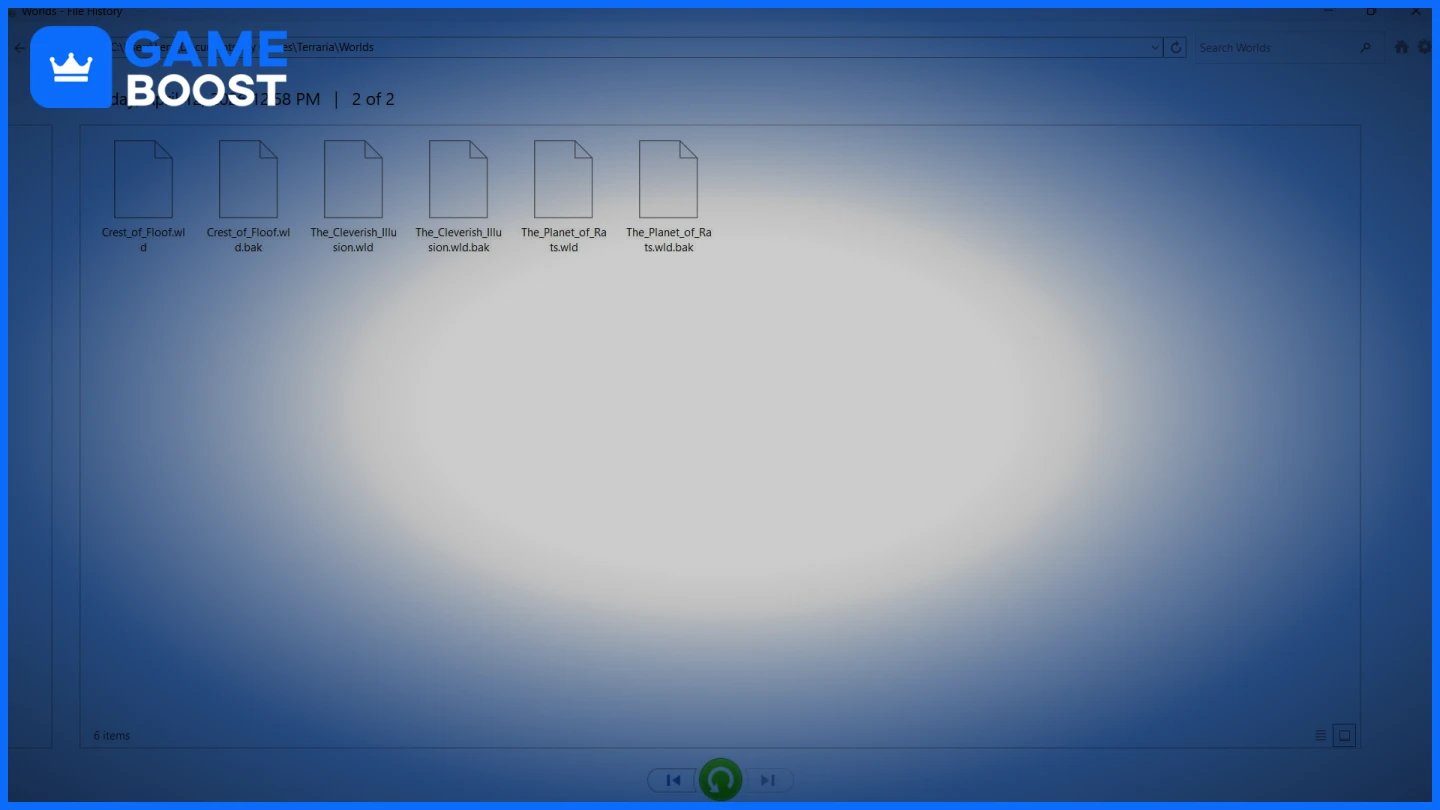
Select the files or folder you want to restore.
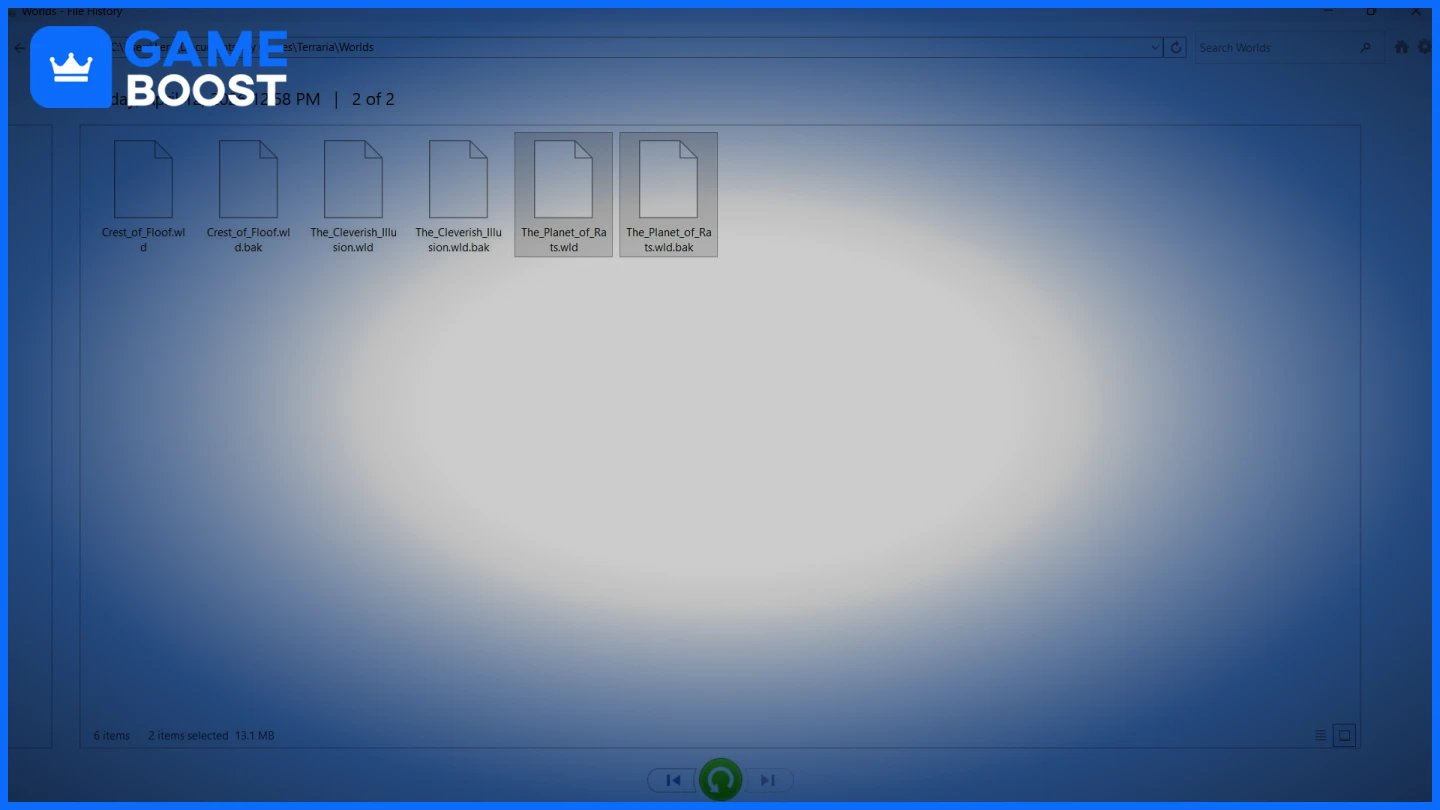
Click the green Restore button to return them to their original location, or right-click to restore to a different location.
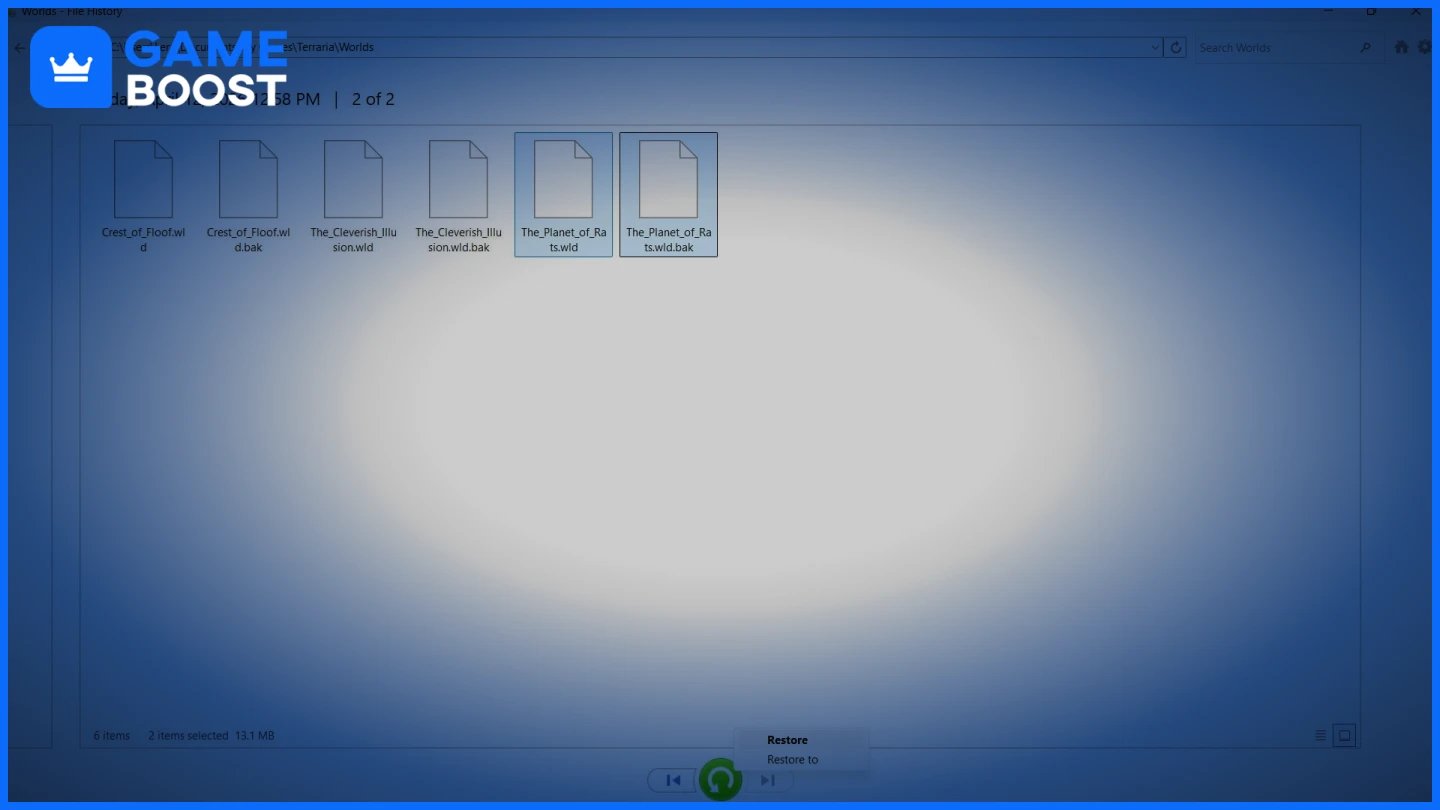
Unlike recovery software, this method does not depend on whether the data was overwritten. If a backup exists, you can recover deleted game data even after significant system changes. If File History wasn’t enabled beforehand, though, there’s nothing to restore.
OneDrive can help recover deleted game saves, but only if the files were stored in a synced folder, usually Documents. If the game used AppData or another location, this method won’t apply.
To restore deleted saves from OneDrive:
Open OneDrive in your browser and sign in.
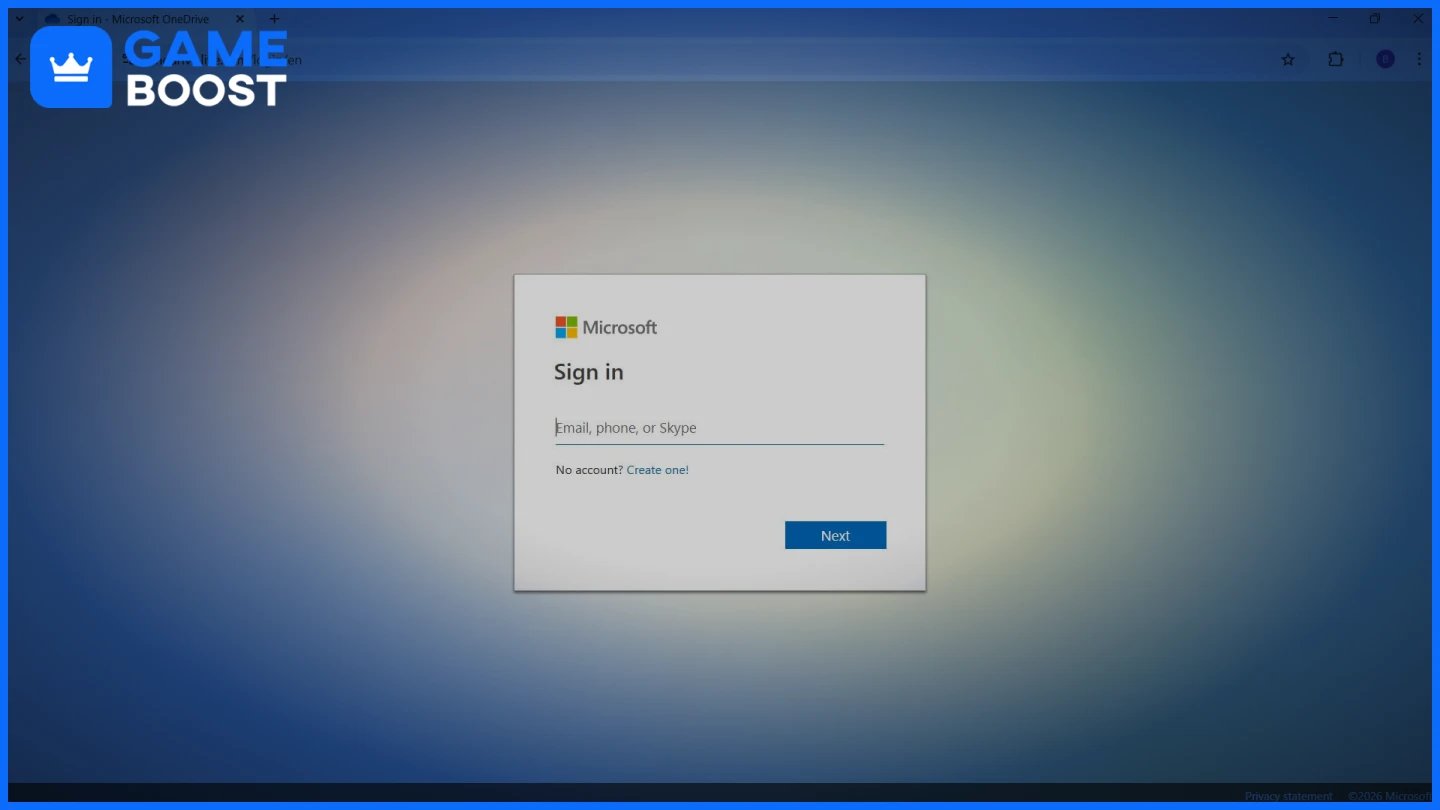
Go to the Recycle Bin.
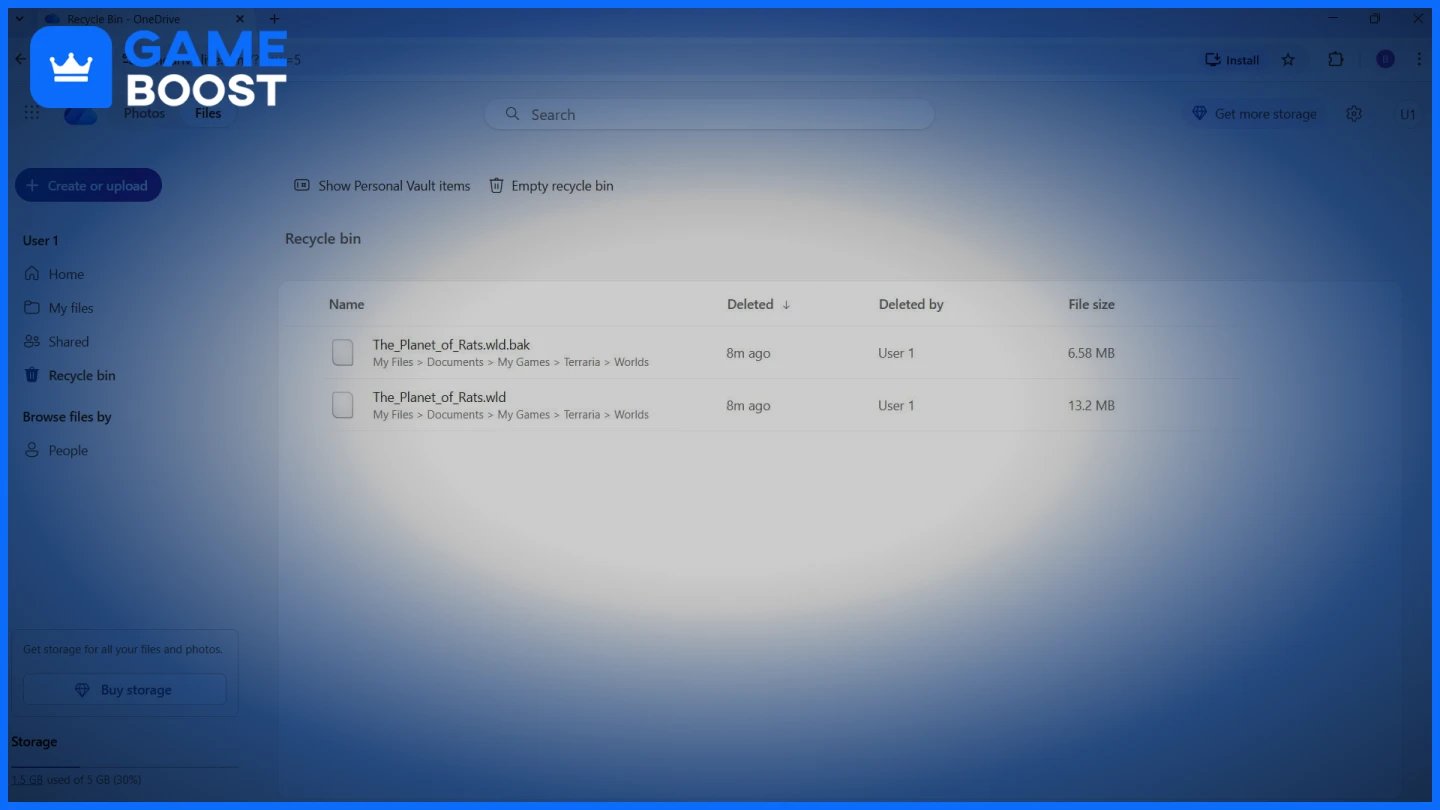
Look for your save files or folders. Select them and click Restore.
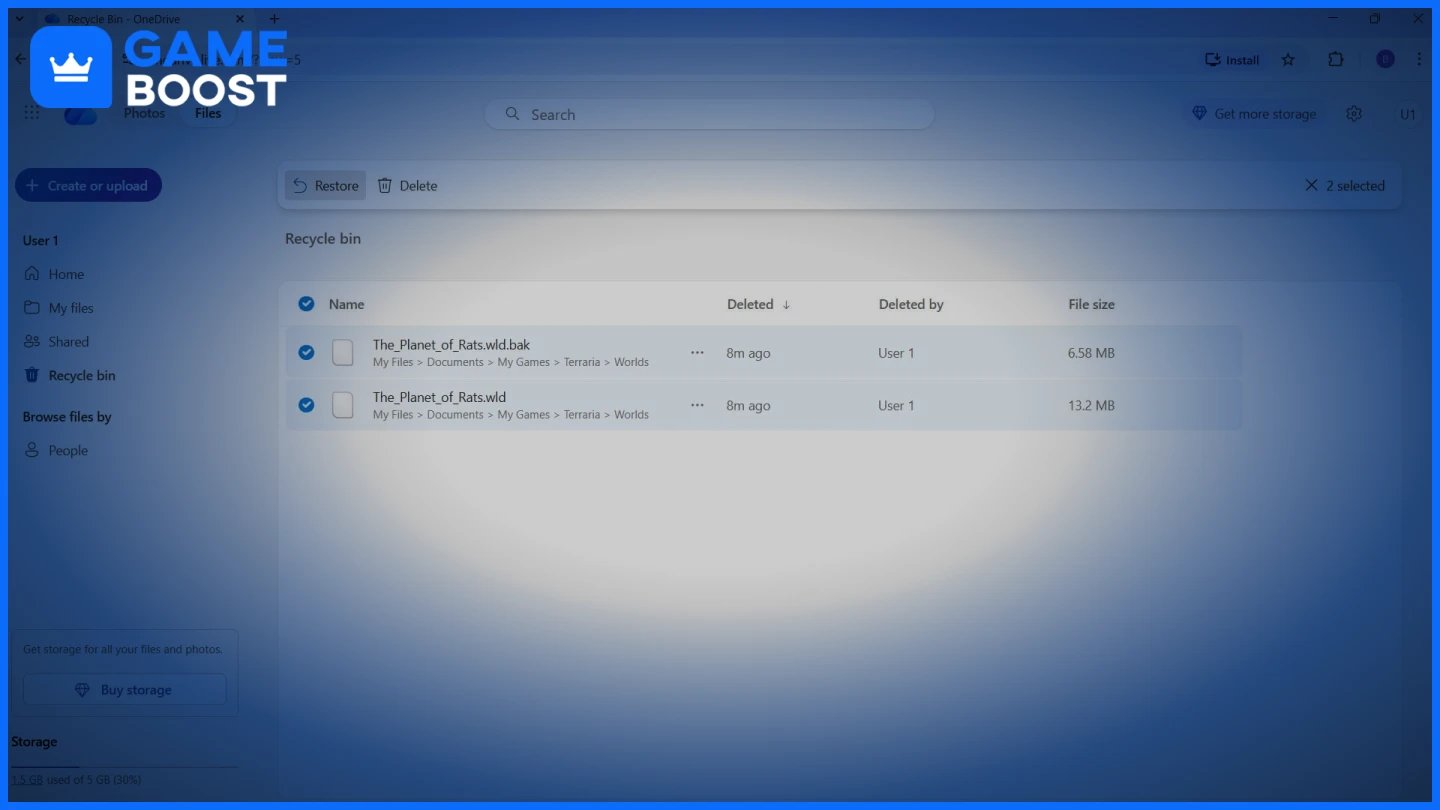
This brings the files back to their original location. If you don’t see anything there, the file may not have been synced, or it may have already been permanently removed.
There’s also version history, but it works differently. It helps when a file still exists but was overwritten or replaced, for example, when a game writes a new save over the old one or a sync conflict replaces it. In that case, you can open the file in OneDrive, check Version history, and restore an earlier version.
Not every recovery attempt ends well. The files are gone, the cloud never synced, and there's no backup. If you've put serious time into a game and can't face rebuilding from zero, services like GameBoost let you buy game accounts, currencies, and in-game items directly. It's not the same as getting your saves back, but it's a way to pick up somewhere close to where you left off.
Also Read: 5 Best Survival Horror Games Like Outlast
Here's food for thought. According to data loss statistics, only 52% of people who've never lost data - back up regularly. Among those who have, that number jumps to 84%. Losing something important has a way of changing your habits fast. The hard part is that most people only get there after it's already too late.
Game saves are small, but they carry a lot of time investment. So to avoid going through the recovery process again, keep them safe.
Enable cloud saves in whatever launcher you use, whether it’s Steam, Epic Games, GOG or Ubisoft Connect. But verify per-game that it's actually supported. Epic even provides a filter in the library view to show which titles support cloud saves.
Turn on File History with an external drive connected. It runs quietly in the background, but only when the drive is connected, so you’ll need to plug it in from time to time. It can be the difference between a ten-minute restore and starting over.
Before any reinstall, copy those folders to external storage and confirm cloud saves are fully synced. Do not quit the launcher mid-sync.
There is no single method that works for every situation; the right approach depends on how your data was lost and if backups exist. If manual checks fail, using a recovery tool like Disk Drill can help find deleted files that are no longer visible in your folders. Ultimately, combining these tools with habits like cloud syncing is the best way to ensure you never lose your game saves or data again.
“ Mustafa Atteya has been writing about gaming and esports since 2023, specializing in competitive game content and player improvement guides. At 25, he brings both hands-on gaming experience and professional SEO writing expertise to the GameBoost team.”