


•Hamza Rashid• 7 min read
Fortnite
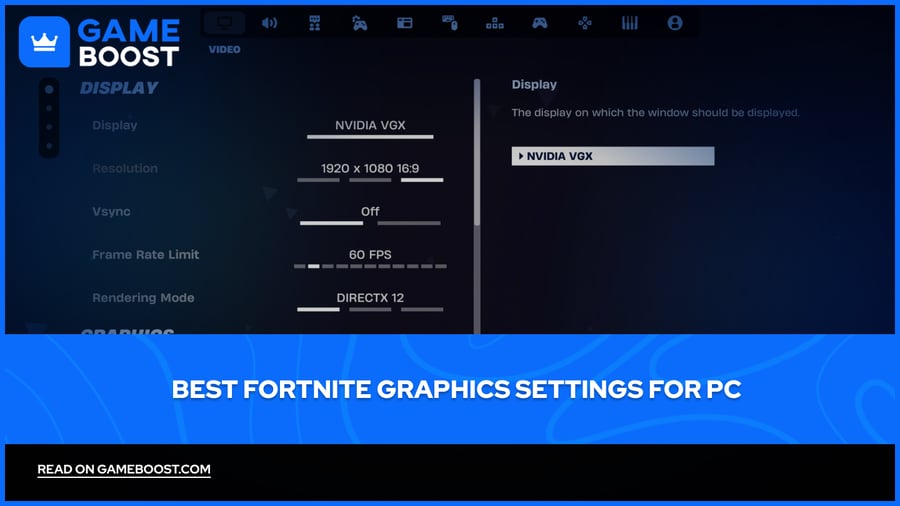
Fortnite runs on a wide range of hardware, from high-end gaming rigs to older budget PCs. While the game is well-optimized by default, the out-of-the-box settings aren't always ideal for competitive play. Poor graphics configuration can lead to stuttering, input lag, and FPS drops.
Getting your graphics settings right comes down to finding the balance between visual clarity and performance. Too many visual effects tank your frame rate, but going too minimal can make the game harder to see some details. In this article, we'll explore the best Fortnite graphics settings for both performance and visual quality, covering options for low-end and high-end PCs alike.
Also Read: Who Has the Most Earnings in Fortnite?

Fortnite's default settings aren't optimized for competitive play, and adjusting them can significantly improve FPS and reduce input lag.
Performance Mode is the best rendering option for low-end and mid-range PCs, offering more than double FPS compared to DX12.
Turning off shadows, ray tracing, and Lumen has the biggest impact on frame rate and should be disabled regardless of your hardware.
High-end PC users can run DX12 with textures and effects on Medium without a major performance hit.
NVIDIA users should enable Reflex on On + Boost to reduce input lag, and DLSS for a free FPS boost with minimal visual quality loss.
AMD users can enable FSR as an alternative to DLSS for better frame rates without dropping resolution.
Ray tracing and Lumen Global Illumination are not worth enabling in competitive play, even on powerful hardware.
Each graphics setting is explained so you can fine-tune your configuration based on your specific setup.
Also Read: Where to Buy Fortnite Accounts?
These settings are aimed at players on low-end or mid-range PCs who want the highest possible frame rate. The trade-off is visual quality, but for competitive play, stable FPS matters far more than how the game looks.
Setting | Recommended Value |
|---|---|
Display Mode | Fullscreen |
Resolution | Native (1920x1080) |
Frame Rate Limit | Match monitor refresh rate |
Rendering Mode | Performance |
Brightness | 100% |
3D Resolution | 75–100% |
View Distance | Near |
Anti-Aliasing | Off |
Textures | Low |
Effects | Low |
Post Processing | Low |
VSync | Off |
Motion Blur | Off |
Shadows | Off |
Ray Tracing | Off |
Lumen Global Illumination | Off |
Lumen Reflections | Off |
NVIDIA Reflex | On + Boost (NVIDIA cards only) |
Performance Mode is the biggest single change you can make. It bypasses a lot of the Unreal Engine 5 rendering pipeline and renders directly on the GPU, which can push FPS up by 100% or more compared to DX12. The downside is that builds and structures look noticeably worse, but it's the standard choice for competitive players on any hardware.
Turning off shadows has a major impact on frame rate, especially during build fights and in busy areas with lots of structures. Shadows are also not particularly useful in competitive play, since enemy players are visible regardless.
If you have an NVIDIA card, enabling Reflex on On + Boost reduces input lag by limiting the render queue, which makes your inputs feel more responsive even without a significant FPS change.

If your PC can comfortably hold 144 FPS or higher, you don't need to sacrifice everything visually. These settings strike a balance between a clean, sharp image and stable frame rates without bottlenecking competitive play.
Setting | Recommended Value |
|---|---|
Display Mode | Fullscreen |
Resolution | Native (1920x1080 or 1440p) |
Frame Rate Limit | Match monitor refresh rate |
Rendering Mode | DX12 |
Brightness | 100% |
3D Resolution | 100% |
View Distance | Medium |
Anti-Aliasing | TAA or DLSS (NVIDIA) / FSR (AMD) |
Textures | High |
Effects | Medium |
Post Processing | Medium |
VSync | Off |
Motion Blur | Off |
Shadows | Medium |
Ray Tracing | Off |
Lumen Global Illumination | Off |
Lumen Reflections | Off |
NVIDIA Reflex | On + Boost (NVIDIA cards only) |
DX12 is the better rendering mode for high-end hardware. It distributes the workload across all CPU cores, which results in better frame pacing and smoother 1% lows compared to DX11. One thing to keep in mind is that DX12 needs a couple of matches to build its shader cache after you first switch to it, so expect some initial stuttering that goes away on its own.
Ray tracing and Lumen are worth skipping even on powerful hardware. Lumen Global Illumination at Epic settings alone can cut FPS by up to 50%, and it adds visual noise that actually makes it harder to spot enemies in some areas. The visual payoff simply doesn't justify the performance hit in a competitive game.
If you have an NVIDIA card, DLSS is a free performance gain. It renders the game at a lower internal resolution and upscales it, with minimal impact on image quality at the Quality or Balanced presets. AMD users can use FSR for a similar result.
Also Read: How to Fix Fortnite Matchmaking Error #1
There's no single configuration that works for everyone, since it all depends on your hardware. The performance settings will get you the highest possible FPS on any PC, while the high-end settings give you a cleaner image without hurting your frame rate too much. Start with whichever fits your setup, then adjust from there based on how the game feels.
Buy V-Bucks
Buy Fortnite Skins
Fortnite Accounts For Sale
View all GameBoost Accounts
View all GameBoost Boosting Services
View all GameBoost Currencies
View all GameBoost Game Keys
View all GameBoost Gift Cards
View all GameBoost Top Ups
View all GameBoost Items
Buy CS2 Skins
“ Mustafa Atteya has been writing about gaming and esports since 2023, specializing in competitive game content and player improvement guides. At 25, he brings both hands-on gaming experience and professional SEO writing expertise to the GameBoost team.”