


•Hamza Rashid• 7 min read
Fortnite
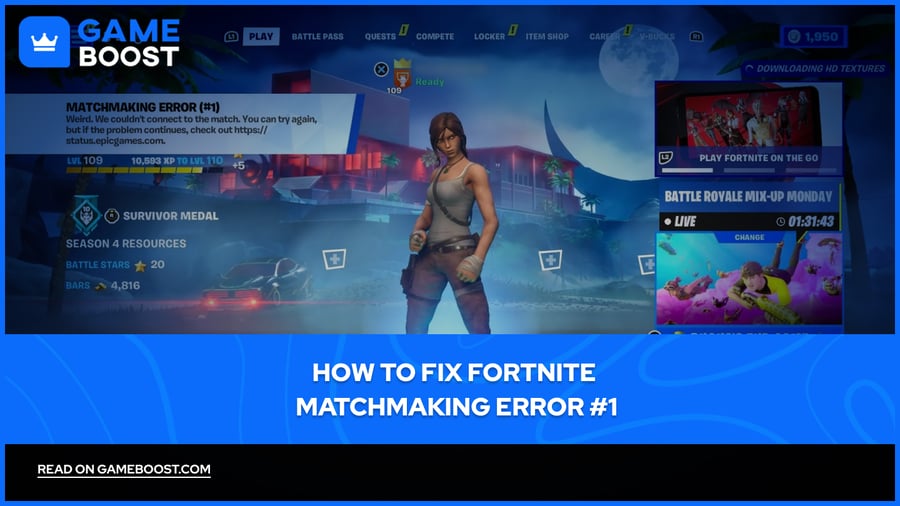
Matchmaking Error #1 is one of the more common errors Fortnite players run into, typically showing up right as you try to queue into a match. The full message reads: "Weird. We couldn't connect to the match. You can try again, but if the problem continues, check our status page." It's vague, and for most players, it doesn't point to a clear next step.
The error itself doesn't tell you much, and the in-game suggestion to "check the status page" doesn't always solve it either. In this article, we'll walk you through every fix for Fortnite Matchmaking Error #1 so you can get back into matches as quickly as possible.
Also Read: How to Play Fortnite on a School Chromebook

Matchmaking Error #1 is triggered by server outages, heavy traffic after updates, corrupted game files, unstable internet, or disabled cross-play
Before troubleshooting, check the Epic Games Status page or Fortnite's X account to rule out server-side issues
The quickest fixes are restarting the game, restarting your router, and verifying game files through the Epic Games Launcher
Changing your matchmaking region in Fortnite's settings can sometimes resolve connectivity issues tied to a specific server
On console, check PSN or Xbox Live for outages and make sure cross-play is enabled, as disabling it often causes this error
If none of the fixes work, the issue is on Epic's end, and waiting for a server restoration is the only option
Also Read: Where to Buy Fortnite Accounts?
Matchmaking Error #1 doesn't have a single cause, which is part of why it's annoying to deal with. The most common reasons it shows up are:
Epic Games' servers are down or under maintenance
Heavy server traffic following a major update
An unstable or weak internet connection
Corrupted or missing game files
Cross-play being disabled, which makes it harder for Fortnite to fill a lobby
An outdated version of the game that doesn't sync with the current server build

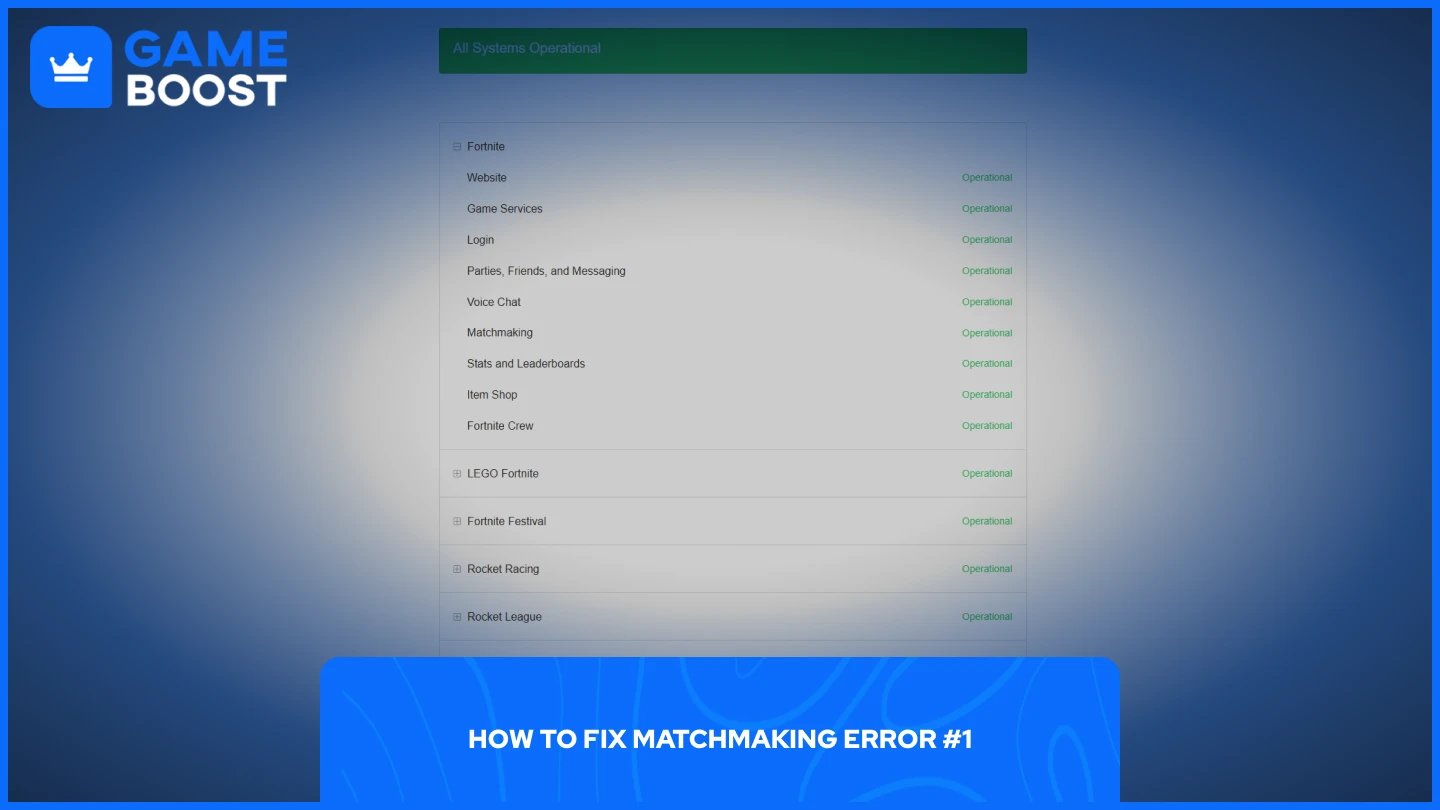
Before trying anything on your end, check the Epic Games Status page or the official Fortnite Status account on X. If matchmaking is listed as down, none of the steps below will help. Wait for Epic to restore services and try again.
If the servers are operational, work through the following fixes in order:
Close Fortnite completely and relaunch it.
Restart your router and modem, then reopen the game.
Open the Epic Games Launcher, go to your Library, click the three dots under Fortnite, and select Verify to check for corrupted or missing files.
Go to Fortnite's Settings > Game > Language and Region and change your Matchmaking Region to a different server near your location.
Make sure cross-play is enabled. Go to Settings > Account and Privacy and turn on Allow Cross Platform Play.
Check that Fortnite is updated to the latest version.
If nothing works, uninstall and reinstall the game entirely.
Also Read: What Does V-Bucks Stand For?
The error appears on PS5, Xbox, and Nintendo Switch as well, and the fixes are slightly different from PC. Start by checking if PSN or Xbox Live is experiencing outages, as platform-level service issues can trigger this error independently of Fortnite's own servers.
If the platform services are running normally, work through these steps:
Close Fortnite fully. On PS5 and Xbox, highlight the game on the home screen, press the Options or Menu button, and select Close Application.
Restart your console completely, not just the game.
Restart your router and modem.
Go to Settings > Account and Privacy and make sure Allow Cross-Platform Play is enabled. Fortnite can struggle to fill a lobby without it, which often results in this error.
Change your Matchmaking Region in the game settings to a different server near you.
If the issue persists, delete and reinstall Fortnite from your console.
Also Read: How Much Does the Fortnite Battle Pass Cost in V-Bucks?
Matchmaking Error #1 is frustrating, but it's rarely a sign of a bigger problem. In most cases, a quick restart or file verification is enough to get things working again. If the error shows up right after a major update, it's worth checking the Epic Games Status page first before troubleshooting anything on your end, since server overload is one of the most common triggers.
Buy V-Bucks
Buy Fortnite Skins
Fortnite Accounts For Sale
View all GameBoost Accounts
View all GameBoost Boosting Services
View all GameBoost Currencies
View all GameBoost Game Keys
View all GameBoost Gift Cards
View all GameBoost Top Ups
View all GameBoost Items
Buy CS2 Skins
“ Mustafa Atteya has been writing about gaming and esports since 2023, specializing in competitive game content and player improvement guides. At 25, he brings both hands-on gaming experience and professional SEO writing expertise to the GameBoost team.”