

•Patrik Mršnik• 6 min read
Fortnite
The best Fortnite keybinds keep every build piece and weapon within reach of your left hand without lifting it off WASD. Plenty of competitive players change the default Fortnite keybinds on PC before any other setting, starting with the build pieces.
Binds won't fix bad game sense. They do cut a lot of the clumsy moments in a box fight. On a fresh Fortnite account, your binds are worth setting up before you even look at the locker.
We'll break down a full layout for building, editing, and combat, a version for mice without side buttons, and how to switch without wrecking your aim for a week.
Change binds under Settings, Keyboard Controls (the arrow keys icon).
Put wall and stairs on mouse side buttons, or on Q and C if your mouse has none.
Keep floor and cone on nearby keys such as X and Left Shift.
Bind edit to F and reset edit to Mouse Wheel Down.
Move sprint to Caps Lock so Left Shift stays free for building.
Use 1, 2, 3 plus Z and V for weapon slots if your hand struggles to reach 4 and 5.
Practice the new layout in Creative for a few sessions before ranked.
To change keybinds in Fortnite, open the settings from your profile. Epic's guide on changing keybinds in Fortnite lays out the path. Click your profile in the top right, open Settings (the gear icon), and go to the Keyboard Controls tab, marked with an arrow keys icon.
All Fortnite keybinds on PC live in that tab. Click any action and press the key you want. During a match, press Esc first to reach the same menu. Playing on console? Our guide to Fortnite mouse and keyboard on PS5 and Xbox covers the setup there.
Epic's page on Fortnite controls on PC or console adds a useful detail. The options shown depend on the game mode selected in the lobby, so pick Battle Royale before you edit binds for it.
Creative has its own section. Epic's guide points to Creative Input Actions at the bottom of the Keyboard Controls tab for Creative-specific binds.
Fortnite building keybinds get pressed more than anything else in a build fight. The goal is to place any piece without moving your fingers off WASD.
Action | Recommended bind | Keyboard-only option |
|---|---|---|
Wall | Mouse Button 5 | Q |
Stairs | Mouse Button 4 | C |
Floor | X | X |
Cone | Left Shift | Left Shift |
Trap | T | T |
Edit | F | F |
Reset edit | Mouse Wheel Down | Mouse Wheel Down |
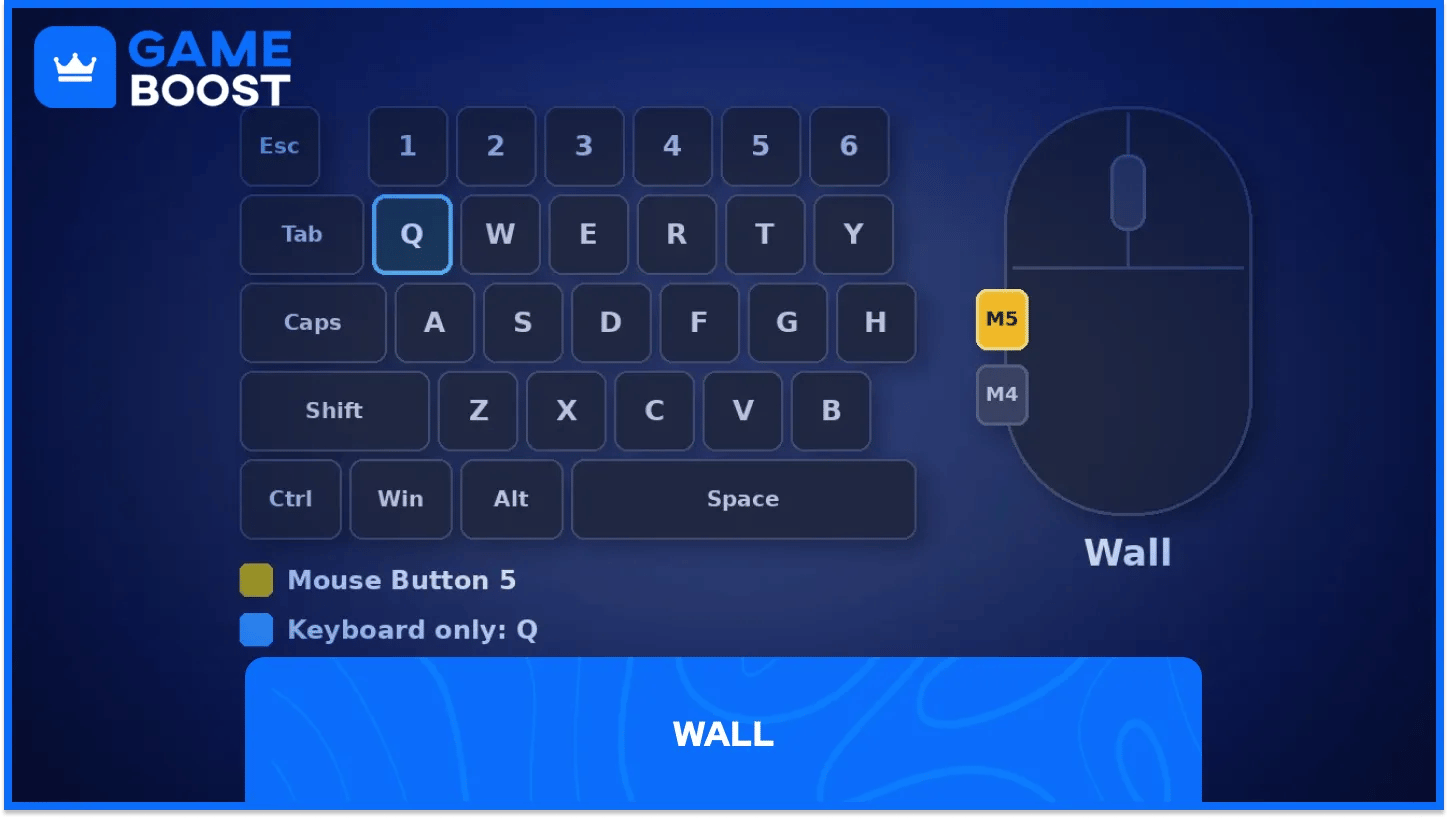
The wall goes on Mouse Button 5, since you'll use it in nearly every fight. Without side buttons, Q sits right next to WASD and does the same job.
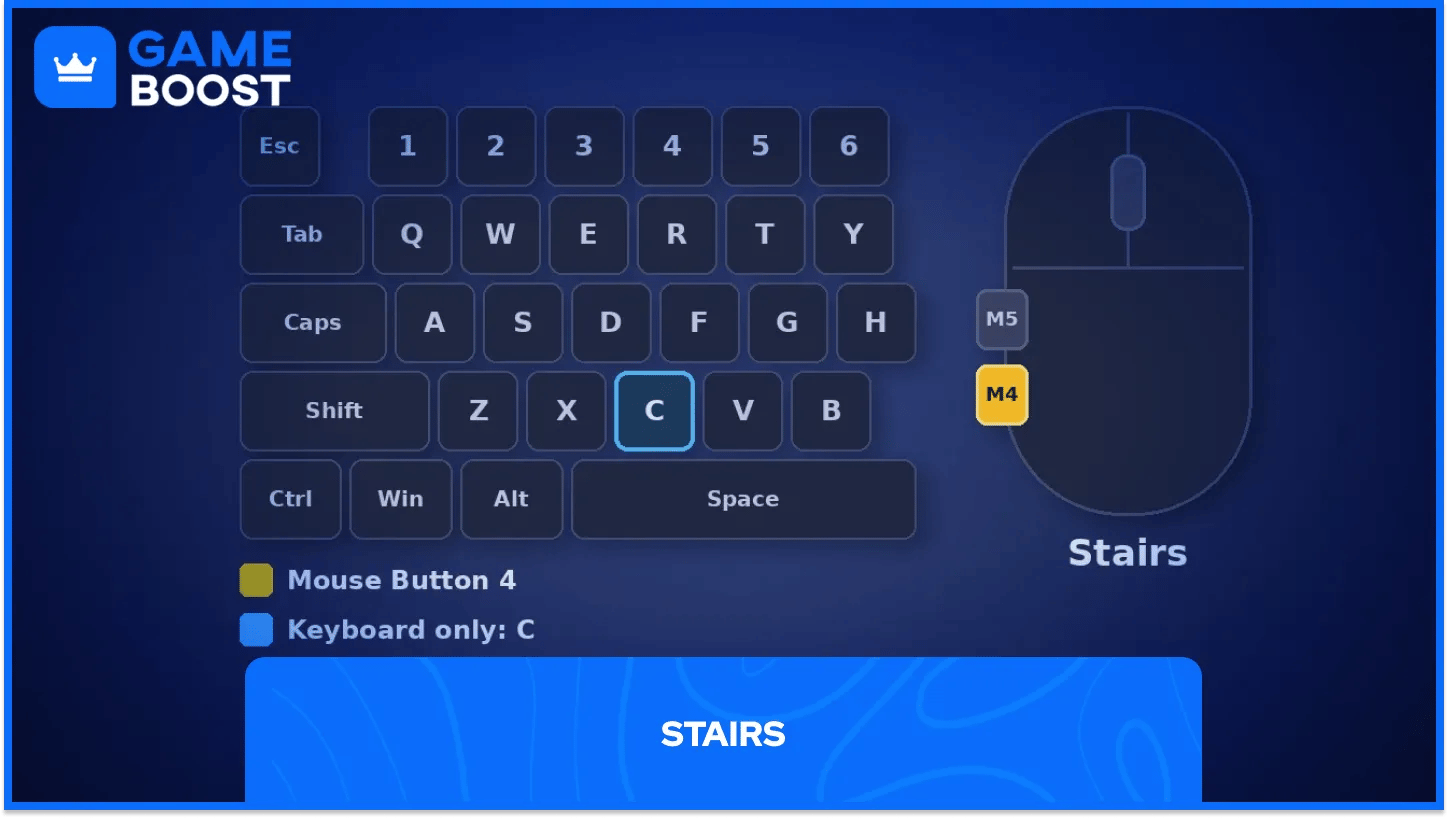
Stairs take the other side button, Mouse Button 4. On a mouse without side buttons, put them on C.
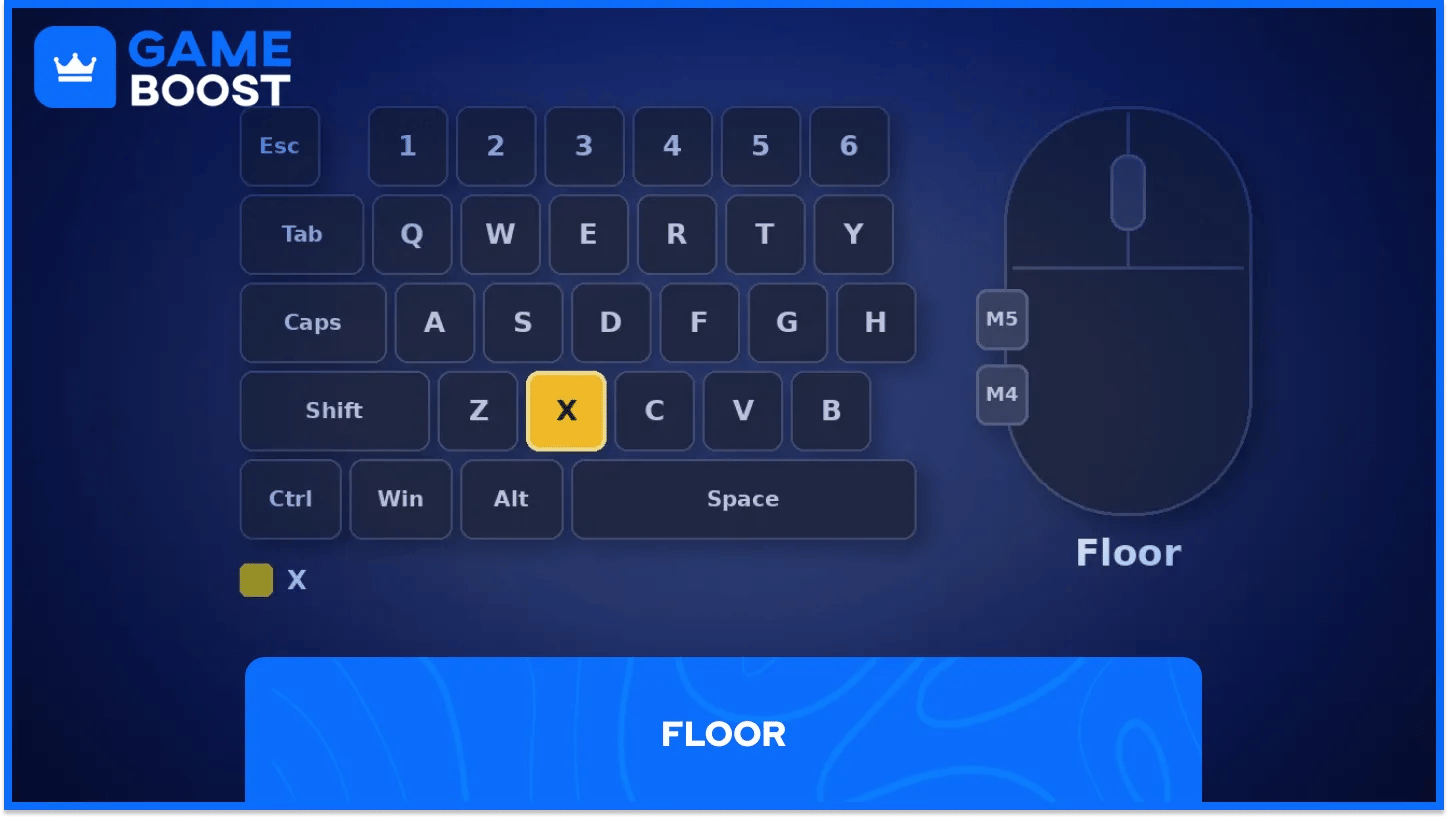
The floor sits on X, which stays reachable from the WASD resting position.
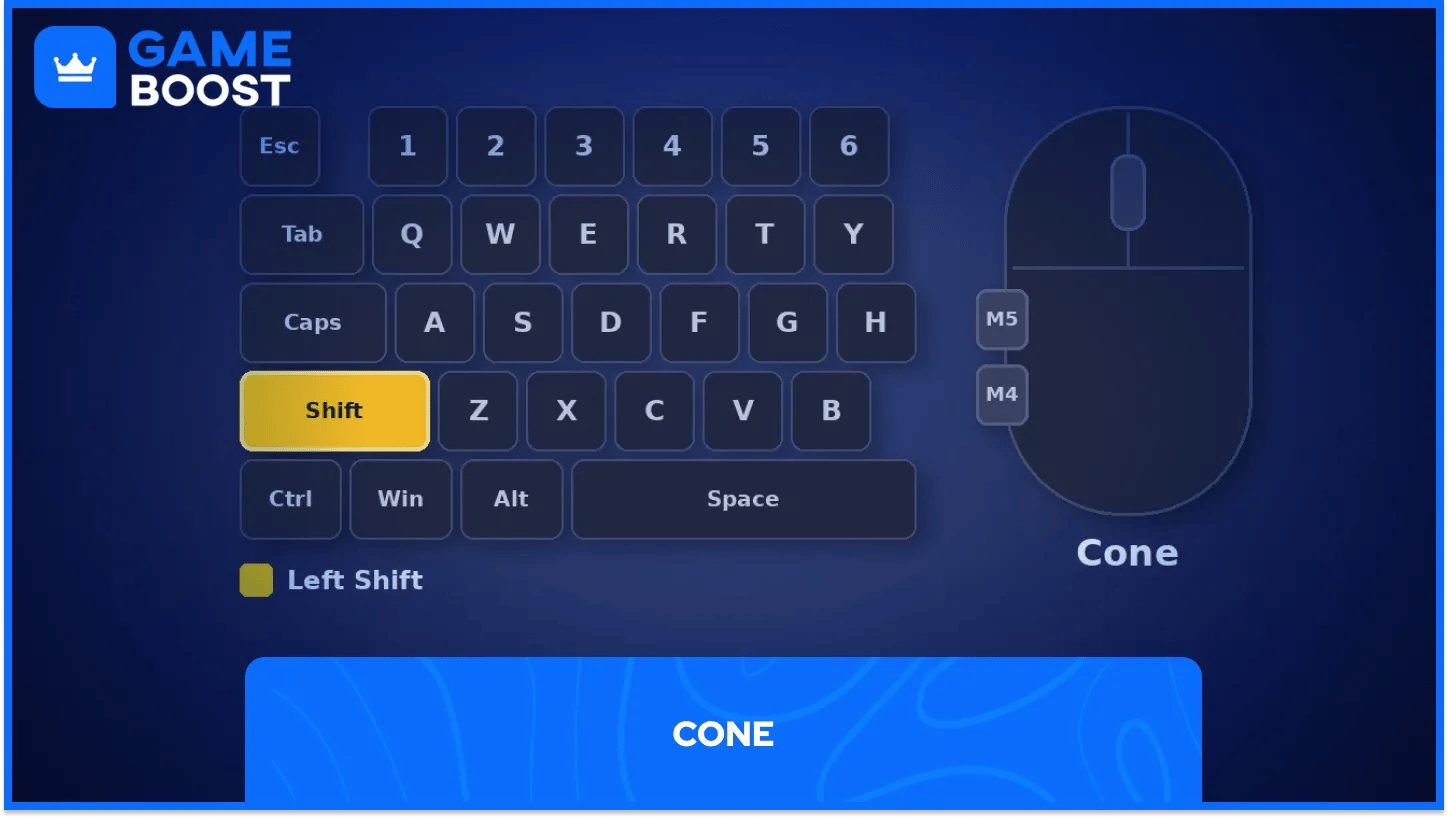
The cone goes on Left Shift, and the pinky handles it with no stretch. That's why sprint moves to Caps Lock in this layout.
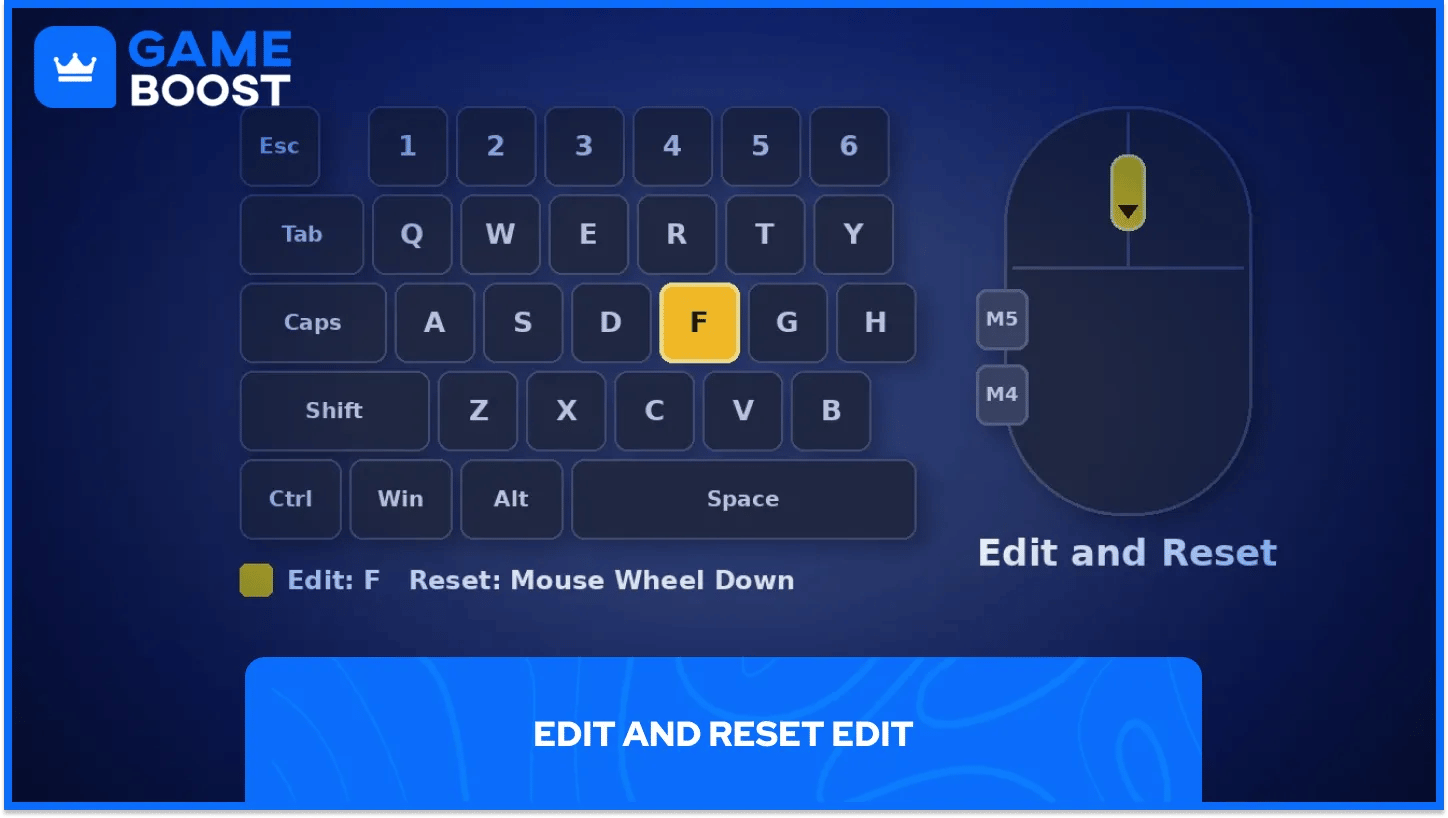
Edit on F and reset on Mouse Wheel Down keep both actions one finger away. If you want an edit to confirm the moment you let go of the edit key, turn on Confirm Edit on Release.
Reaching for 4 and 5 mid-fight takes your fingers away from movement, so many players bind weapon slots to 1, 2, 3, Z and V instead.
Put reload on R and use on E. Both sit where your hand already rests.
Sprint moves to Caps Lock in this setup, which frees Left Shift for the cone (our guide on how to sprint in Fortnite covers sprinting on every platform). Crouch works well on Left Ctrl or Left Alt, and the harvesting tool fits on a free key like G or a spare mouse button. Map on M and inventory on Tab round out the layout.
Ever changed every bind at once? It feels awful for days. Switch the build pieces first, play until they feel automatic, then move weapon slots in a second step.
Creative islands and free-build maps are the best place to practice. Twenty minutes of building walls, ramps, and edits on new binds each day beats grinding Fortnite ranked with half-learned controls.
Write your layout down or screenshot the Keyboard Controls tab, so a new PC or a reinstall doesn’t cost you an evening of rebinding. Do the same for visual settings like Fortnite colorblind mode.
Players who keep several accounts, from stacked Fortnite accounts to fresh ones, get the most out of that backup, as matching binds on every account keep muscle memory identical.
The best Fortnite keybinds are the ones you stop thinking about. A layout copied from a pro is a solid base, but hand size and mouse grip decide what feels natural for you.
Change things in stages and give each change a week. In my experience, the urge to go back peaks in the first couple of days, right before the new layout starts to click.
Revisit your binds when you get a new mouse. An extra side button or a different scroll wheel can open up a better spot for edit or reset.
Buy Cheap V-Bucks
Buy Fortnite Skins
Cheap Fortnite Accounts For Sale
Fortnite Gift Cards for Sale
View all GameBoost Accounts
View all GameBoost Boosting Services
View all GameBoost Currencies
View all GameBoost Game Keys
View all GameBoost Gift Cards
View all GameBoost Top Ups
View all GameBoost Items
“ A former sports journalist and editor, Patrik joined Gameboost SEO team in 2026. He has spent most of his life playing Football Manager, but his sphere of interests spreads through whole gaming universe.”