



•Filip Premuš• 4 min read
GTA 5
GTA Online has built one of the biggest multiplayer communities in gaming history, and your username plays a bigger role in that experience than most players stop to think about. Every time you join a lobby, appear in a kill feed, or send a friend request, your name is what represents you. The catch is that Rockstar ties your identity to three separate layers: your Rockstar Social Club nickname, your in-game character name, and your platform ID. Each one shows up in different places and gets changed through a different process, so knowing which one you actually need to update is the first step to getting it right.
GTA Online runs on three separate naming layers at the same time, and most players don't realize this until they change the wrong one.
Your Rockstar Social Club nickname is your account-level identity across all Rockstar titles, visible on PC lobbies and the Social Club site.
Your platform ID (PSN, Xbox Gamertag, or Steam name) is what other players see in console lobbies.
Your character name is the first and last name tied to your in-game persona, mostly visible during missions and heists, and largely only to you.
These three names are completely independent from each other. Your Social Club nickname and your character name are not the same thing, even though many players treat them as one. If you're on PlayStation or Xbox and want to change what shows up in lobbies, your Social Club nickname won't touch that. That's controlled by your PSN ID or Gamertag. On PC, your Social Club nickname is what other players see, so that's the one worth updating if your public identity needs a refresh.

To check your current username without being in an active session, head to socialclub.rockstargames.com, log in, and open your profile settings. Your nickname is displayed there alongside how many changes you have remaining. If you're already in-game on PC, pressing the Home key brings up the Social Club overlay where your nickname is visible at the top. On console, your displayed name pulls directly from your PSN ID or Xbox Gamertag, so check that through your platform's account settings instead.
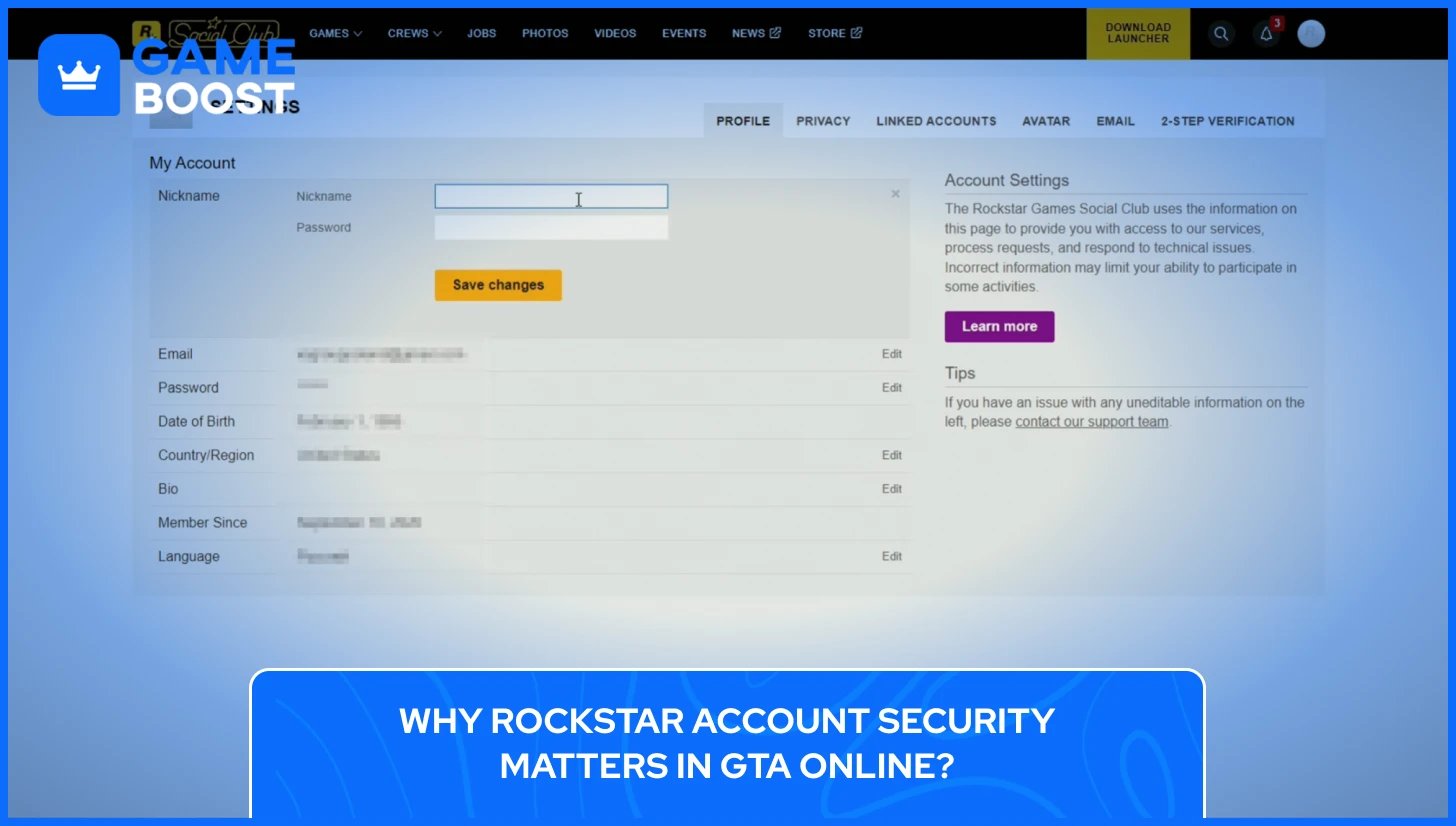
Your Social Club nickname is the one that represents you across all Rockstar titles, and changing it takes less than a minute if you know where to look. The entire process happens through the Social Club website, not inside the game itself.
The steps are straightforward. Head to the website, make the change, and you're done:
Go to socialclub.rockstargames.com and log into your account
Click your profile name in the upper right corner and select Settings
With the Profile tab open, click Edit next to your Nickname
Type in your new nickname to replace the old one
Click Save Changes
Before you hit save, double-check the spelling. This change comes with a strict annual limit, so you want to get it right the first time.
The Social Club website updates instantly, but the game itself takes a little longer to catch up. Most players see the new name appear in GTA Online within 5 to 15 minutes, though it can occasionally take up to an hour. If your old name is still showing after 24 hours, log out of the game completely, restart, and check again.
Changing your nickname doesn't reset your progress, remove your friends, or affect your account in any way. Your stats, money, properties, and vehicles stay exactly as they were.
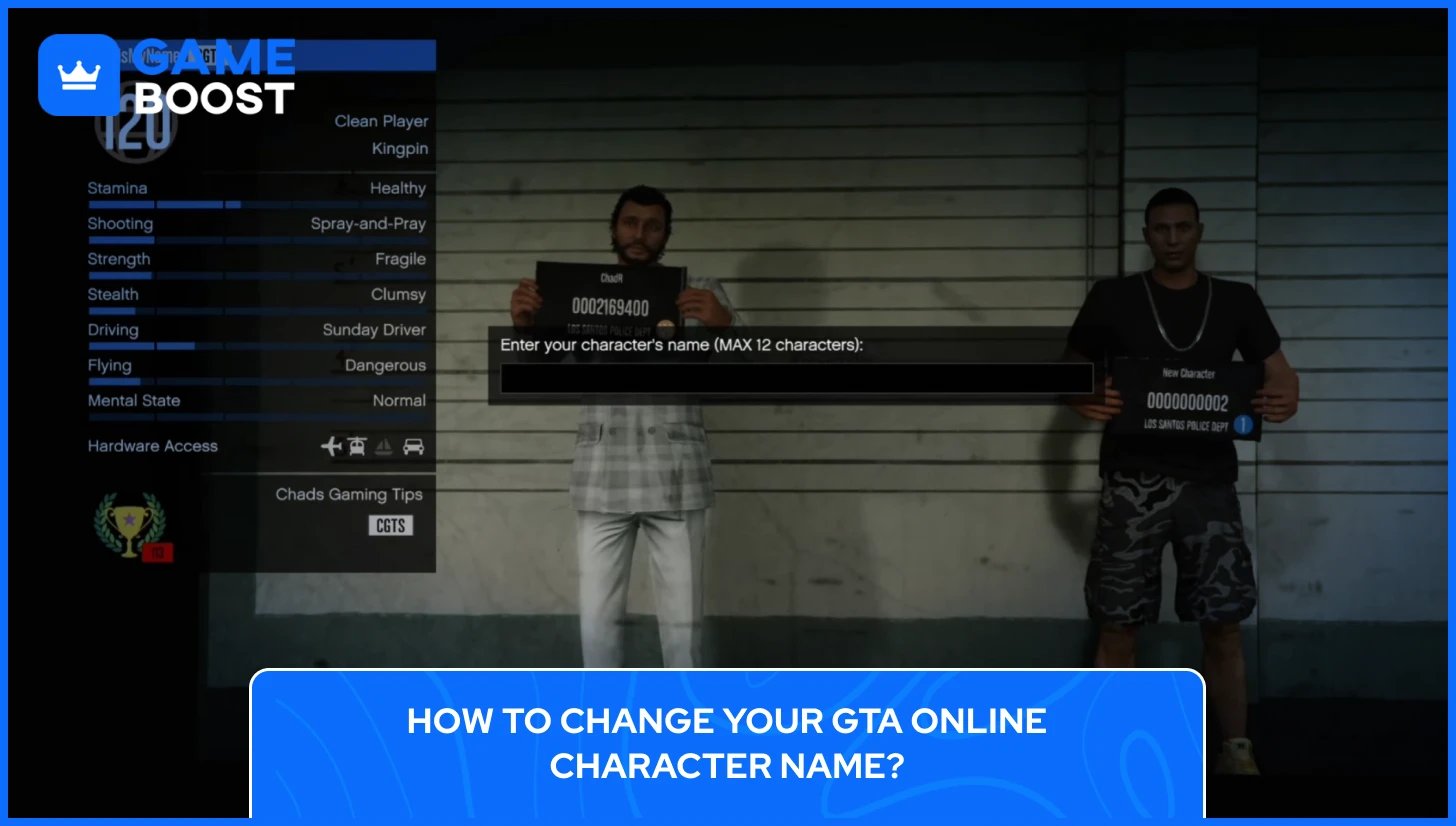
Your character name is the first and last name you set during the character creation process. It shows up during missions, heists, and certain roleplay contexts, but it's not the same name other players see in lobbies. That's your Social Club nickname or platform ID depending on your platform.
The character name cannot be directly edited once it's been set. Rockstar hasn't built an option to simply open a menu and rename an existing character. The only way to get a different character name in GTA Online is to delete your current character and create a new one through the character selection screen.
To do that, follow these steps from the main menu:
Open the pause menu and navigate to the Online tab
Select Swap Character
On the character selection screen, choose the character you want to remove
Delete the character to free up the slot
Create a new character and set a new name during the creation process
Deleting a character permanently removes all progress tied to it. Your money, rank, properties, vehicles, and everything else attached to that character will be gone with no way to recover it. If your goal is simply to change the name other players see, you don't need to delete anything. Updating your Social Club nickname covers that without touching your character or progress at all.
Also Read: Is It Safe to Buy Accounts For GTA 5?
The Social Club nickname system is more restrictive than most players expect. You can only change your nickname once every 365 days. If you try before that window is up, the settings page will show "Nickname is not editable" and there's no way past it.
On top of the annual cooldown, Rockstar also caps the total number of changes allowed per account over its lifetime, typically one to two changes total. You can check exactly how many you have left by logging into socialclub.rockstargames.com and going to Settings, then Profile, then Username. Look for the "Changes remaining: X" line in the username panel.
Rockstar put these restrictions in place to stop players from switching names to evade bans or harass others in the community. It functions as an accountability measure as much as anything else.
If your changes are already exhausted, your Social Club nickname is permanently locked. Rockstar Support won't reset the limit under normal circumstances. At that point, your options are updating your platform ID on console (PSN or Xbox Gamertag), or starting a brand new Rockstar account, which means losing all existing progress.
On PlayStation and Xbox, the name other players see in GTA Online lobbies comes from your platform account, not your Social Club nickname. Changing it requires updating your platform ID directly through Sony or Microsoft's account settings.
Your first PSN name change is free. After that, subsequent changes cost $9.99, or $4.99 if you have an active PlayStation Plus subscription.
To change your PSN ID on PS4 or PS5, follow these steps:
Go to Settings and select Users and Accounts
Select Account, then Profile
Select Online ID, enter your new name, and check availability
Confirm the change and follow the on-screen prompts
You also have the option to display your old name next to your new one for 30 days, making it easier for friends to recognize you after the switch. Some older PS3 and PS Vita titles don't fully support PSN ID changes, so if you still play those, check Sony's list of affected games before committing.
Also Read: GTA 5 Social Club: Everything to Know
Xbox players update their GTA Online lobby name by changing their Gamertag through Microsoft's account settings. Your first Gamertag change is free. Every additional change after that costs $9.99.
To update your Gamertag, follow these steps:
Press the Xbox button to open the guide and go to Profile & System
Select your profile, then choose My Profile
Select Customize Profile, then click your current Gamertag
Enter your new name, hit Check Availability, and confirm
Once saved, the new Gamertag updates across all platforms automatically with no additional steps needed.
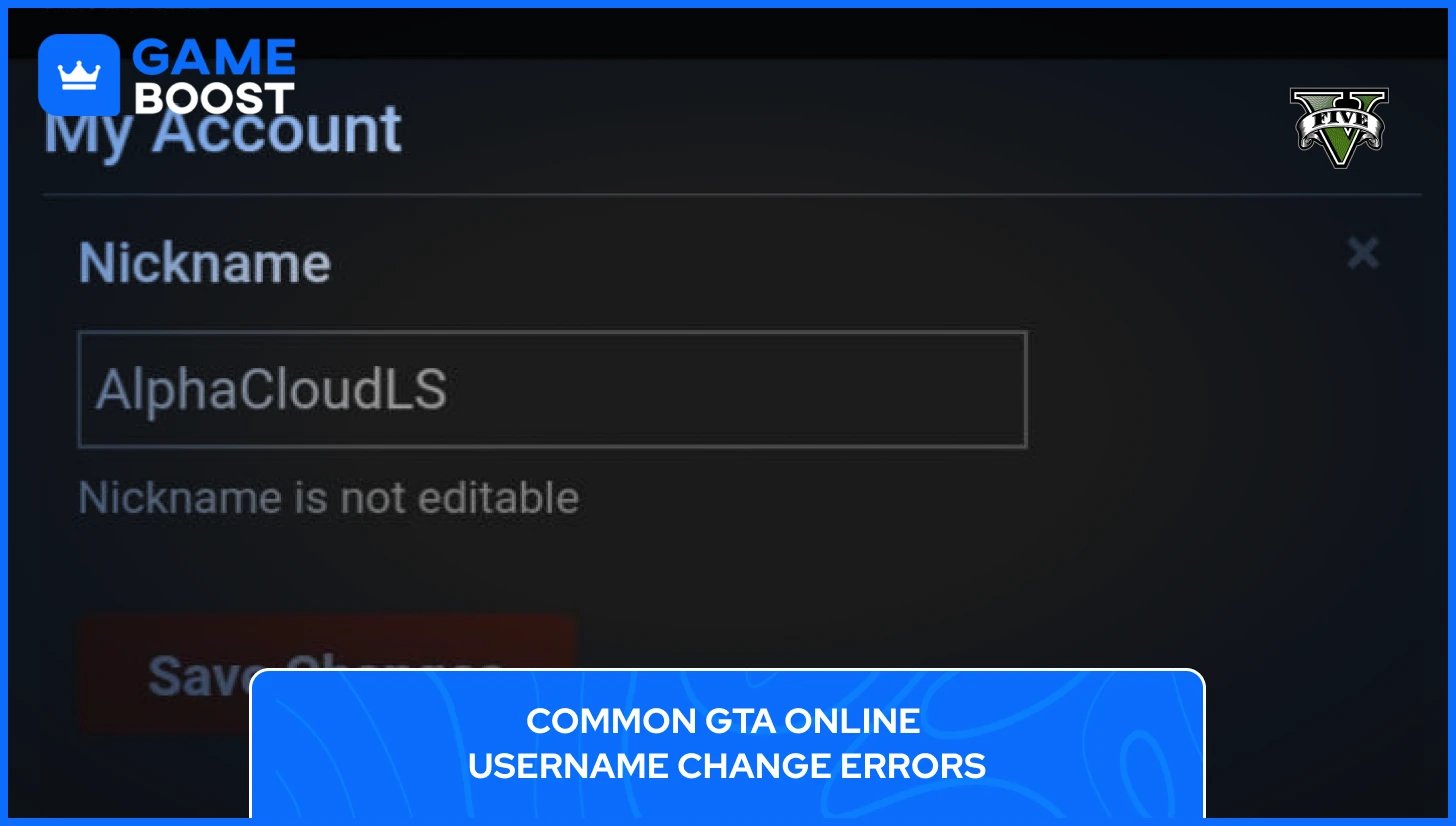
Most issues players run into when changing their GTA Online username fall into one of a few categories. Here's what each GTA Online Username change error means and what you can actually do about it:
"Nickname is not editable" is the most common one. It means your 365-day cooldown hasn't expired yet. There's no workaround. The only option is to wait until the full year has passed from your last change before the edit field becomes active again.
"0 Changes Remaining" means your lifetime limit has been exhausted. Once this happens, the name is permanent, and no workaround exists. Rockstar Support will not reset this limit. At that point, updating your platform ID on the console is the only way to change what other players see.
"Username Taken" simply means another account already holds that name. Try variations by adding numbers, underscores, or year tags to your preferred name until you find something available.
Name changed on the website, but not showing in-game is a sync issue rather than an error. The Social Club site updates immediately, but GTA Online can take anywhere from 5 to 15 minutes to reflect it, and occasionally up to an hour.
If the old name is still showing after 24 hours, log out of the game completely, restart, and check again. If it still hasn't updated, contact Rockstar Support directly at support.rockstargames.com.
Changing your name in GTA Online is simple once you know which layer actually controls what other players see. The bigger challenge is working within Rockstar's limits, since mistakes cost you one of your very few available changes.
If you're planning a full rebrand, it's worth thinking beyond just the name. Your crew tag, CEO organization name, and even your Motorcycle Club name are all part of how others identify you in Los Santos. Those can be updated independently and give you more flexibility to shape your in-game identity without touching your Social Club account at all.
For players who want a completely fresh start with a new name, character, and account history, a pre-built GTA account from a trusted marketplace like GameBoost is worth considering. You get to skip the grind and jump straight into the experience you actually want.
GTA 5 Key
GTA 5 Enhanced Key
Buy GTA 5 Items
GTA 5 Accounts For Sale
View all GameBoost Accounts
View all GameBoost Boosting Services
View all GameBoost Currencies
View all GameBoost Game Keys
View all GameBoost Gift Cards
View all GameBoost Top Ups
View all GameBoost Items
Counter-Strike 2 Skins
“ Kristina joined GameBoost in 2024 as an SEO specialist and quickly became the go-to writer for third-person shooter and competitive games. She covers titles like Fortnite, Valorant, League of Legends, GTA 5, and Roblox, focusing on how-to guides, practical tips, and updates.”