


•Filip Premuš• 4 min read
GTA 5
Rockstar Games Social Club is the platform account that ties together everything you do across Rockstar's titles, including GTA Online. It tracks your stats, crews, jobs, and progress, and it needs to be connected to your gaming platform of choice to work properly.
Players on PlayStation, Xbox, and Steam all need to link their respective accounts to Social Club to access online features and keep their progress synced. The process is slightly different depending on which platform you're on, but none of them are particularly complicated once you know where to look. In this article, we'll cover how to link your Rockstar Social Club account to Steam, Xbox, and PlayStation, along with the benefits and limitations you should know about.
Also Read: Where to Buy GTA 5 Accounts?

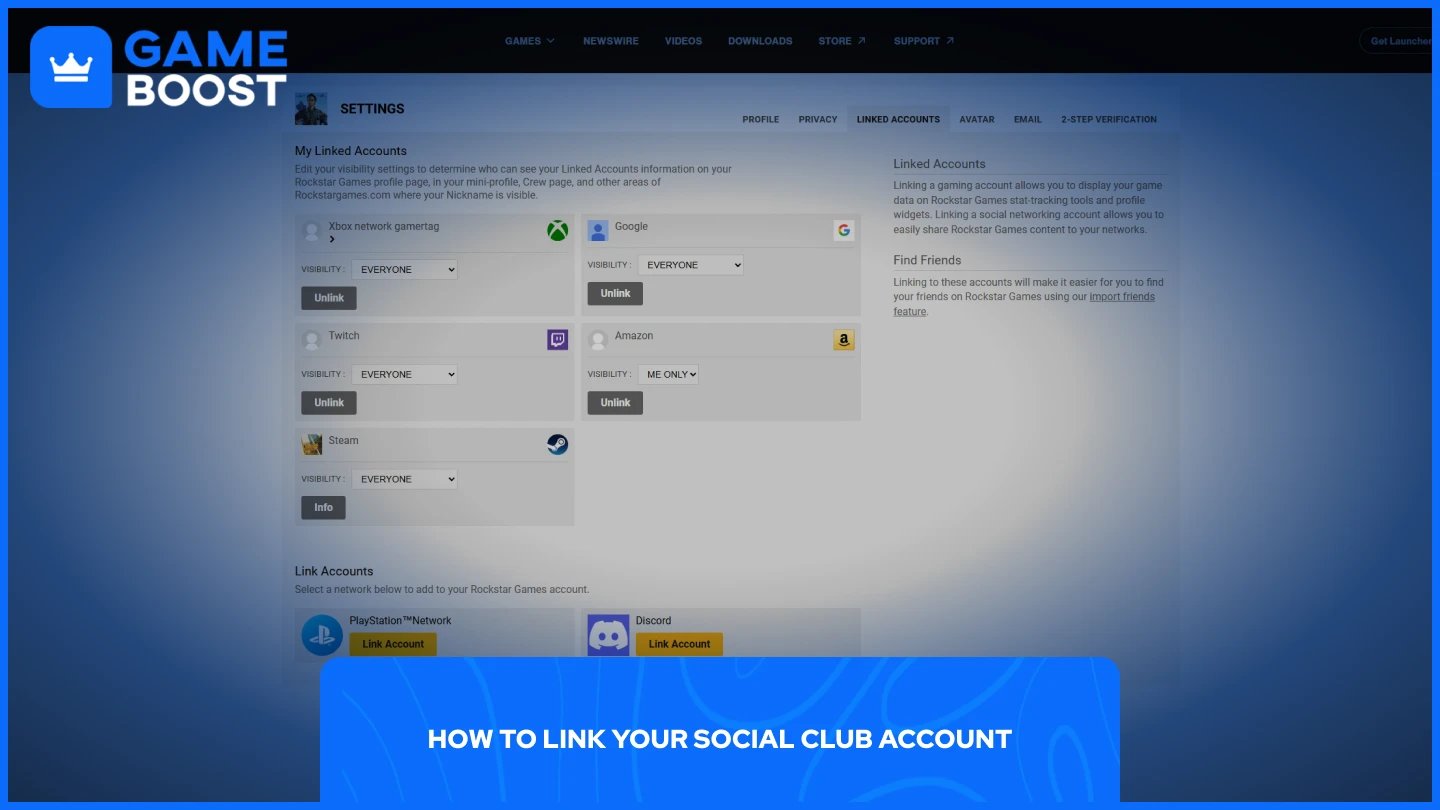
All linking is managed through the Rockstar Social Club settings page at socialclub.rockstargames.com/settings/linkedaccounts. Sign in first, then follow the steps for your platform below.
Also Read: Is It Safe to Buy Accounts For GTA 5?
Open the Rockstar Games Launcher and sign in to your Social Club account.
You'll be prompted to link your Steam account directly through the Launcher.
Confirm the link, and you'll receive a one-time activation code to complete the process.
To verify, head to your Social Club account settings under the Linked Accounts tab.
Note: Steam linking can also be triggered by launching a Rockstar title through Steam for the first time. Keep in mind that once linked, the Steam connection is permanent and cannot be undone.
Go to socialclub.rockstargames.com and sign in to your Social Club account.
Click on your profile icon in the top right corner and go to Settings.
Navigate to the Linked Accounts tab.
Select Xbox and click Link Account.
Sign in with your Xbox email and password, enter the verification code if prompted, and confirm.
Go to socialclub.rockstargames.com and sign in to your Social Club account.
Click on your profile icon and go to Settings.
Navigate to the Linked Accounts tab.
Select PlayStation Network and click Link Account.
Sign in with your PSN email and password, enter the verification code if prompted, and confirm.
The PlayStation linking process is almost identical to Xbox. The only difference is selecting PlayStation Network instead of Xbox in the Linked Accounts tab and signing in with your PSN credentials instead.
The most immediate benefit is access to GTA Online. Both games require an active Social Club connection to function, so linking is essentially mandatory if you want to play online on any platform.
Beyond that, linking gives you access to your crew, stats, job history, and progress tracking through the Social Club website and app. You can monitor your in-game activity, manage your crew, and keep tabs on your rank and playtime from outside the game.
Players who link their accounts also get access to exclusive Rockstar promotions and rewards that are periodically offered through Social Club, which are typically tied to your account status and linked platform.
Cross-platform sign-in is another advantage. With your accounts connected, logging into Rockstar services across devices becomes more streamlined, and you're less likely to run into authentication issues when switching between platforms.
Also Read: GTA 5: Download Size & System Requirements
Linking your Social Club account to Steam, Xbox, or PlayStation is a quick process that's easy to complete through your account settings. Once connected, you'll have full access to GTA Online, your crew, stats, and any Rockstar promotions tied to your account. Just keep in mind that the Steam link is permanent, and linking doesn't transfer existing progress between platforms.
GTA 5 Key
GTA 5 Enhanced Key
Buy GTA 5 Items
GTA 5 Accounts For Sale
View all GameBoost Accounts
View all GameBoost Boosting Services
View all GameBoost Currencies
View all GameBoost Game Keys
View all GameBoost Gift Cards
View all GameBoost Top Ups
View all GameBoost Items
Counter-Strike 2 Skins
“ Mustafa Atteya has been writing about gaming and esports since 2023, specializing in competitive game content and player improvement guides. At 25, he brings both hands-on gaming experience and professional SEO writing expertise to the GameBoost team.”