


•Filip Premuš• 4 min read
GTA 5

Your Rockstar Games account ties directly to everything you've built in GTA Online, from your properties and businesses to your character progress and in-game cash. Losing access to that account, or having it compromised, means losing all of it. That's exactly why Rockstar built 2-Step Verification into the Social Club account system.
In this guide, we're covering everything you need to know about enabling, checking, managing, and troubleshooting 2FA on your Rockstar Games account so your GTA 5 progress stays protected.
2-Step Verification (also called 2FA, or two-factor authentication) is a security layer that goes beyond just a password. When it's active on your Rockstar Games account, logging in requires two things: your password and a time-sensitive code generated by an authenticator app on your phone or browser. Even if someone gets hold of your password, they still can't get in without that second code when you enable 2FA on your GTA 5 account, which makes it significantly harder for anyone to break into your account.
GTA Online accounts are a frequent target for theft, and with years of progress, in-game cash, and purchased content all tied to a single Rockstar Games Social Club account, losing access means losing everything you've built, with no simple way to get it back. Account theft is a real and ongoing problem in the GTA community, and Rockstar's support team has limited options when it comes to recovering compromised accounts.
Rockstar's 2-Step Verification works through an authenticator app on a mobile device or a browser-based authenticator, and your account email must be verified before the setup can begin. The system runs on TOTP (Time-Based One-Time Passwords), meaning the code refreshes every 30 seconds and expires immediately after use, so intercepting it is practically useless for anyone trying to get into your account.
One thing worth knowing is that 2-Step Verification won't be triggered by third-party sign-ins through Xbox Live, PlayStation Network, Google, Twitter, or Facebook. Sensitive account changes, like updating your email, password, or payment details, will still require a verification code regardless of how you sign in.

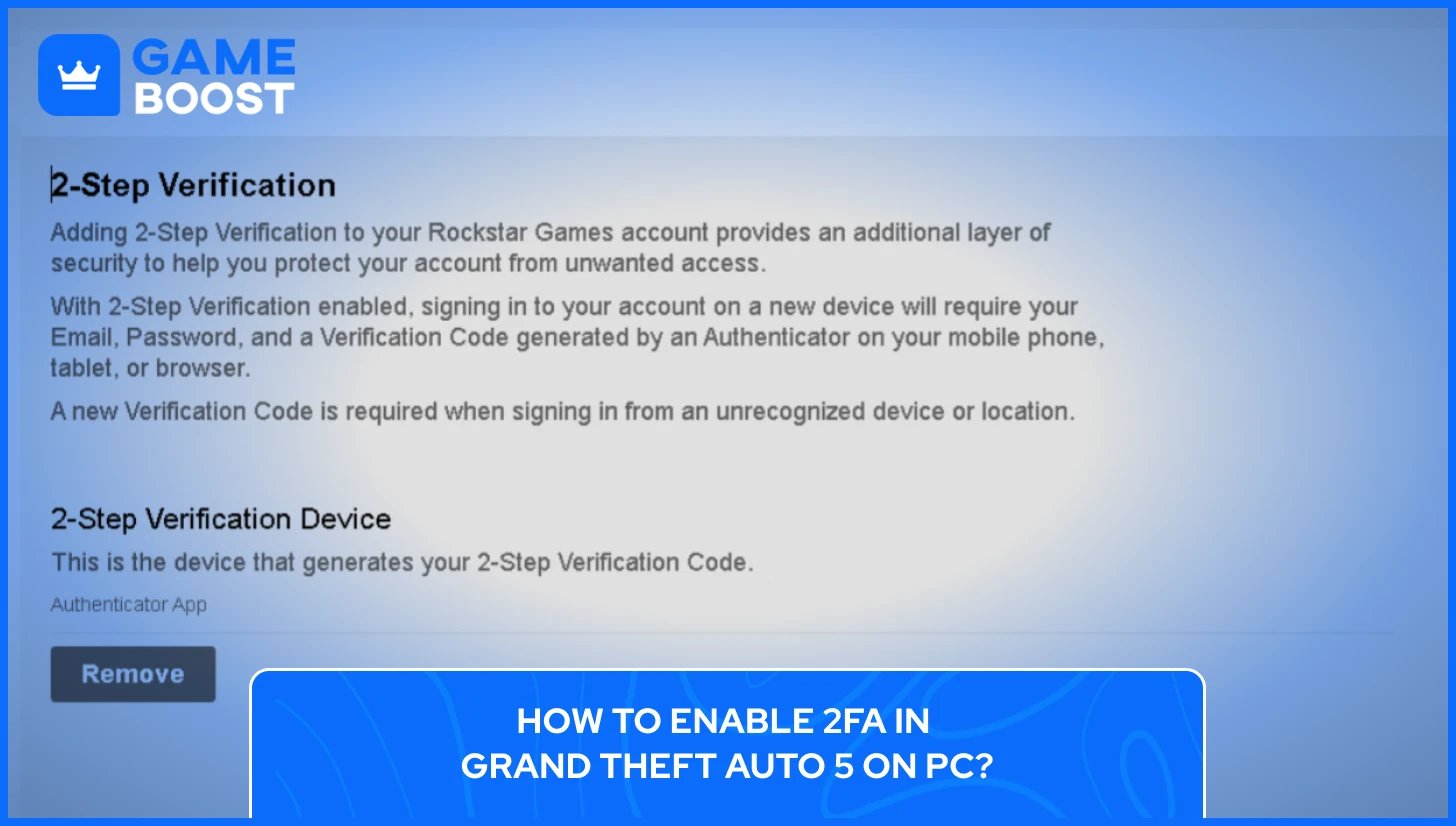
Setting up 2FA for GTA 5 is done entirely through your Rockstar Games account on the Social Club website, not from within the game itself. The process takes about five minutes and only needs to be done once, regardless of how many platforms you play on.
Before starting the setup, you'll need a compatible authenticator app installed on your phone or browser. Rockstar officially supports Twilio Authy, Google Authenticator, Microsoft Authenticator, and 1Password for 2-Step Verification on Social Club accounts. All four are free to download on both iOS and Android, and any one of them will work for this process.
Rockstar strongly recommends enabling cloud backup within whichever app you choose, so you don't lose access to your account if you switch phones or accidentally delete the app. This is especially important since losing access to your authenticator without a backup can make account recovery a lengthy process.
Once your authenticator app is ready, head to socialclub.rockstargames.com and log in to your account. From there, follow these steps to enable GTA 5 2FA:
Go to Settings and select the 2-Step Verification tab
Click Setup button
Open your authenticator app and scan the QR code that appears on the page
If scanning isn't an option, use the Secret Key provided on the same page by entering it manually into the app
Enter your Rockstar account password in the field below the QR code
Enter the 6-digit code from your authenticator app into the verification field
Click Verify
The Secret Key option is available for anyone who can't scan the QR code, allowing 2-Step Verification to be added to an account manually through the authenticator app. Once you hit Verify and the code is accepted, 2FA is active on your account immediately.
Also Read: Is It Safe to Buy GTA 5 Accounts?
Console players often assume 2FA needs to be set up through their PlayStation or Xbox account, but that's not how it works for GTA 5. Your Rockstar Games Social Club account is what needs to be secured, and the setup always happens through the Social Club website, not through your console's settings menu. This applies across PS4, PS5, Xbox One, and Xbox Series X/S.
The steps to set up 2FA for your GTA 5 accounts are identical to the PC setup covered above. Open a browser on your phone, tablet, or any computer, head to socialclub.rockstargames.com, log in, and follow the same process through Settings > 2-Step Verification > Setup. Your console doesn't need to be involved at any point during setup.
There is one thing console players need to be aware of after enabling 2FA. Once 2-Step Verification is enabled on your Rockstar Games account, you'll need to link your PlayStation Network or Xbox network account to Rockstar Games using the Linked Accounts section of your account settings. Skipping this step can cause an error message saying "The Rockstar Games service is not available" when trying to connect your console account, so it's worth doing right after setup.
To find the 2-Step Verification tab as a console player, your Rockstar Social Club account first needs to be linked to your PSN account or Xbox Gamertag, after which the option will appear under the Linked Accounts section of your settings. Once that's in place, the rest of the setup follows the same flow regardless of what platform you play on.
Once 2FA is active, logging into your Rockstar Games account on a new device will prompt you for a verification code from your authenticator app alongside your password. On devices you've already used before, you may not be asked for the code every single time, but any sensitive account changes, such as updating your email, password, or payment information, will always require verification.
From a practical standpoint, the login process adds about ten seconds to your routine. You open your authenticator app, copy the current six-digit code, and you're in. It's a minor adjustment that becomes second nature quickly, and the security benefit far outweighs the few extra seconds it takes.
Also Read: GTA 5 Premium Edition Explained
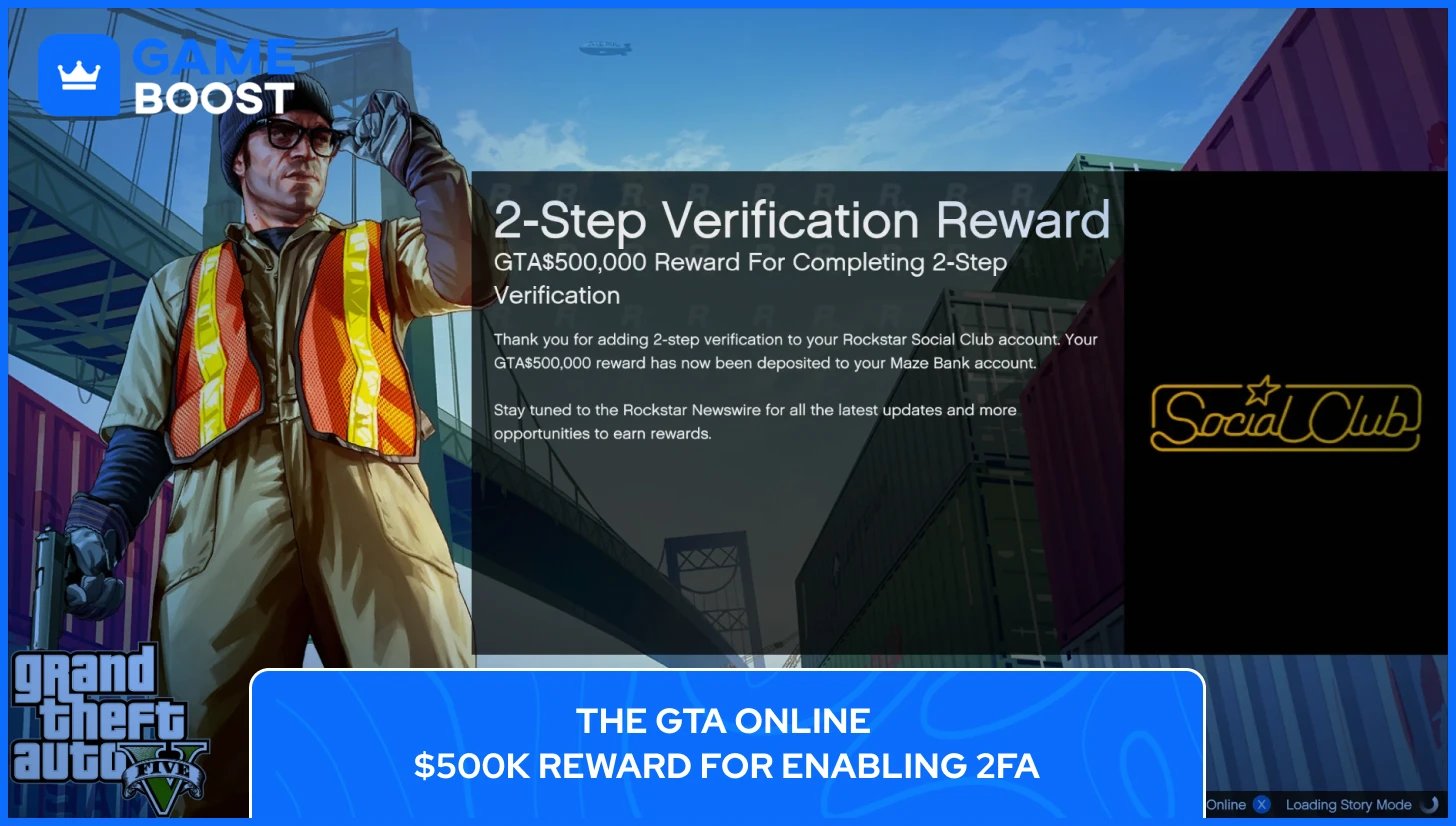
Rockstar sweetened the deal for players who secured their account by rewarding every player who adds 2-Step Verification to their Social Club account with GTA$500,000 deposited into their GTA Online account and 10 Gold Bars in Red Dead Online. This applies to both new setups and accounts that already had 2FA enabled when the reward was introduced.
The rewards are typically credited to your GTA Online and Red Dead Online accounts within 72 hours of enabling 2FA, though in some cases it can take slightly longer. If nothing shows up after a few days, reaching out to Rockstar Support with your account details is the recommended next step.
The 2FA bonus is a one-time reward, not a recurring perk like GTA+ membership benefits, and it's available across all platforms, including PC, PS4, PS5, Xbox One, and Xbox Series X/S, as long as your console account is linked to your Social Club account. Technically, you can disable 2FA after claiming the bonus, but doing so leaves your account exposed, making it a trade that isn't really worth it.
If you're not sure your Rockstar account already has 2FA active, checking takes less than a minute and doesn't require you to go through any setup process. Head to socialclub.rockstargames.com, log into your account, click on your profile icon in the top right corner, and go to Settings > 2-Step Verification.
From there, the status of your 2FA is immediately visible. If 2FA is already active, the tab will show your linked authenticator device along with the option to remove it. If it hasn't been set up yet, you'll see a Setup button instead. There's no ambiguity about which state your account is in once you're on that page.
A secondary way to tell is through your login behavior. If your account is already prompting you for a six-digit code every time you sign in on a new device, 2FA is active and working. Players who never get asked for a verification code beyond their password should check the settings page, as their account is likely still unsecured.
One thing worth keeping in mind is that having your PSN or Xbox account linked to Social Club does not mean 2FA is enabled on your Rockstar account. Your console sign-in security and your Rockstar Social Club 2FA operate independently of each other, so it's always worth confirming both are set up correctly.
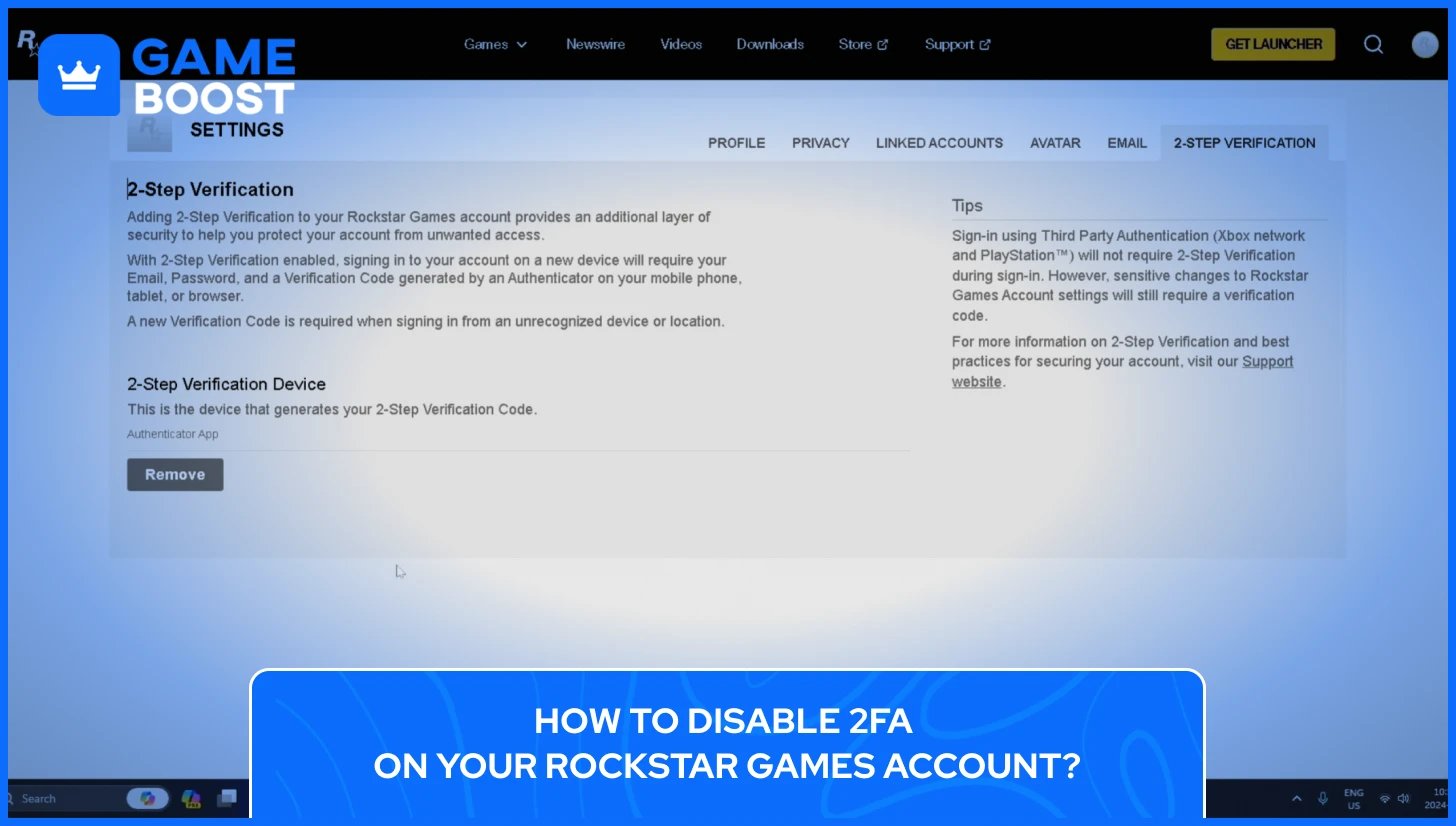
There are a few legitimate reasons to turn off 2FA on your Rockstar account, most commonly when switching to a new phone, moving to a different authenticator app, or troubleshooting a verification issue. The process is simple, but you'll need access to your current authenticator to complete it, since Rockstar requires a valid code before allowing any changes to your 2FA setup.
To disable 2-Step Verification on your Rockstar Games account, follow these steps:
Log in to your account at socialclub.rockstargames.com
Click your account avatar in the top right corner
Select Settings from the dropdown menu
Go to the 2-Step Verification tab
Under the 2-Step Verification Device, click Remove
Enter your current authenticator code to confirm the removal
Rockstar acknowledges that there are valid reasons to turn off 2-Step Verification, such as updating the authenticator associated with your account or making other account changes, and the option to do so is available directly through your account settings.
Disabling 2FA is not the same as switching authenticator apps. If you're moving to a new device or a different app rather than removing 2FA entirely, the smarter move is to first remove the current authenticator through the steps above and then immediately go through the Setup process again with your new app. This keeps your account protected without any gap in security.
Completely turning off 2FA and leaving it disabled is not recommended, since it removes the one barrier standing between your GTA Online progress and anyone who gets hold of your password.
2FA issues on Rockstar accounts almost always come down to a handful of specific causes, and most of them can be fixed without needing to contact support. Understanding what's actually going wrong makes it much easier to solve quickly, and for GTA Online players especially, getting locked out of your Rockstar Games Social Club account is the last thing you want.
Error #0.200.4 appears when the 2-Step Verification code entered is incorrect, expired, or if the authenticator device has changed. This is the most common error players run into when trying to sign into their Rockstar Games account, and the fix is usually one of three things.
The first thing to check is timing. Each verification code is only valid for 30 seconds, and entering it even a few seconds after it refreshes will trigger this error. Open your authenticator app, wait for a fresh code to generate, and enter it immediately without any spaces between the digits. It sounds simple, but this alone resolves the error for most people.
If a fresh code still doesn't work, the problem is almost certainly a clock sync issue between your device and Rockstar's 2-Step Verification service. To fix this on Android using Google Authenticator, go to the app's main menu, select Settings, then Time Correction for Codes, and tap Sync Now. On iOS, go to Settings > General > Date & Time, toggle off Set Automatically, then turn it back on and reboot your device.
Running a VPN or proxy can also interfere with the GTA 5 two-factor authentication process by introducing latency, so disabling those before attempting to log in is worth trying if the sync fix doesn't resolve it. Clearing your browser cache or switching to a different browser can also help if the issue is happening on the Social Club website specifically.
Also Read: How to Download & Transfer Your Progress to GTA V Enhanced
Losing access to your authenticator app is the most stressful Rockstar 2FA situation to be in, and it's also the most preventable. Rockstar strongly recommends enabling cloud backup in your authenticator app so you don't lose access to your Rockstar Games account if you switch phones or accidentally delete the app.
If you've already lost access, the path forward depends on which app you were using. Rockstar directs players to the recovery support pages for each specific authenticator: Twilio Authy, Google Authenticator, Microsoft Authenticator, and 1Password each have their own account restoration process that can help you regain access to your verification codes. Going through your authenticator provider's recovery process is the first step before reaching out to Rockstar Support directly.
Securing your Rockstar Games account with 2FA takes under five minutes, and the combination of better account protection and a free GTA$500,000 deposit makes it one of the easiest decisions you can make as a GTA Online player. The authenticator app becomes part of your routine quickly, and the added peace of mind knowing your progress is locked down is worth far more than the few seconds it adds to your login.
GTA 5 Key
GTA 5 Enhanced Key
Buy GTA 5 Items
GTA 5 Accounts For Sale
View all GameBoost Accounts
View all GameBoost Boosting Services
View all GameBoost Currencies
View all GameBoost Game Keys
View all GameBoost Gift Cards
View all GameBoost Top Ups
View all GameBoost Items
Counter-Strike 2 Skins
“ Kristina joined GameBoost in 2024 as an SEO specialist and quickly became the go-to writer for third-person shooter and competitive games. She covers titles like Fortnite, Valorant, League of Legends, GTA 5, and Roblox, focusing on how-to guides, practical tips, and updates.”