

•Filip Premuš• 4 min read
Brawl Stars
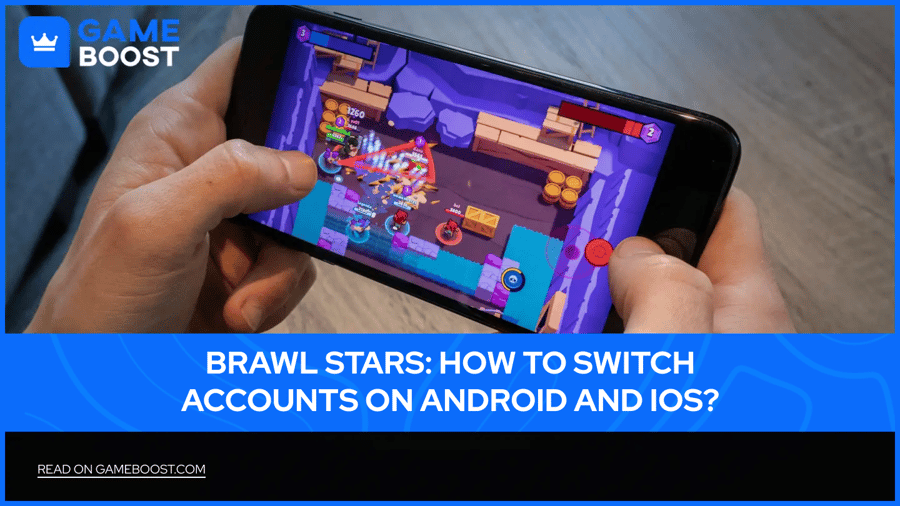
A lot of players run more than one Brawl Stars account, and the reasons vary. Some keep a secondary account for testing brawlers without touching their main progress, others share a device with a friend, and some just want a clean slate without losing everything they've spent months building up.
The good news is that Supercell ID makes switching between accounts much cleaner than it used to be, though Android and iOS handle things a little differently, and there are a few things worth knowing before you start jumping between profiles.
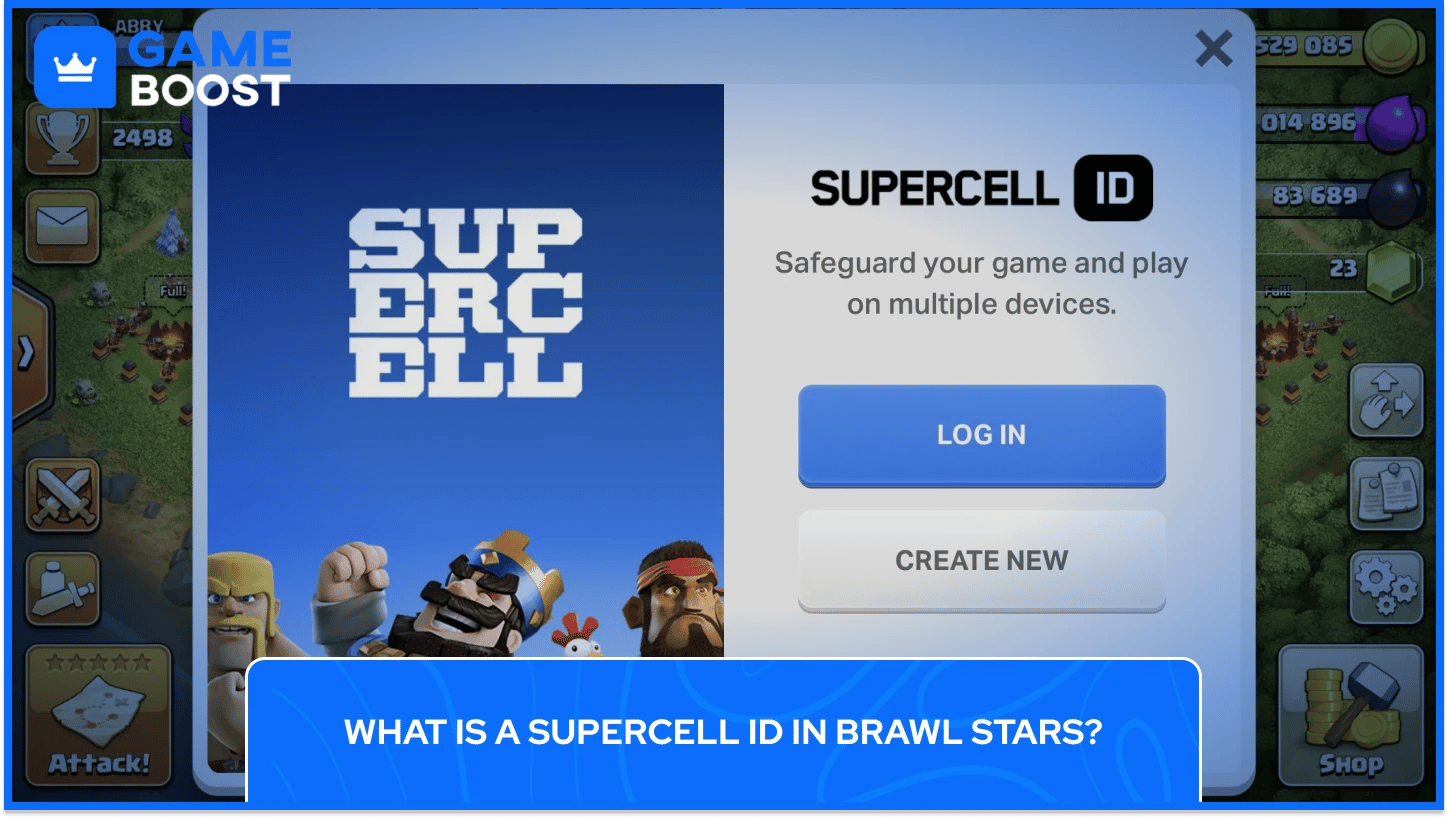
Supercell ID is the official account system Supercell uses across all its games, including Brawl Stars. It ties your game progress to an email address, meaning your account exists independently from the device you're playing on. Each Supercell ID requires a unique email, so if you plan on running multiple Brawl Stars accounts, each one needs its own separate email address.
Without a Supercell ID attached to your profile, there's no reliable way to recover or access your account if something goes wrong during a switch. When setting up your ID, ticking "Remember me on this device" saves your login details so you won't need to enter a verification code every time you switch between accounts.
Switching between accounts through Supercell ID is the most reliable method available, and it works the same way on both Android and iOS.
Switching accounts through Supercell ID takes under a minute. Here's how to do it:
Open Brawl Stars and tap the gear icon to access Settings
Select the Supercell ID and tap Log Out
On the main screen, tap "Log In with Supercell ID"
Select "Use Another ID" and enter the credentials tied to the account you want to access
The game will load that profile immediately
If you've previously saved multiple accounts on the same device, go to Settings, tap Supercell ID, and use the blue arrow icon to pull up a list of saved accounts, then select whichever one you want to play on.
Android players who haven't set up a Supercell ID can still switch accounts through Google Play Games, though the process runs through your device settings rather than the game itself. Before relaunching Brawl Stars, you'll need to add the second Google account to your device under system settings, then relaunch the game and select the new profile when prompted.
To switch Brawl Stars Accounts on Android through Google Play, follow these steps:
Go to your device Settings and add the second Google account
Open Google Settings and tap All Services
Tap Settings for Google Apps, then Play Games, then Sign-in Account
Under "Change the default account for games", tap Change
Select the profile you want and confirm
Relaunch Brawl Stars and select the account tied to that Google profile when prompted
One thing to keep in mind is that Google saves can overwrite existing data, so make sure your main account is linked to a Supercell ID before switching Google accounts on your device. Skipping that step is the most common reason players lose progress when switching between Android profiles.
Also Read: How to Play Brawl Stars on PC: Step-by-Step Guide
On iPhone and iPad, Brawl Stars ties accounts to Apple Game Center rather than your Apple ID or iCloud directly. Each account needs to be connected to a separate Game Center profile, and switching between them requires logging out of the current Game Center and signing into the one tied to the account you want to access.
These are the steps to switch Brawl Stars Accounts on iOS:
Open iPhone Settings and tap your name at the top
Scroll down and tap Game Center
Select Sign Out
Sign back in with the Apple ID linked to your other Brawl Stars account
Open Brawl Stars and the account tied to that Game Center profile will load automatically
If your account isn't linked to a Supercell ID, iOS restricts you to one Brawl Stars account per device. Setting up a Supercell ID removes that limitation and gives you far more flexibility when managing multiple profiles. If you're regularly switching between accounts on iPhone, linking each one to a separate Supercell ID and using the in-game switcher is the less complicated long-term option.
Also Read: How to Play Brawl Stars on Mac: Step-by-Step Guide
Each Brawl Stars account needs its own unique email address to create a separate Supercell ID. However, having multiple accounts on one device is possible, but each profile must be registered independently.
To get all Brawl Stars accounts properly set up and saved on your device, follow these steps for every account:
Open Brawl Stars and go to Settings
Tap Supercell ID and select Log Out
On the main screen, tap "Play Without Supercell ID" to load a fresh profile
Go back into Settings, tap Supercell ID, and select Register New
Enter a unique email address and confirm with the verification code sent to your inbox
Tick "Remember me on this device" so the account saves locally
Ticking "Remember me on this device" when registering each account means you won't need to enter a verification code every time you switch, making the process much quicker going forward. Once all your accounts are saved, you can move between them directly from the Supercell ID menu without repeating the full setup each time.
Switching accounts in Brawl Stars is usually quick, but a few issues come up often enough that they're worth covering in detail. Most of them are easy to resolve once you know what's actually causing them.
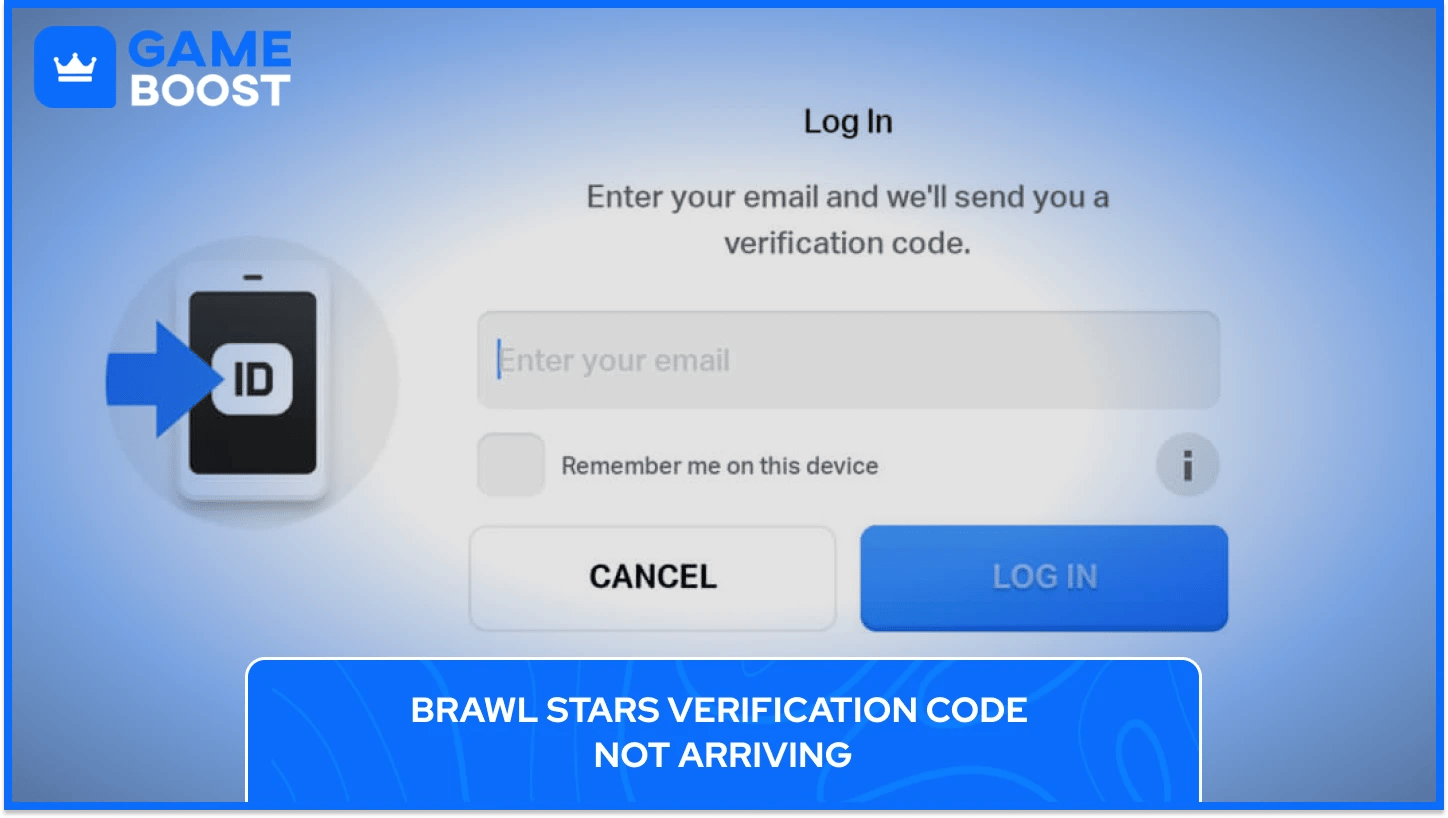
If the code isn't showing up in your inbox, check your spam or junk folder first, and make sure your email provider isn't blocking Supercell's domain by adding it to your safe sender list. Some email providers, particularly older or regional ones, are more prone to filtering out automated verification emails entirely.
Only the most recent verification code sent to you will work, so requesting multiple codes in a row will invalidate all the earlier ones. If you've requested more than one, wait a few minutes before trying again and only use the latest code that arrived. If the issue persists, contact Supercell directly through "Help and Support" inside the game and a support agent can help you regain access to your account.
A Brawl Stars account appearing to reset or load the wrong profile is almost always caused by accidentally logging into a different Google or Apple ID than the one tied to your game data, or by a syncing issue between the game and Supercell's servers. Before assuming your progress is gone, log out and double-check which account you're signed into on both the device level and inside the game.
If you've switched devices without properly linking your accounts beforehand, start by checking that you're logged into the correct Supercell ID associated with that specific profile. Progress is rarely lost permanently in these cases, and logging back in with the right credentials will restore everything.
Logging into multiple Brawl Stars accounts on a new device in quick succession can trigger a lockout. This is a security measure on Supercell's end designed to flag unusual login activity, and it tends to catch players who are moving between accounts too fast during setup.
If this happens, wait several minutes before attempting to log in again and make sure you're using the correct Supercell ID credentials for each account. If the problem continues, clear the app cache or reinstall the game to rule out corrupted data, and avoid logging into the same account on multiple devices at the same time. For persistent lockouts, reaching out to Supercell Support through the in-game help menu with your player tag ready is the most reliable path to getting back in.

As long as each account is linked to a separate Supercell ID with its own unique email address, you can save and switch between multiple profiles on a single device. Ticking "Remember me on this device" during setup makes the process faster each time.
If your account is properly linked to a Supercell ID before switching, nothing will happen to your Brawl Stars progress. Your brawlers, trophies, skins, and gems stay exactly where you left them and reload automatically when you log back in.
Switching accounts is not against Supercell's Terms of Service. What is against the rules is using multiple accounts to manipulate matchmaking, inflate trophy counts, or interact with your own accounts in ways that give an unfair competitive advantage.
Check your spam folder first and confirm the email address you entered is correct. If nothing arrives, wait a few minutes before requesting a new code, since only the latest code will work. Persistent issues can be resolved by contacting Supercell through the in-game Help and Support menu.
Getting comfortable with account switching in Brawl Stars opens up a lot of flexibility for players managing more than one profile. The process itself is manageable once each account is properly set up, but the difference between a smooth experience and a frustrating one usually comes down to how well each profile is secured before you start switching.
It's also worth keeping an eye on how Supercell continues to develop the Supercell ID system across its games. As the player base grows and account management becomes increasingly central to the experience, improvements to how profiles are saved, switched, and protected are likely to follow. For now, the combination of Supercell ID and platform-level logins covers most use cases well enough.
For players running multiple accounts long-term, building good habits early matters more than most realize. Keeping emails active, enabling two-factor authentication, and logging out properly between sessions are small steps that add up to a much more stable experience across all your Brawl Stars profiles.
Brawl Stars Boosting
Buy Brawl Stars Gems
Brawl Stars Accounts For Sale
View all GameBoost Accounts
View all GameBoost Boosting Services
View all GameBoost Currencies
View all GameBoost Game Keys
View all GameBoost Gift Cards
View all GameBoost Top Ups
View all GameBoost Items
Buy CS2 Skins
“ Kristina joined GameBoost in 2024 as an SEO specialist and quickly became the go-to writer for third-person shooter and competitive games. She covers titles like Fortnite, Valorant, League of Legends, GTA 5, and Roblox, focusing on how-to guides, practical tips, and updates.”