


•Hamza Rashid• 5 min read
League of Legends

League of Legends gives players multiple ways to control their camera, and while most stick with the default edge scrolling or middle mouse button dragging, some prefer the precision that comes from WASD controls.
This setup borrows from FPS games and can feel more natural if you're coming from titles like Valorant or CS:GO, but it requires changing your entire control scheme since League of Legends Keybinds for abilities normally sit on QWER.
We'll walk through how to set up WASD camera movement, which keybindings work best, and what you should consider before making the switch.
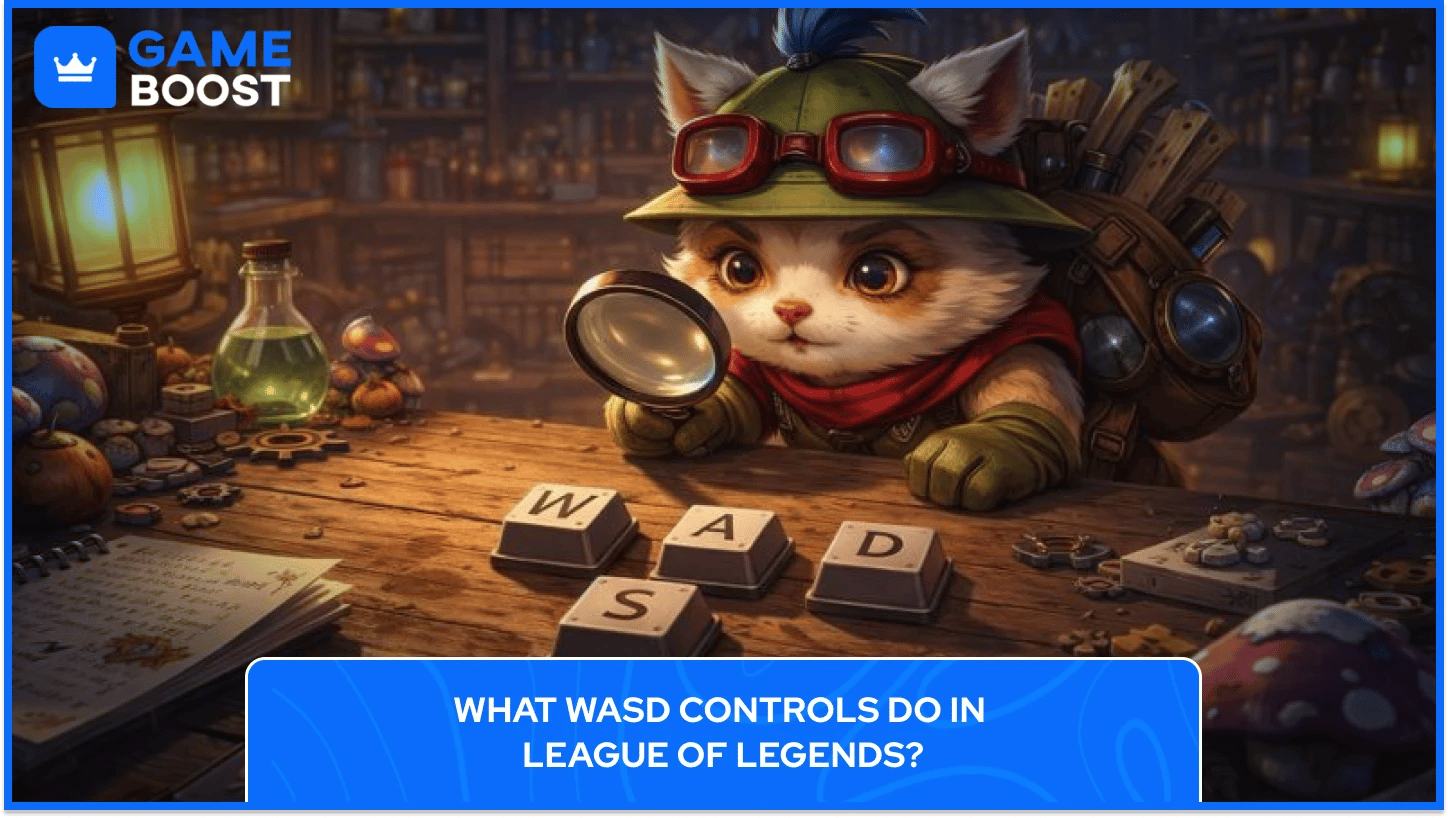
League of Legends doesn't use WASD for champion movement like most third-person or FPS games. Your champion follows your mouse cursor when you right-click, and that's not changing. WASD controls are strictly for camera movement, letting you pan around the map without pushing your mouse to the screen edges or holding down the middle mouse button.
The default setup has your abilities mapped to keys that will need reassignment if you want WASD for camera controls. This adjustment affects your abilities, items, summoner spells, and every other hotkey you've learned.

Out of the box, League gives you three ways to move the camera. You can push your mouse to the screen edge for edge scrolling, click and drag with the middle mouse button to pan around, or hit Y to toggle between locked and unlocked camera modes.
Riot added official WASD camera support to help new players integrate into the game using controls they might already know from other titles, while also giving current League players an alternative style they can experiment with.
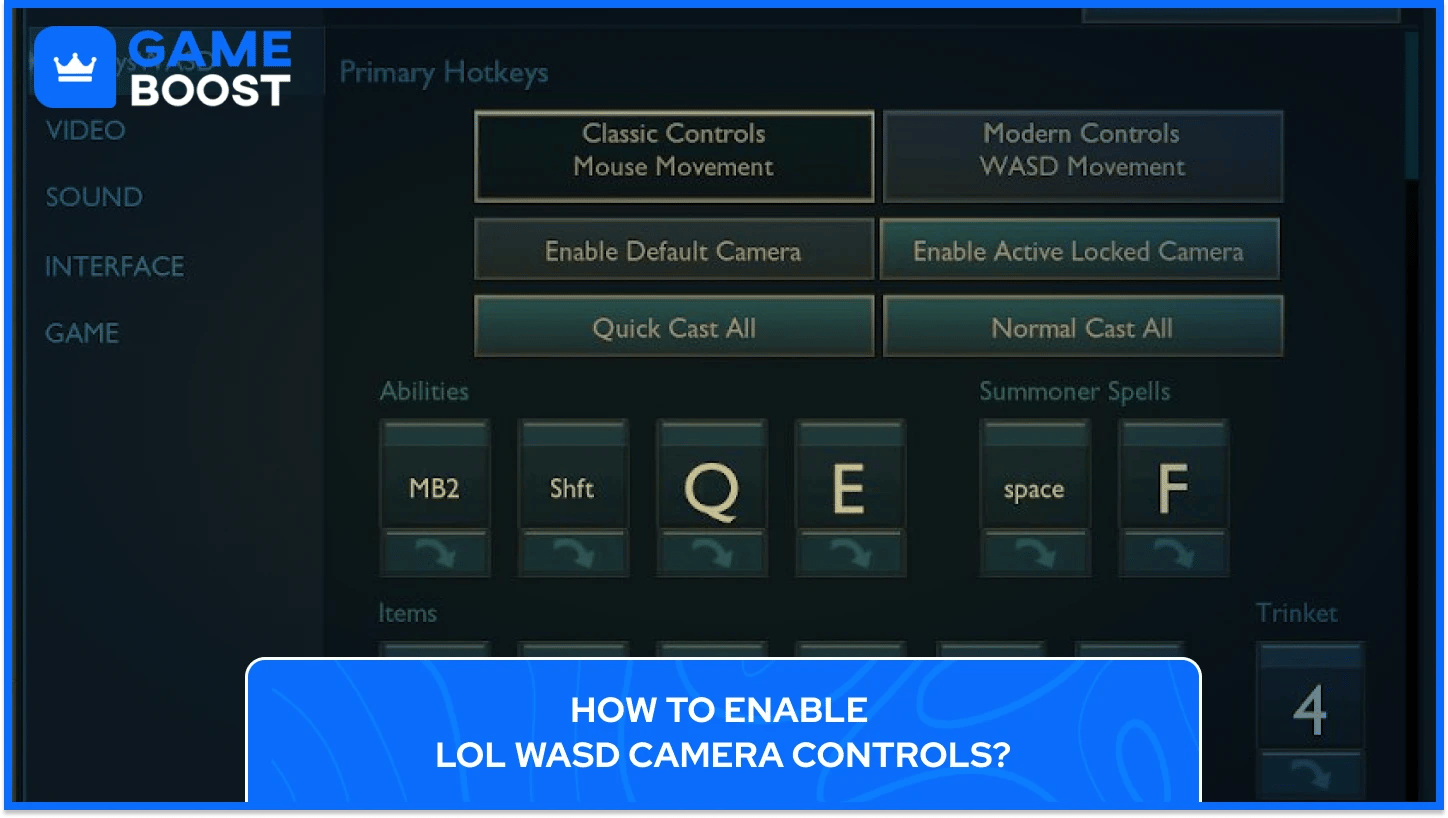
Here's how to enable WASD camera controls in League of Legends:
Press Esc to open the Options menu in the game client
Go to the Hotkeys menu
Select Keyboard (WASD) input to enable it
Save your settings to keep the customization for all future games
The first time you enable Keyboard (WASD), your camera settings will automatically switch to Dynamic Camera, which keeps your champion centered on screen. You can disable this in the Camera menu if you prefer unlocked camera movement.
Keep in mind that hotkey settings are independent of each other. You can use one key to open the shop in Point & Click mode and have a different key assigned for Keyboard (WASD) inputs.
Also Read: How to See Your Time Spent on LoL?
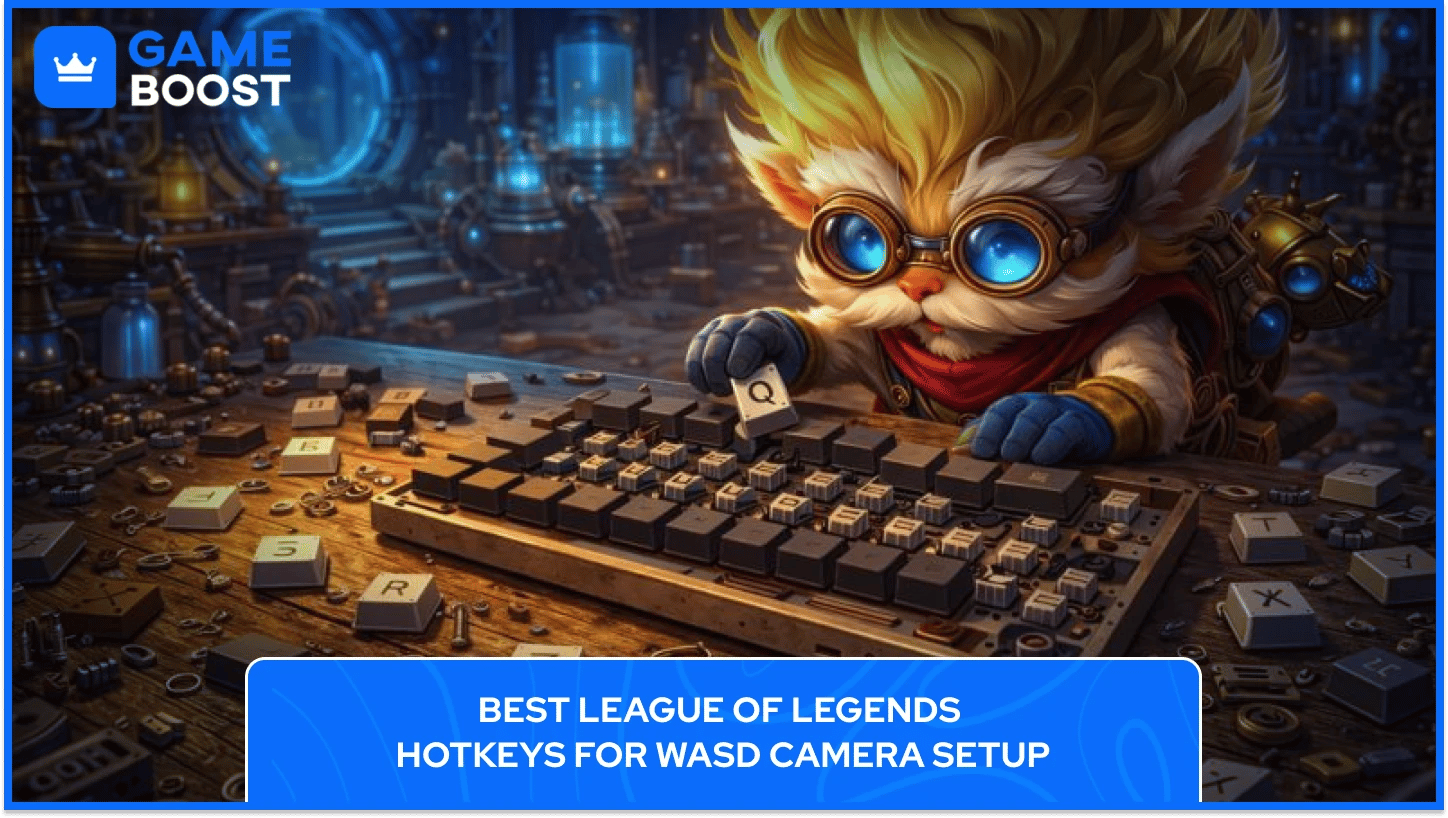
If you're using WASD for the camera, your abilities need a new home. Riot's default WASD setup for League of Legends maps your abilities to right-click (Ability 1), Shift (Ability 2), E (Ability 3), and R (Ultimate), with summoner spells on Q and F. Some players stick with this, but others customize further based on what feels comfortable.
Based on community discussions, here's where most players relocate their controls when using the WASD League of Legends keybinds:
Abilities: Remap to 1/2/3/4 or use mouse buttons if you have extra ones
Attack Move: Assign to Shift + Right Click or a thumb mouse button
Target Champions Only: Often goes to spacebar or T
Summoner spells: Move to keys like C/V or mouse buttons
Items: Shift to Z/X/C/V/B/N or Alt + Q/W/E/R
Trinket: Often gets assigned to T or mouse button 4
Whatever setup you choose, make sure you can hit everything without thinking. Your hands should fall naturally onto the keys you need most, and nothing should require awkward stretches that slow you down in critical moments.
Choosing between WASD camera and traditional mouse controls in League of Legends comes down to what you're comfortable with and where you're coming from. Both setups have trade-offs that affect how you play and how quickly you can react during fights.
This is how WASD camera movement compares to the traditional edge scrolling method:
WASD Camera | Mouse Edge Scrolling |
|---|---|
More precise control during teamfights since you're not losing mouse position at screen edges | Keeps all abilities on familiar QWER keys with years of muscle memory |
Better camera stability when you need to keep your cursor in one spot | No learning curve if you've already played League |
Familiar feel if you play a lot of FPS games | Works seamlessly with League's original design |
Requires relearning muscle memory for every ability, item, and spell | Can lose mouse precision when scrolling at screen edges |
Less accessible keys since the standard ability layout is gone | Requires constant mouse movement to control camera |
Potential for misclicks while you adjust to the new layout | Middle mouse button dragging can feel awkward for some players |
Most high-level League of Legends players stick with edge scrolling or middle mouse dragging because they've spent years building muscle memory around it. WASD works best for newer players or those coming from games that already use it for camera control.
Switching to WASD mid-season can tank your performance temporarily, so don't jump into ranked matches right away. Start in the Practice Tool and spend 30 minutes getting used to basic movements like last-hitting minions, dodging skillshots, and casting abilities in sequence. This lets you rewire your muscle memory without costing LP.
When you're ready for real games, stick with simple champions like Garen or Annie. These let you focus on the controls without worrying about complex combos. Save mechanically intensive picks like Azir or Riven for after you've built solid comfort with the new setup.
You don't have to overhaul everything at once. Some players enable WASD camera first and keep their original ability keys for a few days, then gradually adjust other bindings as they get comfortable. Write down your new keybinds and keep that list visible for the first week so you're not scrambling mid-fight trying to remember what does what.
Expect your first few games to be rough. Your reaction time will be slower, you'll hit wrong keys, and you might flash into a wall or two. The adjustment period usually takes a few days to a couple of weeks depending on how much you play, so give yourself time to adapt before judging if WASD works for you.
Also Read: How to Set Up Custom Games in League?
Even after you've enabled WASD controls and adjusted your keybindings, you'll probably run into a few technical hiccups. Most of these have quick fixes that don't require resetting everything.
However, these are the most common problems players encounter with WASD LoL Hotkeys:
Camera moving when you don't want it to: This happens if you're accidentally tapping WASD while focusing on other keys. Adjust the camera movement speed in settings to make it less sensitive, or add a modifier key requirement so WASD only works when holding Shift.
Can't reach important abilities: If your new ability keys feel too far away, try using Alt + key combinations or invest in a mouse with extra buttons. Gaming mice with 6+ programmable buttons make WASD setups way more practical.
Abilities firing when you mean to move camera: This is usually a keybind conflict. Go into your hotkey settings and make sure no two actions share the same key. The in-game UI will show you conflicts in red.
Camera feels too slow or too fast: Head to Settings > Game > Camera Move Speed and adjust the slider. WASD camera speed is separate from edge scrolling speed, so you might need to increase it for WASD to feel responsive.
If the official WASD feature isn't working right for you, you can still set it up manually through the Hotkeys menu in settings. Just rebind "Camera Control (Free)" to W/A/S/D individually and then remap everything else around it.
WASD controls in League of Legends won't replace the traditional setup anytime soon, but they open the door for players who've bounced off the game because of its click-to-move system. Riot's rolling this out carefully across different modes, and the fact that it's still limited to unranked queues shows they're serious about keeping competitive balance intact.
Right now, you can only use WASD controls in specific League of Legends game modes: Tutorial, Practice Tool, Swiftplay, ARAM, Draft Pick, and rotating game modes like ARURF. However, if you've been curious about trying League but the control scheme felt weird, or if you're looking for a fresh way to experience the Rift, WASD gives you that option without making you abandon what already works.
Buy LoL Skins
Buy Riot Points
League of Legends Boosting Service
LoL Accounts
View all GameBoost Accounts
View all GameBoost Boosting Services
View all GameBoost Currencies
View all GameBoost Game Keys
View all GameBoost Gift Cards
View all GameBoost Top Ups
View all GameBoost Items
Counter-Strike 2 Skins
“ Kristina joined GameBoost in 2024 as an SEO specialist and quickly became the go-to writer for third-person shooter and competitive games. She covers titles like Fortnite, Valorant, League of Legends, GTA 5, and Roblox, focusing on how-to guides, practical tips, and updates.”