
.png)
•Hamza Rashid• 13 min read
Roblox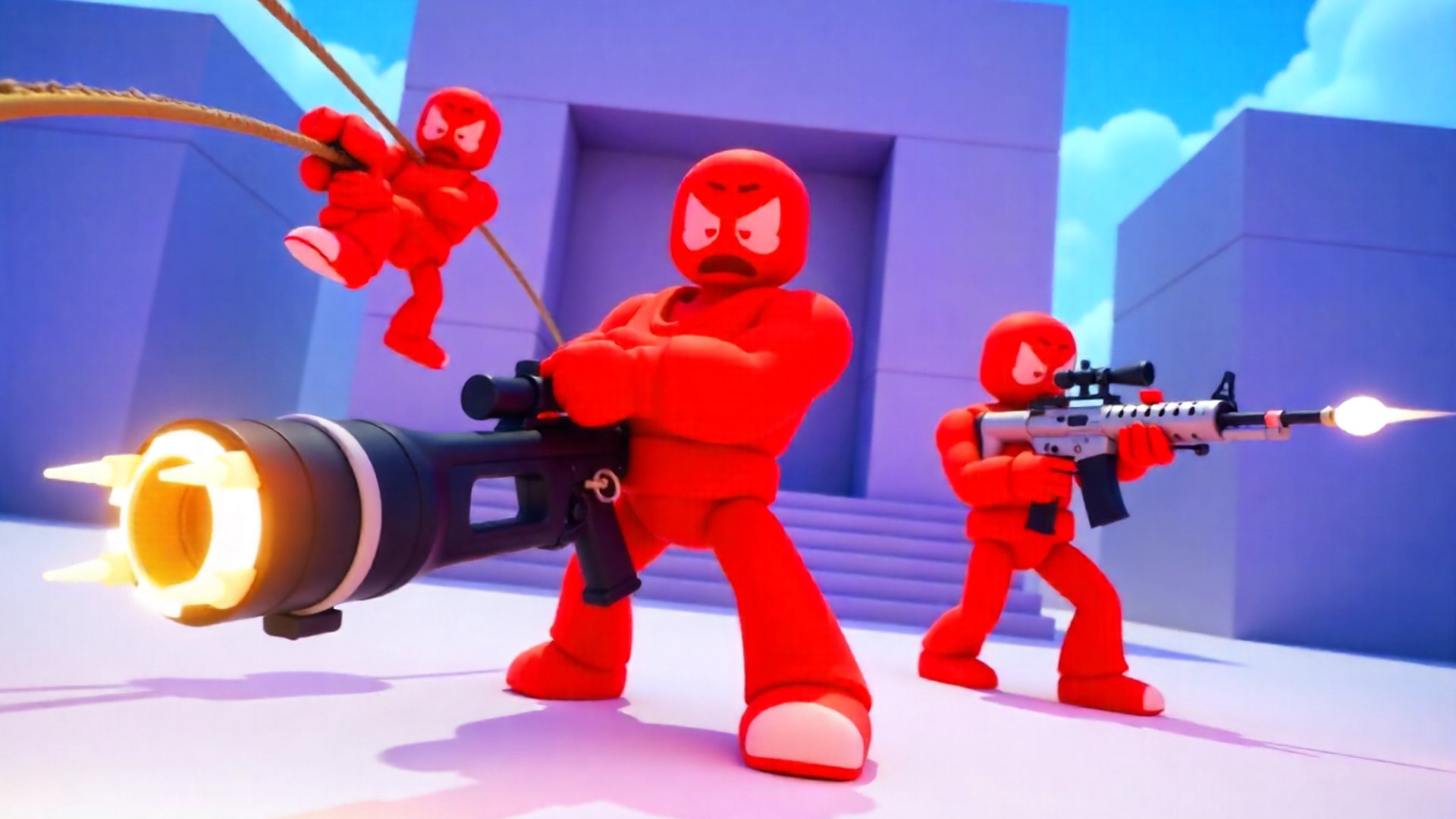
Roblox Rivals is a first-person shooter built inside Roblox, and gunfights come down to visibility and reaction speed more than anything else. A crosshair that stands out against bright maps turns a rough guess into a clean shot, and a few menu adjustments cut real time off a duel. Crosshair codes and settings decide how fast a player spots movement, tracks a target, and lands a hit.
Rivals runs on PC, mobile, and controller, and each platform reads a crosshair differently. Screen size and control method both change what a player can see and react to. A setup built for a wide monitor can shrink into an unusable dot on a phone screen, and a value tuned for a mouse rarely feels right on an analog stick.
This piece covers matched crosshair settings for keyboard and mouse, touch controls, and controller input, along with the customization options that keep a crosshair readable on any screen.
Static crosshairs remove bounce and sway, giving players a fixed reference point that holds steady during recoil or movement, improving consistency on every weapon.
Bright, high-contrast colors such as cyan or green stand out clearly against most Rivals maps, and a thin black outline keeps the shape visible against similarly colored backgrounds.
Copied crosshair codes often arrive broken, so rebuilding the color and size values directly inside the settings menu is the steadier approach.
PC players get the most precise control through mouse sensitivity paired with a wide field of view and reduced camera shake.
Mobile players rely on touch controls and aim assist, raised near its highest available value to make up for the smaller screen and finger-based input.
Controller players lean on analog stick sensitivity and built-in aim assist to close the gap against keyboard and mouse input.
Optimized display settings clear up visual clutter on every map and free up frame rate on lower-end screens.
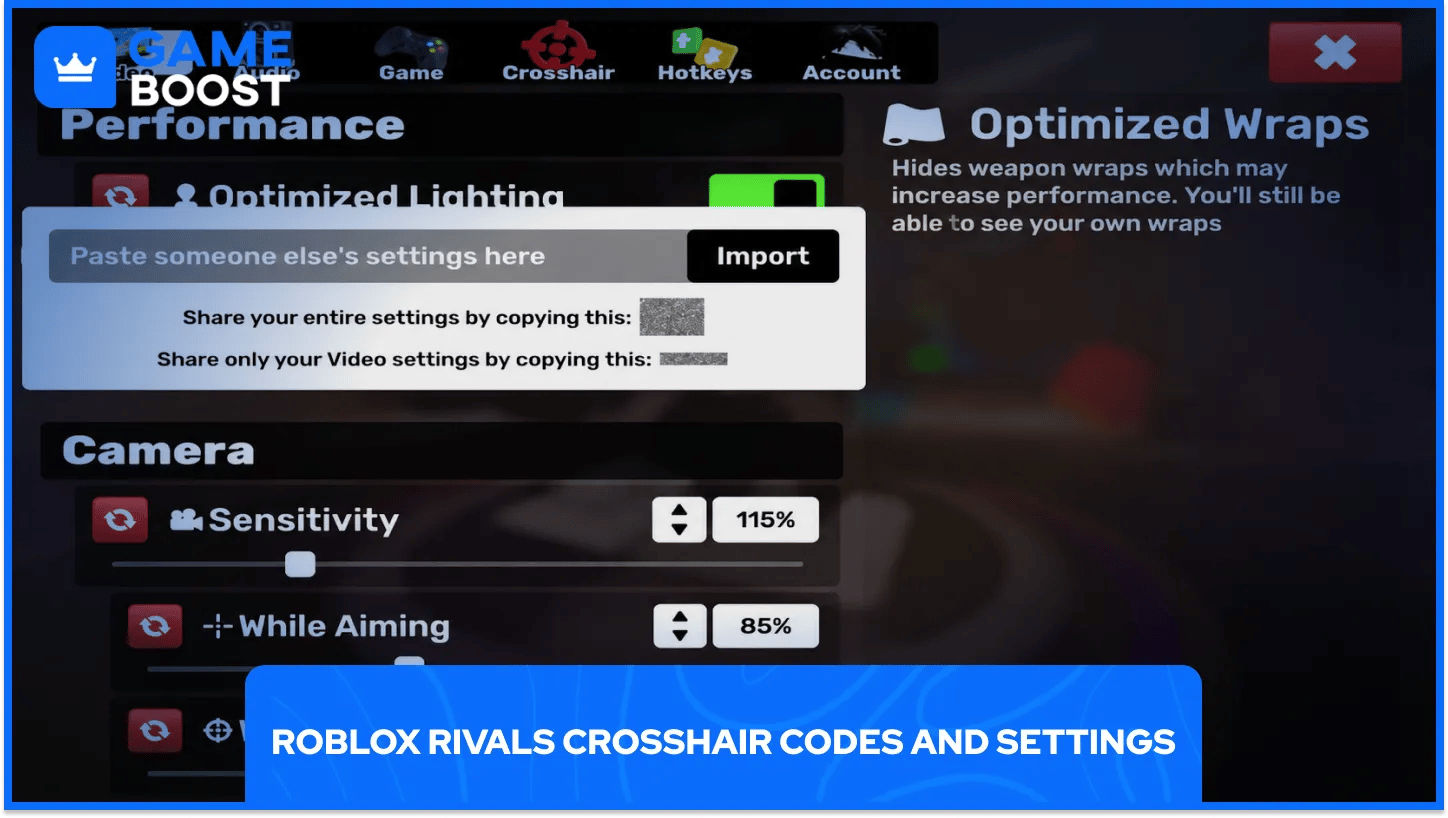
Rivals stores every crosshair as a set of numeric values covering color, size, thickness, and shape. Copying a code from another player and pasting it into the settings menu is supposed to recreate their exact look on a new account.
Imported codes often break during copy and paste, arriving with missing decimals or dropped characters that leave the crosshair looking nothing like the original. Rebuilding the same crosshair by hand inside the settings menu avoids that problem, and it only takes a couple of minutes once the target values are known. Two presets below cover most play styles without needing a code string at all.
Preset | Main Color | Outline Color | Best For |
|---|---|---|---|
Precision Cross | Cyan ( | Navy ( | Players with steady aim who want a small, sharp cross |
Soft Dot | Green ( | Black, high transparency | Newer players who want a larger, more forgiving reticle |
The precision cross favors experienced players, and its small size demands accurate aim instead of covering a wide area of the screen. The soft dot forgives less precise flicks, and its scale can be turned down once a player gets more comfortable landing shots.
Both presets lean on bright, contrasting colors and a thin dark outline to stay visible against grass, sand, and other bright textures across Rivals maps. For players who want to build their own look instead of using a preset, the settings menu breaks a crosshair down into individual pieces, each controlled on its own slider or toggle.
Setting | What It Controls | Suggested Value |
|---|---|---|
Static | Removes bounce and sway from the crosshair | On |
Bars Enabled | Turns the four directional bars on or off | On |
Bars Color | Sets the color of the four bars | Bright green |
Bars Thickness | Controls how thick each bar renders | Medium, around 5 |
Dot Enabled | Adds a center dot inside the bars | On |
Dot Color | Sets the color of the center dot | A shade that contrasts the bars, such as bright red |
Outline Enabled | Adds a dark border around each element | On |
Outline Thickness | Controls how bold the border looks | Thin, around 1 |
Running the bars and dot in two different bright tones instead of one single color gives the eye two separate reference points, and that split makes tracking a moving target easier than reading one static shape.
None of these values sit fixed in place. Scaling thickness or spacing up slightly on a smaller screen keeps the same crosshair readable instead of shrinking it down to nearly nothing.
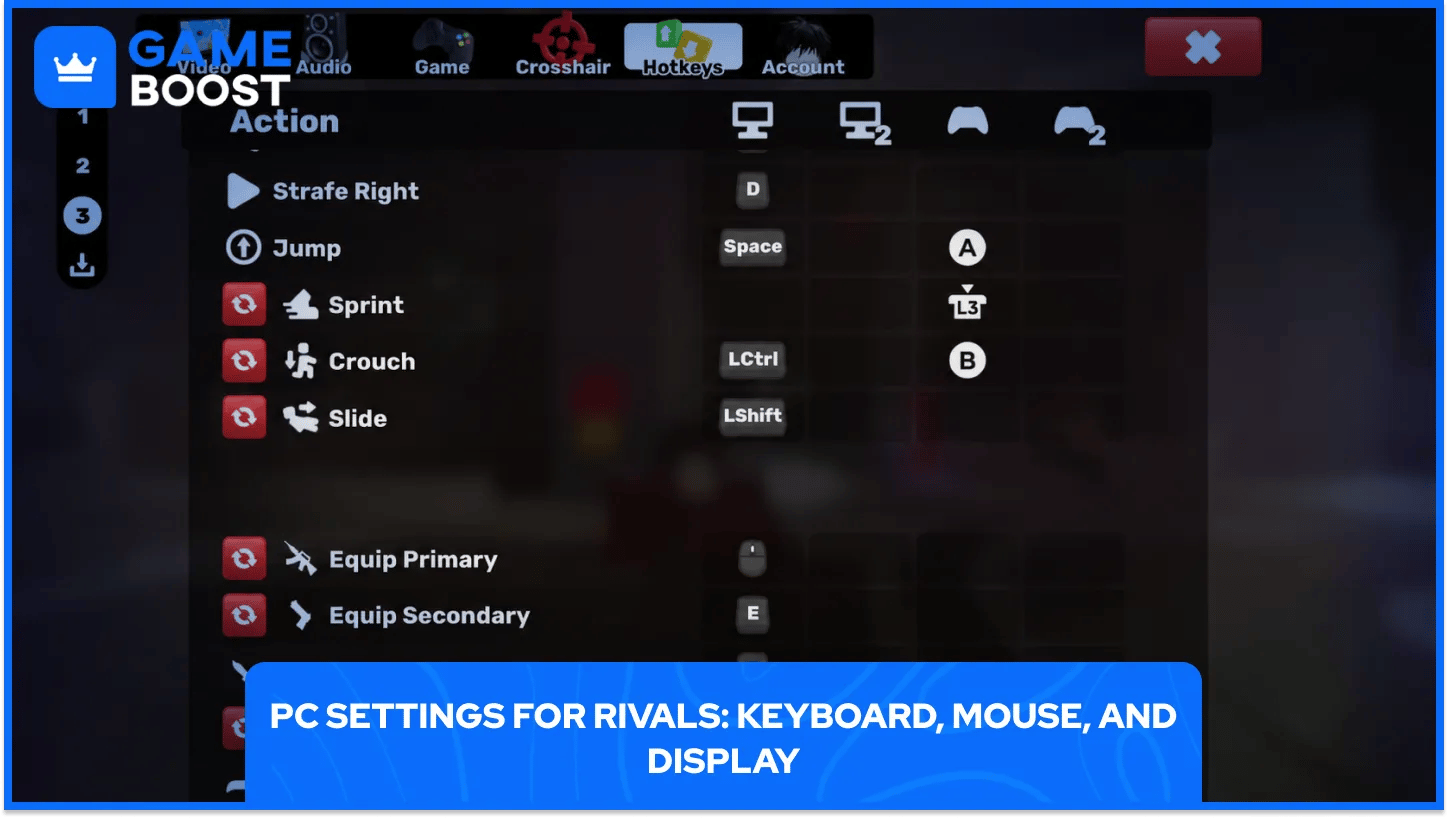
On PC, Rivals runs on keyboard and mouse by default, with movement bound to WASD, shooting on the left mouse button, and aiming down sights on the right mouse button or E. Melee, utility items, and weapon swapping sit on nearby keys, and the entire layout can be remapped inside settings for anyone who prefers a different arrangement.
Sensitivity needs testing in a low stakes shooting range before it gets carried into a real match. A value that feels fast on a menu screen often plays differently mid fight. Field of view controls how much of the map shows on screen at once, and a wider setting cuts down on the tunnel vision that comes from a narrow camera.
A couple of camera options make the biggest difference to visibility during a fight.
Setting | Suggested Value | Why It Helps |
|---|---|---|
Field of View | Around 100 | Keeps the view wide without warping the edges of the screen |
Camera Shake | Off | Keeps the crosshair steady during sprinting or fast movement |
Gameplay Effects | Off | Keeps field of view consistent through abilities and impacts |
Turning off camera shake and extra gameplay effects removes screen movement that has nothing to do with actual aim, so each shot lines up with what the crosshair shows instead of what the camera happens to be doing.
On the display side, switching the optimized options on inside the video menu strips background detail across each map. Frame rate rises, and enemy models stand out against a flatter backdrop on lower spec screens.
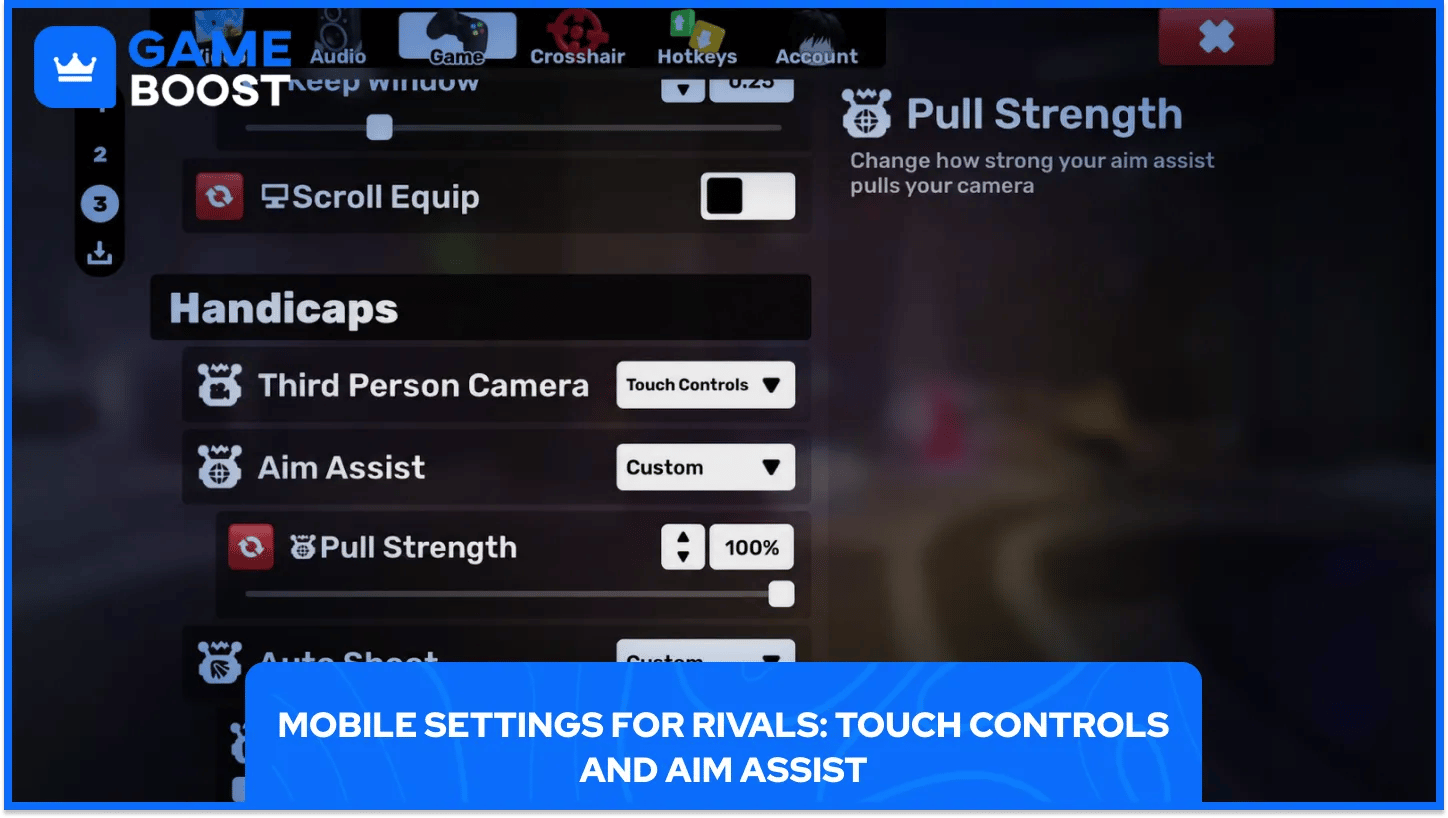
Rivals on a phone or tablet swaps the mouse for a virtual joystick on the left side of the screen and a set of tap targets on the right for shooting, reloading, and crouching. Screen size shrinks every target compared to a monitor, so a handful of adjustments make a real difference to how comfortable the game feels.
Aim assist sits at the center of mobile settings. A thumb dragging across glass will never match a mouse for raw precision. Setting aim assist near its highest available value adds a light pull toward nearby targets and a small slowdown while the crosshair crosses over them, without locking onto anyone automatically.
A short list of touch specific adjustments keeps mobile play smooth.
Aim assist: raised close to its maximum value to offset the accuracy gap against a mouse.
Auto sprint: left on so movement does not need a held button, freeing a thumb for shooting instead.
HUD position: moved away from the natural thumb rest so buttons never get pressed by accident during a fast turn.
Fire mode: set to whichever version, single tap or double tap, feels fastest for the weapon currently equipped.
A phone or tablet screen also benefits from a slightly larger crosshair than the one built for PC. Identical pixel dimensions read much smaller on a five or six inch display held at arm's length.
Color and outline choices carry straight over from PC without any changes, so a player only needs to raise scale for the smaller display and leave the rest of the setup alone.
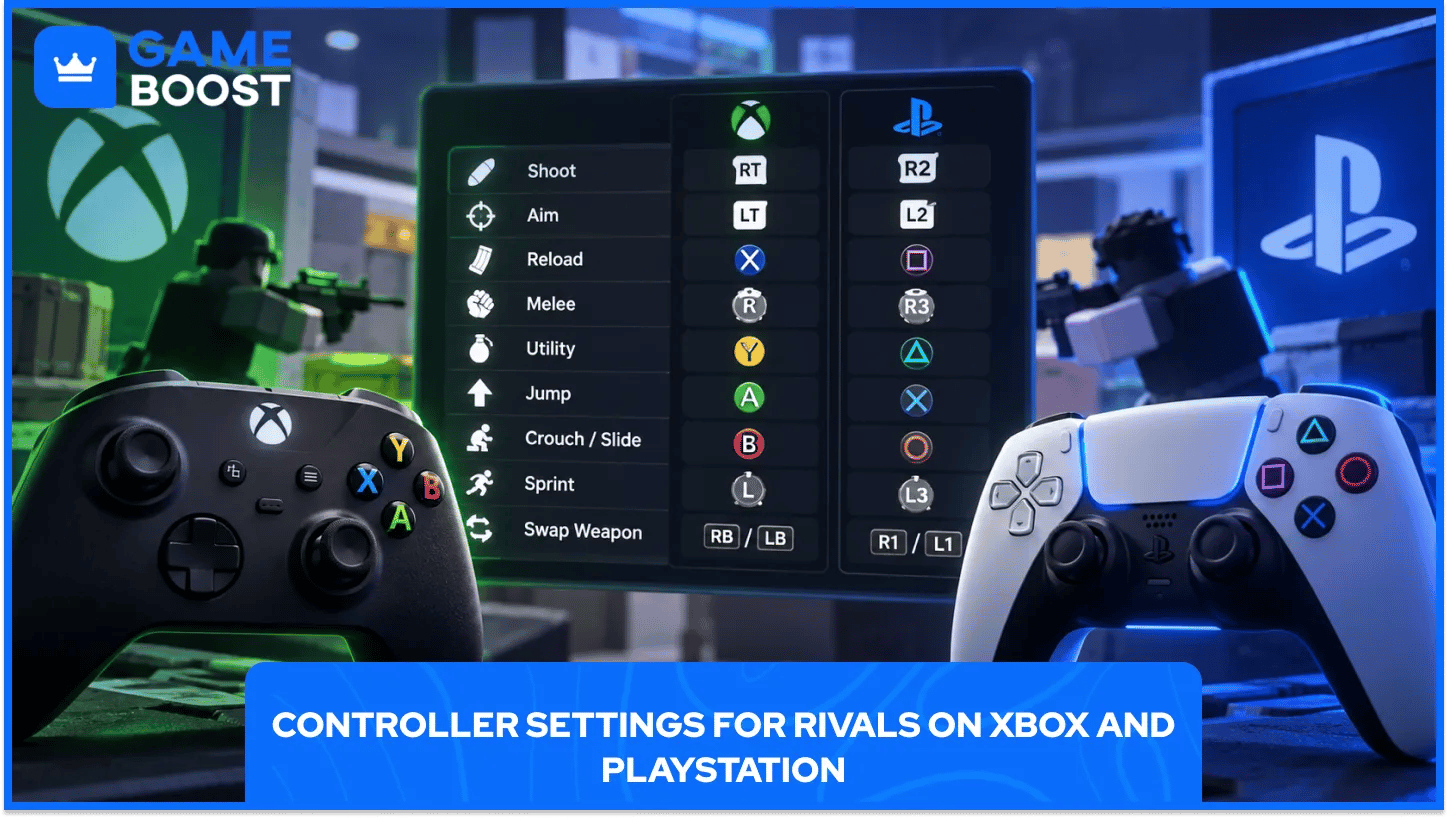
Rivals supports a controller on both PC and console, and the button layout mirrors most other competitive shooters, so the switch is easy for anyone arriving from a different game. Aiming and shooting rest on the triggers, movement sits on the left stick, and abilities line up across the face buttons.
Aim assist behaves differently on a controller, since it reacts to stick input instead of a finger sliding across glass, producing a smoother pull toward a target than the version built for touch controls. Controller tracking tends to feel steadier at range even when the assist strength reads similar on paper.
Xbox and PlayStation buttons line up the same way across each core action.
Action | Xbox | PlayStation |
|---|---|---|
Shoot | RT | R2 |
Aim | LT | L2 |
Reload | X | Square |
Melee | Right stick click | Right stick click |
Utility | Y | Triangle |
Jump | A | Cross |
Crouch or Slide | B | Circle |
Sprint | Left stick click | Left stick click |
Swap Weapon | RB / LB | R1 / L1 |
Remapping only becomes worthwhile once the default layout starts feeling uncomfortable, given most bindings already sit close to where a thumb rests naturally during a normal grip.
Raising controller sensitivity in small steps, instead of jumping straight to a high value, keeps flicks controlled while muscle memory builds around the new input method.
A crosshair only matters as much as the habits built around it. Even a perfectly tuned setup will not fix inconsistent movement or a sensitivity value that never gets tested outside of a real match.
Treating settings as an ongoing adjustment, instead of a one time setup, keeps aim sharp as new weapons and maps get added to Rivals. Players who spend a few minutes in the shooting range after any change tend to notice problems with scale or color long before those problems cost a round.
Roblox Rivals Accounts for Sale
“ Hamza is your average video game enthusiast who’s always looking for his next game to play. Whether he’s diving into a competitive multiplayer match, exploring a massive open world, or getting completely hooked on a new release, gaming has always been one of his favorite ways to spend his time. Over the years, his love for games has grown into a passion for understanding and sharing everything about them. Through his articles, Hamza aims to help gamers discover new games, improve their skills, stay up to date with the latest gaming news, and get the most out of their favorite titles.”