


•Patrik Mršnik• 6 min read
GTA 6

Why does GTA 6 look dark or washed out in HDR? The game ignores the HDR calibration saved on your PS5 or Xbox. Its own sliders can also show one brightness on the test screen and output another in gameplay. On a TV that reaches 1,000 nits, these GTA 6 HDR settings fix it: Max Brightness 2,000, Black Levels around 20, and Paper White 35.
Those numbers come from display calibrator Vincent Teoh of HDTVTest, who measured Grand Theft Auto VI on a Sony reference monitor after launch. The fix takes five minutes and applies to PS5, PS5 Pro, and Xbox Series X|S.
Below, you'll find why the default calibration misleads, the GTA 6 HDR calibration steps, and what to change on dimmer TVs.
Skip the console calibration. GTA 6 ignores the HDR values saved on PS5 and Xbox and reads only its own three sliders.
Open the in-game menu. Pause, then go to Settings > Display > HDR Calibration.
Set Max Brightness to 2,000 on a TV that reaches 1,000 nits. With Paper White below 50, a setting of 1,000 produced only about 600 nits in gameplay in Teoh's test.
Find your black floor. Start Black Levels at 0 in a dark room and raise it until the checkerboard background is just visible. Teoh landed near 20.
Drop Paper White to 35. The default of 50 measured around 350 nits, which makes midtones look too bright.
Set the TV first. Game Mode on, Dynamic Tone Mapping off, and HGiG on if your TV has it.
Check it in gameplay. Judge cutscenes, the sun, and menus, then fine-tune.
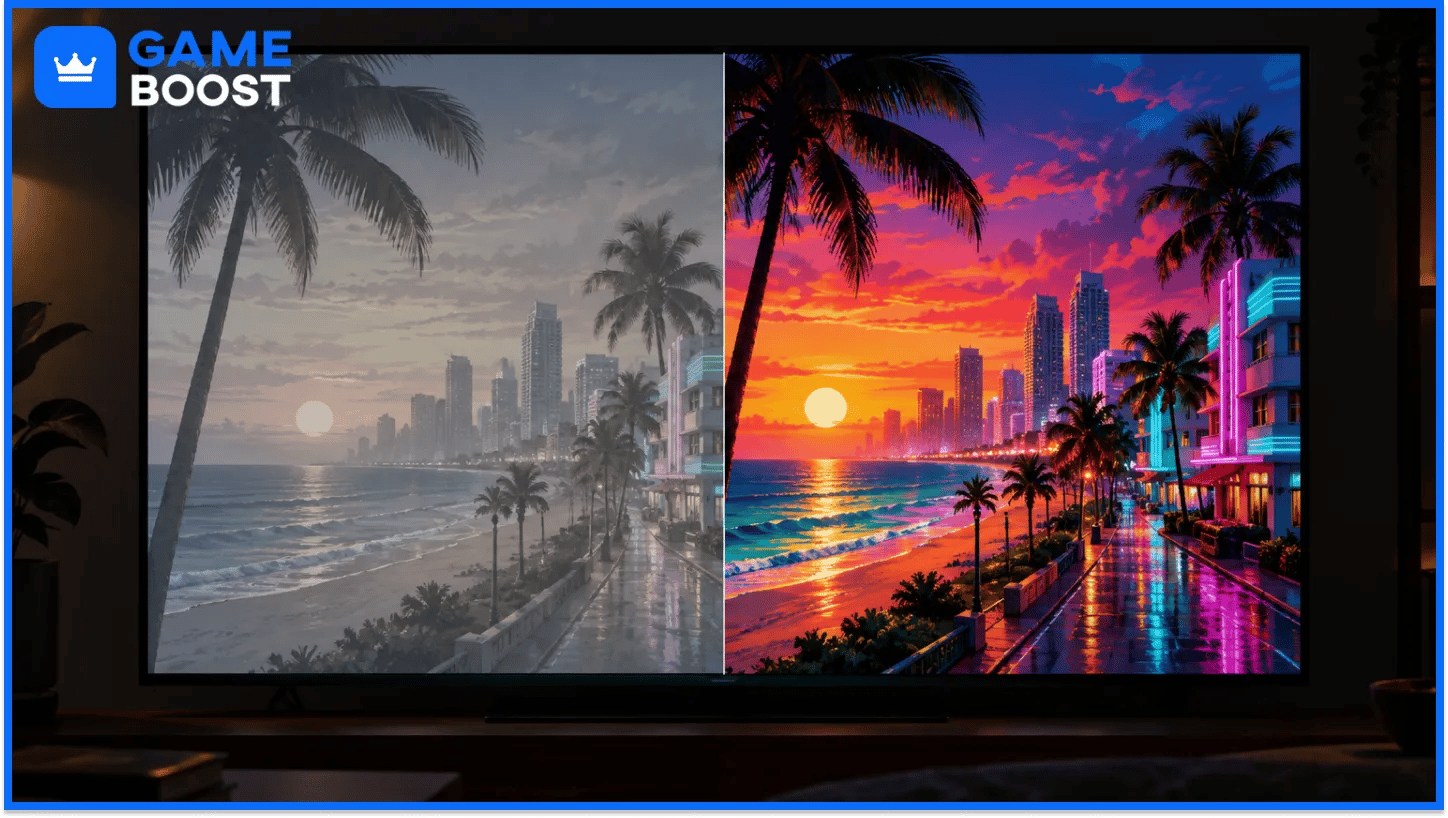
GTA 6 skips your console's HDR calibration, and its in-game sliders interact in ways the test screens don't show. In Teoh's measurements, the calibration pattern reported one value and gameplay rendered another, so following the on-screen instructions can leave the picture too dim.
All three sliders depend on each other. Max Brightness only carries into gameplay accurately when Paper White sits at its default of 50 or higher. Drop Paper White below 50 and the real peak falls: at a Max Brightness of 1,000, the in-game sun reached only about 600 nits.
Black Levels shifts too. With Paper White at 50 or above, the slider keeps the black floor at zero nits. Below 50, it gets more sensitive and lifts the black floor as you raise it. A high Black Levels value paired with a low Paper White turns blacks gray.
Default Paper White is bright for a dark room. Teoh measured it at around 350 nits on menus and fades. The ITU-R BT.2408 guideline suggests roughly 203 nits for reference white in a dark room. GTA 6 targets 30 FPS, so image quality is where you can still win back the most.
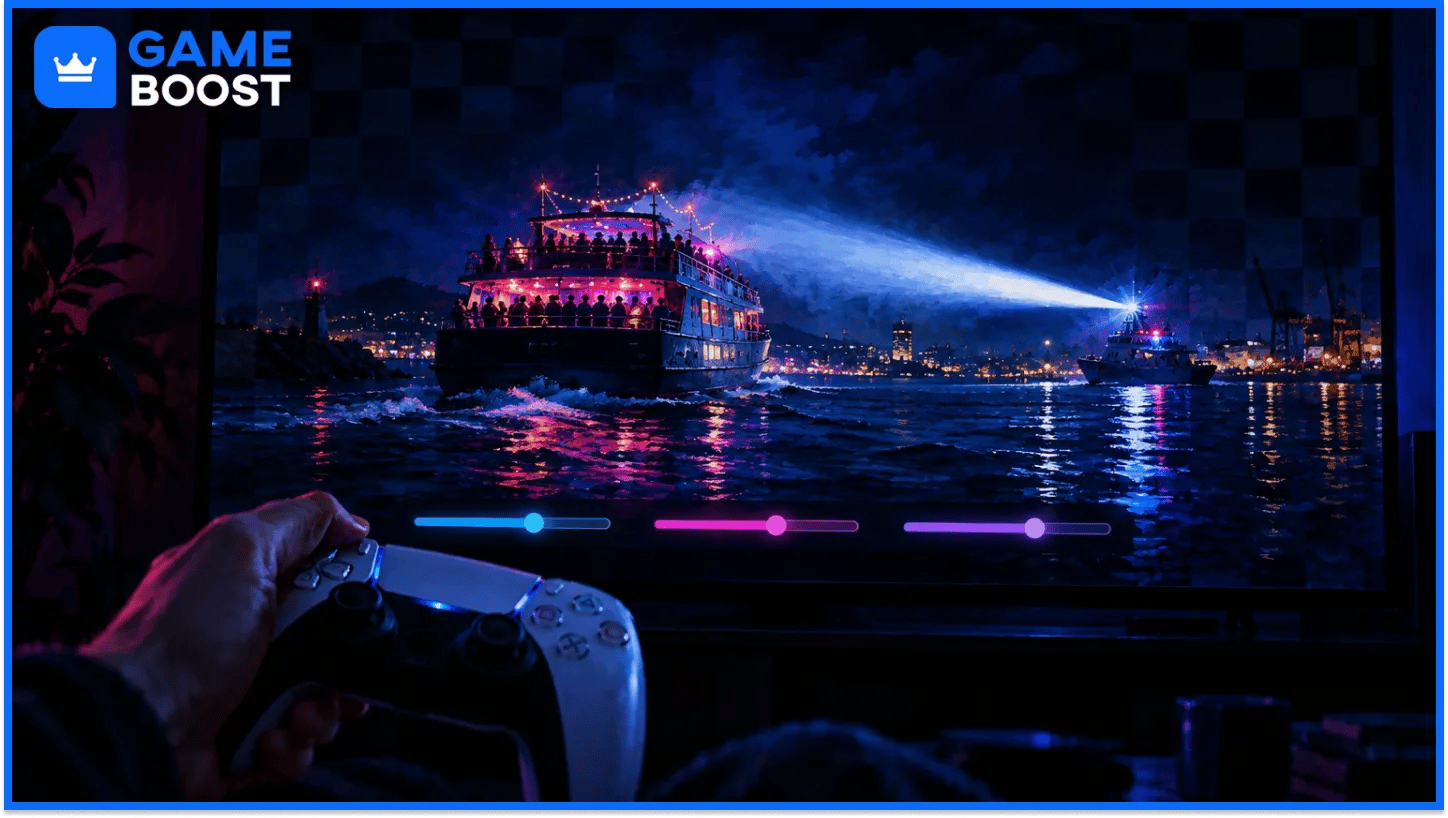
Use these values as a starting point if your TV or monitor reaches 1,000 nits or more. Open the pause menu and go to Settings > Display > HDR Calibration. R1 on PS5 or RB on Xbox moves between the three test images.
Slider | Default | Start here | Why |
|---|---|---|---|
Max Brightness | 600 | 2,000 | Gets highlights near 1,000 nits in actual gameplay |
Black Levels | 50 | 0, then raise to about 20 | Finds your TV's real black floor |
Paper White | 50 | 35 | Calms midtones and menus for a dark room |
Turn the room lights off, set Max Brightness to 2,000, and start Black Levels at 0. Hide the UI, give your eyes a minute to adjust, then raise Black Levels until the checkerboard background becomes just visible. Teoh's monitor landed around 20, and your TV may land a few steps either side.
Set Paper White to 35 last, then go back and check Max Brightness. Teoh treats it as a loop: Paper White, then Max Brightness, then Paper White again. The nighttime calibration image, with its spotlight, is the best reference for how hard the sun should hit.
Then play for ten minutes before you lock anything in. I'd check a sunny afternoon drive, a night scene with neon, and a storm, plus one cutscene and the pause menu. If menus glare, drop Paper White a step. If shadows crush, raise Black Levels a step.
Teoh's numbers only cover displays that reach 1,000 nits, and he didn't publish values for dimmer screens. Many OLED TVs and most HDR monitors peak lower, so copying 2,000 may clip bright detail on them.
My read of his findings: keep Paper White at 50, where Max Brightness tracks accurately, and set Max Brightness to your TV's real peak brightness. Menus will look brighter than Teoh's setup, which is the trade-off. Look up the peak in a review of your exact model, since box figures often run high.
Black Levels works the same on any screen. Start at 0 in a dark room and raise it until the checkerboard appears. On an OLED, you may stop lower, since the panel's blacks are already near zero.
Still looks wrong? Try SDR for a session. A dim HDR TV with poor tone mapping can look flatter than a well-set SDR picture.
Set up the TV before you touch the sliders. Rockstar's HDR troubleshooting guide covers all its games. It asks for an HDMI 2.1 cable, HDR switched on at the TV, Game Mode on, and every AI, Smart, Dynamic, or Adaptive picture setting off.
Turn Dynamic Tone Mapping off and turn HGiG on if your TV offers it, as Rockstar's guide recommends. Menu names differ by brand, so check your TV maker's manual for the exact option. I'd also confirm motion smoothing is off, since some TVs leave it on outside Game Mode.
On the console side, turn on HDR output. On PS5, that's Settings > Screen and Video > Video Output, with HDR set to On When Supported. On Xbox Series X|S, allow HDR10 under TV and display options. Run the console's HDR calibration anyway, since other games still use it, even though GTA 6 doesn't.
Don't own the game yet? GTA 6 accounts on GameBoost come with the Standard or Ultimate Edition already on them. Each offer lists its expected delivery time on the product page and again at checkout.
GTA 6's HDR rendering works, according to Teoh. The calibration screen is the problem, since it shows numbers that gameplay doesn't match. If your picture looked dark or flat at launch, those three sliders are the likeliest cause.
Spend the most time on Black Levels. Your black floor depends on your exact panel and room.
As of November 23, Rockstar hasn't said whether a patch will make the game read console calibration or fix the slider behavior. If one lands, recheck your values, since a fix could make 2,000 too bright overnight.
My take: set the TV to Game Mode with HGiG on and Dynamic Tone Mapping off, then enter 2,000, 0, and 35 in the game. Raise Black Levels until the checkerboard shows, and judge the result on a sunny drive before you lock it in.
“ A former sports journalist and editor, Patrik joined Gameboost SEO team in 2026. He has spent most of his life playing Football Manager, but his sphere of interests spreads through whole gaming universe.”