


•Filip Premuš• 6 min read
Call of Duty: Modern Warfare 4

Activision accounts hold a lot of valuable data, from Call of Duty progression and Battle Pass purchases to linked payment methods and platform connections. Account theft is a real concern, and a compromised account can mean losing access to years of progress and purchased content.
Two-factor authentication adds a second verification step to your login process, making it significantly harder for anyone to access your account even if they have your password. In this article, we'll explore how to enable 2FA on your Activision account, walk through both available methods, and cover what to do if you ever lose access to your authentication app.

Activision supports two 2FA methods: an authenticator app (Google Authenticator, Authy, or Microsoft Authenticator) and SMS verification, and you can enable both at the same time.
The entire setup process is done through your Activision account.
After enabling 2FA, Activision provides ten one-time backup codes. Store them somewhere safe and separate from your phone.
If you lose access to your authenticator app, you can log in using a backup code; if all codes are used up, you'll need to contact Activision Support.
To disable 2FA, go to the Privacy & Security tab, select the three dots next to your active method, and select Disable Method.
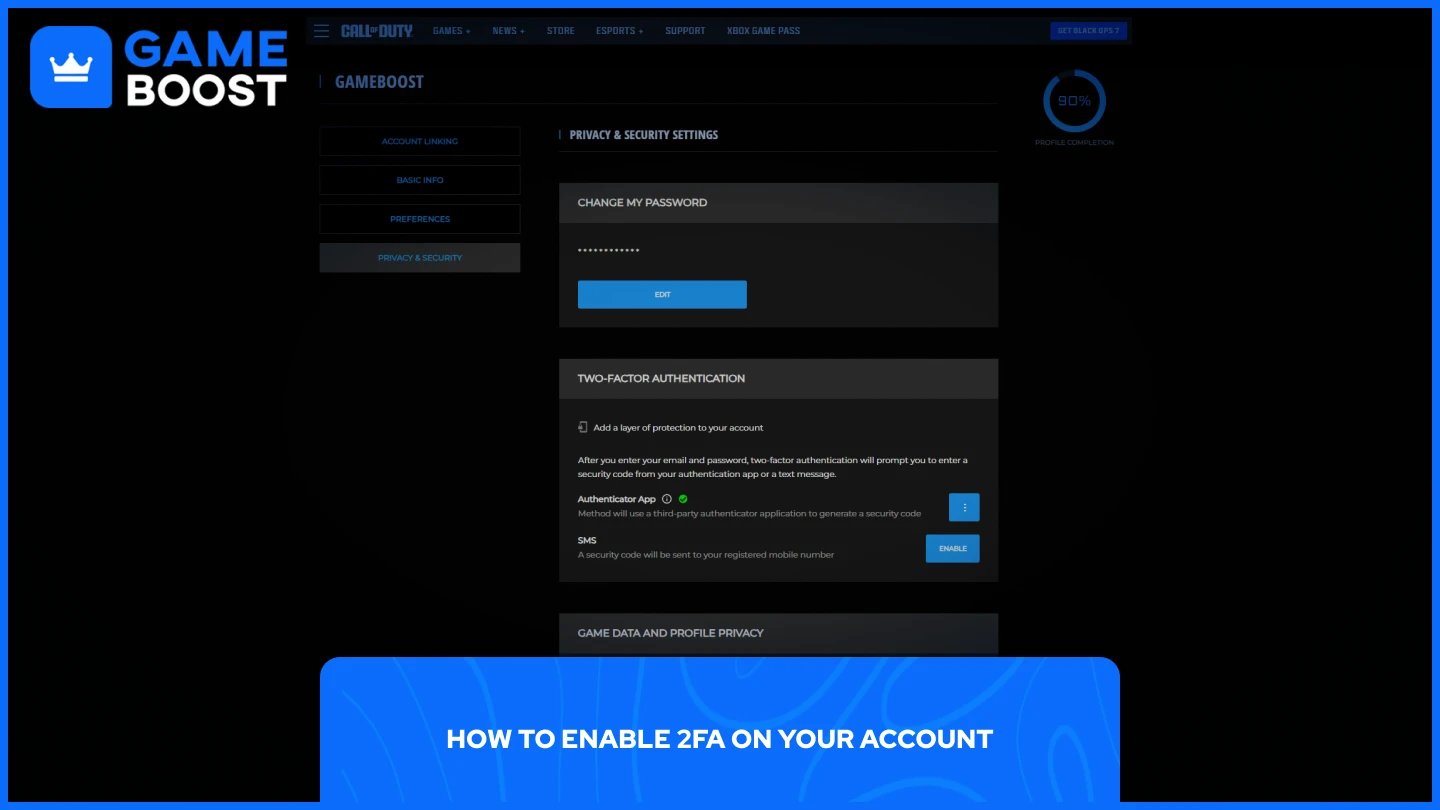
Activision supports two 2FA methods: an authenticator app or SMS, and you can enable one or both. The entire setup process is done through your Activision account on the official website, so make sure you're logged in before following the steps below.
Download a supported authenticator app on your phone. Google Authenticator, Authy, or Microsoft Authenticator all work.
Log in to your Activision account and go to the Privacy & Security tab.
In the Two-Factor Authentication section, select Enable in the Authenticator App row.
If prompted to verify your account, select Send Code, check your email for the six-character code, enter it, and select Verify.
Open your authenticator app and follow the on-screen instructions to add your Activision account, either by scanning the QR code or entering the manual key.
Return to your Activision account, enter the 6-digit code from the app along with your password, and select Activate.
Once setup is complete, Activision will provide ten one-time backup codes. Store these somewhere safe and separate from your phone.
Log in to your Activision account and go to the Privacy & Security tab.
In the Two-Factor Authentication section, select Enable in the SMS row.
If asked to verify your account, select Send Code, enter the code from your email, and select Verify.
A text will be sent to the phone number registered on your account. Enter the code to complete setup.
Also Read: How to Log Out of Your Account in Call of Duty
You might need to turn off 2FA temporarily when switching phones or resetting your authenticator app. To do this:
Log in to your Activision account.
Go to the Privacy & Security tab.
In the Two-Factor Authentication section, select the three dots next to the method you want to remove.
Select Disable Method.
If you're switching devices, disable and re-enable 2FA using your new phone to keep everything in sync. Without 2FA active, your account is more vulnerable, so avoid leaving it disabled any longer than necessary.
Also Read: How to Recover Your Account in Call of Duty
If you lose access to your authenticator app, you can still log in using the backup codes Activision provided during setup. These were also sent to your email with the subject line "Two-Factor Authentication Enabled." To use one, log in as normal and enter the backup code where you'd normally enter your 2FA code. Keep in mind that each backup code can only be used once.
If you've used all your backup codes, you'll need to contact Activision Support directly to recover your account. Once you're back in, it's worth resetting 2FA straight away.
Disable it from the Privacy & Security tab, then re-enable it using a fresh authenticator app on your new or replaced device. This will also generate ten new backup codes.
Also Read: How to Link and Unlink Accounts in Call of Duty
Enabling 2FA on your Activision account is one of the simplest steps you can take to protect your progress, purchases, and personal information. The setup only takes a few minutes through the Call of Duty website, and both the authenticator app and SMS methods are straightforward to configure.
Make sure to store your backup codes somewhere accessible but separate from your phone, as they're your only way back in if you ever lose access to your authenticator app. If you ever switch devices, disable and re-enable 2FA right away to keep everything working properly.
Buy Cheap Modern Warfare 4 Items
“ Mustafa Atteya has been writing about gaming and esports since 2023, specializing in competitive game content and player improvement guides. At 25, he brings both hands-on gaming experience and professional SEO writing expertise to the GameBoost team.”