


•Filip Premuš• 9 min read
Call of Duty

Signing out of a Call of Duty account is something many players need to do. Switching to a different profile, playing on a shared device, or securing an account after a session are all common reasons. The problem is that the game doesn't make it obvious.
Unlike most platforms with a clearly visible sign-out option, Call of Duty buries the process depending on where you're playing. In this article, we'll explore how to log out of your Call of Duty account on each platform, step by step.

On PC, logging out is done through the launcher, not in-game
On console, there is no in-game logout option; you need to unlink your platform account via the Activision website
Activision only allows you to unlink a platform account once every 12 months
After unlinking on console, restarting the game will prompt you to link a new account
Make sure you have your Activision credentials ready before starting the process on either platform
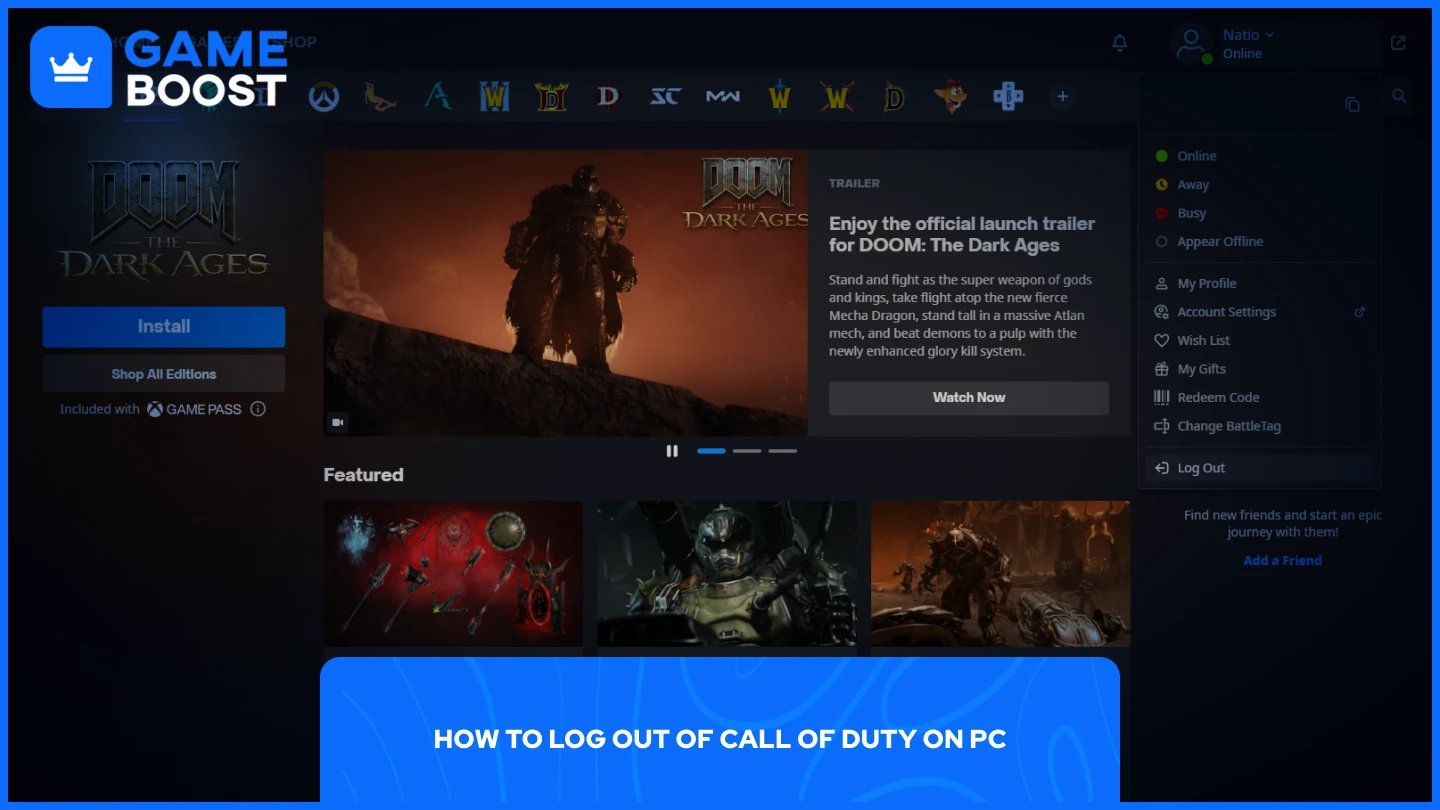
On PC, there is no in-game logout button. The process is handled through the launcher you use to run the game. Here's how to do it:
Close Call of Duty completely.
Open the launcher you’re using.
Click on your profile icon in the top right corner.
Select "Log Out" or "Sign Out" from the dropdown.
Once signed out, the launcher will return to the login screen. The next time you launch Call of Duty, you'll be prompted to sign in with a different account.
Also Read: How to Recover Your Account in Call of Duty
On PlayStation and Xbox, Call of Duty does not include a direct logout option within the game. To sign out of your Activision account on console, you need to go through the official Activision website and unlink your platform account. Here's how:
Open a browser and go to profile.callofduty.com.
Sign in with your Activision account credentials.
Hover over your display name and select "Linked Accounts."
Find your PlayStation or Xbox account in the list.
Click "Unlink" next to it.
Confirm the action and check your email for a verification code.
Enter the code to complete the process.
Restart the game. It will prompt you to link a new account on launch.
Keep in mind that Activision only allows you to unlink a platform account once every 12 months, so make sure you want to proceed before confirming.
Also Read: How to Link and Unlink Accounts in Call of Duty
Logging out of a Call of Duty account works differently depending on the platform. PC players handle it through the launcher, and console players need to go through the Activision website. The console process is the most involved, so make sure you have your account credentials ready before unlinking. Also, keep the 12-month unlinking limit in mind on console to avoid getting locked out of options when you need them.
“ Mustafa Atteya has been writing about gaming and esports since 2023, specializing in competitive game content and player improvement guides. At 25, he brings both hands-on gaming experience and professional SEO writing expertise to the GameBoost team.”