


•Filip Premuš• 4 min read
GTA 5

GTA 5 includes a pointing gesture that lets your character direct attention toward a specific player, NPC, or location without saying a word. It's a small but useful feature, especially in GTA Online.
The gesture works across both Story Mode and Online. The input is simple, but a lot of players miss it because it's never explicitly explained in the game. In this article, we'll explore how to point in GTA 5 across all platforms, step by step.
Also Read: How to Check Your GTA Online Stats

On PC, tap B to point; on PlayStation and Xbox, double-tap R3
The gesture only works on foot and cancels as soon as you sprint, jump, or aim
You can remap the pointing key on PC through Settings > Key Bindings; console players can remap at the system level
If pointing isn't working, check for input timing issues, keybind conflicts, or whether you're attempting it inside a vehicle
Also Read: Where to Buy GTA 5 Accounts?
Pointing in GTA 5 works differently depending on your platform. The controls are simple across all versions of the game, but the input varies between PC and console.
On PC, press B on your keyboard to point. The gesture triggers immediately, and your character will point in whatever direction they're facing.
On PlayStation and Xbox, the process takes two inputs. Follow these steps:
Make sure your character is on foot.
Press down on the right analog stick (R3) once.
Press down on R3 a second time quickly to trigger the point.
The gesture only works on foot. Getting in or out of a vehicle will cancel it.

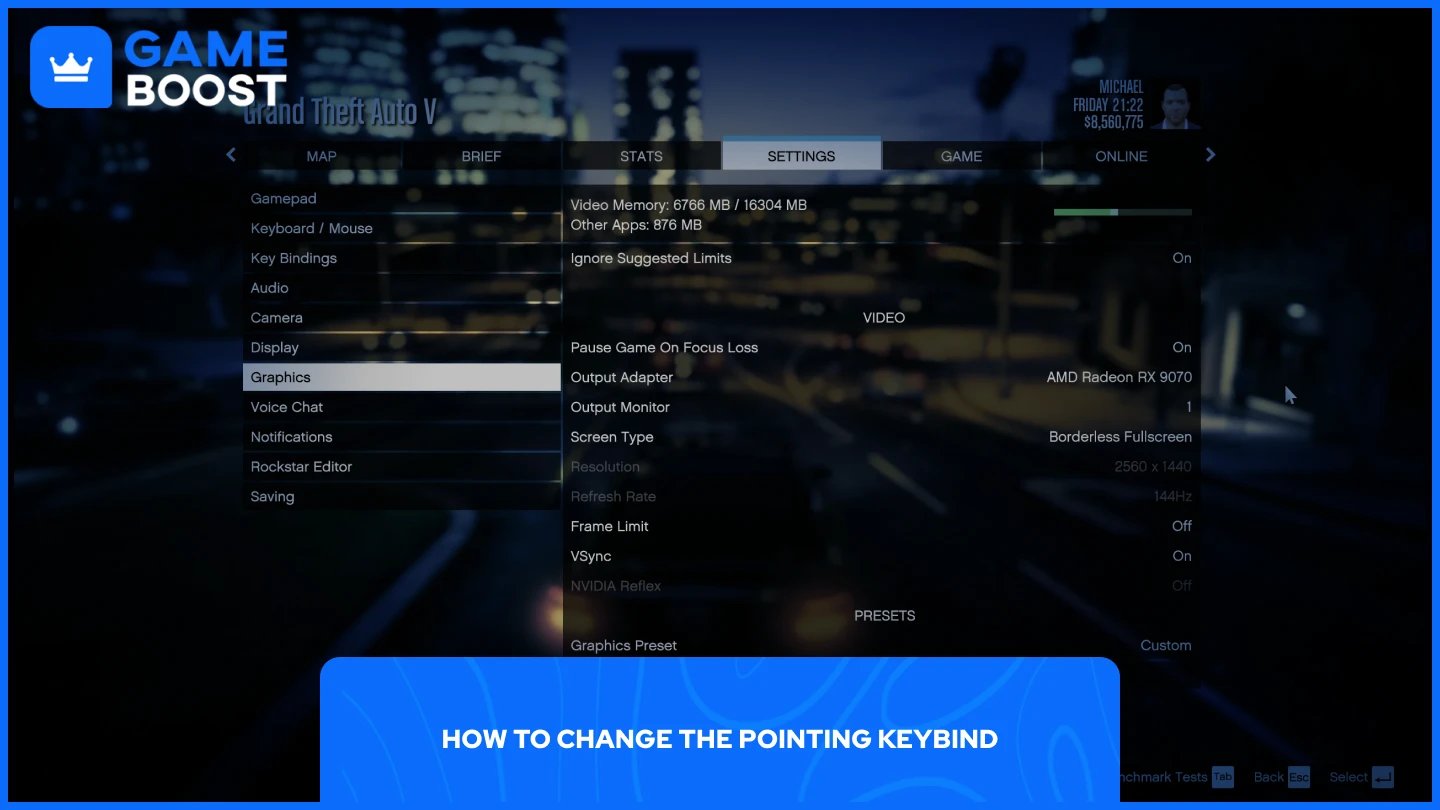
On PC, GTA 5 lets you remap any key through the in-game settings. To change the pointing keybind, follow these steps:
Open GTA 5 and go to Settings.
Select Key Bindings.
Scroll down to find the Point action.
Click on it and press the new key you want to assign.
Save your changes and return to the game.
On PlayStation and Xbox, GTA 5 does not include a native controller remapping option. However, both consoles have a system-level accessibility feature that lets you remap buttons across all games. On PS4, this is found under Settings > Accessibility > Button Assignments.
On PS5, go to Settings > Accessibility > Controllers > Custom Button Assignments. On Xbox, you can use the Xbox Accessories app to remap your controller inputs.
Also Read: How to Change Clothes in GTA Online: Step-by-Step Guide
If the pointing gesture isn't triggering, a few things could be causing it.
On console, the most common reason is input timing. The double-tap on R3 needs to be done quickly. If there's too much of a gap between the two presses, the game won't register it as a point.
On PC, the B key may have been rebound to something else, either intentionally or accidentally. Head to Settings > Key Bindings to check if the Point action still has B assigned to it.
Across all platforms, pointing is only available on foot. If you're trying to use it inside a vehicle, it won't work regardless of the input.
Also Read: How to Change GTA Online Character Gender
Pointing in GTA 5 is one of those small features that most players overlook simply because the game never explains it. Once you know the input for your platform, it takes a second to use and can make a real difference when coordinating with teammates. If it ever stops working, a quick check of your keybinds or input timing is usually all it takes to fix it.
GTA 5 Key
GTA 5 Enhanced Key
Buy GTA 5 Items
GTA 5 Accounts For Sale
View all GameBoost Accounts
View all GameBoost Boosting Services
View all GameBoost Currencies
View all GameBoost Game Keys
View all GameBoost Gift Cards
View all GameBoost Top Ups
View all GameBoost Items
Counter-Strike 2 Skins
“ Mustafa Atteya has been writing about gaming and esports since 2023, specializing in competitive game content and player improvement guides. At 25, he brings both hands-on gaming experience and professional SEO writing expertise to the GameBoost team.”