



•Filip Premuš• 4 min read
GTA 5

GTA Online tracks nearly everything you do in Los Santos, kills, deaths, heists completed, time played, money earned, and much more. Most players spend hundreds of hours in the game without ever looking at their stats, even though the data goes far deeper than you might expect.
Checking your stats gives you a clear picture of your playstyle and your overall progress, and some of the numbers might genuinely surprise you. In this article, we'll explore how to check your GTA Online account stats and what information you can find.
Also Read: Where to Buy GTA 5 Accounts?

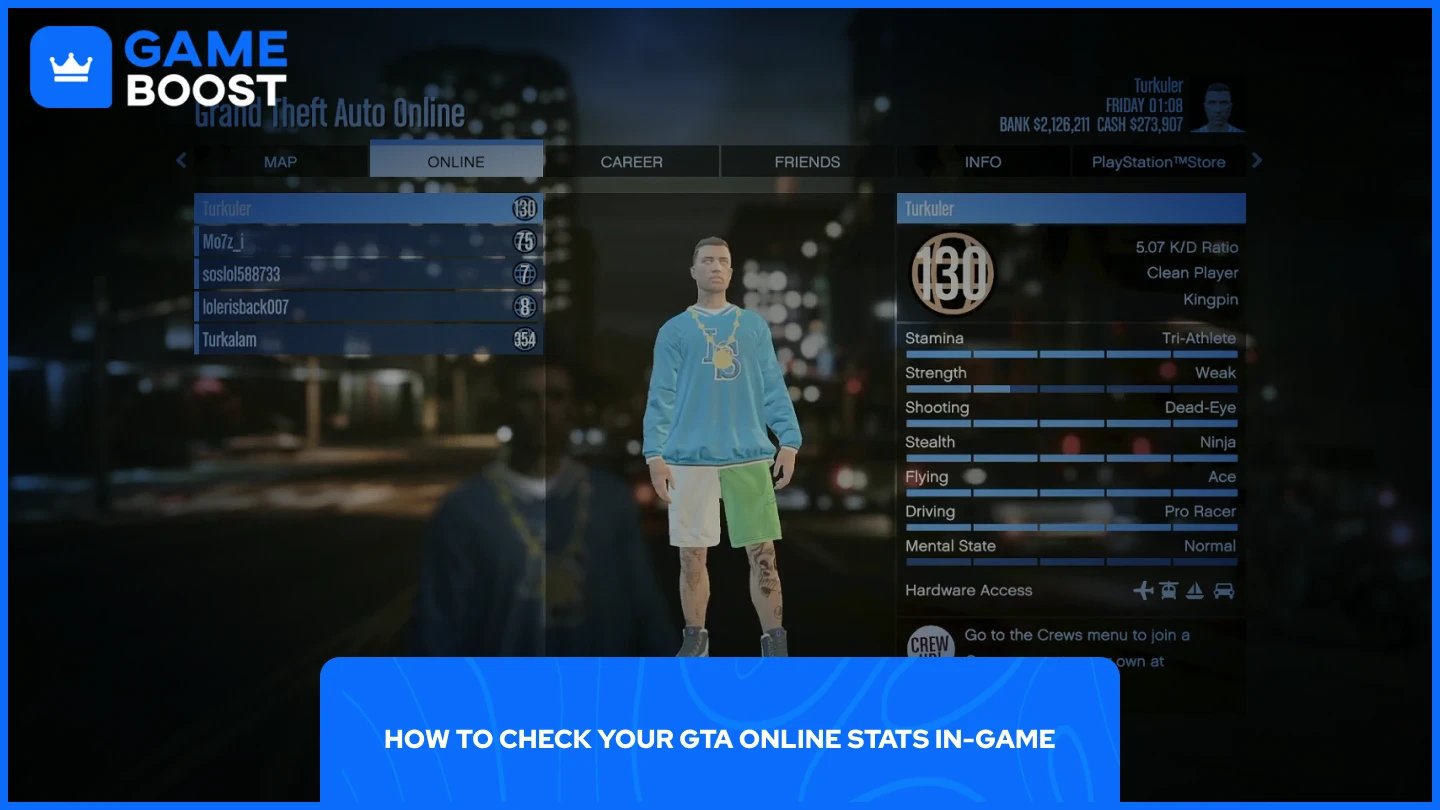
The quickest way to check your stats is directly through the game's pause menu. Here's how to do it:
Press the pause button (ESC on PC, Options on PlayStation, Menu on Xbox).
Navigate to the Online tab.
Select Players.
From there, you'll see a list of every player in your current lobby, including your own character. Click on your character to view your stats.
Also Read: How to Change Clothes in GTA Online: Step-by-Step Guide
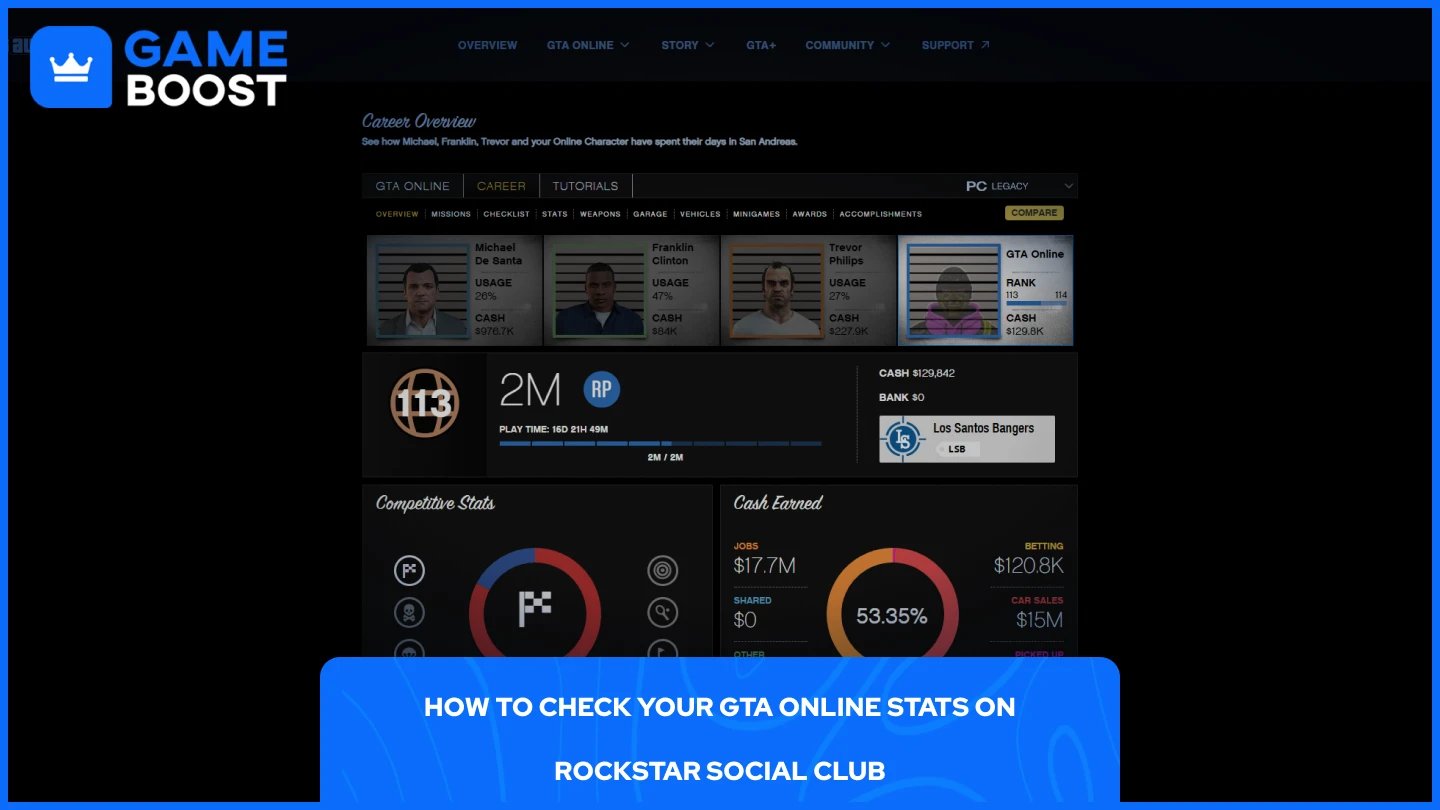
For a more complete breakdown, the Rockstar Social Club website is the better option. It organizes everything into clear categories and lets you browse your full history in detail. Here's how to access it:
Go to the Rockstar Social Club website.
Sign in with your Rockstar Games account.
Click on your profile icon, select "Account", and choose "View My Profile" from the dropdown.
Choose Grand Theft Auto 5.
Once you're in, you can select your platform from the top right corner. From there, navigate between different stat categories, including Missions, Checklist, Stats, Weapons, Garage, Vehicles, Minigames, Awards, and Accomplishments. The overview page gives you a snapshot of your rank, total RP, play time, cash, competitive stats, and criminal record, all in one place.
Also Read: How to Change GTA Online Character Gender
Yes, and the easiest way is through the game itself. Open the pause menu, head to the Online tab, and select Players. This shows the stats of every player in your current lobby, so you can look up anyone in your session the same way you'd check your own.
As for Rockstar Social Club, you can only view another player's full stat page if you have access to their account login. There's no public search feature that lets you look up anyone by username.
Also Read: What Happens When You Delete a GTA Online Character?
Checking your GTA Online stats takes less than a minute, whether you do it in-game or through Rockstar Social Club. The in-game method gives you a quick look at players in your lobby, while Social Club provides a much deeper breakdown of your full career history.
GTA 5 Key
GTA 5 Enhanced Key
Buy GTA 5 Items
GTA 5 Accounts For Sale
View all GameBoost Accounts
View all GameBoost Boosting Services
View all GameBoost Currencies
View all GameBoost Game Keys
View all GameBoost Gift Cards
View all GameBoost Top Ups
View all GameBoost Items
Counter-Strike 2 Skins
“ Mustafa Atteya has been writing about gaming and esports since 2023, specializing in competitive game content and player improvement guides. At 25, he brings both hands-on gaming experience and professional SEO writing expertise to the GameBoost team.”