


•Hamza Rashid• 6 min read
Roblox
Roblox lets players spend Robux on just about everything, from avatar items and game passes to limited-edition collectibles. Over time, those purchases add up, and it's not always easy to remember what you've bought or how much you've spent.
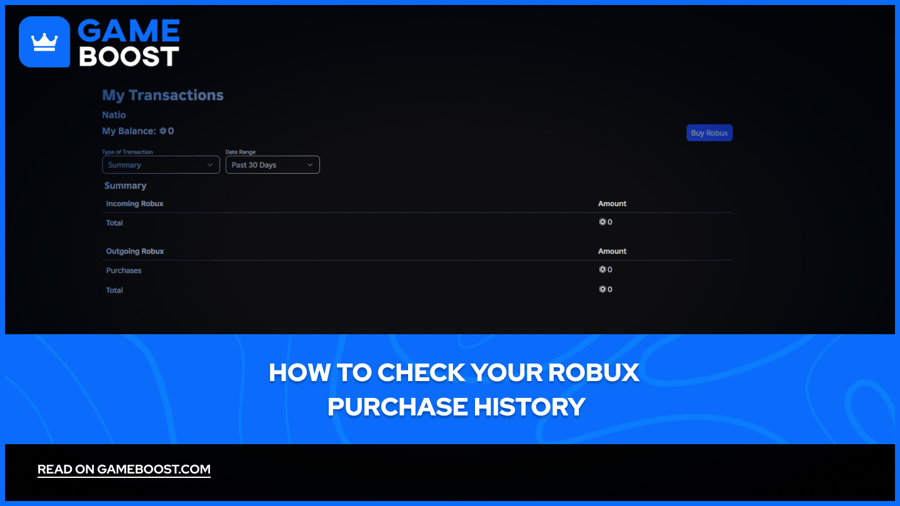
Roblox's My Transactions page keeps a record of everything tied to your account, including the items you purchased, the date of each transaction, and who the seller was. It also separates your spending into categories like currency purchases, item purchases, and sales, giving you a clear breakdown of your activity.
Knowing how to access this page is useful for keeping track of your Robux balance, disputing an unauthorized charge, or simply reviewing past spending. In this article, we'll explore exactly how to check your Robux purchase history on PC and mobile.

Roblox's My Transactions page tracks all purchases, including item name, date, and seller.
On PC and Mobile, access it by clicking the Robux icon and selecting "My Transactions" from the dropdown.
Switch the "Type of Transaction" filter to "Purchases" to see a full breakdown of what you've spent Robux on.
Use the "Sale Type" filter to narrow results by "Paid & Limited Items," "Paid Access in Local Currency," or "All Items."
If you spot an unrecognized charge, check for unauthorized account access, secure your account, and contact Roblox Support.
Roblox does not offer refunds on Robux purchases, so acting quickly on suspicious activity is important.
For charges that appear on your bank statement but not in Roblox, contact your bank or payment provider directly.
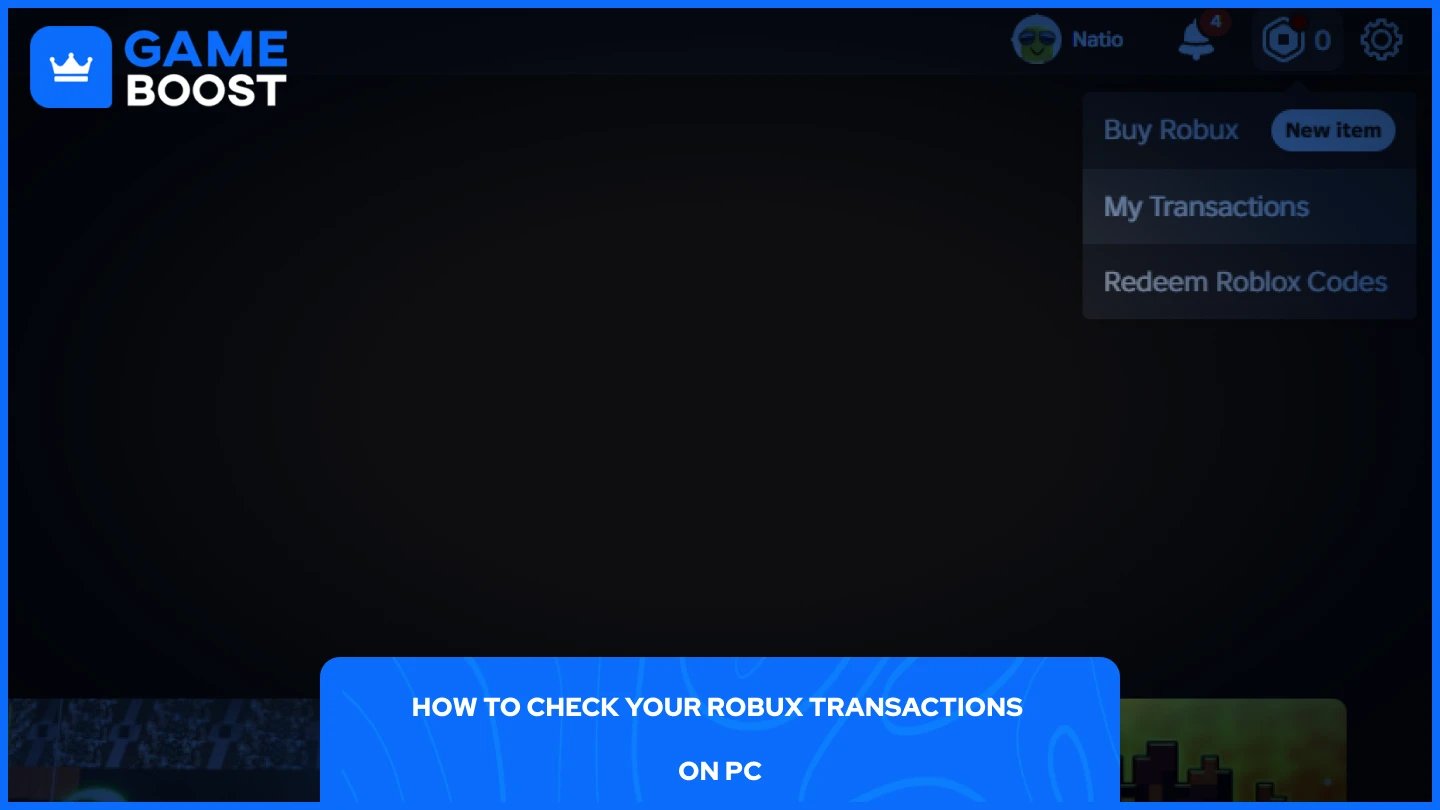
Checking your purchase history on PC is straightforward. Here's how to do it:
Go to the Roblox website and log in to your account.
Click the Robux icon in the top right corner.
Select “My Transactions” from the dropdown.
Open the "Type of Transaction" dropdown and select "Purchases."
Once you switch to Purchases, two additional filters appear. The "Number of Items" dropdown lets you control how many transactions are shown per page, and the "Sale Type" dropdown lets you filter by "Paid & Limited Items," "Paid Access in Local Currency," or "All Items." Use "All Items" if you want a full view of everything you've spent Robux on.
If you just want a quick overview of your total incoming and outgoing Robux without the item breakdown, keep the filter on "Summary" and use the "Date Range" dropdown to set the time period you want to review.
Also Read: How Much Does Robux Cost? Every Package Price
The Roblox mobile app doesn't support transaction history directly, so you'll need to use a browser instead. The steps are the same regardless of whether you're on Android or iOS.
Open your preferred browser and go to roblox.com.
Log in to your account and tap "Continue in browser" if prompted.
Tap the Robux icon in the top right corner.
Select “My Transactions”.
On the My Transactions page, open the "Type of Transaction" dropdown and select "Purchases."
From there, you can filter by Sale Type to narrow things down to "Paid & Limited Items," "Paid Access in Local Currency," or "All Items." The layout is more limited on mobile compared to desktop, so scrolling through a long history may take a bit longer, but all the same transaction data is available.
Also Read: How to Unlink Roblox Account from PS4 & PS5 (Step-by-Step)
If something appears in your transaction history that you don't recognize, the first thing to do is check whether anyone else has access to your account, including family members or anyone who may have used your device.
Roblox does not offer refunds on Robux purchases or items bought with Robux, so if the charge was made through your account, recovering that Robux isn't guaranteed. However, if the charge was made without your knowledge and you suspect unauthorized access, you should change your password immediately, enable two-step verification, and contact Roblox Support with the details of the transaction.
If the charge appeared on your bank statement but doesn't show up in your Roblox transaction history, reach out to your bank or payment provider directly. They can help you dispute the charge if it turns out to be fraudulent.
Also Read: Roblox Doors: How Many Doors Are There?
The My Transactions page gives you a full view of your Roblox spending history, broken down by transaction type and filterable by date and sale type. It covers everything from reviewing past purchases to tracking how much Robux you've spent and investigating unrecognized charges, all accessible in a few clicks. If you do spot something suspicious, act quickly by securing your account and reaching out to Roblox Support.
“ Mustafa Atteya has been writing about gaming and esports since 2023, specializing in competitive game content and player improvement guides. At 25, he brings both hands-on gaming experience and professional SEO writing expertise to the GameBoost team.”