

•Hamza Rashid• 9 min read
Valorant

Valorant is a free-to-play first-person shooter developed by Riot Games. Released on June 2, 2020, for Windows, the game has become one of the most popular competitive shooters worldwide, attracting millions of daily players.
Chromebook users face a major obstacle since Valorant runs exclusively on Windows. The game's kernel-level anti-cheat system, Vanguard, only functions on Windows operating systems, which means direct installation on Chrome OS isn't possible through conventional methods.
However, several workarounds allow Chromebook owners to experience Valorant without purchasing a gaming PC. In this article, we'll explain the available methods for playing Valorant on Chromebook, provide step-by-step instructions for each approach, and outline the limitations you need to understand before attempting to play.
Also Read: New Valorant Bundle: Skins, Cost, and What You Get
No, Valorant doesn't run natively on Chromebooks. The game requires Windows and uses Vanguard, a kernel-level anti-cheat system that only works on Windows operating systems. Chrome OS lacks the necessary compatibility, making direct installation impossible.
You can play Valorant on a Chromebook only by connecting remotely to a Windows PC that has the game installed. Remote desktop software lets you control your Windows PC from your Chromebook, effectively turning your Chromebook into a remote screen for your gaming computer.
Chrome Remote Desktop and Parsec are the two main options for remote desktop streaming. Both require you to own a Windows PC capable of running Valorant.
Cloud gaming services aren't an option. Valorant isn't available on GeForce Now, Xbox Cloud Gaming, or any other cloud gaming platform because Vanguard's anti-cheat system doesn't support virtual machines.
Also Read: All Valorant Champions Winners (2021-2026)
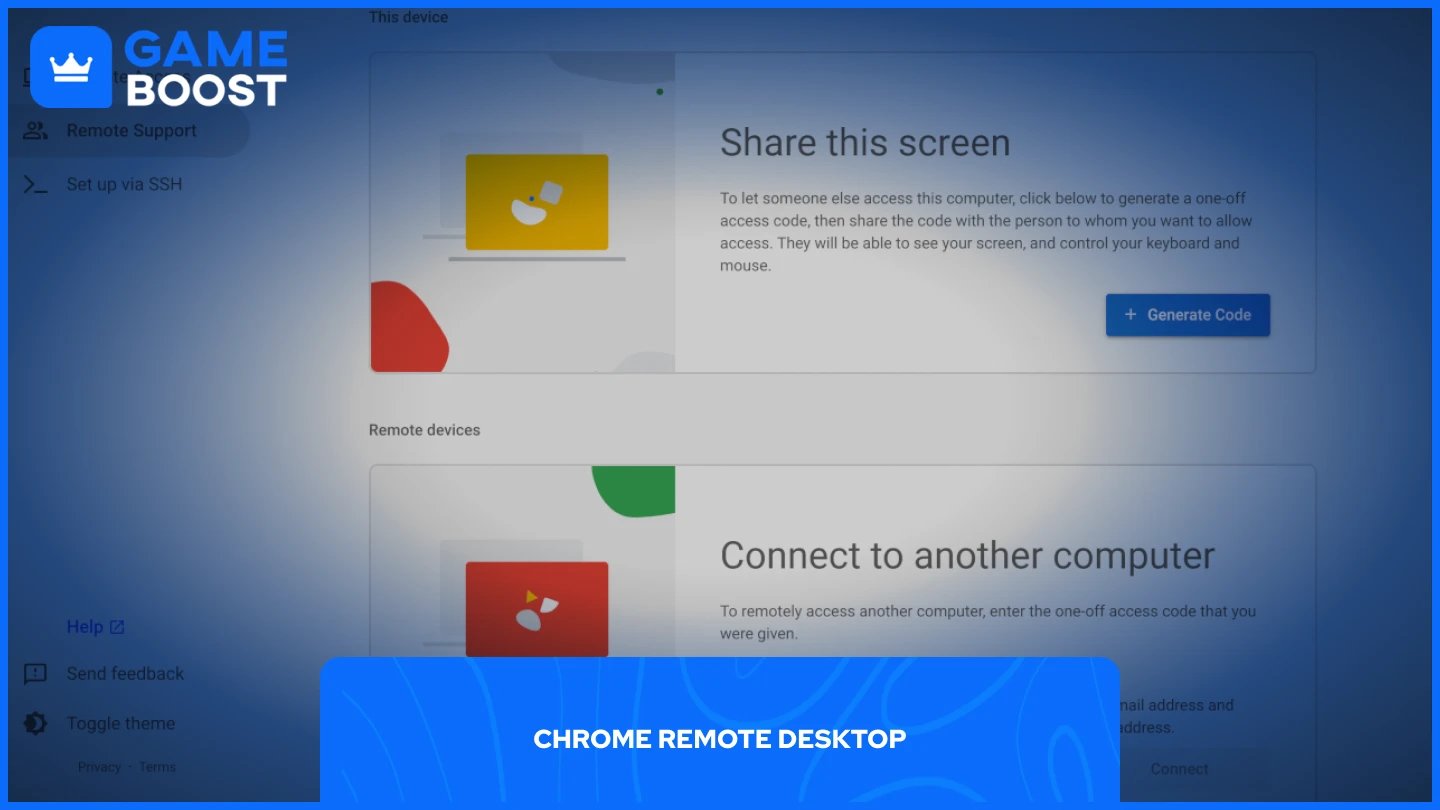
Chrome Remote Desktop allows you to access your Windows PC from your Chromebook and control it remotely. This method works if you already own a gaming PC capable of running Valorant.
Windows PC with Valorant installed
Google Chrome installed on both devices
Same Google account logged in on both devices
Stable internet connection on both devices
On your Windows PC, go to remotedesktop.google.com and set up Remote Access.
Install the extension, name your computer, and create a six-digit PIN.
On your Chromebook, go to remotedesktop.google.com using the same Google account.
Select your Windows PC and enter the PIN.
Launch Valorant on your Windows PC through the remote connection.
This method runs Valorant entirely on your Windows machine while your Chromebook acts as a remote display and input device. The game processes on your PC, and the video streams to your Chromebook, along with your keyboard and mouse inputs going back to the PC.
Also Read: 5 Most Expensive Skins in Valorant
Parsec offers an alternative remote desktop solution with features specifically designed for gaming. The service provides lower latency than Chrome Remote Desktop in many scenarios and includes optimization for game streaming.
Windows PC with Valorant installed
Parsec account
Parsec installed on both devices
Strong internet connection (especially upload speed on the Windows PC)
Download and install Parsec on your Windows PC and Chromebook from Parsec official website.
Create and log in to the same Parsec account.
Your Windows PC should appear in the list of available computers.
Click to connect to your Windows PC.
Launch Valorant once connected.
Parsec focuses on gaming performance and typically delivers better input response than Chrome Remote Desktop. The service uses hardware encoding when available, reducing the performance impact on your host PC.
Playing Valorant on a Chromebook requires owning a Windows PC and accepting performance compromises. Remote desktop streaming provides the only functional method, but input delay and network dependency make competitive play difficult.
Chrome Remote Desktop offers the simplest setup with no additional accounts required beyond your existing Google account. Parsec provides better performance for gaming, but requires creating another account and installing separate software.
Valorant Accounts For Sale
Buy Valorant Points
Valorant Boosting Service
View all GameBoost Accounts
View all GameBoost Boosting Services
View all GameBoost Currencies
View all GameBoost Game Keys
View all GameBoost Gift Cards
View all GameBoost Items
View all GameBoost Top Ups
Counter-Strike 2 Skins
“ Mustafa Atteya has been writing about gaming and esports since 2023, specializing in competitive game content and player improvement guides. At 25, he brings both hands-on gaming experience and professional SEO writing expertise to the GameBoost team.”