


•Filip Premuš• 4 min read
GTA 5
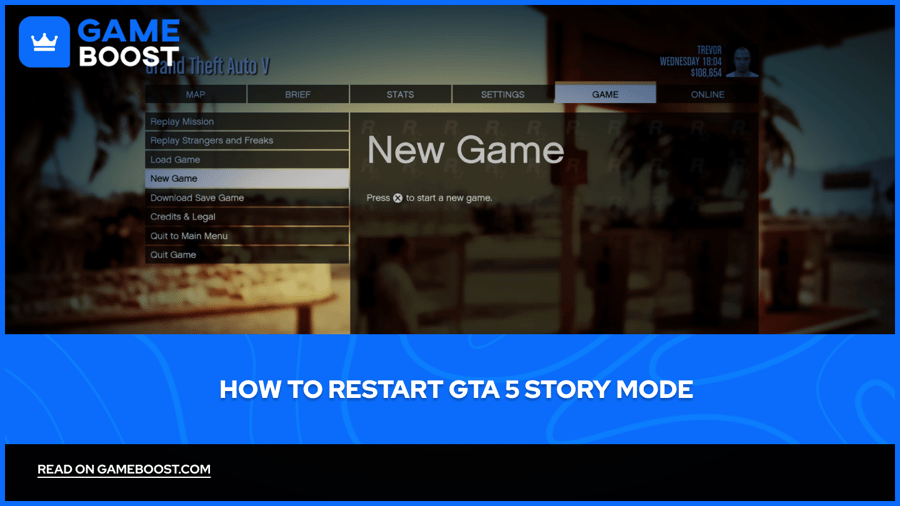
The story mode in GTA 5 holds up well enough that many players return to it for a second playthrough, either to make different choices, replay missions they skipped, or just experience the full story again from the start. The issue is that the game automatically loads your latest save on startup, so there's no obvious new game option on the main screen.
The restart option does exist, but the steps differ slightly depending on your platform. In this article, we'll explore how to restart GTA 5's story mode step by step across PC, PlayStation, and Xbox.
Also Read: How to Increase Strength in GTA Online

To restart GTA 5 story mode, open the pause menu, go to the Game tab, and select New Game. GTA 5 supports up to 15 save slots, so your existing progress won't be overwritten as long as you save to a different slot.
To delete story mode save files on PC, navigate to Documents > Rockstar Games > GTA V > Profiles and delete the .sav files. Disable cloud saves in the Rockstar Launcher first to prevent them from syncing back.
On PS4, delete saves through Settings > Application Saved Data Management > Saved Data in System Storage. On PS5 (Enhanced Edition), go to Settings > Saved Data and Game/App Settings > Saved Data (PS5) > Console Storage.
On Xbox, go to My Games & Apps > GTA V > Manage Game > Saved Data and select Delete Everywhere to remove both local and cloud saves.
To replay a specific mission without restarting, open the pause menu, go to Game > Replay Mission, and select the mission. Progress and money from the replay are recorded separately and won't affect your current save.
GTA Online progress is stored on Rockstar's servers and is never affected by anything done in story mode.
Also Read: Where to Buy GTA 5 Accounts?
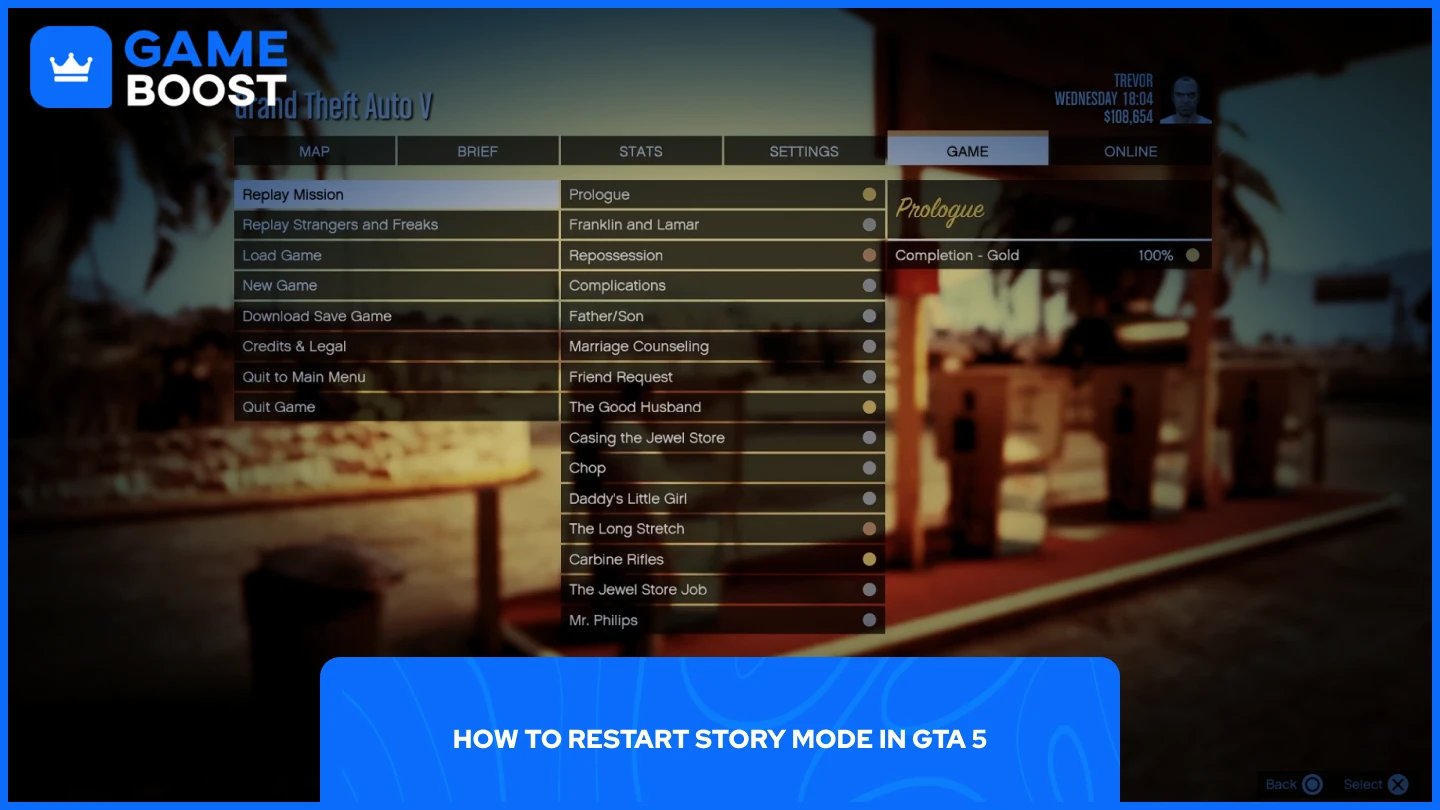
Restarting story mode in GTA 5 is done through the pause menu. The option is available on all platforms and takes less than a minute to complete. GTA 5 supports up to 15 save slots, so your existing progress is safe as long as you save the new playthrough to a different slot.
Your GTA Online character and progress are stored separately on Rockstar's servers and will not be affected regardless. Follow these steps to restart story mode:
Launch GTA 5 and load into story mode.
Open the pause menu.
Go to the Game tab.
Select New Game.
Confirm the selection when prompted.
The game will restart from the prologue cutscene. If you triggered the restart by mistake, go back to the Game tab and select Load Game to recover your previous save.

The New Game option starts a fresh playthrough but keeps your old save files in storage. If you want to remove them entirely, you need to delete them manually. The process differs depending on your platform.
Also Read: How to Point in GTA 5: Step-by-Step Guide
GTA 5 story saves are stored locally on your computer. To delete them, navigate to the following folder:
Documents > Rockstar Games > GTA V > Profiles > (your profile number)
Delete the .sav files inside the folder. Leave the pc_settings.bin file in place if you want to keep your in-game settings. Disabling cloud saves in the Rockstar Launcher beforehand is also recommended, otherwise the files may sync back down on the next launch.
Go to Settings from the home screen.
Select Application Saved Data Management.
Choose Saved Data in System Storage.
Select Delete.
Find Grand Theft Auto V in the list and select it.
Check the save files you want to remove and confirm.
If you have PS Plus cloud saves enabled, repeat the same process under Saved Data in Online Storage to remove the cloud backup as well.
Go to Settings from the home screen.
Select Saved Data and Game/App Settings.
Choose Saved Data (PS5) for the Enhanced Edition. If you're on the PS4 disc via backwards compatibility, choose Saved Data (PS4) instead.
Select Console Storage, then Delete.
Find Grand Theft Auto V, check the files, and confirm.
Delete from Cloud Storage under the same menu if you want to clear the PSN backup too.
Go to My Games & Apps.
Highlight Grand Theft Auto V and press the Menu button.
Select Manage Game and Add-ons.
Go to Saved Data.
Highlight your profile and select Delete Everywhere to remove both local and cloud saves.
Players who want to redo a specific mission do not need to restart the entire game. GTA 5 includes a mission replay feature that lets you revisit any completed mission without affecting your current save or progress.
To replay a mission, follow these steps:
Open the pause menu.
Go to the Game tab.
Select Replay Mission.
Browse the list and select the mission you want to replay.
Confirm the selection.
The game will load that mission from the start. Once it ends, you will return to your current save state. Any money earned or gold medals achieved during the replay are recorded separately and will not overwrite your existing progress.
Also Read: How to Check Your GTA Online Stats
Restarting GTA 5 story mode is straightforward once you know where to look. Use the New Game option for a fresh playthrough, delete your save files manually if you want a clean slate, or use the mission replay feature if you only want to redo specific missions without losing your current progress.
GTA 5 Key
GTA 5 Enhanced Key
Buy GTA 5 Items
GTA 5 Accounts For Sale
View all GameBoost Accounts
View all GameBoost Boosting Services
View all GameBoost Currencies
View all GameBoost Game Keys
View all GameBoost Gift Cards
View all GameBoost Top Ups
View all GameBoost Items
Counter-Strike 2 Skins
“ Mustafa Atteya has been writing about gaming and esports since 2023, specializing in competitive game content and player improvement guides. At 25, he brings both hands-on gaming experience and professional SEO writing expertise to the GameBoost team.”