

•Kristina Horvat• 7 min read
Roblox
Roblox saves temporary files on every device it runs on, so experiences, textures and settings load faster the next time. Over time those files can pile up or get corrupted, and that's when loading errors, freezes and odd glitches start to show up.
Clearing the Roblox cache deletes those temporary files and leaves the account untouched. Each device keeps them in a different place: Windows stores them in the %temp%\Roblox folder, Mac uses ~/Library/Caches, and Android has a Clear cache button in the app settings. iPhone and iPad don't have a button at all, so offloading the app does the same job. Whichever device it is, Robux, items and game progress stay safe.
Roblox cache files are temporary data that help experiences load faster, not anything tied to the account.
Clearing the cache fixes loading errors, freezes and corrupted files, but not lag from slow internet.
Windows players can clear it by deleting the files in %temp%\Roblox.
On iPhone and iPad, offloading Roblox clears the cache and keeps the account data.
Every method keeps Robux, purchases and game progress safe on the Roblox account.
Roblox cache is a set of temporary files the game stores on a device, like downloaded assets, textures and saved settings. Keeping them nearby means Roblox doesn't have to download the same things every time an experience opens.
Clearing the cache helps when Roblox won't load, freezes or keeps crashing because of broken files, and it also frees up storage. It won't fix lag from a slow connection or a weak device, so players dealing with stutters can fix Roblox lag through other settings. Cache problems sometimes show up as one of the Roblox error codes too. Crashes that come with a Roblox low memory warning are a different problem, since that warning is about RAM, not cached files.
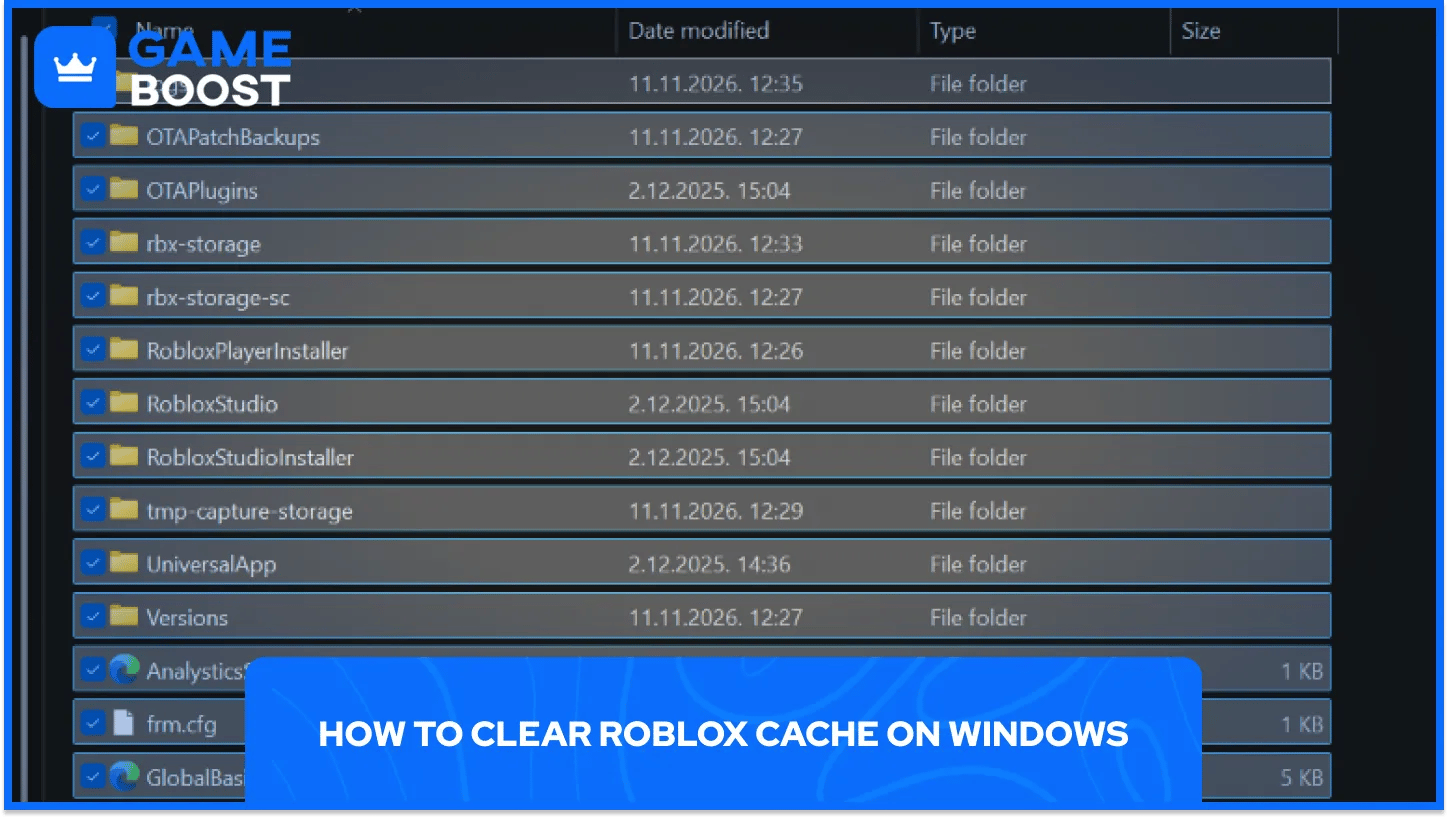
Clearing Roblox cache on a Windows PC takes five steps:
Close Roblox completely, including any Roblox windows still open in the background.
Press Windows + R to open the Run box.
Type %temp%\Roblox in the box and press Enter.
Press Ctrl + A to select everything inside that Roblox folder, then press Delete.
Empty the Recycle Bin to remove the files for good.
When problems keep coming back, a full reset clears everything. Uninstall Roblox through Windows settings, press Windows + R, type %localappdata%, delete the Roblox folder and then reinstall the game. Roblox Studio places stay safe, unless they were saved inside that folder.
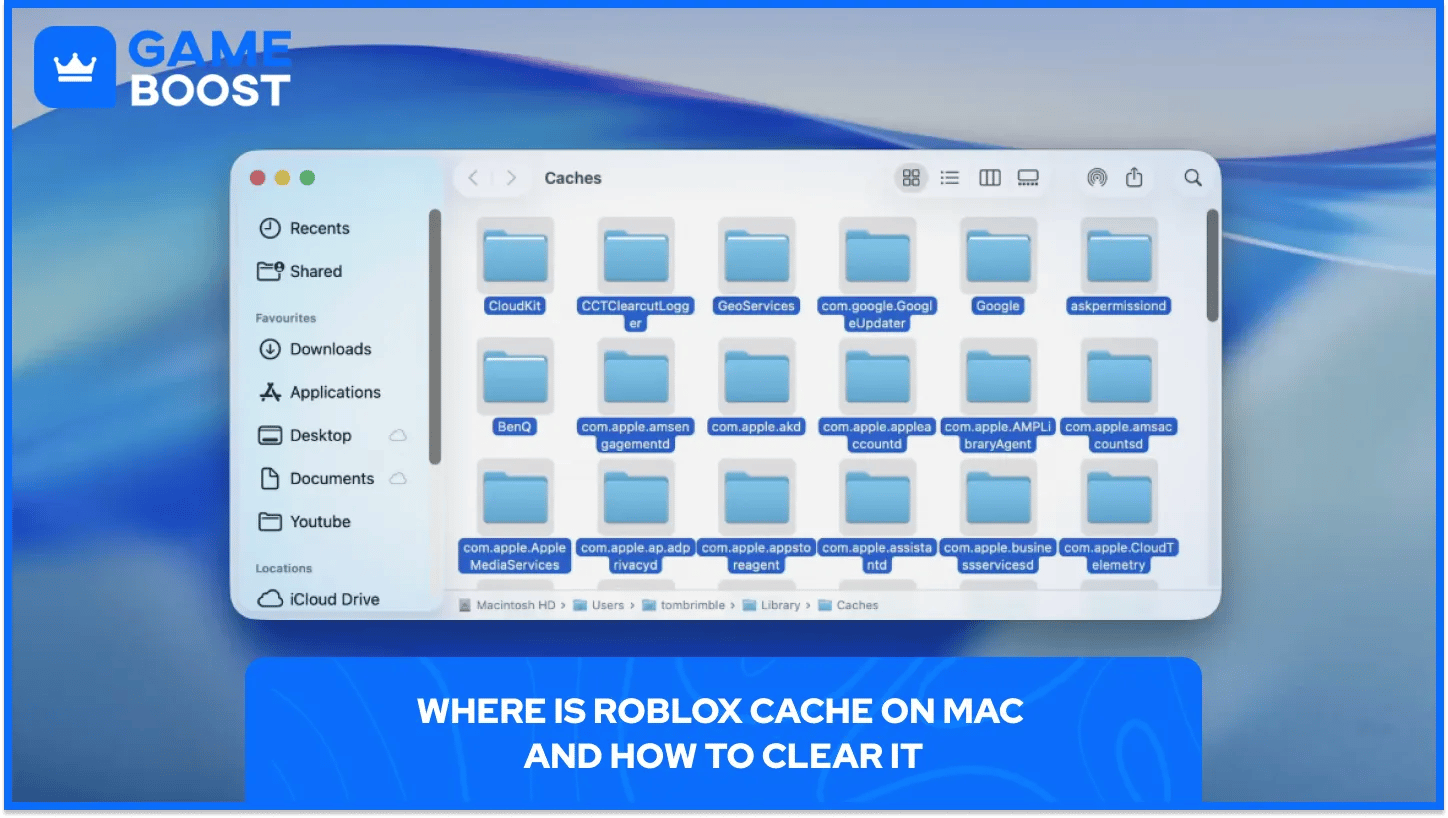
Clearing Roblox cache on a Mac takes five steps:
Quit Roblox and Roblox Studio if either one is open.
Open Finder and press Shift + Command + G to open Go to Folder.
Type ~/Library/Caches in the box and press Return.
Find the folder with Roblox in its name, usually starting with com.roblox.
Drag that folder to the Trash and empty the Trash.
Only the Roblox folder needs deleting in that location. Other folders in ~/Library/Caches belong to other apps, so leaving them alone avoids breaking anything else on the Mac.
iPhone and iPad don't have a cache button, so offloading the app does the job instead. Clearing Roblox cache on iOS takes four steps:
Open Settings, then General, then iPhone Storage or iPad Storage.
Tap Roblox in the list of installed apps.
Tap Offload App and confirm, which removes the app but keeps its data.
Tap Reinstall App and wait for Roblox to download again.
If Roblox still acts up, Delete App removes everything, and reinstalling from the App Store gives a completely fresh start. Deleting the app signs the account out, so having the password ready saves time. Players who forgot it can still get back in by recovering a Roblox account.
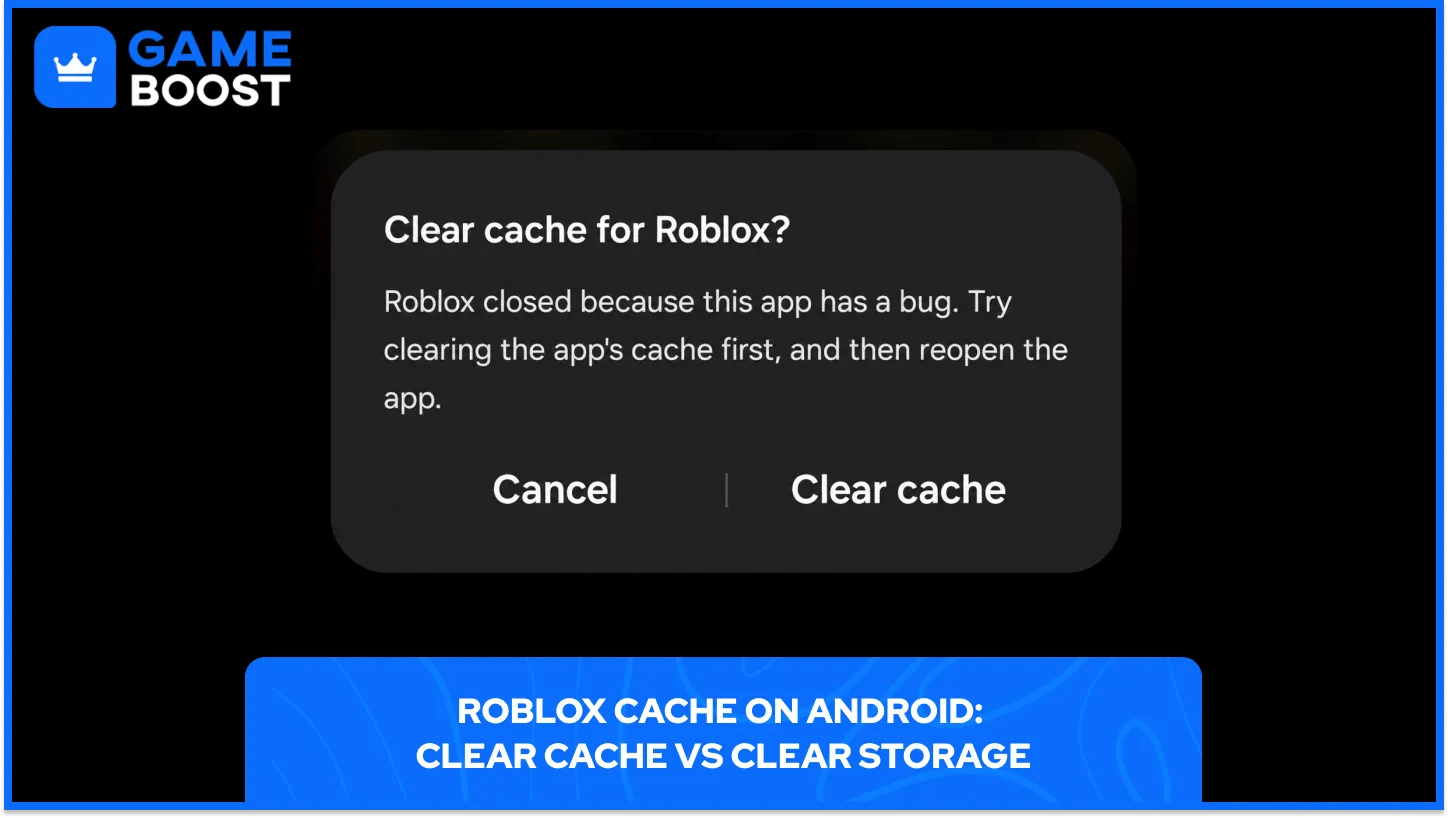
Android has a built-in way to clear an app's cache, though menu names can change a little between phone brands. Clearing Roblox cache on Android takes four steps:
Open Settings on the phone, then Apps.
Find Roblox in the list and tap it.
Tap Storage, sometimes called Storage usage or Storage & cache.
Tap Clear cache and then reopen Roblox.
Clear storage in the same menu goes a step further and resets everything Roblox saved on the phone. It logs the account out, so it's best saved for when clearing the cache alone doesn't help.
Players who play Roblox without downloading through a browser can clear the website's cache too. Each browser keeps the option in a slightly different menu, and ticking only the cache box removes the stored website files without signing out of roblox.com:
Chrome: open the three-dot menu in the top-right corner, choose Delete browsing data, set the time range to All time, tick only Cached images and files and confirm.
Edge: open the three-dot menu, go to Settings, then Privacy, search, and services, and click Choose what to clear under Clear browsing data. Tick Cached images and files and click Clear now.
Firefox: open Settings, go to Privacy & Security and click Clear Data in the Cookies and Site Data section. Set the time range to Everything, tick only Temporary cached files and pages and click Clear.
Browser cache only affects the Roblox website, like pages that won't load or images that look broken. Roblox games themselves run in the Roblox app, so loading problems inside experiences need the device steps for Windows, Mac or mobile instead.
No, clearing the Roblox cache doesn't delete progress. Robux, purchased items, friends and game progress are all saved on Roblox's servers, not in the cache, so they come back as soon as the player opens the game again.
Clearing the cache on Windows, Mac and Android usually keeps the account signed in, and offloading on iPhone keeps the app data too. Deleting the app or using Clear storage means signing in again, but the account itself stays exactly the same.
Clearing the Roblox cache takes less than a minute on any device and fixes a lot of loading and crashing problems. Since everything important lives on the account, there's no risk in giving Roblox a clean start whenever it starts acting up.
“ Kristina joined GameBoost in 2024 as an SEO specialist and quickly became the go-to writer for third-person shooter and competitive games. She covers titles like Fortnite, Valorant, League of Legends, GTA 5, and Roblox, focusing on how-to guides, practical tips, and updates.”