


•Hamza Rashid• 6 min read
Roblox
Roblox accounts registered for children under 13 come with a set of built-in restrictions, and managing Robux spending is one of the areas parents tend to overlook. Linking a parent account gives you spending limits, activity notifications, and content controls, all manageable from your own device.
Buying through the Roblox website or redeeming a gift card also gives up to 25% more Robux than purchasing through the iOS App Store or Google Play, so knowing the right method saves money in the long run.
In this article, we'll explore how to set up a parent account, purchase Robux for a child account, and manage spending restrictions to keep everything under control.
Also Read: How to Trade Robux on Roblox

Child accounts can purchase Robux independently as long as a payment method is saved on the account
Linking a parent account gives you access to spending limits, notifications, and other parental controls
To link a parent account, go to your child's Settings > Parental Controls > Add Parent and verify your age with a government ID or credit card
Buying Robux through the Roblox website gives up to 25% more than purchasing through the iOS App Store or Google Play
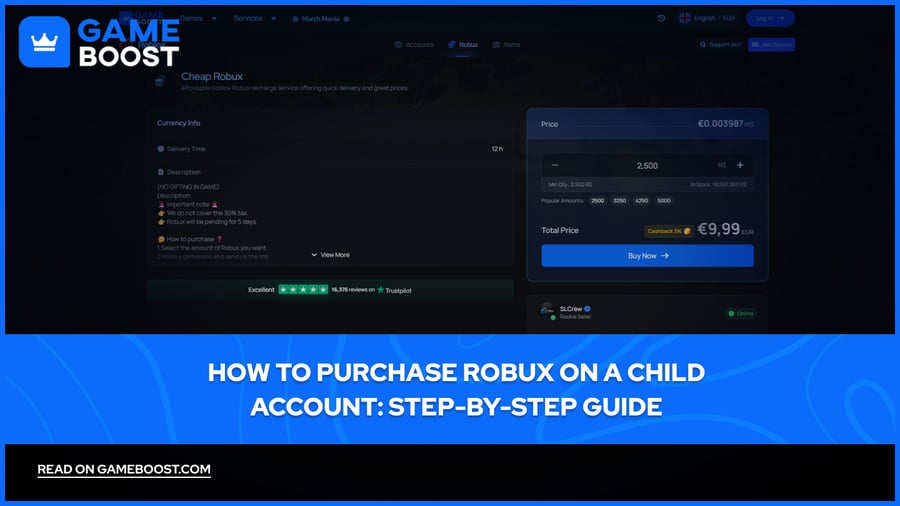
You can also buy Robux through GameBoost by entering your child's Roblox username and following the instructions, with no account login required
After purchasing, set a monthly spending limit through your parent account to cap how much can be spent each month
Spending limits do not apply to gift card redemptions and reset at the end of every calendar month
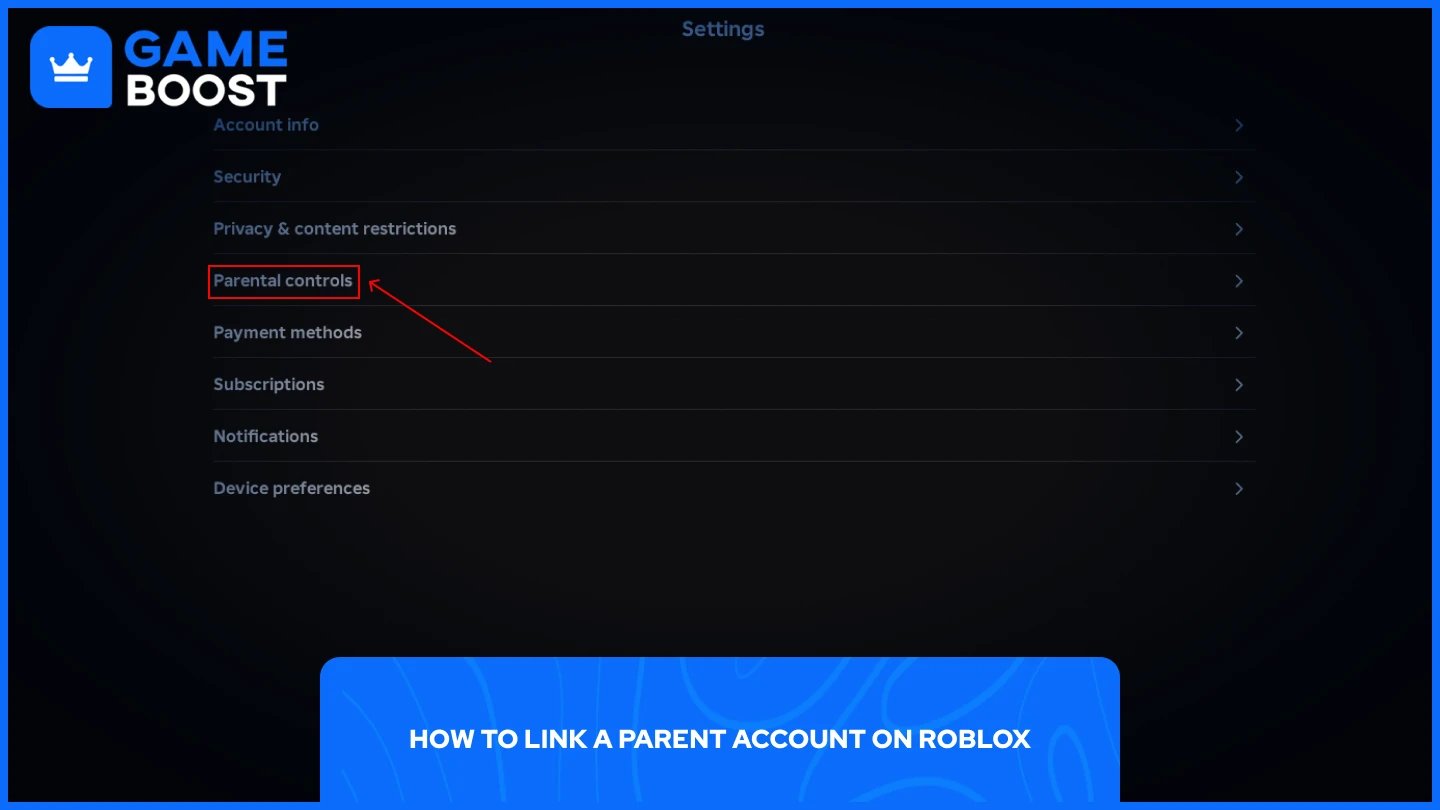
To enable parent privileges, you must be 18 or older and verify your age using a government-issued ID or credit card. If you already have a Roblox account, you can use it directly without creating a new one. Here is how to link your parent account to your child's:
On your child's device, open Roblox and go to Settings.
Select Parental Controls, then tap Add Parent.
Enter your email address and check your inbox for a confirmation link.
Open the link and select Use Existing Account if you already have one, or Create Account if you don't.
Follow the on-screen steps to verify your age using a government-issued ID or credit card.
Once verified, select Agree to complete the link.
After linking, you can manage your child's settings from your own device without needing to log into their account every time.
Also Read: What Are the Safest Ways to Purchase Robux?
With the parent account linked, you can buy Robux directly through the child's account. Purchasing through the Roblox website or using a gift card gives up to 25% more Robux than buying through the iOS App Store or Google Play, since Roblox passes the app store fee savings directly to you. For that reason, the website is the recommended route.
Follow these steps to purchase Robux:
Log in to your child's Roblox account on the website or app.
Click the Robux icon at the top of the screen.
Select the amount of Robux you want to buy.
Choose your payment method: credit card, debit card, PayPal, or a Roblox gift card.
Review the confirmation screen, which shows the Robux amount, total cost, and selected payment method, then click the purchase button to complete the transaction.
Robux typically appear in the account within minutes, though there may occasionally be a short delay of up to an hour during peak usage times. Alternatively, you can purchase Robux through GameBoost. The process is straightforward:
Select the Robux amount you want
Enter your child's Roblox username
Complete the payment and follow any instructions
There is no need to log into the account at all, which makes it a convenient option for parents who prefer to keep their child's login details separate from any transaction.

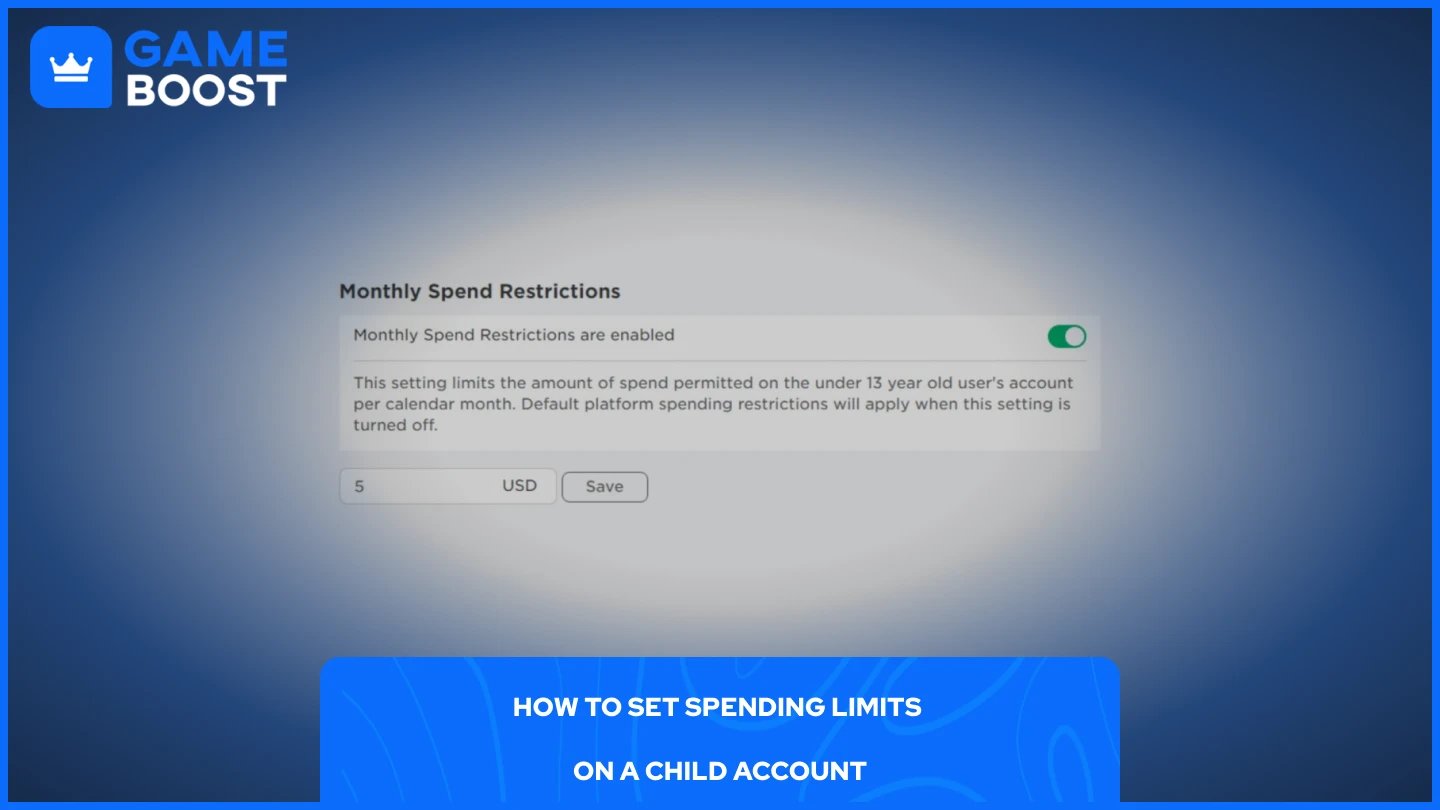
Once Robux is purchased, it is worth setting a monthly spending limit to avoid unexpected charges down the line. You can set a monthly spending limit that covers Robux purchases and subscriptions to individual experiences. The limit resets at the end of each calendar month and does not roll over.
Here is how to set a spending limit:
Log in to your parent account on the website or the mobile app.
Go to Settings, then select Parental Controls.
Navigate to Spending Restrictions, then tap Monthly Spending Limit.
Enter the amount you are comfortable with and confirm.
High spend notifications are enabled by default for all linked parents, meaning you will receive alerts after $100, $250, and $500 of spend in a given month. After $500, you will receive a notification for every ten transactions. You can also adjust notification preferences to be alerted on every transaction if you prefer tighter oversight. Note that spending limits do not apply to gift card redemptions.
Also Read: How to Redeem a Robux Gift Card on Mobile
Purchasing Robux on the child's account is straightforward, but the spending limits are what actually keep things under control. The purchase itself takes a few minutes, but skipping the limits step leaves the account open to unlimited charges. Set a monthly cap immediately after linking your parent account, and use notifications to stay on top of any activity.
“ Mustafa Atteya has been writing about gaming and esports since 2023, specializing in competitive game content and player improvement guides. At 25, he brings both hands-on gaming experience and professional SEO writing expertise to the GameBoost team.”