

•Hamza Rashid• 8 min read
Roblox
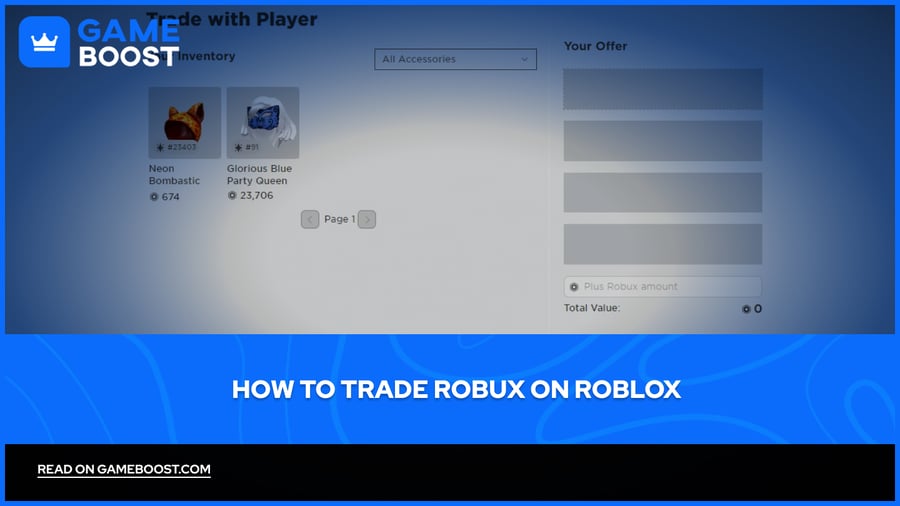
Roblox has a built-in trading system that lets Premium members exchange Limited items and Robux with other players. It's one of the more popular features on the platform, especially among collectors looking to grow their inventory or flip items for profit.
The system has its own set of rules, fees, and limitations that are worth understanding before you get started. In this article, we'll explore how to trade Robux on Roblox, what the process looks like step by step, and what to watch out for along the way.


Roblox's trading system lets Premium members exchange Limited items and Robux with other players.
Both players need an active Premium subscription, trading enabled in privacy settings, and an account registered as 13 or older.
Trading is only available through the Roblox website, not the mobile app.
To trade, go to a player's profile, click the three dots, select "Trade Items," build your offer, and submit.
Roblox takes a 30% fee from any Robux included in a trade.
The Robux you add to an offer cannot exceed 50% of the total RAP value of the items in the trade.
Completed trades are final and cannot be reversed.
Before you can send or receive trade offers, there are a few requirements your account needs to meet.
Roblox Premium membership: Both you and the player you're trading with need an active Premium subscription. Any tier works, starting at $4.99/month.
Age of 13 or older: Accounts registered as under 13 won't see the "Trade Items" option at all, even with Premium active.
Trading enabled in privacy settings: Go to Account Settings > Privacy & content restrictions > Trading & inventory and set "Who can trade with me?" to your preferred option. Both players need this turned on.
At least one Limited item: You need tradeable items in your inventory to participate. Regular catalog items and game passes don't qualify.
Desktop only: Trading is only available through the Roblox website. The mobile app doesn't support it.
Once all of these are in place, you're ready to start sending and receiving trade offers. If the "Trade Items" option isn't showing up on a player's profile, it's usually down to one of the above not being met on either side.
Also Read: What Are the Safest Ways to Purchase Robux?
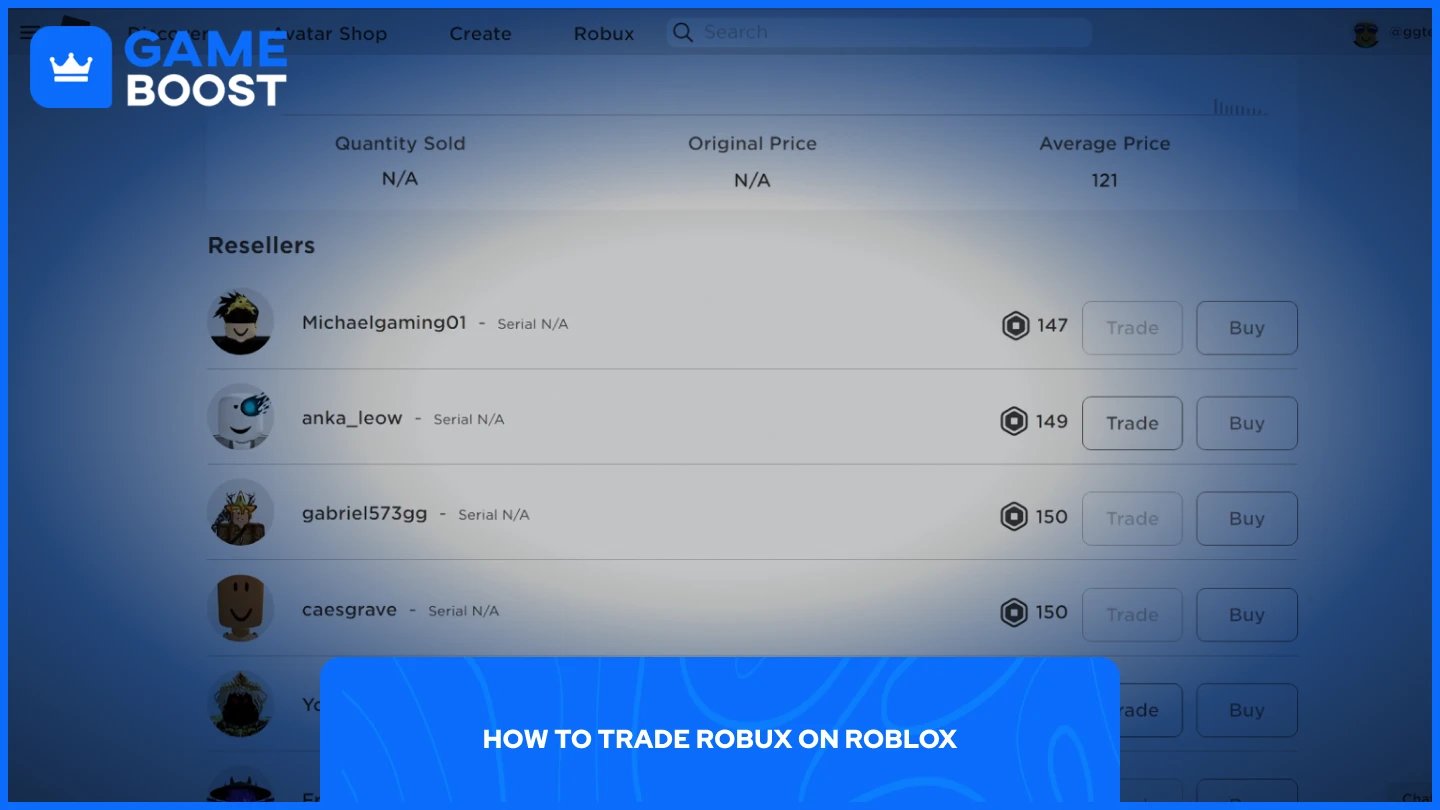
Once your account meets the requirements, here's how to send a trade offer:
Go to the profile page of the player you want to trade with.
Click the three dots in the upper-right corner of their profile box.
Select "Trade Items" from the dropdown menu.
In the trade window, select the Limited items you want to offer under "Your Offer."
Select the items you want to receive under "Your Request."
To include Robux, enter the amount in the "Plus Robux amount" box at the bottom.
Click "Make Offer" and confirm the trade through the pop-up.
Once submitted, the other player will receive a notification. They can accept, decline, or counter your offer. You can track all your pending and completed trades by clicking "Trade" in the left-hand menu on any Roblox page.
Also Read: How to Redeem a Robux Gift Card on Mobile
Adding Robux to a trade comes with two rules you need to know.
First, Roblox takes a 30% transaction fee from any Robux included in an offer. If you add 100 Robux to a trade, the other player only receives 70 Robux after the fee is deducted.
Second, the Robux you add cannot exceed 50% of the total Recent Average Price (RAP) of the items in the trade. For example, if your items are worth 300 Robux in RAP, you cannot add more than 150 Robux to the offer.
It's also worth noting that completed trades are final. Roblox does not reverse or undo trades once both players have confirmed, so double-check everything before hitting accept.
Also Read: How to Request Robux from Friends on Roblox
Trading Robux on Roblox is straightforward once your account meets the requirements. The key things to keep in mind are the 30% fee on any Robux added to a trade and the 50% RAP cap, as these directly affect the value of every offer you send or receive. Always check item values before committing to a trade, since completed trades are permanent and Roblox won't reverse them.
“ Mustafa Atteya has been writing about gaming and esports since 2023, specializing in competitive game content and player improvement guides. At 25, he brings both hands-on gaming experience and professional SEO writing expertise to the GameBoost team.”