

•Hamza Rashid• 9 min read
Roblox

To quick sign in on Roblox without a password, players open the login page on the second device and select Log In with Another Device to get a one-time code. On a device that already has the account open, they go to Account Settings, then Quick Login, enter that code, and confirm with Grant Full Account Access.
The second device logs in as soon as the success message appears, and the player never types a password at any point. Phone users can also scan the QR code on the login screen in place of typing the code by hand. Below are the full steps for both devices, the QR scan method, fixes for failed codes, and the safety rules that protect the account.
Roblox Quick Sign In logs an account into a second device through a one-time code that a device with the account already open approves.
The second device requests the code from the login page through Log In with Another Device on a computer or Quick Sign-In on a phone.
Every code stays valid for only five minutes, so the approval step needs to happen right away.
The logged-in device approves the code under Account Settings and Quick Login, then confirms with the Grant Full Account Access button.
A scannable QR code works with any camera app or QR scanner, and the six-character code serves as the backup method.
Both devices need to sit physically close to each other for the approval to go through.
Players should only enter codes they personally requested, since a stranger's code hands that person full control of the account.
Turning on 2-Step Verification and a verified email or phone number gives every account a recovery route.
Roblox Quick Sign In runs entirely on trust between two devices. One device already holds an active Roblox session, and the other device borrows that session through a short code.
Every Quick Sign In attempt depends on the setup below.
One device must already have the account open: any phone, tablet, or computer with an active Roblox session can approve the request, so a player signed out on every device has nothing to approve from.
The second device needs the Roblox login screen: the request option sits right on the sign-in page of the website and the app, with no account details required to reach it.
Both devices have to stay close together: Roblox only completes Quick Sign In when the devices sit near each other, so an approval from a different location will not go through.
Players get a choice of code formats once the request starts. The second device shows a scannable QR code next to a six-character code, and either one completes the same approval.
No password ever touches the second device during the process. Anyone watching the screen on a shared machine never sees the real login details, which makes the method far safer on computers the player does not own. Players who plan to keep gaming on that second machine can apply a few Roblox lag fixes before jumping into a match.
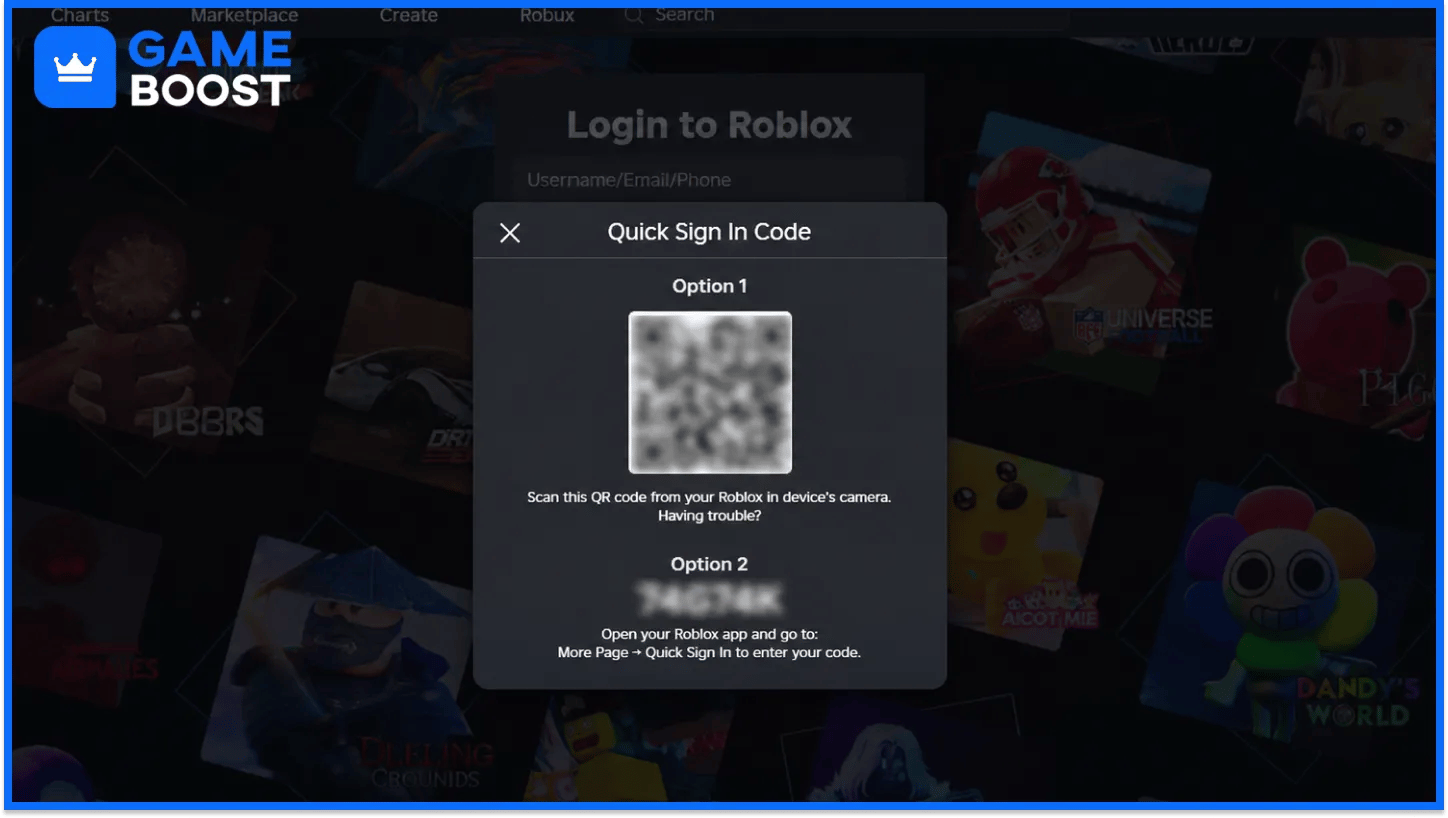
The process starts on the device that needs access to the account. Opening Quick Login on the logged-in device first leads nowhere, since no code exists to approve at that point.
Players can request the code with the following steps.
Open the Roblox website or the Roblox app on the second device.
Stay on the login page without entering a username or password.
Select Log In with Another Device on a computer, or tap Quick Sign-In on a phone.
Keep the screen open once the one-time code and QR code appear.
The code expires five minutes after it appears on screen. Players who take longer need to back out and request a fresh code from the same login page.
Keeping the second device on the code screen saves time during the approval step. The logged-in device needs those exact characters, so the page should stay open until the login completes.
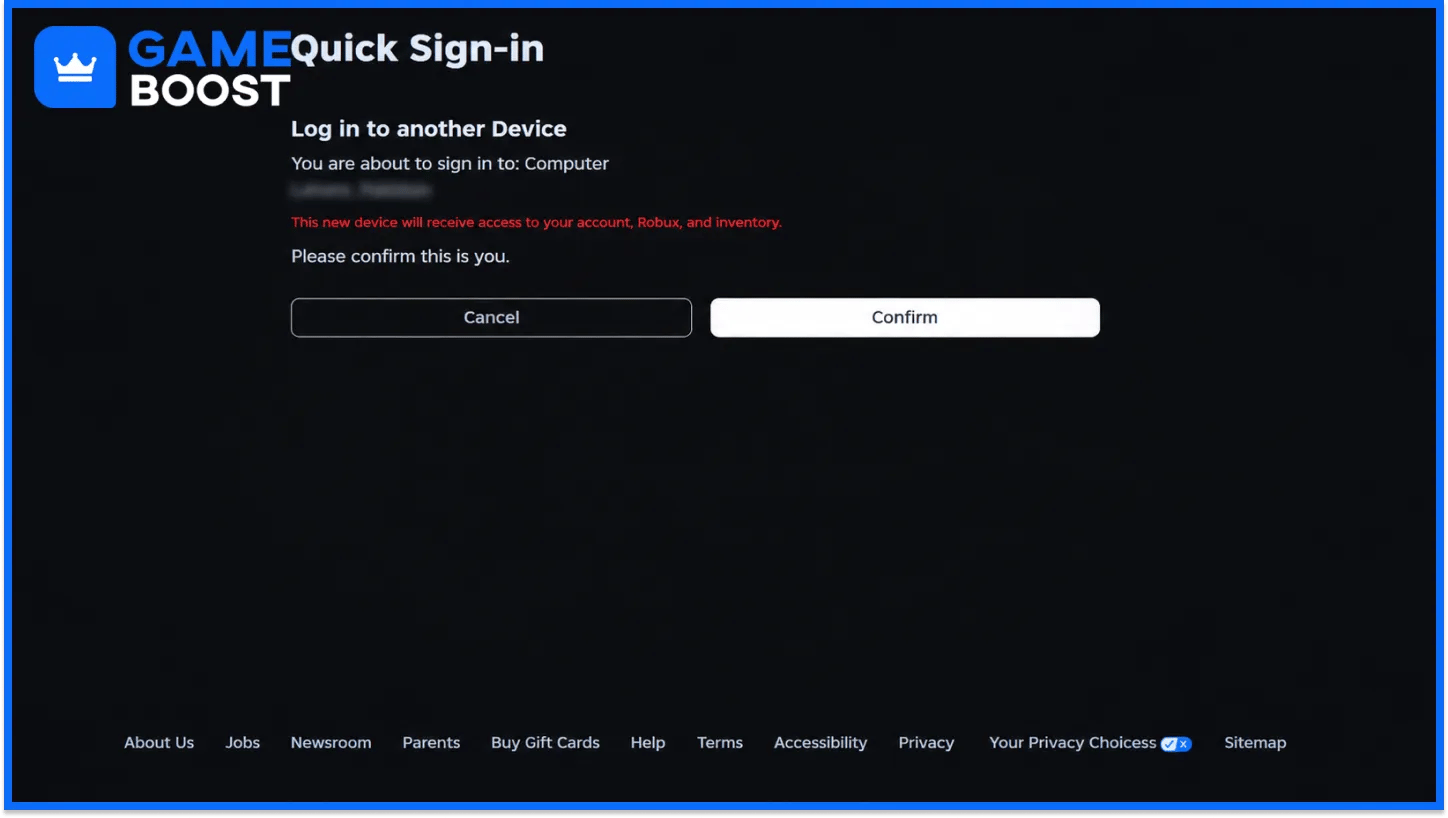
Approval happens on the device that already holds the active session. Roblox treats the code entry as a deliberate handover, so the settings menu shows a security warning before accepting any code.
Players can approve the request with these steps.
Open Account Settings from the gear icon on a computer, or tap More in the mobile app.
Select Quick Login, which the mobile app lists as Quick Sign-In.
Read the warning, type the code from the second device, and select Enter.
Review the request details, then select Grant Full Account Access to confirm.
Wait for the success message on the approving device to finish the process.
The second device logs in at the same moment the success message appears on the approving device. Players can start playing on the new screen right away without any extra password prompt. A low memory warning on the freshly signed-in device points to the hardware itself and has no connection to Quick Sign In.
Reviewing the request details before approval matters more than speed. The details screen acts as the last checkpoint before another device gains complete control of the account.
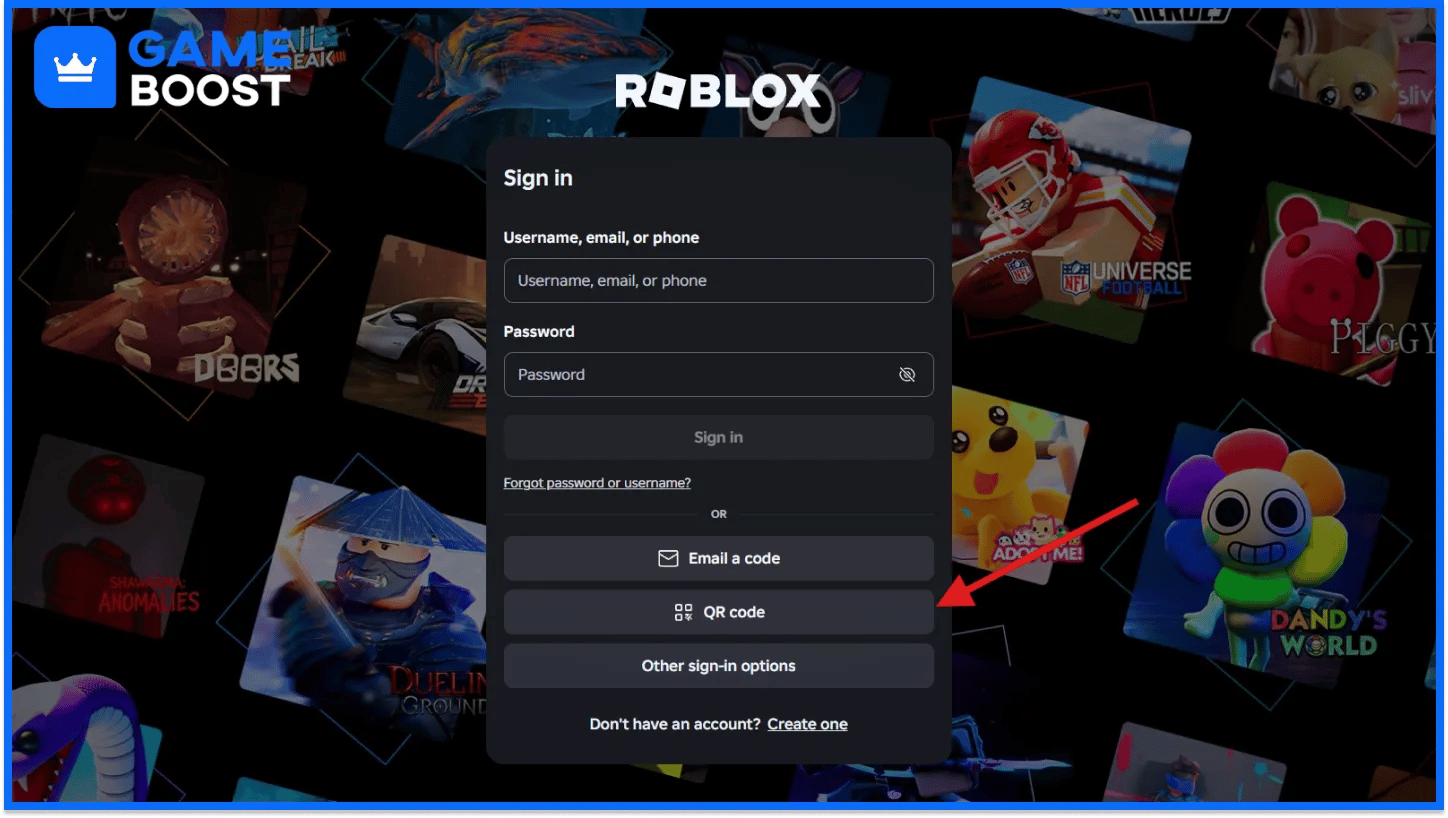
The QR code on the second device removes the typing part of the approval altogether. A phone with the account open scans the code, and the approval continues on that same phone.
A smooth QR scan depends on the conditions below.
A camera app or QR scanner has to read the code: the phone's built-in camera works in most cases, and any third-party QR scanner app covers the rest.
The Roblox app should run its most up-to-date version: outdated app builds can fail to process a scanned code, so an app store update comes first.
Some phone cameras misread the code entirely: Roblox names Google Pixel built-in cameras as a known example, and a different scanner app often clears up the issue.
Typing the six-character code remains the fallback for any scan that fails. Both formats sit on the same screen, so switching methods costs nothing and needs no fresh request.
The QR route suits phone-to-computer sign-ins best. A laptop or desktop shows the code on a large screen, and the phone camera picks it up in a second or two.
Failed Quick Sign In attempts tend to follow a small set of predictable patterns. Each pattern has a fix that players can apply without contacting Roblox support.
The most frequent problems and their fixes appear below.
Problem | Likely Cause | Fix |
|---|---|---|
Approval rejects the code outright | The timer ran out or the code already went through once | Request a fresh code on the second device |
Quick Login option missing from settings | Roblox does not offer the feature to every player | Sign in with the account password instead |
Approval screen never loads after entering the code | A mistyped or swapped character in the code | Compare each character against the second screen and retype |
Problems that show up after a successful sign-in sit outside Quick Sign In entirely. A fresh device can still throw loading errors, and the meanings behind Roblox error codes point to the real cause in most cases.
Stutters, freezes, or failed loads on the second device often trace back to stored files. Players can clear Roblox cache data on PC, Mac, or mobile to rule that out before blaming the login.
Quick Sign In hands full account access to whichever device produced the code. Roblox warns players to only enter codes they requested and to never enter another user's code under any circumstances.
A stranger who sends a code and asks for it to be entered wants their own device logged into that account. Typing that code into Quick Login gives the stranger the same control as the owner, including purchases, trades, and settings.
Roblox also recommends turning on 2-Step Verification and verifying an email address or phone number on every account. Each safeguard gives the owner a recovery route if someone ever takes over the account, and parents managing younger players can add parental controls for extra oversight.
Quick Sign In turns one trusted device into a key for every other screen a player uses. The convenience depends on that key staying in the right hands, so a phone or computer that stays logged in deserves a lock screen and the same care as the password itself.
Players who switch devices often get the most value from keeping their password stored somewhere safe. A working password acts as the backup for the day the trusted device breaks or goes missing, since Quick Sign In has nothing to approve from without a logged-in device.
“ Hamza is your average video game enthusiast who’s always looking for his next game to play. Whether he’s diving into a competitive multiplayer match, exploring a massive open world, or getting completely hooked on a new release, gaming has always been one of his favorite ways to spend his time. Over the years, his love for games has grown into a passion for understanding and sharing everything about them. Through his articles, Hamza aims to help gamers discover new games, improve their skills, stay up to date with the latest gaming news, and get the most out of their favorite titles.”