


•Filip Premuš• 5 min read
Roblox

To set up Roblox parental controls, open Settings > Parental controls on your child’s account and select Add parent. Linking your own Roblox account lets you manage their settings from your device. You can also use Parent mode on your child’s device without creating a separate account.
If you plan to purchase Robux on a child account, review the spending settings first. Roblox’s monthly limit covers eligible purchases, and it doesn’t apply to gift card redemption.
Start with Add parent on your child’s account. Link your own account for remote access and spending alerts.
Use Parent mode on your child’s device if you want to review a request without creating an account.
Check Content restrictions, Communication, Spending restrictions, and Screen time after setup.
At 13, teens manage their own screen time limits, and Roblox’s monthly spending cap stops applying. Linked parents can still view screen time and receive spending alerts.
Sign in to your child’s Roblox account. On desktop, open Settings from the gear icon. On mobile, tap More > Settings.
Select Parental controls > Add parent and follow the prompts. If you’re using the email option, enter the address tied to your parent account.
Open the email and sign in to your own Roblox account or create one. Follow Roblox’s steps to verify your age. Roblox lists a government-issued ID or credit card as verification options.
Select Agree to link the accounts. On your own device, open Settings > Parental controls and choose your child’s account.
If you’d rather use Parent mode, have your child select Ask in Person on their request. On their device, choose Continue as a parent and review the request. Roblox asks you to verify your age and set a six-digit PIN for future requests. You can change most settings there. Spending alerts require a linked account.
If you don’t see Ask in Person, go to Settings > Parental controls > Add parent on your child’s account to link your own account instead.
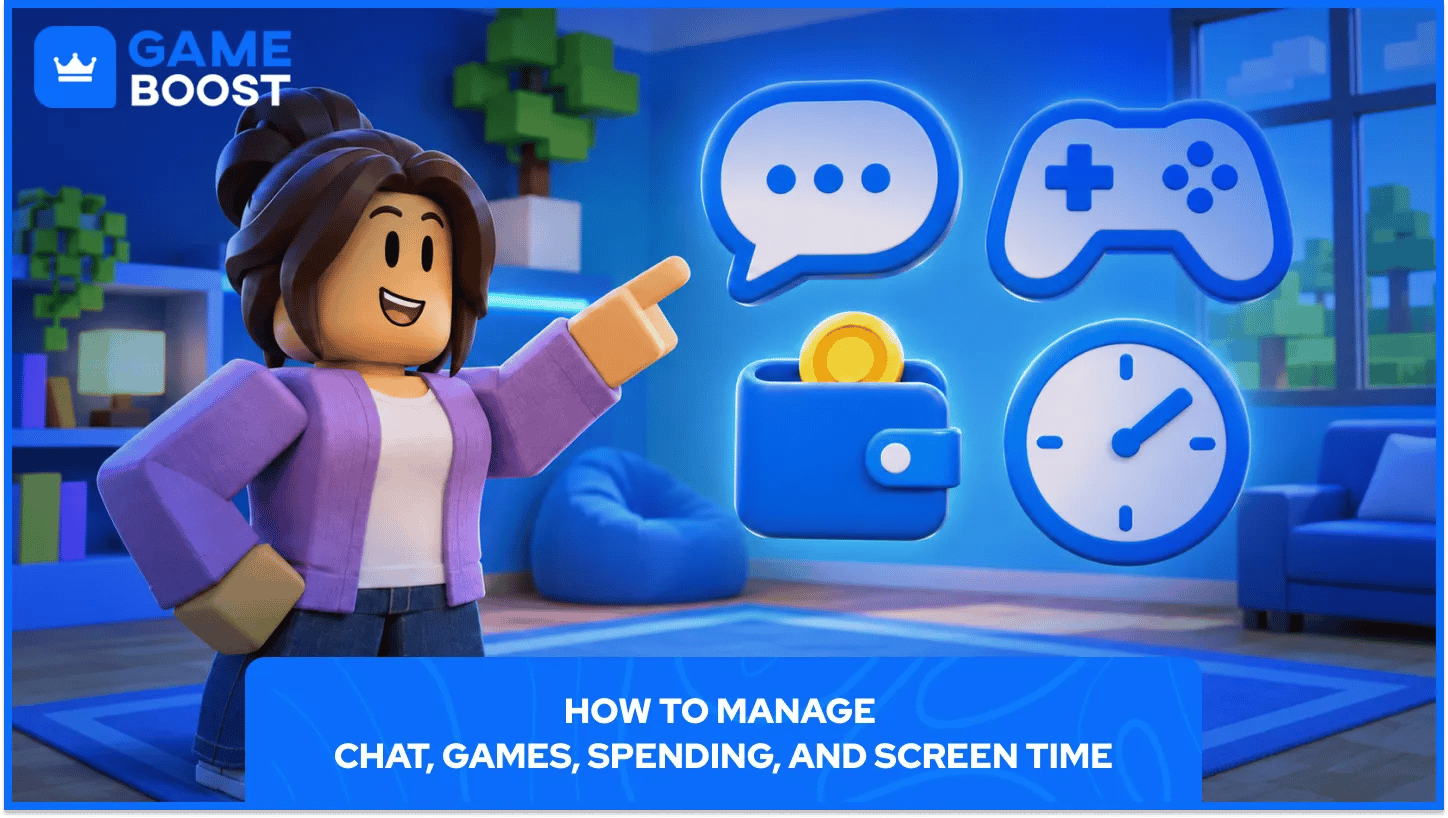
From your child’s page in Parental controls, look for the settings below. Roblox shows different options depending on your child’s age and region.
What you want to change | Where to look |
|---|---|
Set a game maturity limit | Settings you manage > Content restrictions > Content maturity |
Block a specific game | Content restrictions > Blocked games |
Turn chat off or change who can chat | Settings you manage > Communication |
Cap monthly purchases or turn on alerts | Settings you manage > Spending restrictions |
Set a daily play limit | Screen time > Manage > Daily limit |
Chat: Review Experience chat, Direct chat, and Chat and party with friends separately. Roblox says its experience and direct chat toggles don’t cover chat features added by a game’s creator. If the problem is a specific user, you can also block them on Roblox.
Spending: The monthly limit resets at the end of the calendar month. It doesn’t cover gift card redemption and may not apply on some consoles. If you want to track every eligible purchase, choose All transactions under spending notifications on your linked parent account.
Roblox Kids and Roblox Select are account types with different game catalogs and chat settings. Roblox typically assigns Kids to ages 5–8 and Select to ages 9–15. Age ranges and feature availability can vary by region. Chat requires an age check, and younger players may need a parent’s approval.
Turning 13 changes what you can manage. Your teen takes over their screen time limits and user blocking, and the monthly spending cap stops applying. You can still see their screen time and top games and opt in to spending notifications. At 16, Roblox’s parent dashboard mainly provides notifications and activity updates.
After setup, check Communication, Spending restrictions, and Screen time from your child’s page. Revisit those settings when your child turns 13 so you know which limits still apply and which settings they now manage.
“ Filip Premuš is a seasoned gaming content writer specializing in titles like Steal a Brainrot, Old School RuneScape, and other popular online games. With a sharp focus on accuracy, updates, and in-game strategy, he creates comprehensive guides that help players stay ahead of the meta and make informed decisions.”