

•Hamza Rashid• 8 min read
Roblox
Apple Pay is one of the fastest ways to buy Robux on iOS, skipping the hassle of entering card details every time. A quick Face ID or Touch ID confirmation, and the transaction is done. Before you get started, make sure Apple Pay is set up on your device and linked to a valid payment method, otherwise the option won't show up at checkout.
In this article, we'll explore how to purchase Robux with Apple Pay, what to expect during checkout, and a few things worth knowing before you complete your transaction.
Also Read: How to Purchase Robux on a Child Account: Step-by-Step Guide

Apple Pay is only available for Robux purchases through the Roblox mobile app on iOS, not the browser.
Before purchasing, make sure Apple Pay is set up in your device's Wallet settings with a valid card linked.
To buy Robux, open the Roblox app, tap the Robux icon, select a package, choose Apple Pay, and confirm with Face ID or Touch ID.
iOS packages cost slightly more than desktop due to Apple's in-app purchase fees, so buying through the Roblox website on PC offers better value.
Two packages are exclusive to mobile: 40 Robux for $0.49 and 80 Robux for $0.99.
If Apple Pay isn't showing up, update the app, verify your Wallet settings, and confirm your Apple ID region matches your card's registered country.
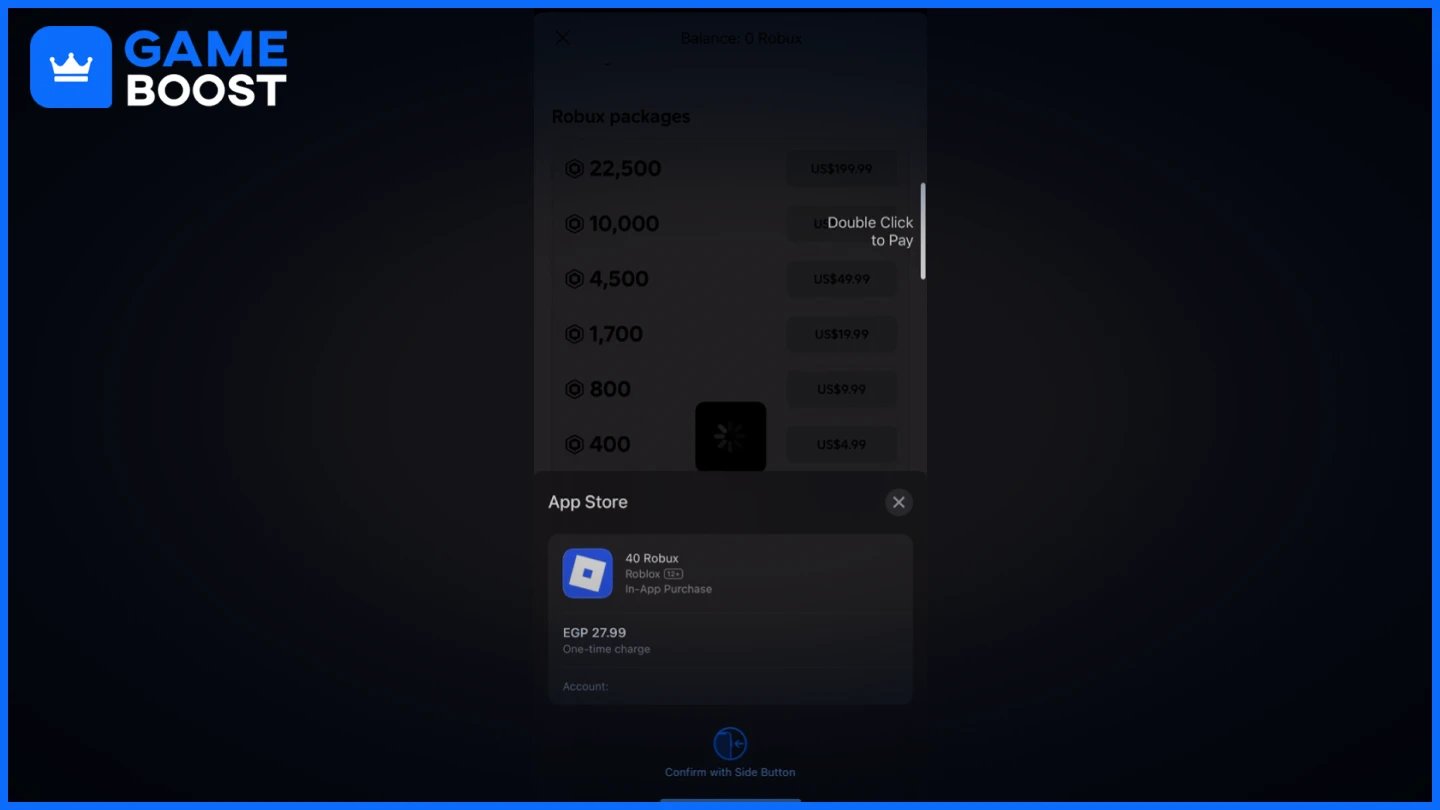
Before starting, make sure Apple Pay is set up on your device. Open the Wallet app, tap the "+" icon, and add a credit or debit card if you haven't already. Once that's done, follow these steps:
Open the Roblox app on your iPhone or iPad and log in to your account.
Tap the Robux icon at the top of the screen.
Select the Robux package you want to buy.
Choose Apple Pay as your payment method.
Confirm the purchase using Face ID, Touch ID, or your passcode.
Your Robux balance will update instantly after the transaction is confirmed.

Buying Robux through the Roblox website on a PC gives you more Robux for the same price compared to purchasing through the iOS app. This is because Apple takes a cut from all in-app purchases, which means a portion of what you spend goes to Apple rather than directly toward your Robux balance.
That said, the mobile app does have two packages that aren't available for desktop users:
40 Robux for $0.49
80 Robux for $0.99
These are useful if you only need a small top-up. For anything beyond that, buying through the Roblox website on desktop will get you better value.
Also Read: How Much Does Robux Cost? Every Package Price
If Apple Pay isn't appearing as a payment option, a few things could be causing it. The most common reasons are an outdated app, a region that doesn't support Apple Pay, or Apple Pay not being properly configured on your device.
Try the following:
Update the Roblox app to the latest version through the App Store.
Go to Settings, tap Wallet & Apple Pay, and confirm a valid card is linked.
Check that your Apple ID region matches the country your card is registered in.
Restart the app and navigate back to the Robux purchase page.
If none of these work, Apple Pay may simply not be available in your region. In that case, a credit card or a Roblox gift card is a reliable alternative.
Also Read: What Are the Safest Ways to Purchase Robux?
Buying Robux with Apple Pay is straightforward once your device is set up correctly. The process takes a few seconds, and your balance updates instantly after confirmation. Keep in mind that iOS purchases cost slightly more than buying through the Roblox website, so if you're buying in larger amounts, desktop is the better option. For smaller top-ups, the two mobile-exclusive packages are a convenient option worth knowing about.
“ Mustafa Atteya has been writing about gaming and esports since 2023, specializing in competitive game content and player improvement guides. At 25, he brings both hands-on gaming experience and professional SEO writing expertise to the GameBoost team.”