

•Mario Juričević• 14 min read
Raid Shadow Legends

Raid Shadow Legends runs on mobile, PC via Plarium Play, and Steam, which means a lot of players are jumping between devices without always knowing what keeps their progress intact. Losing hours of champion upgrades and campaign progress to a simple login mistake is more common than it should be. This article covers how account syncing works across all platforms and what to watch out for along the way.
Plarium ID is the only login method that works reliably for syncing Raid Shadow Legends progress across all platforms, including mobile, PC, and Steam
Before setting up Plarium Play or Steam, your mobile account must already be linked to a Plarium ID, as launching the game first on a new platform creates an unrecoverable separate profile
Connecting Raid Shadow Legends to Steam requires linking your Plarium ID through Plarium Play before downloading the game from Steam, not after
Raid Shadow Legends does not support simultaneous sessions, so logging in on one device will automatically end the active session on any other
Facebook login works for saving mobile progress but will trigger a new session in Plarium Play instead of loading existing progress, making it an unreliable sync method across platforms
If progress is lost after a device reset with no Plarium ID linked, Plarium Support is the only way to attempt account recovery
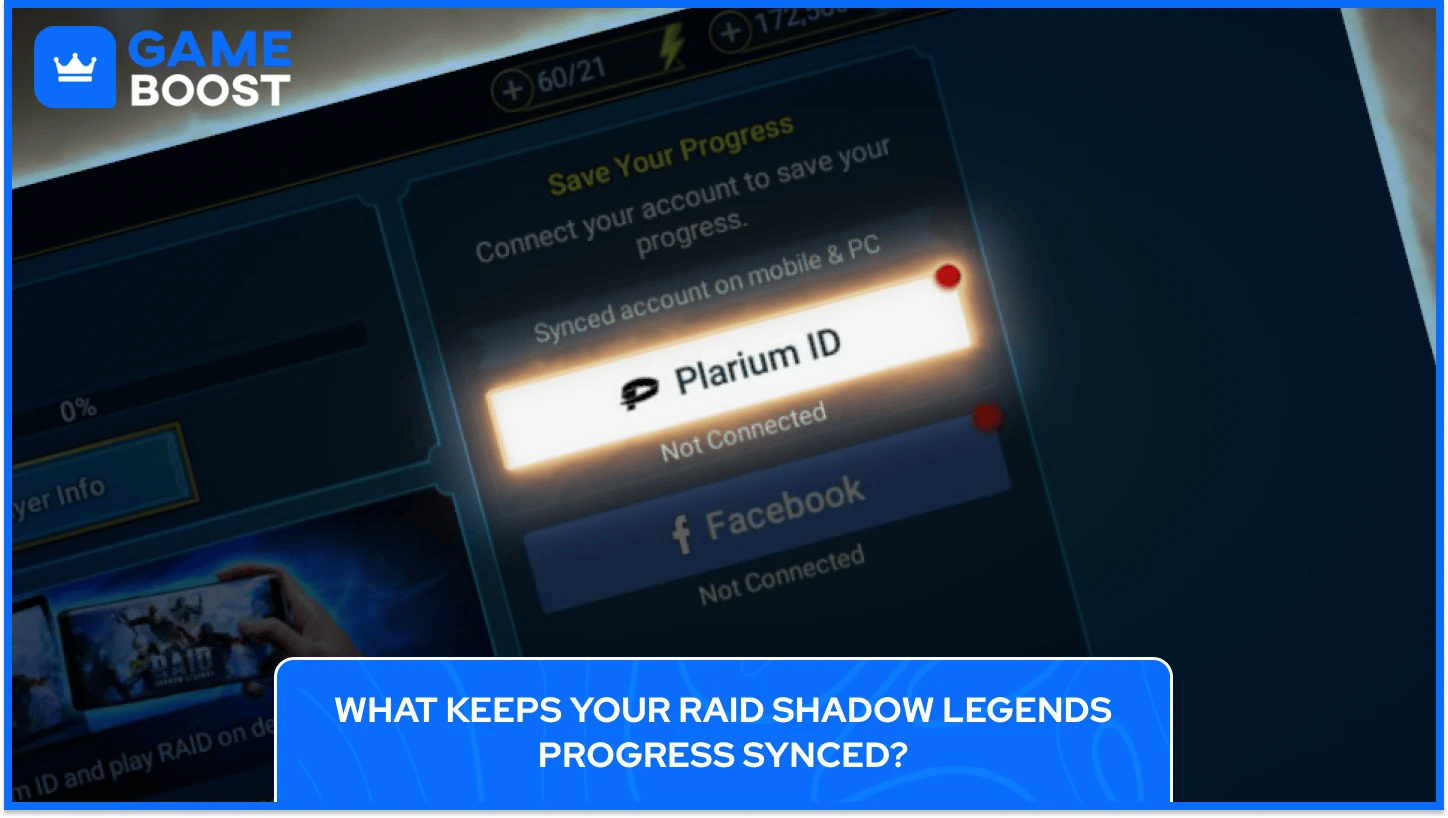
The entire syncing system in Raid Shadow Legends is built around your Plarium ID. This is a single account created through Plarium's platform that stores your game progress, purchases, player ID, nickname, and profile settings. As long as you log into the game with the same Plarium ID across devices, your progress carries over automatically.
There are two other login options available on mobile: Facebook and Apple ID, but these come with limitations. Apple ID login only works on iOS devices, and Facebook login, while technically functional for saving progress, creates problems specifically when syncing with a PC via Plarium Play.
Plarium's official support documentation explicitly states that you should not use the Facebook login option when connecting your account to Plarium Play, even if your mobile account is already connected to Facebook, as doing so will start a new game session instead of loading your existing progress.
For the most reliable cross-device experience, Plarium ID is the only login method that works consistently across all platforms, including mobile, PC, and Steam.
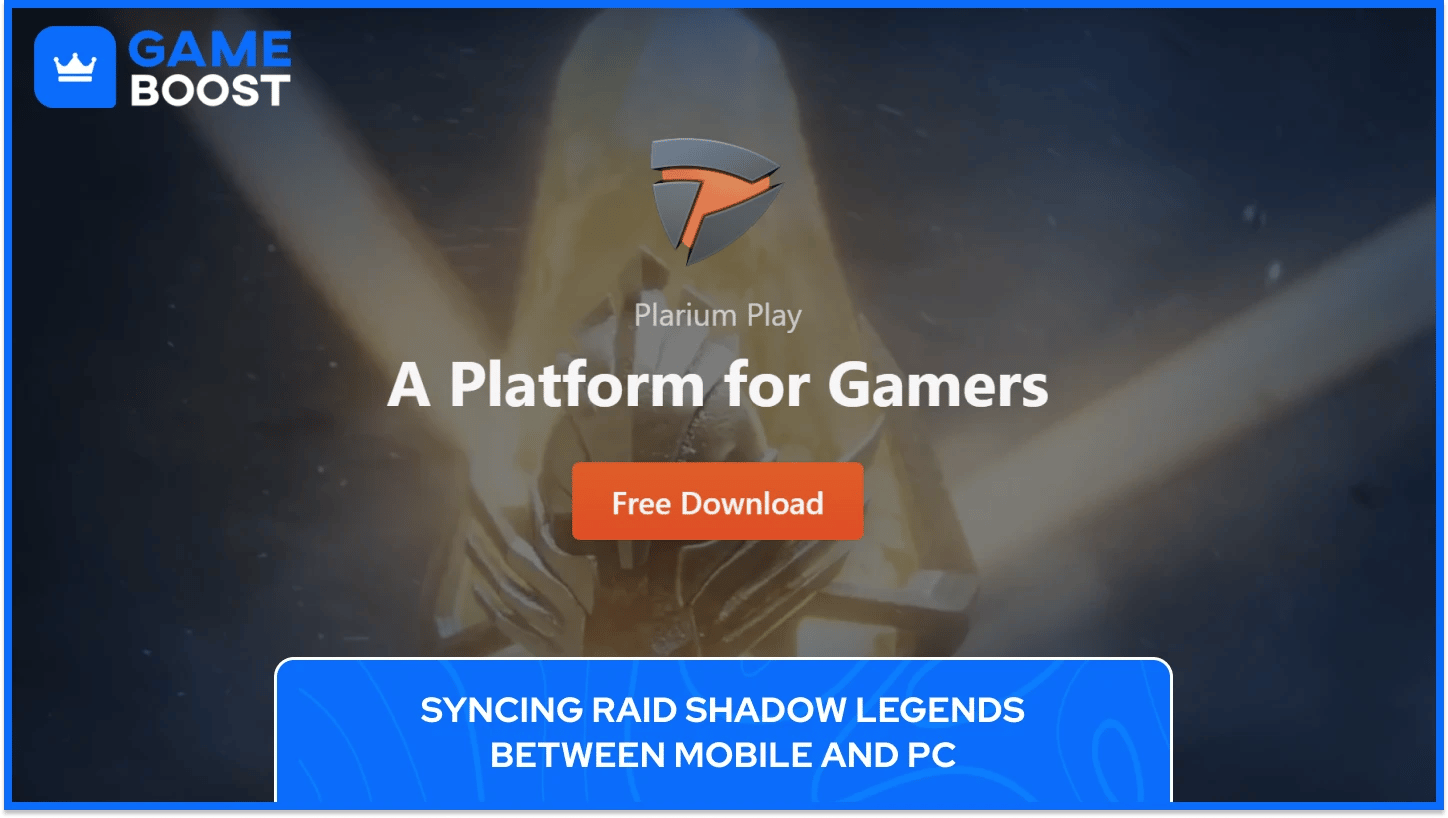
Plarium Play is the official desktop client for Raid Shadow Legends on PC and Mac, and the entire sync process between mobile and PC runs through it. Before downloading it, your mobile account needs to be connected to a Plarium ID, because setting up Plarium Play without that link already in place will cause the launcher to generate a brand new Raid Shadow Legends profile on PC instead of loading your existing one. That new profile cannot be merged with your mobile account afterward, so the order of operations here genuinely matters.
Once your mobile account is tied to a Plarium ID, the steps to get Raid Shadow Legends running on PC through Plarium Play are:
Download the Plarium Play launcher from plarium.com and install it
Log in with the email and password tied to your Plarium ID
Install Raid Shadow Legends from within Plarium Play
After the game launches through Plarium Play, it should open directly to the account you play on mobile, with all your champions, progress, and purchases intact. If the game loads into a fresh tutorial instead, close it before completing any steps, return to Plarium Play, verify that you're signed into the correct Plarium ID, and relaunch. Completing even part of the tutorial on a new profile can complicate the recovery process, so catching it early makes a difference.
Raid Shadow Legends has been available on Steam since early 2024, and progress sync between Steam and mobile works through the same Plarium ID system used across all other platforms. Before downloading the game from Steam, you need to complete the account link through Plarium Play first, because launching Raid Shadow Legends from Steam before that link is in place causes the game to generate a brand new profile tied to your Steam login, and your original progress does not carry over to it.
To sync your existing Raid Shadow Legends progress to Steam without losing anything, follow these steps:
Install Plarium Play from plarium.com on your PC
Log in to your existing Plarium ID in Plarium Play
Open Settings and go to the Linked Accounts tab
Select Steam and enter your Steam credentials
Download and launch Raid Shadow Legends from Steam
Once that link is in place, your progress syncs automatically, and you can switch freely between mobile and Steam without needing Plarium Play as an active launcher going forward.
If you've already launched the game from Steam before completing the link, the fix involves going back into Plarium Play, adding the Steam account that was created, assigning it an email and password, unlinking it, and then re-linking your correct Plarium ID to Steam before launching the game again. It works, but it's an entirely avoidable situation if the linking step is completed before the first Steam launch.
Moving your Raid Shadow Legends progress to a new mobile device follows a simpler path than the PC setup, but the same core rule applies: your Plarium ID must be connected before syncing your Raid Shadow Legends account progress to a new device. Without that link already in place, the game on the new device will have no way to locate your existing progress and will default to creating a fresh profile instead.
To sync your Raid Shadow Legends account on a second mobile device, follow these steps:
Install Raid Shadow Legends on the new device
When the game loads, look for the login option before the tutorial begins
Tap your avatar or find the Sign In option and log in with your Plarium ID credentials
Raid Shadow Legends does not support simultaneous account sync across devices, so logging in on a new device will sign you out of whichever device was active before. This applies across all platforms, meaning if you're mid-session on PC via Plarium Play and open the game on mobile, the PC session ends immediately.
Most sync failures in Raid Shadow Legends trace back to a handful of mistakes that happen during the initial setup across platforms. These are the most common causes why Raid Shadow Legends sync isn’t working:
Opening Raid Shadow Legends on PC or Steam before linking your Plarium ID — launching the game on any new platform before completing the account link creates a brand new profile, and your existing progress will not carry over to it
Using Facebook to log into Plarium Play — even if your mobile account is connected to Facebook, selecting that option in Plarium Play starts a new session instead of loading your existing Raid Shadow Legends progress
Logging into the wrong Plarium ID — if you have multiple accounts or email addresses, double-check that the Plarium ID you're using is the one actually tied to your progress before launching the game
Using Apple ID as a sync method across platforms — Apple ID login is only supported on iOS devices and cannot be used to sync your Raid Shadow Legends account to PC or Android
If your progress is missing after a sync attempt and none of the above applies, you'll need to contact Plarium Support directly. Provide your Player ID, the platform you were playing on, and a description of what happened. Plarium Support can locate accounts and manually re-link them to a Plarium ID in cases where progress exists, but access has been lost.
Players who register their account with a Plarium ID have their progress, purchases, and account settings automatically synced between PC and mobile versions of the game.
The game only supports one active session per account at a time. Logging into a second device will end the session on the first.
Once your Plarium Play account is linked to Steam, you can play using only mobile and Steam without needing Plarium Play as an active launcher.
If your Raid Shadow Legends account was never connected to a Plarium ID before the device was lost or reset, progress cannot be restored independently. Reaching out to Plarium Support through the Game Account Access form is the only available path forward, as their team can attempt to locate the account and reconnect it manually.
Syncing Raid Shadow Legends across devices is reliable once your account is properly tied to a Plarium ID, but the system leaves very little room for error during setup. The situations where players lose progress almost always trace back to a single moment: opening the game on a new platform before completing the account link. Getting that step right the first time saves a lot of headaches down the line, and keeping your Plarium ID credentials somewhere accessible means you'll never be locked out of progress you've already earned.
“ Kristina joined GameBoost in 2024 as an SEO specialist and quickly became the go-to writer for third-person shooter and competitive games. She covers titles like Fortnite, Valorant, League of Legends, GTA 5, and Roblox, focusing on how-to guides, practical tips, and updates.”