
•Hamza Rashid• 10 min read
Valorant

The best Valorant minimap settings decide how much of the map shows up in a single glance. A few options in the General tab control that view, and the wrong values can hide a flank until the enemy already stands on site.
Rounds in Valorant move quickly, and most of the screen time goes to the crosshair. A minimap that reads in a fraction of a second keeps eyes on the action and still tracks teammates, rotations, and spike sites. A poorly tuned one hides the exact areas where enemies tend to appear. Each option gets a recommended value and a short explanation of why it works, from rotation and centering to size, zoom, vision cones, and region names.
Minimap options sit in the General tab of the settings menu, under the Map section, and every option has a recommended value.
Keep Player Centered set to Off shows the whole map instead of a small area around the player icon.
Minimap size between 1.0 and 1.2 and zoom between 0.9 and 1.0 fit the entire map on screen without crowding the HUD.
Minimap Vision Cones set to On adds the viewing direction of each teammate to the map.
Rotate set to Rotate keeps the map aligned with the player view, and Fixed with Based on Side gives a stable alternative.
Show Map Region Names set to Always speeds up callouts during fast rounds.
A short Range session is enough to fine-tune the setup to your personal screen size and comfort.
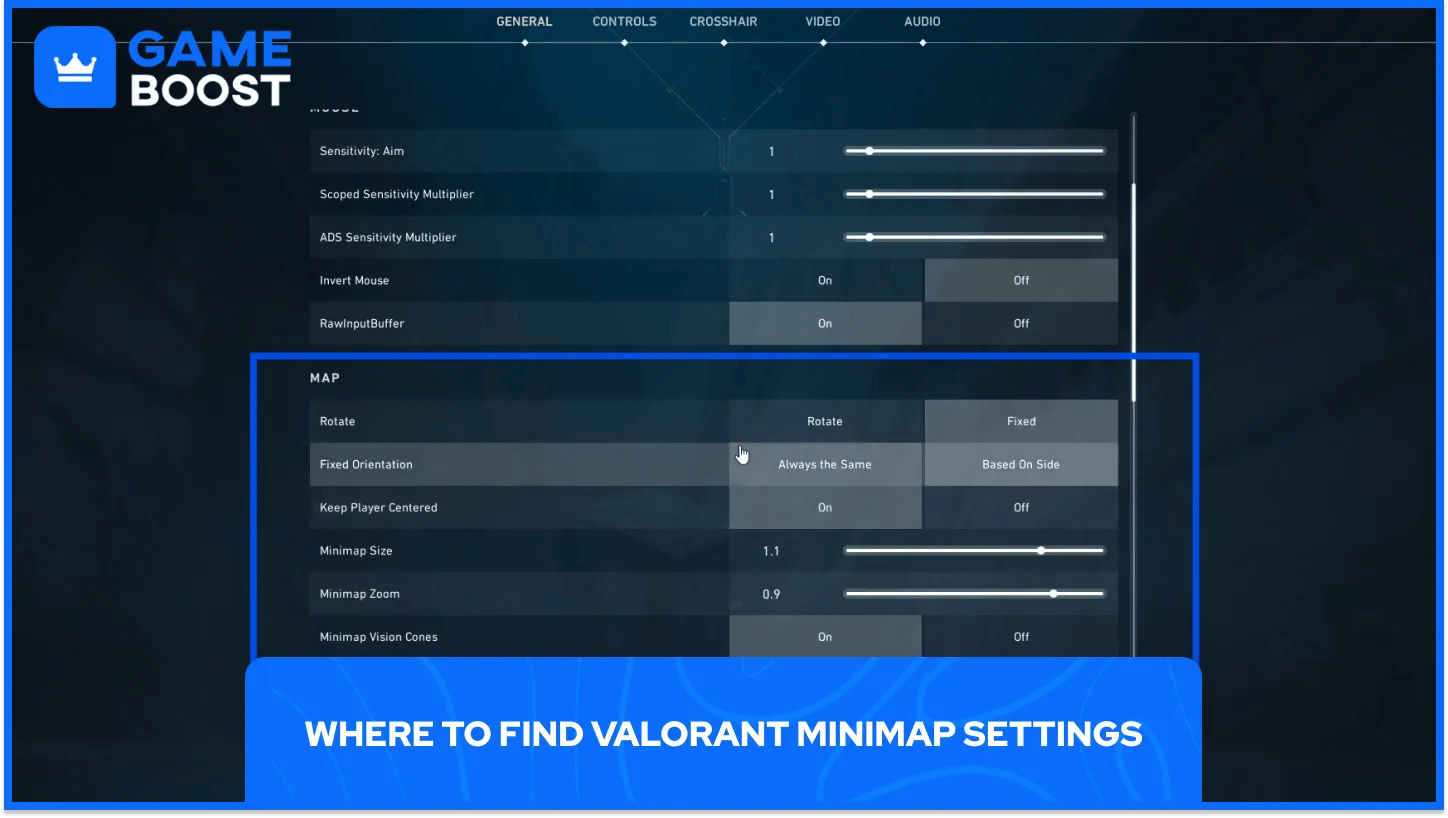
Every minimap option sits in a single menu, so a full setup takes a minute or two. The settings menu opens from the main screen and from the pause screen during a match.
Reaching the minimap options takes only a few clicks.
Open the settings menu: click the gear icon on the main screen or press Escape during a match.
Select the General tab: the minimap options live here instead of the crosshair or video tabs.
Scroll to the Map section: every minimap option appears in this block, from rotation to region names.
All seven minimap options appear together in that section, so no digging through other tabs is needed. A quick Range session works well for testing a new setup before queuing for a match.
The Rotate option decides how the minimap turns as the player moves. With Rotate selected, the map spins to match the direction the character faces, so everything on screen lines up with the crosshair. With Fixed selected, the map holds steady no matter where the camera points.
Fixed Orientation only applies once the Rotate option sits on Fixed. Based on Side flips the map depending on the side the team plays, so the squad always starts at the bottom of the map and the opposing site sits at the top. Always the Same keeps one layout across both halves of a match.
Players who stay on Fixed should pick Based on Side, which gives a consistent frame of reference at every round start. Spending a few rounds on the Bind map with that orientation builds a repeatable mental picture of each lane. Rotate with Fixed Orientation left untouched suits most players, though comfort should make the final call.
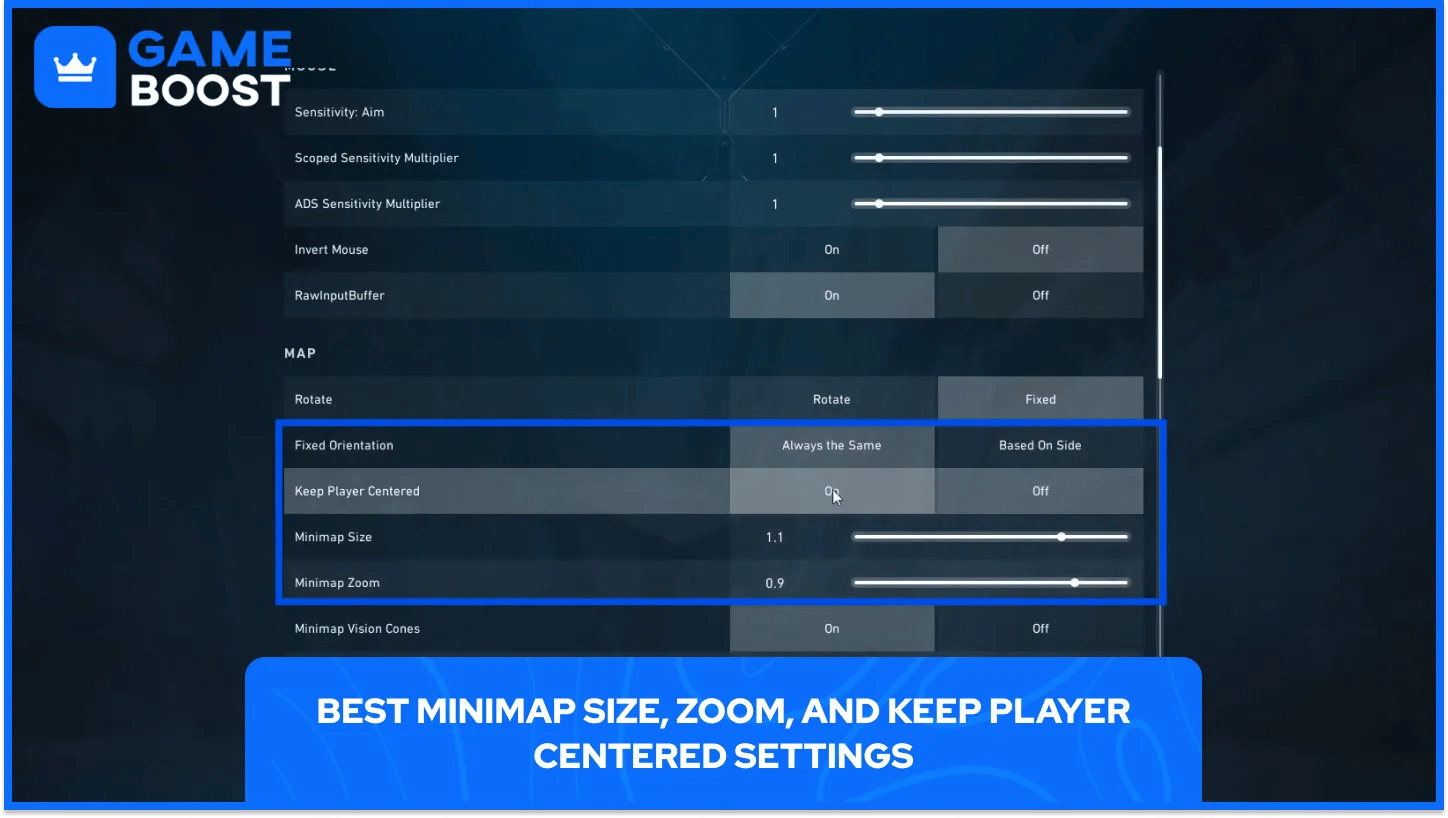
Keep Player Centered has an outsized effect on what the minimap shows. With the option On, the map locks onto the player icon and displays only a section of the map around it. Off keeps the entire map on screen, so teammates, enemies, and spike sites all stay visible at once.
Minimap Zoom works alongside centering, and each range produces a different view.
Zoom near 1.0 gives the widest view: every lane, site, and teammate fits on screen for tracking rotations and flanks.
Zoom around 0.9 keeps nearby detail readable: the map stays complete, with slightly more clarity close to the player icon.
Zoom well below 0.9 narrows the view: the map zooms in and trims the edges, so far-off activity drops out of sight.
Agents that cover ground in seconds, such as Omen, make the wider range especially useful. Teleport destinations and enemy positions often sit far apart, and a full-map view keeps both in sight. The best pairing is Keep Player Centered Off with zoom between 0.9 and 1.0, which keeps the whole map in view at all times. Small adjustments from there suit personal screen size.
Minimap size sets how much HUD space the map occupies. Values between 1.0 and 1.2 land in the range most settings lists agree on, and 1.1 sits right in the middle as a reliable starting point. Larger maps read faster but cover more of the top left corner of the screen, which shrinks the visible game view. Smaller maps keep the screen clear and demand longer looks to read icons. The right value balances both costs for the monitor in use.
Minimap Vision Cones draw a cone in front of each player icon that points where that player looks. Turning the option On is the standard recommendation for nearly every skill level below the top tier of organized play.
Cones show which angles teammates already cover, so a quick glance shows if a lane has watchers or sits open. Sentinels such as Cypher, who often hold a flank alone, can confirm in seconds if teammates watch the same route.
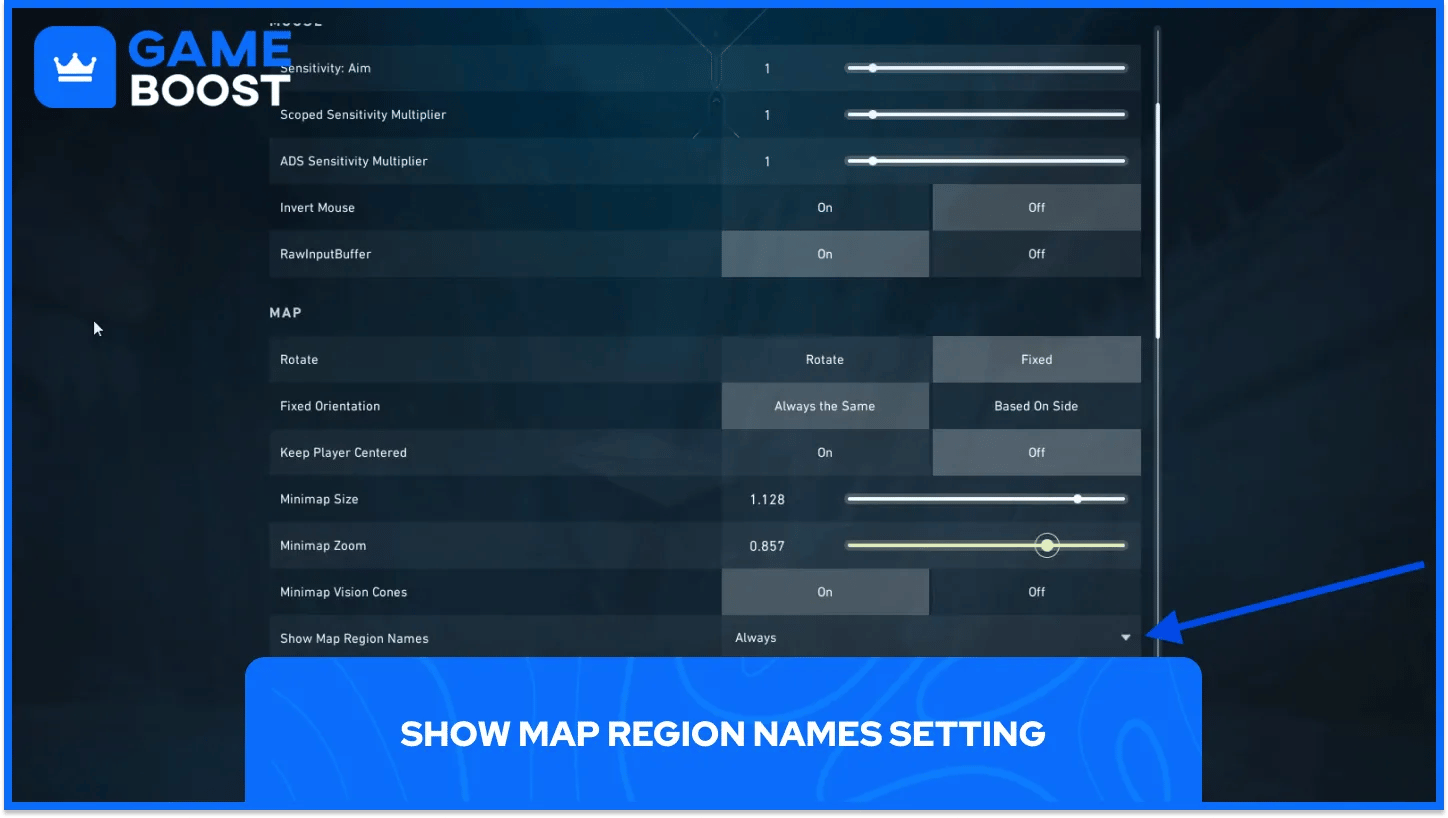
Show Map Region Names adds written labels to the minimap for the named positions on the map. Setting it to Always keeps those labels visible for the entire round.
Callouts decide how quickly a team reacts, and a label on the map cuts hesitation when a teammate shouts a location. Learning those names goes faster on a single map, so reviewing the Split map alongside the labels pays off quickly.
No single setup fits every screen, so a short testing routine turns the recommended values into a personal configuration. Changing one option at a time makes the effect of each change easy to see.
A few common symptoms point straight to the option that needs adjusting.
The edges of the map look cut off: raise zoom toward 1.0 and confirm Keep Player Centered sits on Off.
The minimap covers too much of the screen: lower the size in small steps until the corner feels clear.
Icons look too small to read at a glance: raise the size slightly and recheck the HUD.
Testing in the Range costs nothing, and a few minutes there prevent rounds of squinting at tiny icons. Once the setup feels comfortable, leave it alone for a few weeks. Muscle memory builds around a consistent layout, and constant tweaking resets that familiarity.
Minimap settings decide what a glance can reveal. The habit of glancing decides how much of that information turns into better calls. Checking the map after each fight, during each rotation, and whenever a teammate falls turns a tuned minimap into real map awareness. Over time, those quick looks sharpen reads on enemy timings and flank routes without extra effort.
Valorant Accounts For Sale
Buy Valorant Points
Valorant Boosting Service
View all GameBoost Accounts
View all GameBoost Boosting Services
View all GameBoost Currencies
View all GameBoost Game Keys
View all GameBoost Gift Cards
View all GameBoost Items
View all GameBoost Top Ups
“ Hamza is your average video game enthusiast who’s always looking for his next game to play. Whether he’s diving into a competitive multiplayer match, exploring a massive open world, or getting completely hooked on a new release, gaming has always been one of his favorite ways to spend his time. Over the years, his love for games has grown into a passion for understanding and sharing everything about them. Through his articles, Hamza aims to help gamers discover new games, improve their skills, stay up to date with the latest gaming news, and get the most out of their favorite titles.”