


•Hamza Rashid• 10 min read
Roblox

Roblox doesn't let players upload their own photo as a profile picture. Instead, the profile picture is a snapshot of the avatar, and the pose in that snapshot can be swapped for any emote the account owns.
Changing the profile pose only works in the Roblox app, which runs on phones, tablets and computers. Inside the app, the avatar's profile picture in the Avatar section leads to the Edit Profile Picture option, where a new pose or emote can be picked. Moving the zoom and rotate sliders and tapping Next finishes the job.
Roblox profile poses can only be changed in the Roblox app, not on the website in a browser.
Owned emotes work as profile poses, so every new emote adds another option.
Players can zoom and rotate the camera before saving the new Roblox profile picture.
Changing the avatar doesn't update the profile picture until a new one is saved.
Custom photos and drawings can't be uploaded as a Roblox profile picture.
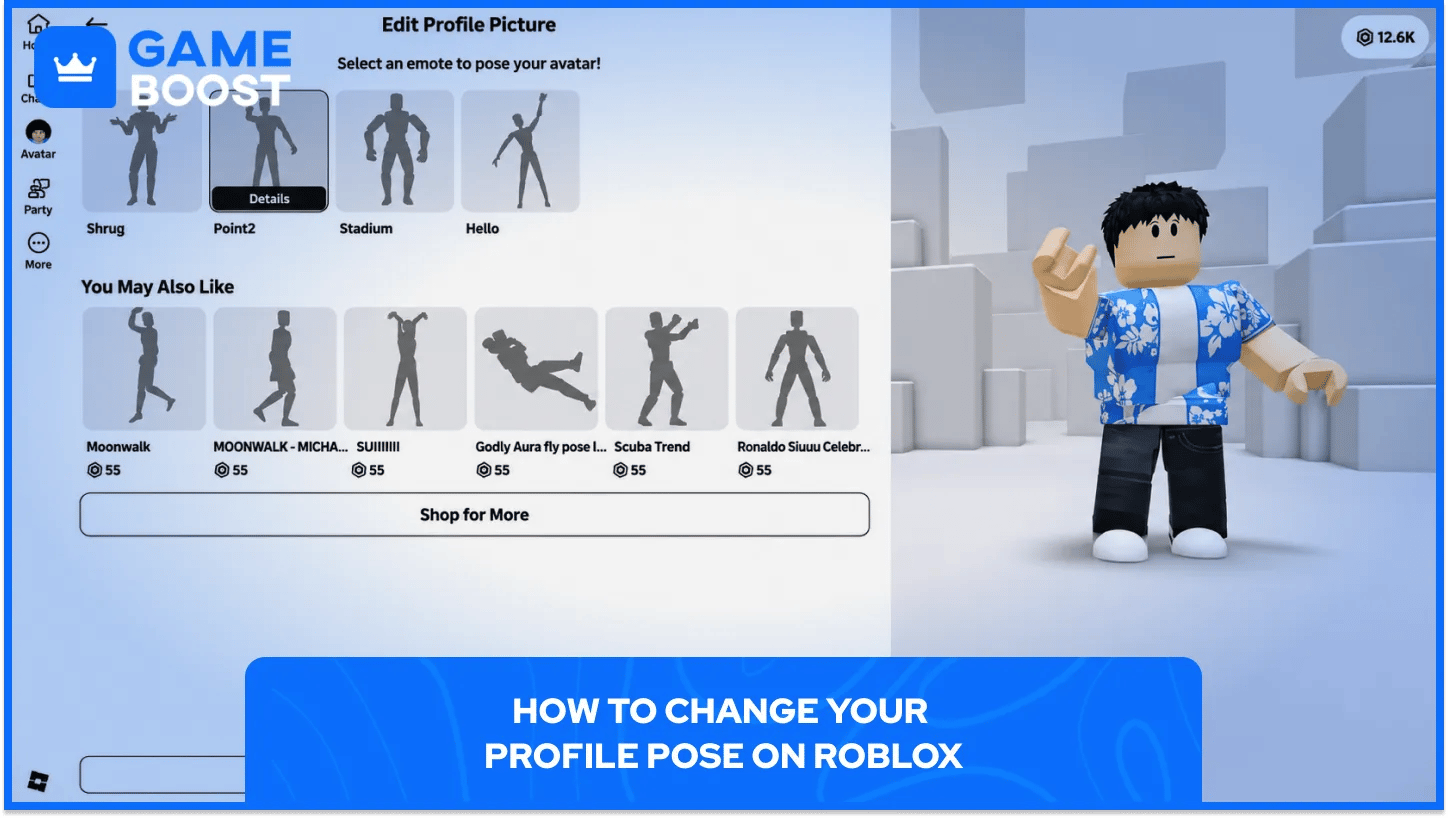
Every step happens inside the Roblox app, since the website version has no profile picture editor. Roblox keeps the editor behind the avatar's profile picture, under Edit Appearance and then Edit Profile Picture.
On a phone or tablet, changing the profile pose takes seven steps:
Open the Roblox app on a phone or tablet and go to the profile.
Tap the Avatar section to open the avatar editor.
Tap the avatar's profile picture, then Edit Appearance to reach the Edit Profile Picture option.
Select Edit Emotes to see the available poses and emotes.
Pick a pose or emote for the profile picture, or tap Shop for more at the bottom of the list for extra emotes.
Adjust the zoom and rotate sliders until the avatar sits right in the preview.
Tap Next and confirm to set the new profile picture.
Each new picture shows up across Roblox on every device, including the friends list. Players on the website or a console see the updated pose too, even though they can't edit it from there.
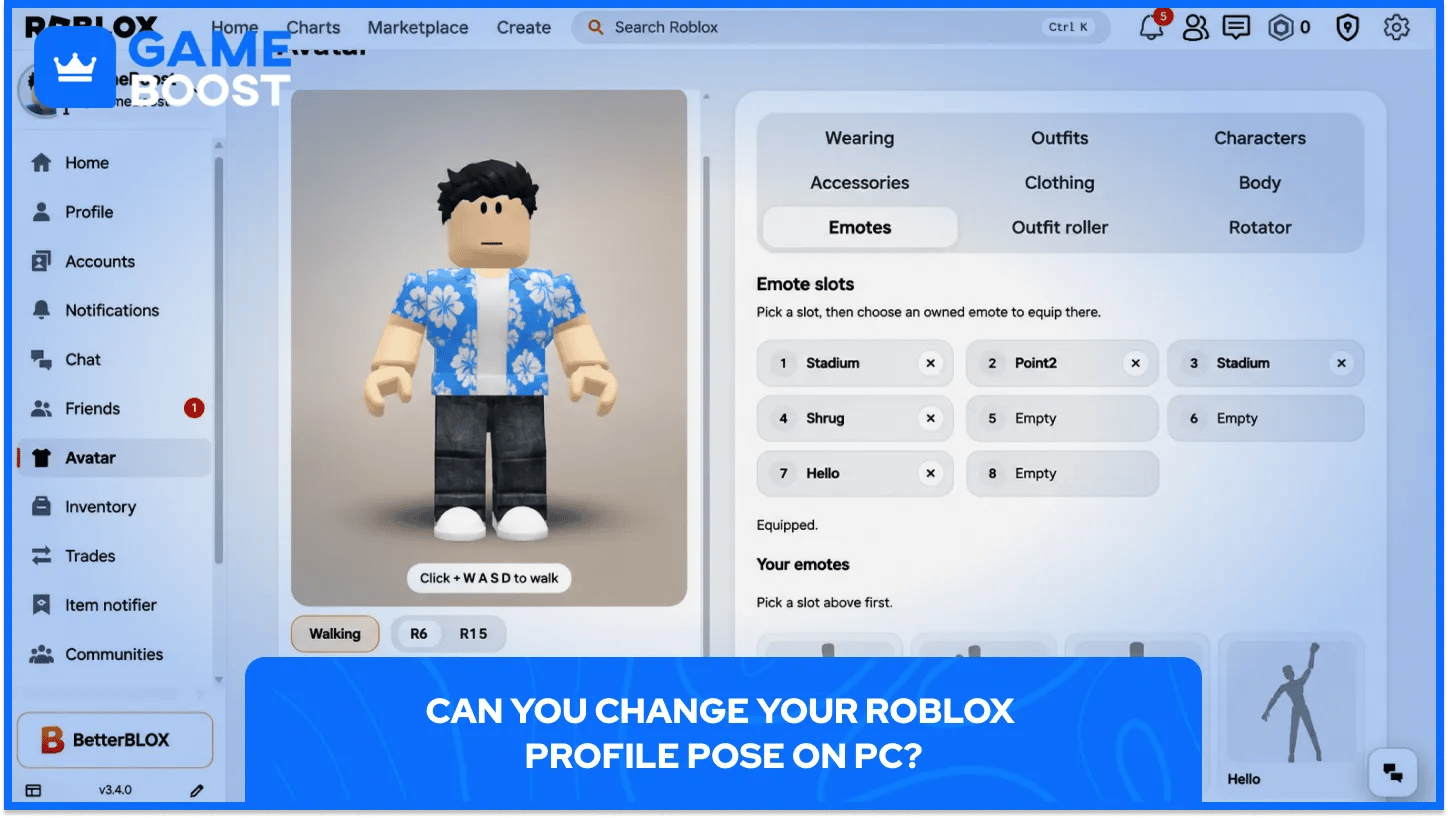
Yes, through the Roblox desktop app, but not through the website in a browser. Players who usually play Roblox without downloading need to install the app first to reach the profile picture editor.
Changing the profile pose on PC takes six steps:
Open the Roblox desktop app, not the browser version.
Click Avatar in the sidebar in the upper-left corner.
Click the avatar's profile picture to open the profile picture editor.
Pick an emote for the pose and click Next.
Zoom in and rotate the avatar, or click Reset to start over.
Click Next, then Save to set the new profile picture.
Players who want to check their emotes first can find them under Animations, then Emotes, in the same Avatar section. Once saved, the new picture shows up on the Home screen and on the Roblox website too, so changes made on PC carry over to every other device.
Buying emotes is how to get new profile poses, since the editor lists poses alongside every emote the account owns. Tapping Shop for more at the bottom of that list opens extra emotes, and many of them are priced in Robux, so players often buy Robux to grow their pose options.
Community-made emotes joined the Marketplace in August 2025 and work as profile poses in the mobile and desktop apps. Owned emotes also play in-game through Roblox dance and emote commands, so one purchase covers both.
Most profile pose problems come down to one of these causes:
Using the website: the browser version has no profile picture editor, so switching to the app fixes it.
Avatar changed but picture didn't: the profile picture doesn't follow avatar changes on its own. Going through Edit Profile Picture again and tapping Next takes a fresh snapshot with the new outfit.
Editor stuck loading: creator-made emotes caused endless loading in August 2025, and updating the Roblox app fixed it.
Missing poses: the list only shows default poses and emotes the account owns, and Shop for more at the bottom adds new ones.
Custom photos and drawings can't be uploaded as a Roblox profile picture. Roblox profile pictures always show the avatar, so the only way to change one beyond the pose is to change the avatar itself.
Small tweaks go a long way in a close-up shot, from changing skin color in Roblox to rare looks like the ones on Roblox Headless accounts for sale. Pairing a fresh Roblox display name with the new picture completes the profile.
Changing the profile pose on Roblox takes less than a minute once the app is installed. Every emote on the account doubles as a pose, so a bigger emote list means more ways to stand out on profiles and friends lists.
“ Kristina joined GameBoost in 2024 as an SEO specialist and quickly became the go-to writer for third-person shooter and competitive games. She covers titles like Fortnite, Valorant, League of Legends, GTA 5, and Roblox, focusing on how-to guides, practical tips, and updates.”