


•Hamza Rashid• 7 min read
Fortnite

Fortnite is free to download on Nintendo Switch, but V-Bucks, the game's in-game currency, need to be purchased separately. They are used to buy skins, emotes, the Battle Pass, and other cosmetic items from the Item Shop. If you want to skip the V-Bucks grind entirely, you can also buy Fortnite accounts that already comes loaded with skins and cosmetics.
Buying V-Bucks on Nintendo Switch works a bit differently from other platforms. The Switch does not support Fortnite's Shared Balance, which means V-Bucks purchased on PC or PlayStation will not carry over to your Switch account. You need to buy them directly through the Switch to use them there.
In this article, we'll explore both methods step by step, along with the payment options available and a few things worth keeping in mind before you make a purchase.
Also Read: Can You Refund V-Bucks in Fortnite?

You can buy V-Bucks on Nintendo Switch in-game or by redeeming a V-Bucks gift card
Nintendo Switch does not support Fortnite's Shared Balance, so V-Bucks purchased on other platforms will not carry over
To buy in-game, open Fortnite, navigate to the V-Bucks tab, select a bundle, and complete the purchase through the Nintendo eShop
V-Bucks gift cards are available at major retailers and online, but are redeemed through the Epic Games website, not directly on your Switch
V-Bucks cards are region-locked, so make sure the card matches your region before purchasing
If your V-Bucks are not showing up, check for account mismatches, wrong platform selection during redemption, or parental control restrictions
This is the most straightforward method. You purchase directly through Fortnite without leaving the console, and the V-Bucks are added to your account instantly.
Turn on your Nintendo Switch and open Fortnite.
From the main menu, navigate to the V-Bucks tab.
Select the bundle you want to purchase.
A Nintendo eShop window will appear. Review the amount and tap "Proceed to Purchase."
Choose your payment method: credit/debit card, PayPal, or Nintendo eShop credit.
Confirm the purchase. Your V-Bucks will be added immediately.
Keep in mind that V-Bucks purchased this way are tied to your Nintendo account. They will not be available on other platforms due to the lack of Shared Balance support on Switch.

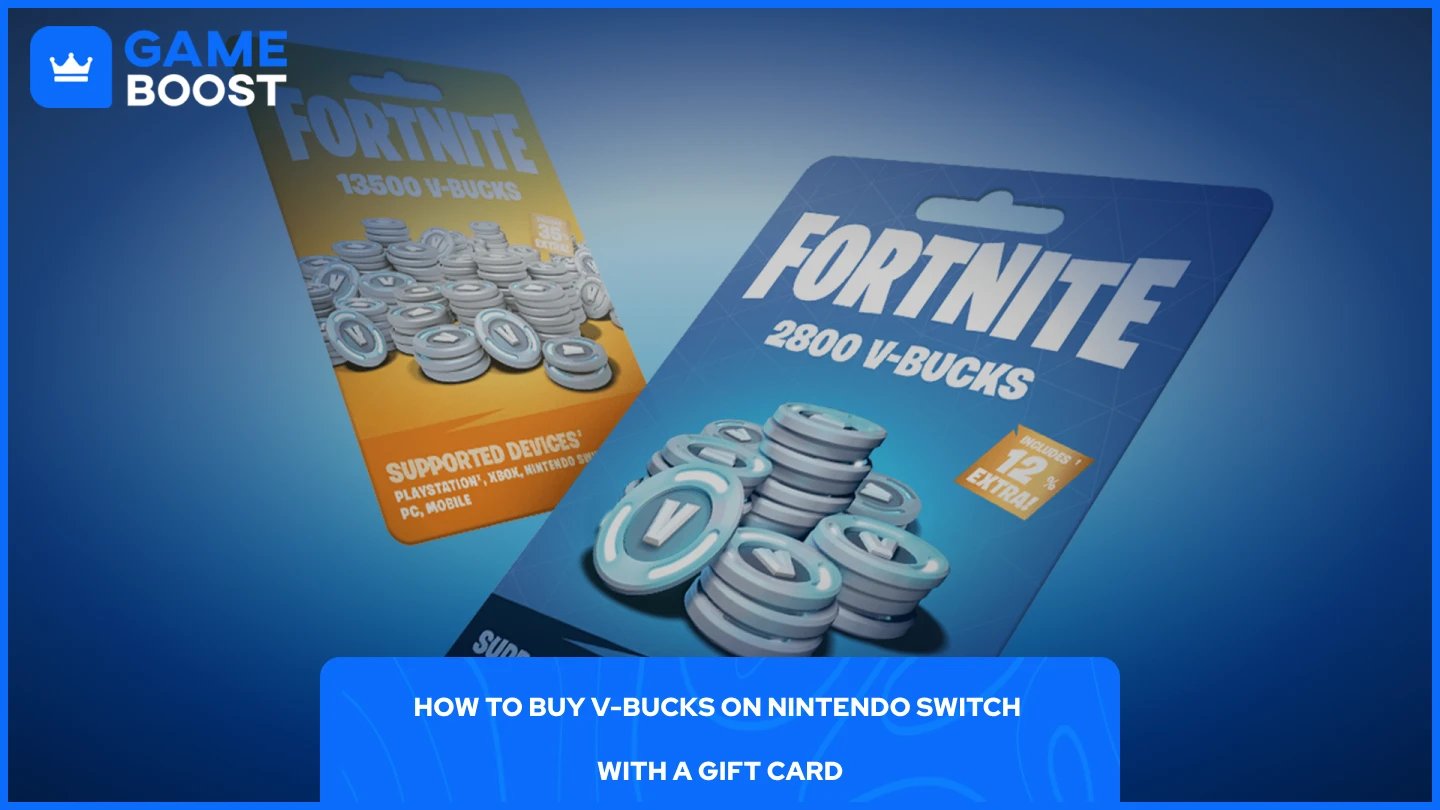
V-Bucks gift cards are available at most major retailers like Walmart, Target, and Best Buy, as well as digitally through online stores. It is worth noting that there are two different card types that players often confuse.
V-Bucks cards and Nintendo eShop cards. A V-Bucks card adds the currency directly to your Fortnite account, while a Nintendo eShop card adds funds to your Nintendo account balance, which you can then use to purchase V-Bucks through the in-game store. Both work, but the process is slightly different for each.
Unlike buying in-game, V-Bucks cards are not redeemed directly on your Switch. The redemption process goes through the Epic Games website and requires your Nintendo account to be linked to your Epic Games account. For a full step-by-step walkthrough, check out our guide on how to redeem V-Bucks on Nintendo Switch.
Also Read: Why Is Fortnite Crew Not Giving You V-Bucks?
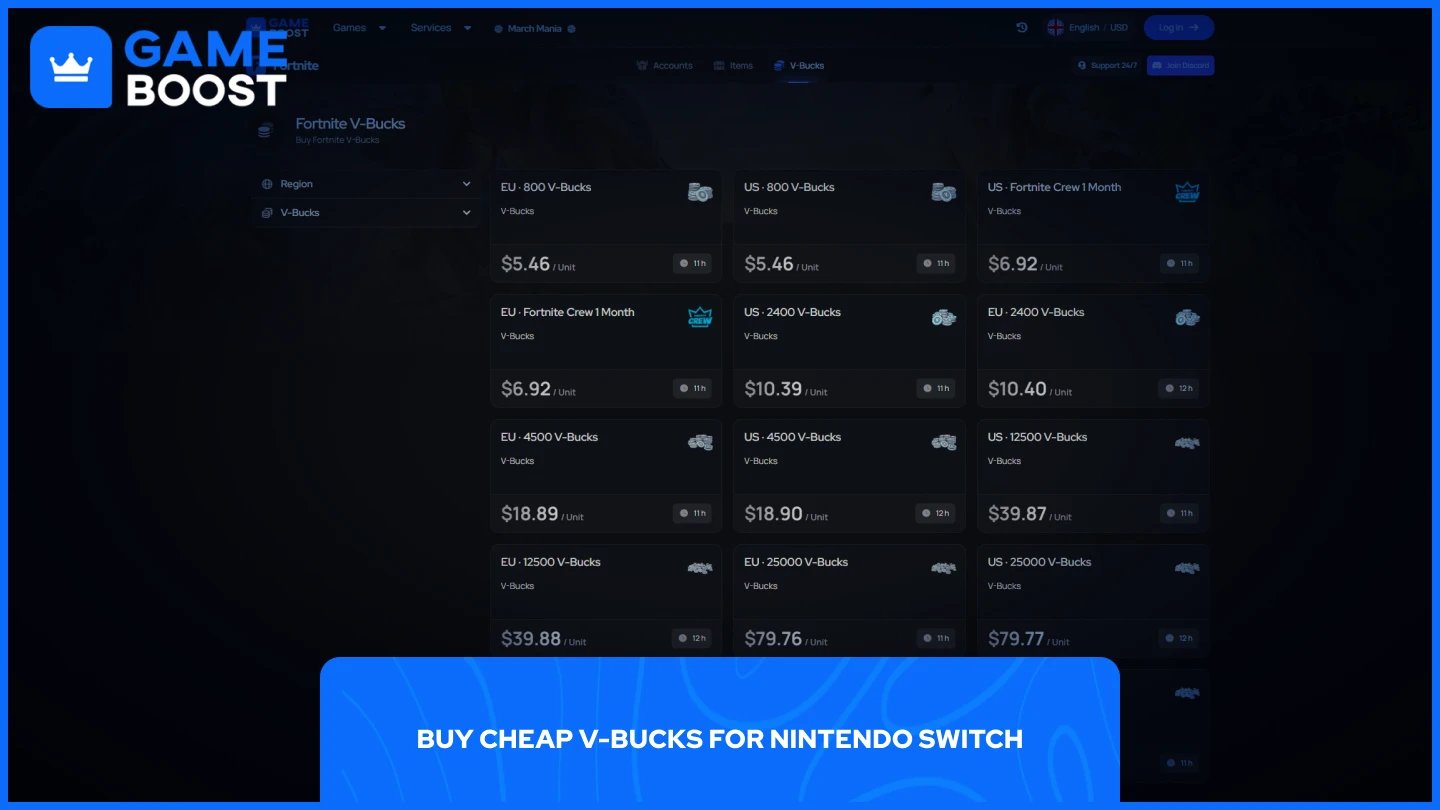
The in-game store is the official way to buy V-Bucks, but it is not always the cheapest. GameBoost offers V-Bucks at a lower price than Epic's standard rates, with fast delivery and secure transactions backed by 2.1M+ orders and a 4.4 Trustpilot rating. Here is how to get them:
Head to the Fortnite V-Bucks page.
Browse the available listings and select the amount you want to purchase.
Provide your Epic Games ID at checkout.
Complete the payment using your preferred method.
The seller will deliver the V-Bucks directly to your account.
Your V-Bucks will appear in Fortnite once the order is fulfilled. If you run into any issues, GameBoost's 24/7 live chat support is available to help.
Also Read: How to Redeem V-Bucks on Xbox: Step-by-Step Guide
The most common reason V-Bucks don't appear on Switch is buying them on the wrong platform. Nintendo Switch does not support Fortnite's Shared Balance, meaning V-Bucks purchased on PC, PlayStation, or Xbox will not carry over. You need to purchase them while logged into the Epic Games account linked to your Nintendo account.
If you redeemed a gift card but selected the wrong platform during the process on the Epic Games website, the V-Bucks will not appear on your Switch. In that case, contact Epic Games support to see if the redemption can be corrected.
Parental controls can also be the issue. If purchases are restricted on your Nintendo account, transactions will fail at checkout without much explanation. To fix this, go to System Settings, open Parental Controls, and check if purchase restrictions are enabled. You will need the 4-digit PIN to make any changes.
Finally, if everything looks correct but the V-Bucks still are not showing, close Fortnite completely and relaunch it. The balance sometimes takes a moment to update, and a fresh launch is usually enough to fix it.
Buying V-Bucks on Nintendo Switch comes down to two options. Purchasing directly through the in-game store or redeeming a gift card. Both are straightforward, but it is worth keeping the platform restrictions in mind. V-Bucks bought on Switch stay on Switch, so make sure you are buying through the right account. If you want to save some money on your next top-up, check out the available offers on GameBoost for cheaper rates than the in-game store.
Buy Fortnite Skins
Fortnite V-Bucks Top Up
Fortnite Accounts For Sale
View all GameBoost Accounts
View all GameBoost Boosting Services
View all GameBoost Currencies
View all GameBoost Game Keys
View all GameBoost Gift Cards
View all GameBoost Top Ups
View all GameBoost Items
Buy CS2 Skins
“ Mustafa Atteya has been writing about gaming and esports since 2023, specializing in competitive game content and player improvement guides. At 25, he brings both hands-on gaming experience and professional SEO writing expertise to the GameBoost team.”