

•Mustafa Atteya• 4 min read
Clash Royale

Getting a new phone is exciting until you realize your Clash Royale progress might not carry over. Years of card upgrades, trophies, and clan history are tied to your account, and the last thing you want is to start from scratch on a new device.
The good news is that Supercell built cross-platform account support directly into Clash Royale. As long as you log into the same Supercell ID on both devices, your account transfers cleanly regardless of the platform you're moving to. That said, there are a few steps to follow in the right order to make sure nothing gets lost in the process.
In this article, we'll explore how to transfer your Clash Royale account to iPhone or Android, covering the recommended method and what to do if something goes wrong.
Also Read: How to Create a New Account in Clash Royale

Transferring your Clash Royale account requires a Supercell ID linked to your old device before switching phones.
The process works across platforms, moving from Android to iPhone or iPhone to Android follows the same steps.
Everything carries over, including cards, trophies, gems, gold, emotes, tower skins, clan memberships, and battle pass progress.
If your account doesn't load, check your connection, update the app, and confirm the email address tied to your Supercell ID.
Supercell support is available through the in-game settings menu if the issue can't be resolved manually.
Also Read: Where to Buy Clash Royale Accounts
The transfer moves your entire account, including all decks, clan memberships, and other in-game progress from the old device to the new one. This means your cards, trophies, gems, gold, emotes, tower skins, and battle pass progress all remain intact. Nothing resets. You pick up exactly where you left off, regardless of the platform you moved to.
Also Read: How to Link and Unlink Your Account in Clash Royale
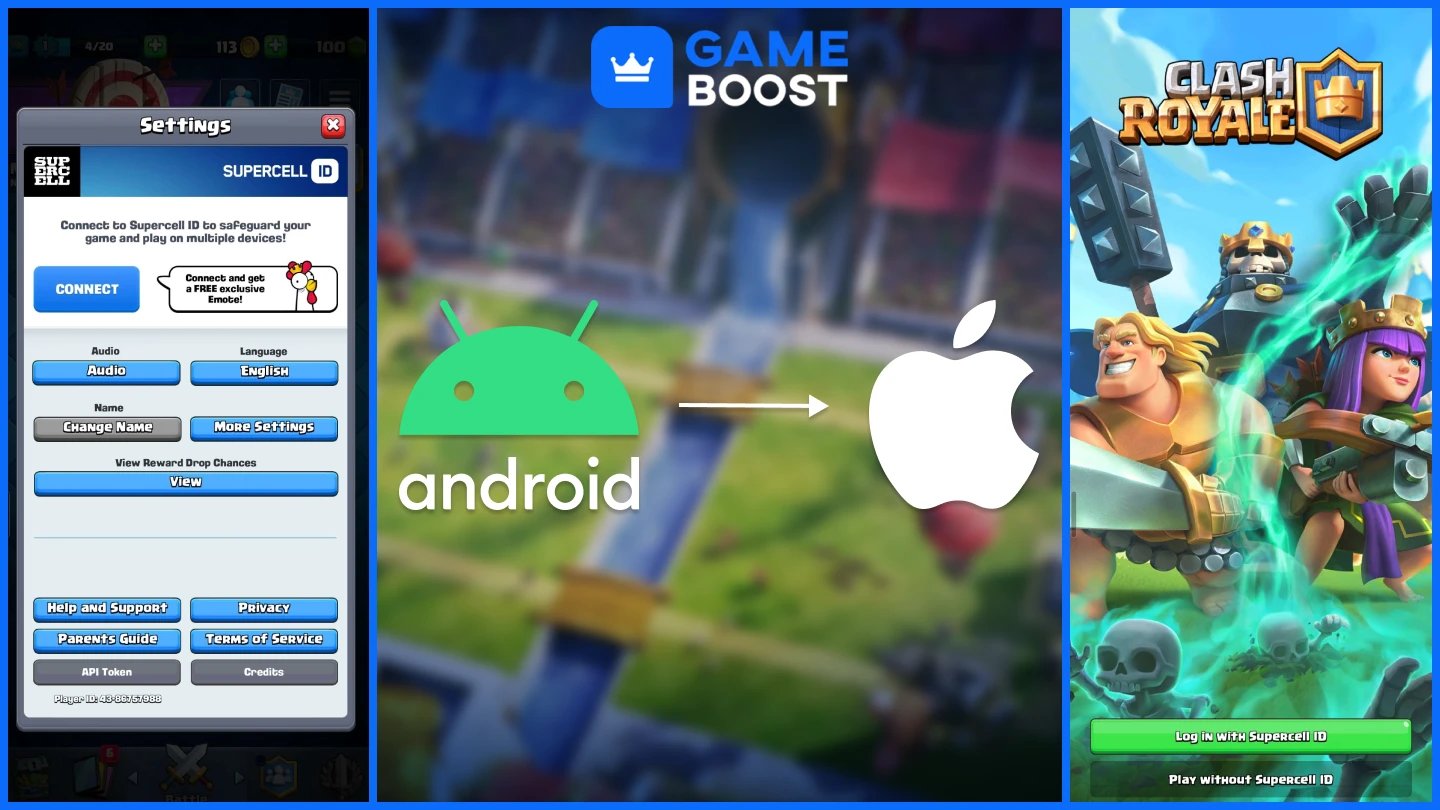
The recommended method for transferring your account is through Supercell ID, which keeps your progress saved and lets you log in across any device. Before moving to your new phone, make sure your account is already linked to a Supercell ID on your old device. Here's how the full process works:
Open Clash Royale on your old device.
Tap the three horizontal lines in the top-right corner and go to Settings.
Tap the Supercell ID option. If it shows "Connect," tap it and register with a valid email address. If you already have one, log in.
Check your email for the verification code and enter it in the game to confirm the link.
On your new device, download Clash Royale from the App Store or Google Play Store.
Select "Log in with Supercell ID."
Enter the same email address used on your old device and verify with the code sent to your inbox.
The game will prompt you to load the saved progress associated with that Supercell ID. Confirm, and your account will load onto the new device.
The process works the same in both directions. Moving from Android to iPhone or iPhone to Android makes no difference, as long as both devices are signed into the same Supercell ID.
If your account doesn't load correctly after logging in, a few things could be causing the issue. Start by checking your internet connection, updating the app, and restarting your device. Also, double-check that the email address you entered matches the one tied to your Supercell ID.
If the game loads a blank account instead of your progress, it usually means the Supercell ID wasn't properly linked on the old device before the transfer. In that case, go back to your old phone if it's still accessible, confirm the account is connected under Settings, and repeat the login steps on the new device. For issues that can't be resolved through the app, Supercell's support team is accessible directly through the in-game settings menu.
Also Read: Clash Royale: How to Use Multiple Accounts on One Device
Transferring your Clash Royale account is straightforward as long as your Supercell ID is set up before you switch devices. The entire process takes a few minutes, and everything tied to your account carries over without any loss.
If something goes wrong, the most common cause is a Supercell ID that wasn't properly linked on the old device beforehand. Double-check your connection, verify the email address, and reach out to Supercell support if the issue persists.
Buy Clash Royale Gems
Clash Royale Accounts For Sale
View all GameBoost Accounts
View all GameBoost Boosting Services
View all GameBoost Currencies
View all GameBoost Game Keys
View all GameBoost Gift Cards
View all GameBoost Top Ups
View all GameBoost Items
Buy CS2 Skins
“ Mustafa Atteya has been writing about gaming and esports since 2023, specializing in competitive game content and player improvement guides. At 25, he brings both hands-on gaming experience and professional SEO writing expertise to the GameBoost team.”