


•Hamza Rashid• 6 min read
Roblox
Getting hacked on Roblox isn't rare. The platform has a large player base, and accounts with rare items or a built-up Robux balance are frequent targets. A password alone doesn't offer much protection if it gets leaked or guessed.
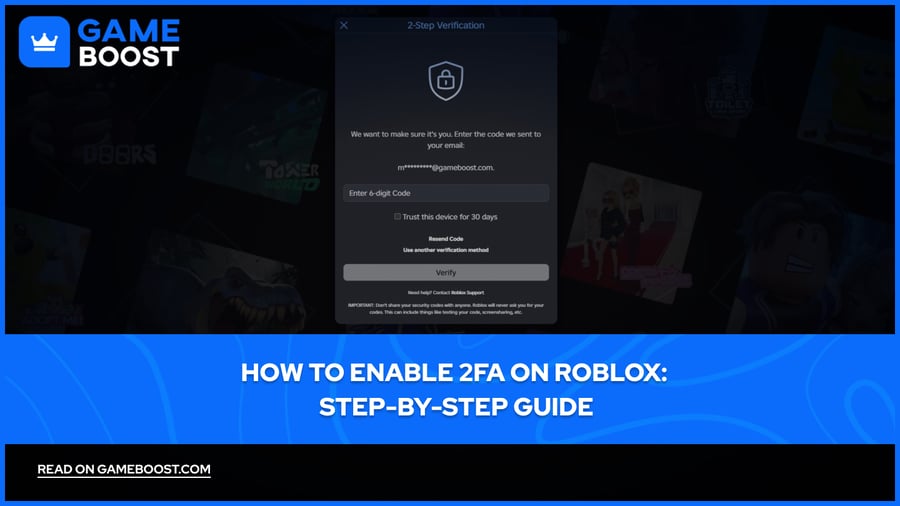
Two-factor authentication adds a second verification step at login, so even if someone gets hold of your password, they still can't get in. Roblox offers three ways to set it up: email verification, an authenticator app, and security keys. In this article, we'll explore how each method works and walk you through how to enable 2FA on your Roblox account step by step.
Also Read: How to Change Your Name on Roblox: Step-by-Step Guide

Roblox offers three 2FA methods: email, authenticator app, and security keys.
Email is the easiest to set up but the least secure, as anyone with access to your email can receive the code.
Authenticator apps like Google Authenticator or Authy generate a code that refreshes every 30 seconds and require physical access to your device.
Security Keys is the most secure option, but it only works on web browsers and requires the authenticator app to be enabled first.
To enable 2FA, go to Settings, open the Security tab, and toggle on your preferred method.
Save the backup codes provided during the authenticator app setup. They're the only way back in if you lose access to your app.
Roblox offers three methods for two-step verification, and each one works differently.
Email is the most basic option. When you log in, Roblox sends a one-time code to your registered email address. It's the easiest to set up, but also the least secure since anyone with access to your email can get in.
Authenticator App is the most commonly recommended method. Apps like Google Authenticator, Microsoft Authenticator, or Authy generate a temporary code on your phone that refreshes every 30 seconds. Even if someone has your password, they can't log in without physical access to your device.
Security Keys is the most secure option, but also the most restrictive. It uses hardware-based authentication, such as a USB key or biometrics like fingerprints or facial recognition. This method is currently only available on web browsers, and you need to have the authenticator app method enabled before you can set it up.
Also Read: How to Reset and Change Your Roblox Password
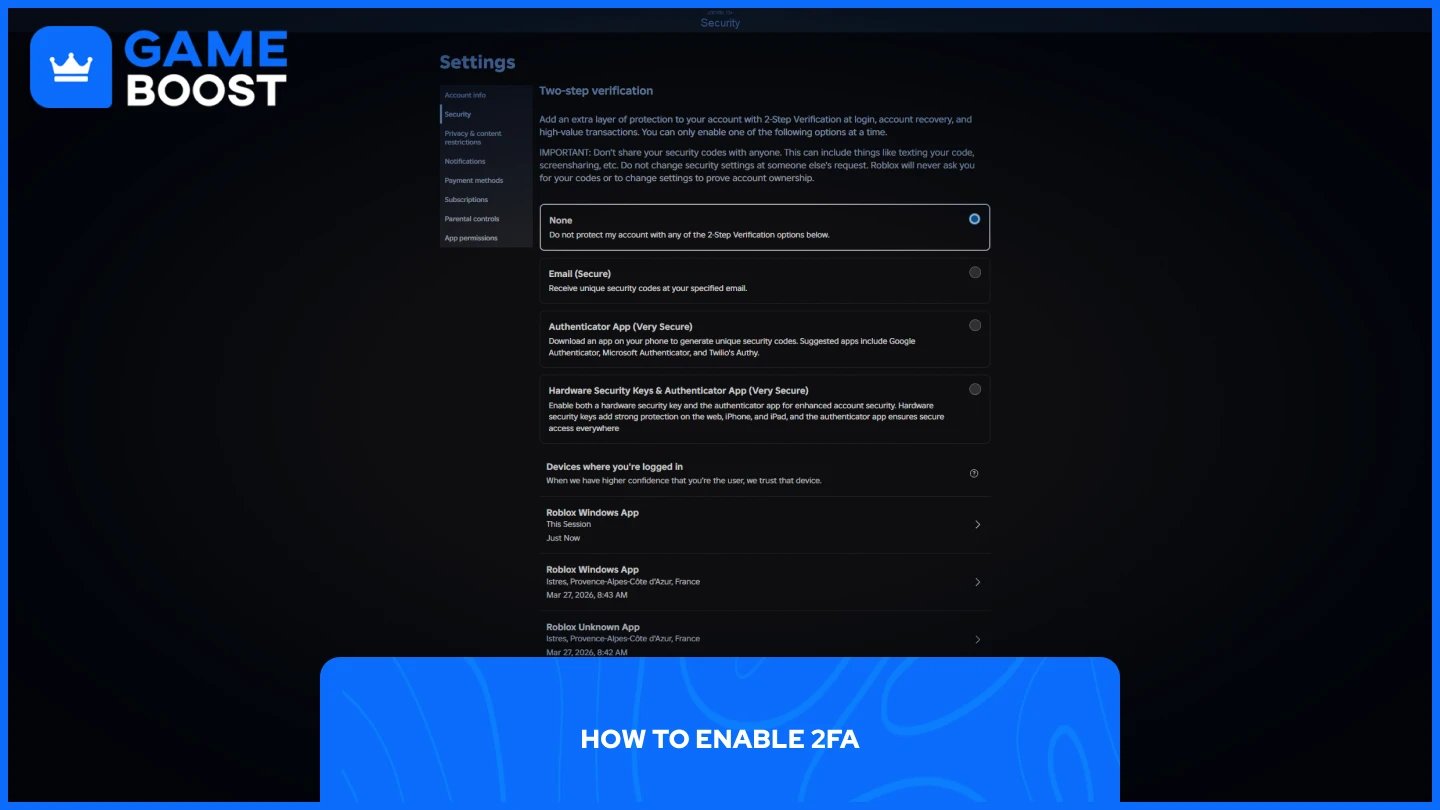
The setup process is the same regardless of which method you choose. Here's how to get to the right settings:
Log in to your Roblox account.
Click to Settings.
Click the Security tab.
Under Two-Step Verification, toggle on your preferred method.
From here, the steps differ depending on which method you selected.
Once toggled on, Roblox will send a confirmation code to your registered email. Enter that code to activate it.
Roblox will display a QR code on screen. Open your authenticator app, tap the plus icon, and scan the QR code. Your app will generate a six-digit code — enter it on Roblox to complete the setup. Make sure to save the backup codes Roblox provides, as these let you recover your account if you ever lose access to your app.
You need the authenticator app method enabled first before this option becomes available. Once it is, toggle on Security Keys and follow the on-screen prompts to register your key or biometric method.

Log in to your Roblox account.
Go to Settings.
Click the Security tab.
Toggle off your active two-step verification method.
A warning prompt will appear. Click Yes to confirm.
2FA will be disabled immediately after confirming. If you have multiple methods enabled, you'll need to turn each one off separately.
Also Read: How to Get Free Robux
If your 2FA code isn't being accepted, there are a few things to check.
The code expired. Authenticator app codes refresh every 30 seconds. If you waited too long to enter it, it's already invalid. Wait for the next code to generate and try again.
Your device time is out of sync. Authenticator apps rely on your device's clock to generate accurate codes. If your phone's time isn't set to automatic, the codes it produces won't match what Roblox expects. Go to your device's date and time settings and enable automatic time sync.
You lost access to your authenticator app. If you no longer have access to the app, use one of the backup codes Roblox provided during setup. These are one-time use codes that let you get back into your account.
If none of these work, contact Roblox support directly through the Help page on their website.
Enabling 2FA on Roblox takes a few minutes and significantly reduces the risk of losing your account. The authenticator app method offers the best balance between security and convenience, but any of the three options is better than relying on a password alone. If you ever switch phones or lose access to your app, those backup codes are the only way back in, so keep them somewhere safe.
“ Mustafa Atteya has been writing about gaming and esports since 2023, specializing in competitive game content and player improvement guides. At 25, he brings both hands-on gaming experience and professional SEO writing expertise to the GameBoost team.”