

.png)

•Filip Premuš• 6 min read
Roblox
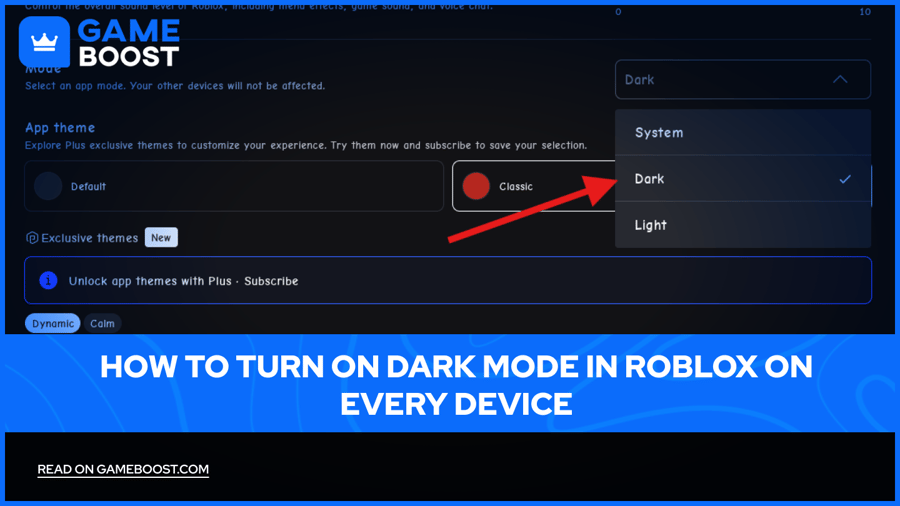
Roblox runs across several separate platforms, and each one stores its own appearance setting inside its own menu. Switching one device to a darker interface does not automatically change any other device signed into the same account.
The dark mode setting changes the platform's own interface colors, including menus, settings pages, and navigation panels, without touching how any individual game or experience renders once it loads. Players who spend long sessions at night often reach for dark mode to cut down on glare from bright white backgrounds.
Roblox offers three theme choices on mobile, desktop, and browser: System, Dark, and Light. The sections below cover the exact steps for each platform, what the setting actually controls, and what to check when a theme will not stick.
Roblox stores a separate theme setting for the mobile app, the desktop app, and the browser account, so each one needs its own switch
The setting changes only the platform interface, including menus and settings screens, and leaves the visuals inside any individual game untouched
Players pick between System, Dark, and Light on mobile, desktop, and web
Turning on dark mode on a phone does not carry the change over to a computer or a browser signed into the same account
Console (Xbox and PlayStation) and VR headsets already run a dark interface by default and skip the toggle entirely
The System option automatically matches whatever appearance mode the device or browser already uses
A theme that will not switch usually points to an outdated app version, a cached browser page, or System following a device that is still set to light mode
The dark mode setting swaps the platform's light backgrounds for darker tones across menus, settings screens, friend lists, and other navigation panels. It works the same way as a dark mode toggle inside any other app, adjusting the interface shell without touching any content displayed inside it.
Individual games and experiences built inside Roblox keep their own art direction regardless of the account's theme setting. A bright, colorful game looks exactly the same after dark mode gets turned on, since the toggle only reaches the platform layer sitting around the game, not the game's own visuals.
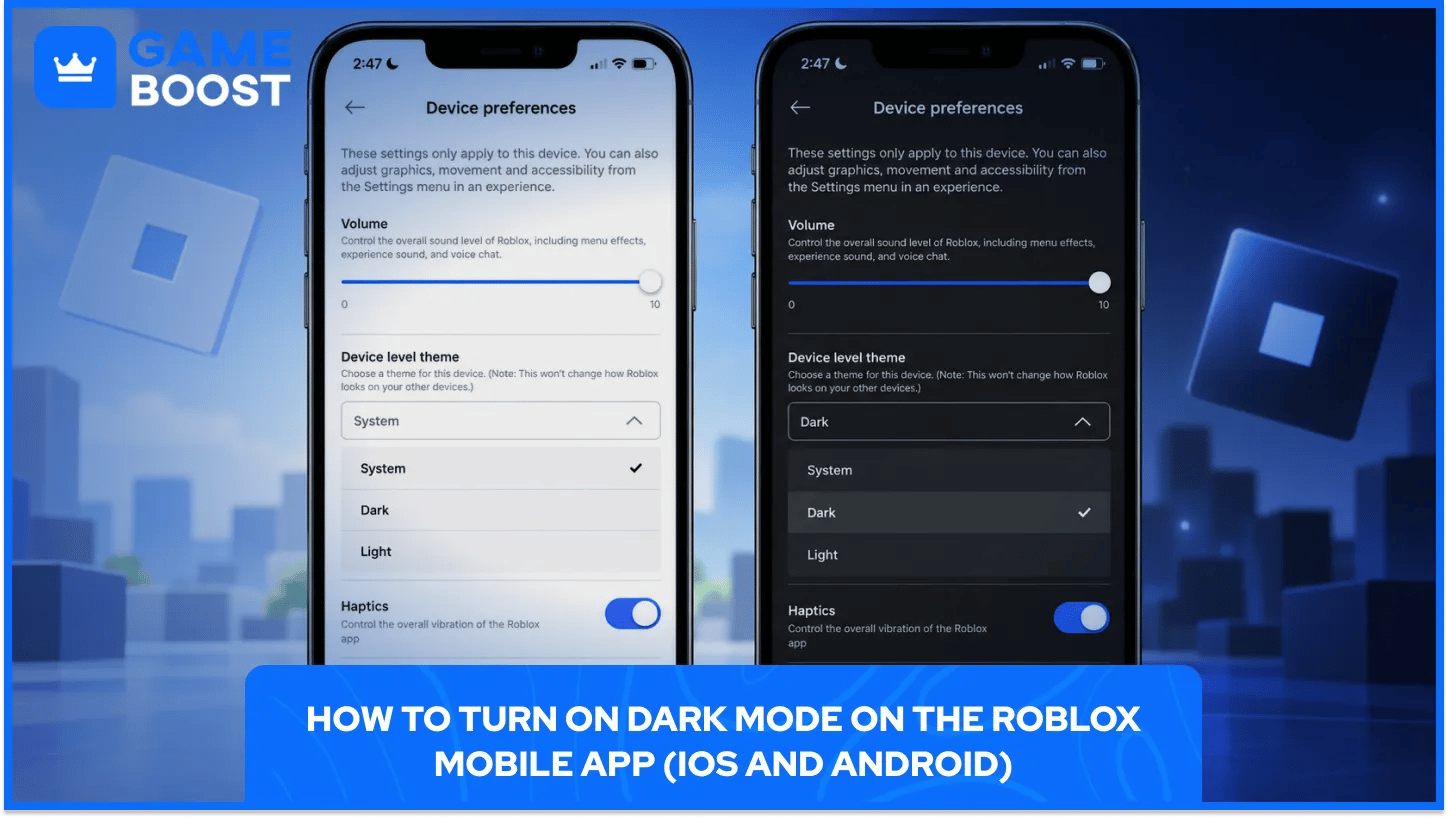
Both the iOS and Android Roblox apps use the identical settings path for switching themes, since the two versions share the same layout inside the app. Anyone who has opened the settings menu once on either operating system already knows the path on the other.
Setting the mobile theme takes five short steps inside the app itself:
Log in to the Roblox account inside the mobile app.
Open the More page from the bottom navigation bar.
Tap the Settings tile.
Tap Device preferences.
Under Device level theme, pick the Dark option (or the System option to follow the phone's existing appearance mode).
This setting only applies to the specific phone or tablet used to change it. A second device signed into the same account, even a tablet running an identical app version, needs the same five steps repeated on its own.
Picking the Dark option locks the interface into the darker palette no matter what the phone's own operating system uses. Picking the System option instead lets the phone's existing light or dark setting decide, which keeps Roblox in step with every other app on the device without any manual switching later.

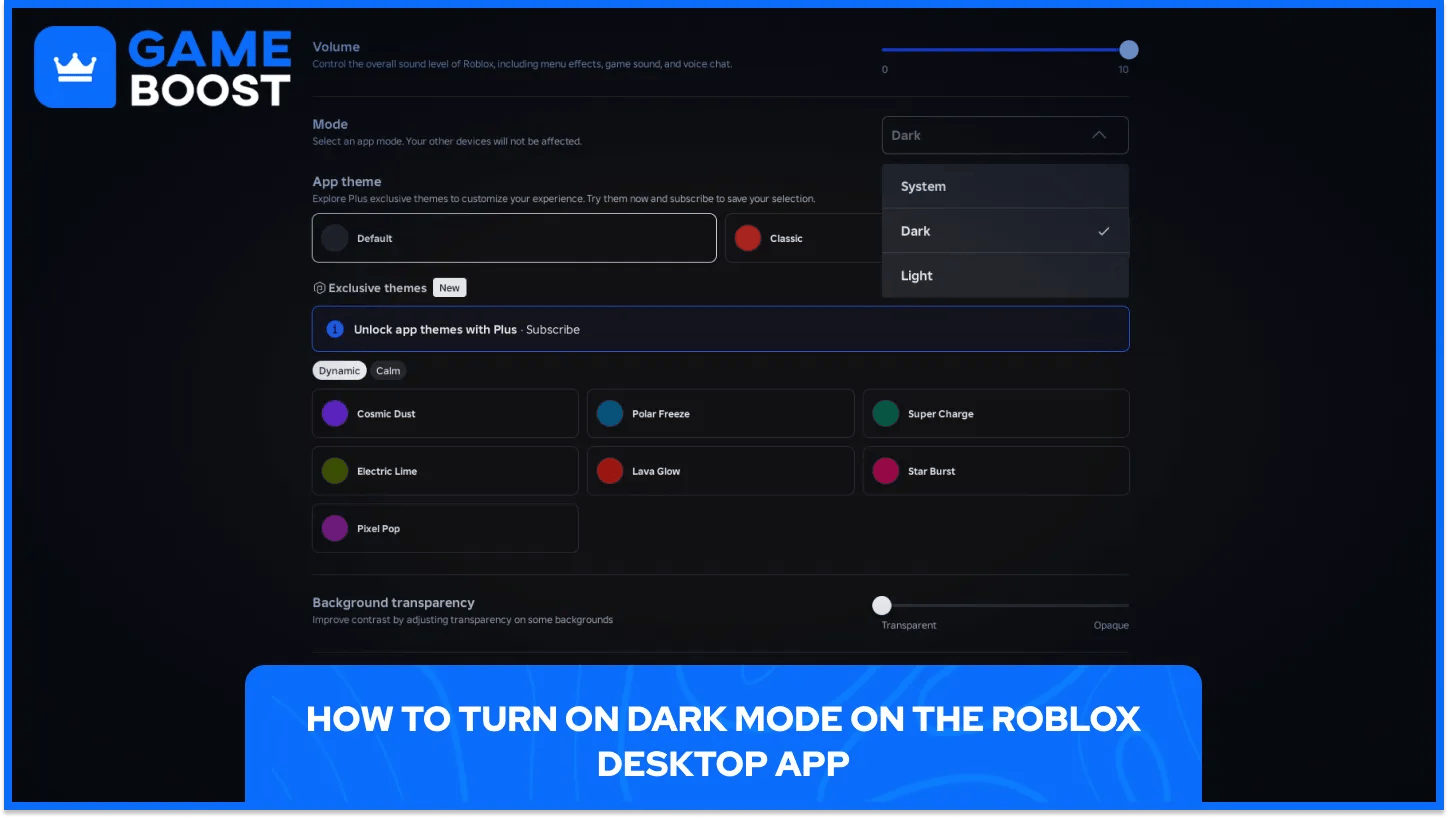
The dedicated Windows and Mac desktop app stores its own theme setting apart from the mobile app and the website, even when all three run under one account. A player who already switched the phone over will still see the desktop app open in its previous theme the first time.
Switching the desktop app to dark mode takes six clicks from the main window:
Log in to the Roblox account inside the desktop app.
Click the More icon (three dots) in the left navigation panel.
Select Settings from the menu.
Open the Device preferences tab.
Click the Device level theme dropdown.
Choose Dark, Light, or System.
Restarting the app after the switch clears up any panel still showing the old color scheme, since a handful of screens only refresh their appearance once the app reloads fully.
A desktop and a laptop signed into the same account each keep an independent copy of this setting. Anyone running Roblox on more than one computer needs to repeat these six steps on every machine instead of expecting the change to carry over on its own.
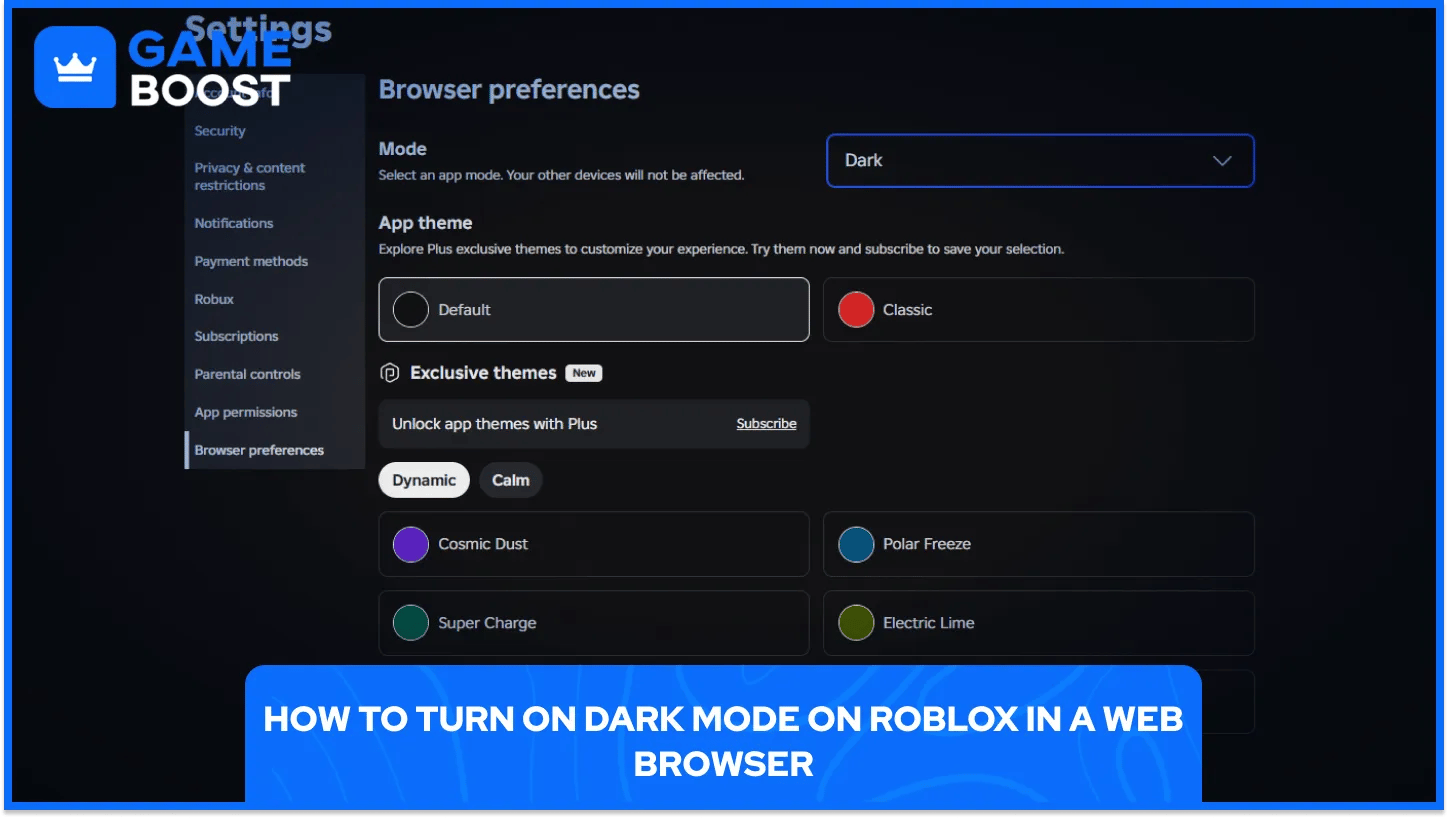
Chrome, Firefox, Edge, and Safari all use the identical settings path on roblox.com, since the browser theme setting lives on the website itself and not inside any specific browser. The steps stay the same no matter which browser gets opened.
Switching the browser theme takes the same handful of clicks in any of them:
Log in to the Roblox account at roblox.com.
Click the gear icon in the upper right corner of the site.
Select Settings from the menu.
Open the Browser preferences tab.
Click the Theme dropdown.
Choose Dark, Light, or System.
A browser theme change applies only to the browser used to make it. Switching Chrome over to dark mode leaves Firefox or Safari on whatever theme they already showed, even with every window signed into the same Roblox account.
Players running multiple browsers on one computer need to repeat the same steps in each one separately. Clearing a browser's cache before making the switch also cuts down on old, cached pages still showing the previous light theme after the account setting already changed.
Roblox keeps the same three theme choices across mobile, desktop, and browser settings, though each platform stores its own separate copy of whichever option gets picked. The names stay identical everywhere, which keeps the choice simple once a player learns it on one device.
Here is what each option actually does once selected:
Theme Option | What It Does | Best Fit |
|---|---|---|
Dark | Locks the interface into dark colors regardless of device settings | Players who want one consistent dark look at all times |
Light | Locks the interface into light colors regardless of device settings | Players who prefer a bright interface every session |
System | Matches whatever appearance mode the device or browser already uses | Players who already run their device on a light and dark schedule |
Picking Dark or Light directly removes any dependency on the device's own settings, so the interface stays fixed no matter what time of day it is or what the operating system switches to later. System works differently by checking the device or browser's current appearance mode every time Roblox opens.
Players who already run a phone or computer on an automatic day and night schedule usually get the smoothest result from System, since Roblox then changes along with every other app on that same schedule. Anyone who wants one fixed look regardless of the time of day gets a more predictable result from picking Dark directly instead.
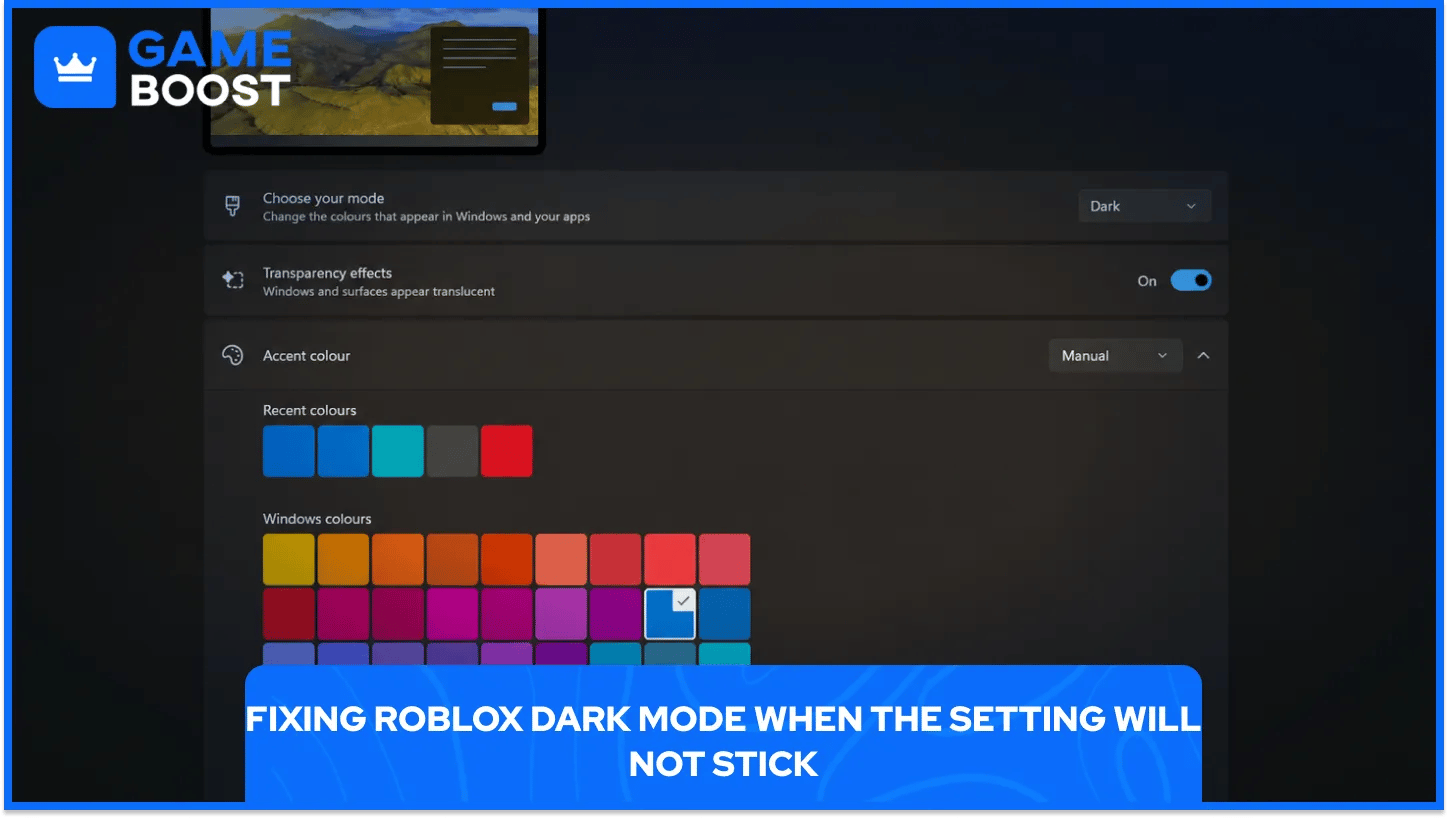
A theme that reverts to light mode, or one that will not switch at all, almost always traces back to one of a handful of common causes instead of an actual account problem. Working through each cause in order usually clears it up within a minute or two.
Check each of the following before assuming the setting is broken:
Confirm the right settings tab got used: Device preferences controls the app on mobile and desktop, Browser preferences controls the website, and mixing the two up is the single most common reason a theme looks unchanged.
Check if System is picking up a light device setting: Roblox set to System always matches whatever light or dark mode the phone, computer, or browser currently uses, so switching the device itself to a dark appearance fixes it without touching Roblox's own settings at all.
Restart the app or refresh the browser tab: some screens hold onto the old color scheme in memory until the app fully reloads or the page gets refreshed.
Update the Roblox app: an outdated version on the App Store, Google Play, or the desktop installer occasionally misses a theme update that shipped after the installed copy.
Clear the browser cache: a cached version of a page can keep showing the old theme even after the account setting itself already switched over.
Most theme problems clear up after one of these five checks, since the setting itself rarely fails to save once picked inside the correct tab. A stuck panel almost always points to a caching issue instead of a broken account setting.
Players still seeing a mismatched interface after working through the list usually have one specific page stuck in a cached state instead of the whole app failing to apply dark mode. Logging out and back into the account clears that kind of leftover cache in cases where a simple refresh does not.
Xbox and PlayStation versions of Roblox use a dark interface by default, with no separate menu for switching between light and dark. The console versions were built around one fixed color scheme from the start, so there is no toggle to look for inside the console settings.
VR headsets work the same way, showing a dark interface with no separate light option anywhere in the settings. Players moving between a phone, a computer, and a VR headset under one account only find an actual theme choice inside the mobile app, the desktop app, and the browser settings, since the console and VR versions skip the toggle completely.
Dark mode inside Roblox comes down to three separate settings living on three separate platforms, not one account-wide switch. A phone, a computer, and a browser each hold their own copy of the choice, and console and VR skip the setting entirely, since both already default to a dark interface.
Picking Dark directly gives a fixed look no matter what the device does later. Picking System instead hands that decision over to whatever appearance mode already runs the rest of a phone or computer, keeping Roblox in step with everything else on the screen. Either option clears up the platform's bright white screens without touching how any individual game actually looks once it loads.
Buy Cheap Robux
Roblox Accounts for Sale
Roblox Items For Sale
View all GameBoost Accounts
View all GameBoost Boosting Services
View all GameBoost Currencies
View all GameBoost Game Keys
View all GameBoost Gift Cards
View all GameBoost Top Ups
View all GameBoost Items
“ Hamza is your average video game enthusiast who’s always looking for his next game to play. Whether he’s diving into a competitive multiplayer match, exploring a massive open world, or getting completely hooked on a new release, gaming has always been one of his favorite ways to spend his time. Over the years, his love for games has grown into a passion for understanding and sharing everything about them. Through his articles, Hamza aims to help gamers discover new games, improve their skills, stay up to date with the latest gaming news, and get the most out of their favorite titles.”