

•Filip Premuš• 10 min read
Call of Duty: Modern Warfare 4

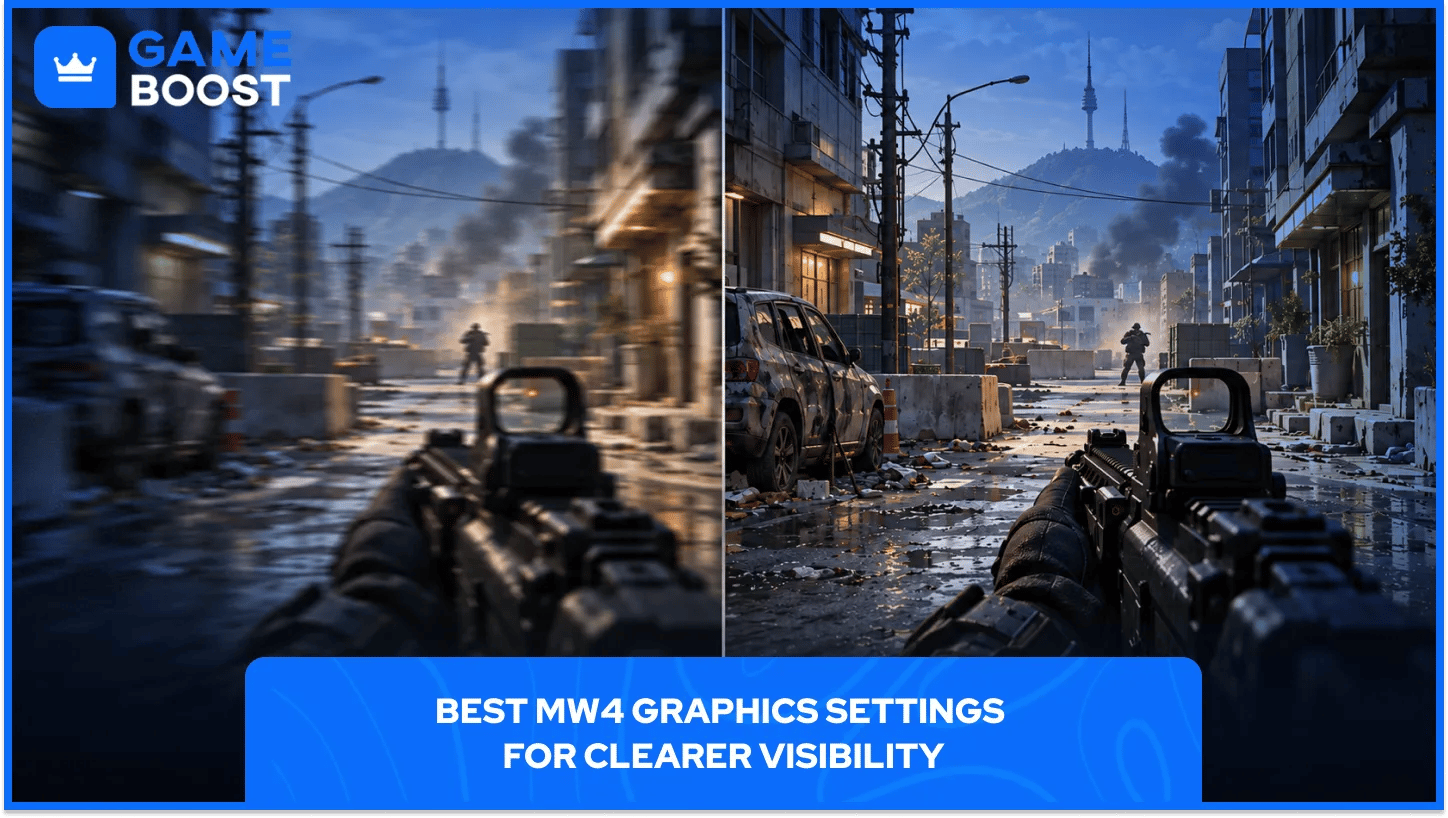
A blurry sight picture and a frame drop at the wrong moment make MW4 harder than it needs to be. Start with your monitor's native resolution, remove motion blur and film grain, then use the benchmark to find how much visual detail your PC can handle.
Before tuning graphics, check the MW4 PC specs against your hardware. From there, a few careful adjustments can help you keep targets readable without pushing your machine past a frame rate it can sustain.
The settings below are our suggested starting points for Multiplayer and DMZ. Your GPU, display resolution, and preferred mode will affect the final values. We haven't attached FPS gains to this preset; use the testing steps to compare it on your own PC.
Use native display resolution and your monitor's highest supported refresh rate.
Start with ray tracing and frame generation off for competitive play.
Turn off world and weapon motion blur, remove film grain, and keep gameplay depth of field off.
Try a supported upscaler in Quality mode before dropping the display resolution.
Start around 105 FOV, then adjust for target size and peripheral vision.
Run the benchmark before and after changes, then check performance in the mode you actually play.
Open Settings > Graphics > Display. Check the selected monitor and graphics card first, especially on a laptop or a setup with several displays.
Setting | Suggested Starting Point |
|---|---|
Display Mode | Fullscreen Exclusive; Borderless if you prefer it |
Display Monitor | Your gaming display |
Display Adapter | Your dedicated gaming GPU, if your PC has one |
Screen Refresh Rate | Highest supported at your chosen resolution |
Display Resolution | Monitor's native resolution |
Aspect Ratio | Automatic |
Background Shader Preloading | On |
NVIDIA Reflex Low Latency | On, if supported |
V-Sync (Gameplay) | Off for the initial competitive preset |
Custom Frame Rate Limit | A gameplay cap your PC can sustain |
Fullscreen Exclusive lets you select refresh rate and display resolution directly in the game. Borderless suits players who frequently switch between MW4 and another window. Compare the two on your machine if one produces uneven movement or problems when switching apps.
A refresh-rate setting deserves a quick check. Buying a fast monitor doesn't help much if Windows still has it running at 60Hz. Confirm its refresh rate in Windows too, particularly when the in-game control is locked in Borderless mode.
For the gameplay cap, choose a number you can hold through busy fights. A PC that repeatedly swings between 100 and 150 FPS is worth testing with a lower cap. Start at 100 or 120 in that example, then compare responsiveness and frame pacing.
Our V-Sync recommendation prioritizes response time. If screen tearing bothers you, revisit the sync setup for your particular monitor. G-SYNC and FreeSync users should account for their display's variable-refresh range rather than copying an arbitrary cap.
Go to Graphics > Quality. Choose your starting preset before changing individual options; switching presets afterward can overwrite your work.
Setting | Suggested Starting Point |
|---|---|
Graphic Preset | Recommended, then adjust individual options |
Ray Tracing | Off, where the option is available |
Frame Generation | Off for the initial competitive preset |
Resolution Scaling Technique | A supported upscaler, or Filmic SMAA T2X for a native-resolution comparison |
Sharpness | Start at 50 and adjust to taste |
World Motion Blur | Off |
Weapon Motion Blur | Off |
World Depth of Field | Off, or Cutscenes Only |
Weapon Depth of Field | Off for our clarity-focused preset |
Film Grain | 0 |
Begin with the blur and grain settings. Turn quickly, aim down sights, and track an opponent moving across the screen. Judge the result during movement; a stationary screenshot won't tell you how comfortable the image feels in a fight.
MW4 separates world and weapon depth of field. That gives you room to keep cinematic blur in cutscenes without applying it during normal gameplay. Weapon blur has its own control, so check both rows.
Sharpness needs a lighter touch. Start at 50, look at distant edges and thin objects, then move the slider in small steps. Heavy sharpening can leave bright outlines around objects and make a busy scene look harsh. Stop when the picture looks readable from your normal sitting distance.
If the preset still runs below your target, open Advanced Quality Settings and work through one group at a time.
Quality Group | Suggested Approach |
|---|---|
Shadows | Try a lower setting, then compare the same scene |
Screen-space reflections | Test Off against your current value |
Occlusion and screen-space lighting | Lower or disable for a performance comparison |
Textures | Reduce if memory use is too high or texture loading becomes uneven |
Treat this as a testing order. The size of each improvement depends on the hardware and the scene. Lowering three options together might produce a better result, though it won't tell you which change helped.
Keep a record of your previous values. If a lower setting makes distant scenery harder to read and barely changes performance, put it back. The lowest available preset doesn't automatically produce the most comfortable image.
MW4 offers NVIDIA DLSS, AMD FSR, Intel XeSS, and Filmic SMAA T2X under Resolution Scaling Technique. Availability and extra options depend on your hardware.
Upscaling renders the scene at a lower internal resolution and reconstructs the output image. Keep your display resolution at its native value for the first comparison, then adjust the supported upscaler's quality mode.
Situation | Our Suggested First Test |
|---|---|
Compatible NVIDIA RTX GPU | DLSS Quality |
Another supported GPU | Compare the available FSR and XeSS quality modes |
Already holding your target FPS | Compare against native rendering with Filmic SMAA T2X |
Still below target at 1440p or 4K | Try the next faster upscaling mode and inspect moving targets |
Blurry distant enemies | Move toward a higher-quality mode before adding more sharpening |
Quality mode is a sensible place to begin. If it doesn't give you enough performance, try Balanced where available. Check fences, distant silhouettes, sights, and objects moving against the background after every change.
At 1080p, aggressive upscaling modes deserve extra scrutiny. There's less image information to start from at that output resolution. Judge target readability before accepting a higher FPS counter.
Our starting recommendation is Off for competitive Multiplayer. Get the underlying game running comfortably before adding generated frames.
Frame generation adds frames between rendered ones. The displayed FPS figure can rise without a matching increase in how often the game responds to fresh input. Keep it off when comparing your base graphics settings so the results stay easier to interpret.
For Campaign, you can test frame generation later if your hardware supports it. Check the feel of mouse movement and the appearance of moving objects alongside the FPS number.
Once you’ve settled on your graphics settings, any MW4 items you’re considering should fit the weapons and attachment setups you actually use.
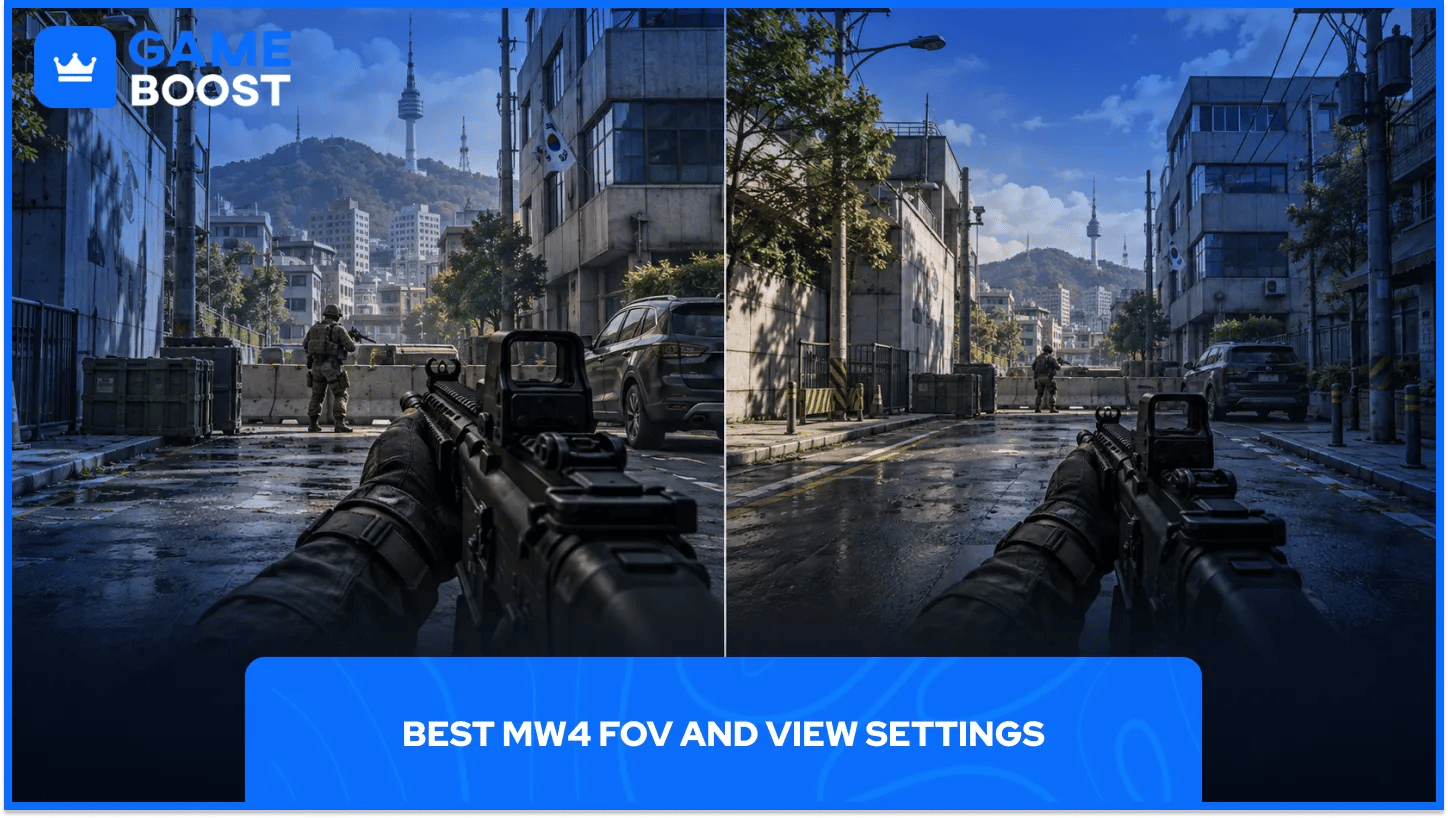
FOV controls how much of the scene fits on your screen. Our suggested starting value is 105, with 100–110 as a useful range to compare.
A wider view gives you more information at the sides. It also makes a distant opponent occupy less screen space. Your display size, viewing distance, and preferred mode all matter here.
View Option | Suggested Starting Point |
|---|---|
FOV | 105, then test within 100–110 |
Enhanced FOV | Off for the baseline comparison; test separately |
ADS FOV | Affected, then compare Independent if available for your setup |
Camera Movement | Lowest available value if camera shake distracts you |
Try each FOV value with the same weapon and optic. Walk the same route, aim at a distant object, and check how quickly you can pick it out. Give yourself a few matches before deciding; changing FOV after every death makes comparison difficult.
Enhanced FOV is exclusive to PC. It widens the view near the monitor's edges without changing the center FOV.
Test it at your preferred ordinary FOV value first. Look toward the center, then follow movement across the edges of the screen. Leave it on if the extra peripheral information feels useful and the lens effect stays comfortable.
Start with Affected if you prefer a more consistent-looking view as you aim. Compare Independent if you want the stronger zoomed-in feel it can give with low-magnification sights.
Use the same optic for that comparison. Scope behavior and magnification can change the result, so copying someone else's preference won't settle the choice for every weapon.
MW4 includes a benchmark that runs a simulated Multiplayer sequence. Use it to compare settings under repeatable conditions, then confirm the result in an actual match.
Finish any shader preparation and close applications you don't need.
Enter Multiplayer and open the Benchmark section under Graphics.
Run a baseline test with your current settings.
Record the results and your resolution, upscaler, and frame-generation state.
Change one setting or one small group, then run the benchmark again.
Play your usual mode and check whether busy fights still feel smooth.
A useful test note might read: “1440p, DLSS Quality, frame generation off, shadows reduced.” Add the benchmark result underneath. That gives you something concrete to compare after another adjustment or a driver update.
Keep the weapon and attachments consistent during your visibility checks too. An optic change can alter what you see through the sight. If you're using MW4 weapon leveling to reach a particular attachment setup, repeat the check once that setup is complete.
That result is a reason to investigate further. Compare the benchmark's CPU and GPU information, check for a frame-rate cap, and repeat the test without extra background tasks.
Avoid assuming that another reduction in image quality will solve every limit. Keep any changes that help your measured result, and restore those that only make the picture worse.
Use the benchmark as a repeatable comparison, then judge DMZ separately. A Multiplayer test can't cover every deployment, location, or encounter in another mode.
Try a cap you can sustain during a busy DMZ run. Check again around areas that previously produced drops. Save your final values once both the image and movement feel comfortable.
Start with shader preparation, the graphics driver, and memory use. Change one thing at a time so you can tell whether it helped.
Let shader preparation finish before judging a fresh installation or update.
Use a graphics driver supported for your GPU and current game version.
Check the Estimated VRAM Usage bar and reduce texture demands if needed.
Close unnecessary recording tools, browser tabs, and overlays for a comparison run.
Recheck your gameplay cap and test with frame generation off.
MW4 also supports Advanced Shader Delivery on supported PC setups. Microsoft's guidance calls for installing the Xbox PC app before downloading the game to use that feature, with current graphics drivers recommended.
That doesn't make every hitch a shader problem. If the issue began after an update, compare it with Activision's current known issues before spending an evening resetting a working configuration.
Start with a readable image and a frame rate your PC can hold through a fight. Set the correct monitor refresh rate, clear away blur and grain, and save a baseline benchmark result. Those steps give you a useful reference before you touch the more demanding graphics options.
From there, test in small steps. Compare an upscaler's quality modes, lower one graphics group, or spend a few matches at a different FOV. Keep a change when it improves something you can measure or makes targets easier to follow. You don't need to keep a setting just to match somebody else's preset.
Once the setup feels right, save screenshots of your values and get back to playing. Revisit them after a major update, a new driver, or a hardware change if performance shifts. A short comparison against your saved baseline is much easier than rebuilding the whole setup from memory.
Buy Cheap Call of Duty Game Keys
Call of Duty MW4 Accounts for Sale
Buy Cheap CoD Modern Warfare 4 Items
Cheap Call of Duty Accounts
Buy CoD Items
Call of Duty Points for Sale
View all GameBoost Game Keys
View all GameBoost Accounts
View all GameBoost Boosting Services
View all GameBoost Currencies
View all GameBoost Gift Cards
View all GameBoost Top Ups
View all GameBoost Items
“ Filip Premuš is a seasoned gaming content writer specializing in titles like Steal a Brainrot, Old School RuneScape, and other popular online games. With a sharp focus on accuracy, updates, and in-game strategy, he creates comprehensive guides that help players stay ahead of the meta and make informed decisions.”