
.png)

•Filip Premuš• 6 min read
Call of Duty: Modern Warfare 4

Modern Warfare 4 is a fast first-person shooter where multiplayer and DMZ gunfights end within a few quick bursts. The crosshair sits at the center of every one of those fights, so a reticle that reads well helps the eyes find and hold a target sooner.
The best crosshair settings for MW4 come down to a few small choices that keep the reticle readable on every map. Getting those choices right takes only a few minutes in the menu and pays off in every match afterward. Menu locations, recommended values, color picks, playstyle layouts, and a quick testing routine all follow in that order.
Crosshair options live in the Gameplay HUD menu: five adjustable settings cover lines, dot, dot scale, opacity, and color.
A static reticle with a center dot forms the best baseline: the fixed center gives the eyes one steady anchor during movement and fast hipfire fights.
Cyan, green, white, and magenta all hold contrast: the right pick depends on the backgrounds that appear most often on the maps played.
Close-range players keep the full reticle: long-range players can turn the lines off and rely on the dot alone.
A short test routine locks in the final setup: private matches, varied backgrounds, and one change at a time reveal what actually works.
Consistency matters more than constant tweaking: a single steady reticle across every gun outperforms frequent adjustments.
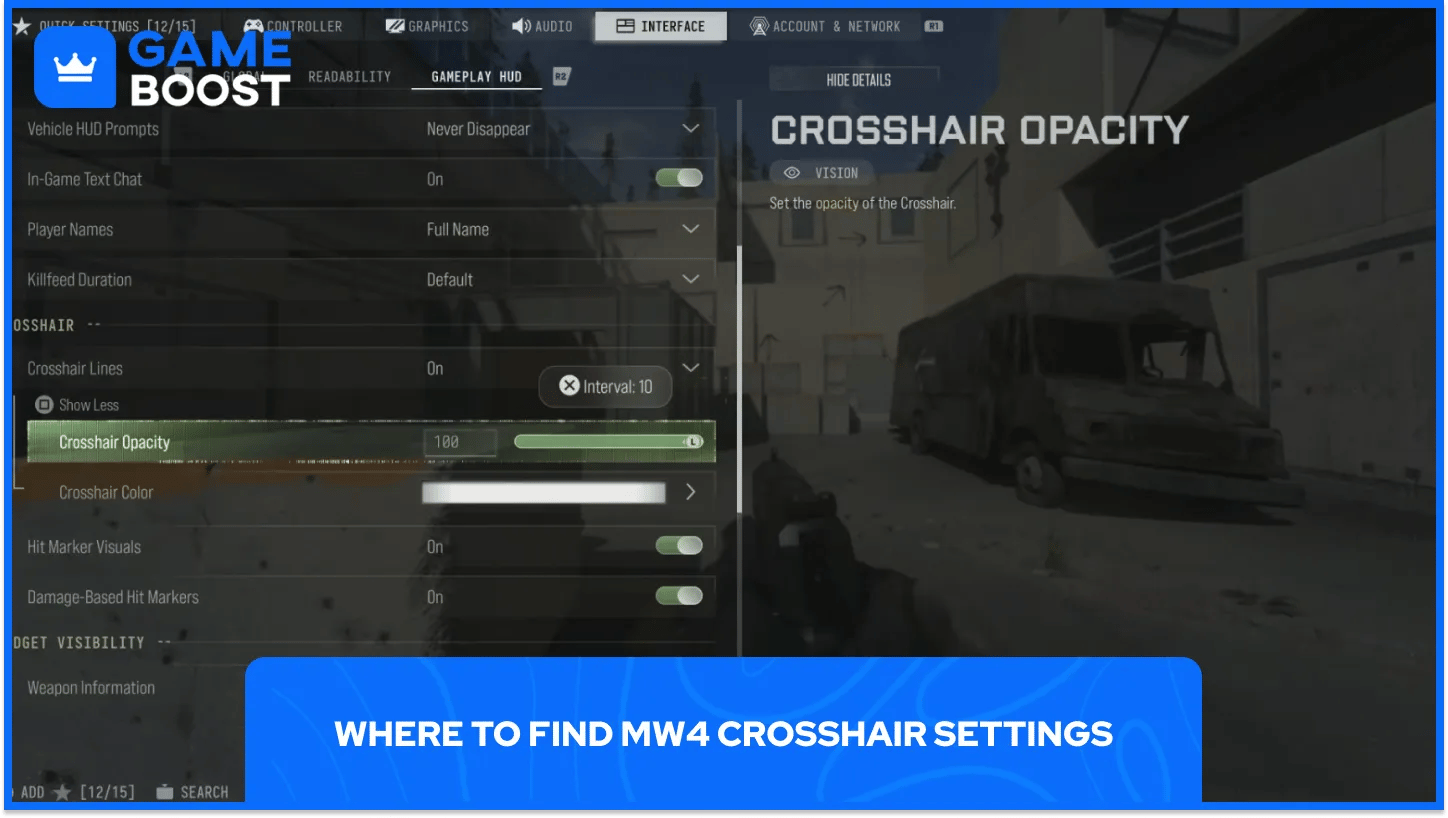
Players reach the crosshair controls through the Interface menu, then the Gameplay HUD group, then the Crosshair section. All reticle options sit together in that one spot, which keeps adjustments quick during testing.
Five options control the reticle and each one has a distinct job.
Crosshair Lines draw the outer reticle: a static mode keeps the lines fixed at the screen center instead of reacting to movement.
Crosshair Dot marks the exact center: the dot works as a small anchor point for aiming at any distance.
Crosshair Dot Scale sets the dot size: the option adjusts the dot alone and leaves the lines untouched.
Crosshair Opacity sets the transparency: lower values fade the reticle into the scene and higher values keep it solid.
Crosshair Color sets the reticle tint: the shade decides how well the reticle separates from the map behind it.
Every option applies to the HUD crosshair that shows during hipfire. Aiming down sights swaps it for the optic's own reticle, so the settings matter most in close-range fights and quick snap shots.
Since all five options sit in a single group, a full setup takes only a minute or two. Players can adjust one option, jump into a match, and return to the menu for the next tweak without hunting through separate tabs.
A clean baseline keeps the reticle easy to read without covering targets. The setup works with any weapon, including every build from the best MW4 loadouts.
Every option has one recommended starting value.
Setting | Recommended Value |
|---|---|
Crosshair Lines | Static |
Crosshair Dot | On |
Crosshair Dot Scale | Default |
Crosshair Opacity | 100 |
Crosshair Color | Bright contrasting shade |
Static lines stay anchored to the middle of the screen, so the eyes always know where the reticle sits during strafes, slides, and jumps. Dynamic lines move with the camera and weapon, which adds a sense of motion that some players enjoy. A steady reference suits most players better once a gun feels familiar.
The baseline takes seconds to apply and leaves room for later tweaks. Color and dot scale are the two options most worth adjusting to personal taste, since the lines and opacity rarely need changes.

Color decides how quickly the reticle separates from the scene, and no default shade holds up on every background. Maps mix bright skies, dark interiors, and heavily textured surfaces, so a color that fades in one spot can cost a split second in the next.
Several colors hold contrast on most backgrounds.
Cyan green is the strongest all-round pick: a bright shade around hex #00FFCC separates well from concrete, dirt, and shadow.
White works as a clean neutral option: the shade reads sharply in dark interiors and loses punch against bright skies.
Magenta or pink suits maps heavy on green and gray: the warm hue rarely appears in natural surroundings, so the center stays easy to find.
Full saturation and brightness matter as much as the hue itself. Muted versions of any color fade into hazy skies and smoke, so a vivid shade keeps the reticle visible when the screen fills with effects.
One color across every map builds familiarity faster than switching by environment. Picking the shade that survives the hardest background, such as a bright sky or deep shadow, keeps the reticle readable everywhere else.
Fight distance decides how much reticle a player needs. Close-range fights lean on hipfire and reward a fuller reticle, and long-range fights favor a lighter one that leaves distant targets uncovered.
Close-range and all-round players keep the full baseline. Lines and dot together frame targets quickly in tight spaces, and the same layout still supports mid-range fights that mix hipfire with aimed shots.
Long-range specialists benefit from a lighter reticle. Turning the lines off leaves only the dot, which keeps distant targets uncovered during hipfire and removes clutter around the center.
Players who swap between classes often should stay on the baseline, since the full reticle covers close and mid-range fights equally well. Players who build around the meta tier list switch guns frequently, which makes one steady reticle more valuable than a class-specific layout.
A setup proves itself only in real conditions. A few minutes in a private match reveal weak spots before they cost a gunfight in a public lobby.
A short routine covers the whole testing process.
Apply the baseline values first: every later adjustment starts from the same reference point.
Check the reticle against varied backgrounds: bright skies, dark interiors, and textured walls expose a weak color choice quickly.
Change one option at a time: single adjustments make it obvious which tweak helped and which one hurt.
Track a moving teammate or bot in hipfire: the exercise shows how readable the lines stay during fast strafing.
Compare results after several matches: a single lobby gives too little evidence to judge a reticle fairly.
Weapon access grows with progression, so players who level up fast reach more of the arsenal and can test the reticle on more classes. Each class feels slightly different in hand, which makes a broad test worth the extra minutes.
Re-testing makes sense after a major change to the build, such as an optic swap or a move to a different class. Attachments alter how a gun looks and moves in hand, and the reticle should still read cleanly afterward.
The crosshair stays on screen for every shot fired, and a setup that holds steady across maps, weapons, and sessions lets the eyes spend less effort finding the center. Saved effort goes straight into reading movement, positioning, and enemy timing.
Pairing a settled reticle with other visibility choices, such as FOV and motion blur, builds a screen that stays readable in any fight. Settling on one layout, giving it time, and letting repetition do the work delivers the biggest gain.
Call of Duty Game Keys
Buy Cheap Call of Duty MW4 Accounts
Buy CoD Modern Warfare 4 Items
Buy Call of Duty Accounts
CoD Items for Sale
Cheap Call of Duty Points
View all GameBoost Game Keys
View all GameBoost Accounts
View all GameBoost Boosting Services
View all GameBoost Currencies
View all GameBoost Gift Cards
View all GameBoost Top Ups
View all GameBoost Items
“ Hamza is your average video game enthusiast who’s always looking for his next game to play. Whether he’s diving into a competitive multiplayer match, exploring a massive open world, or getting completely hooked on a new release, gaming has always been one of his favorite ways to spend his time. Over the years, his love for games has grown into a passion for understanding and sharing everything about them. Through his articles, Hamza aims to help gamers discover new games, improve their skills, stay up to date with the latest gaming news, and get the most out of their favorite titles.”